Link in the Payment Element
Link in the Payment Element lets your customers check out faster.
Let your customer check out faster by using Link in the Payment Element. You can autofill information for any logged-in customer already using Link, regardless of whether they initially saved their information in Link with another business. The default Payment Element integration includes a Link prompt in the card form. To manage Link in the Payment Element, go to your payment method settings.
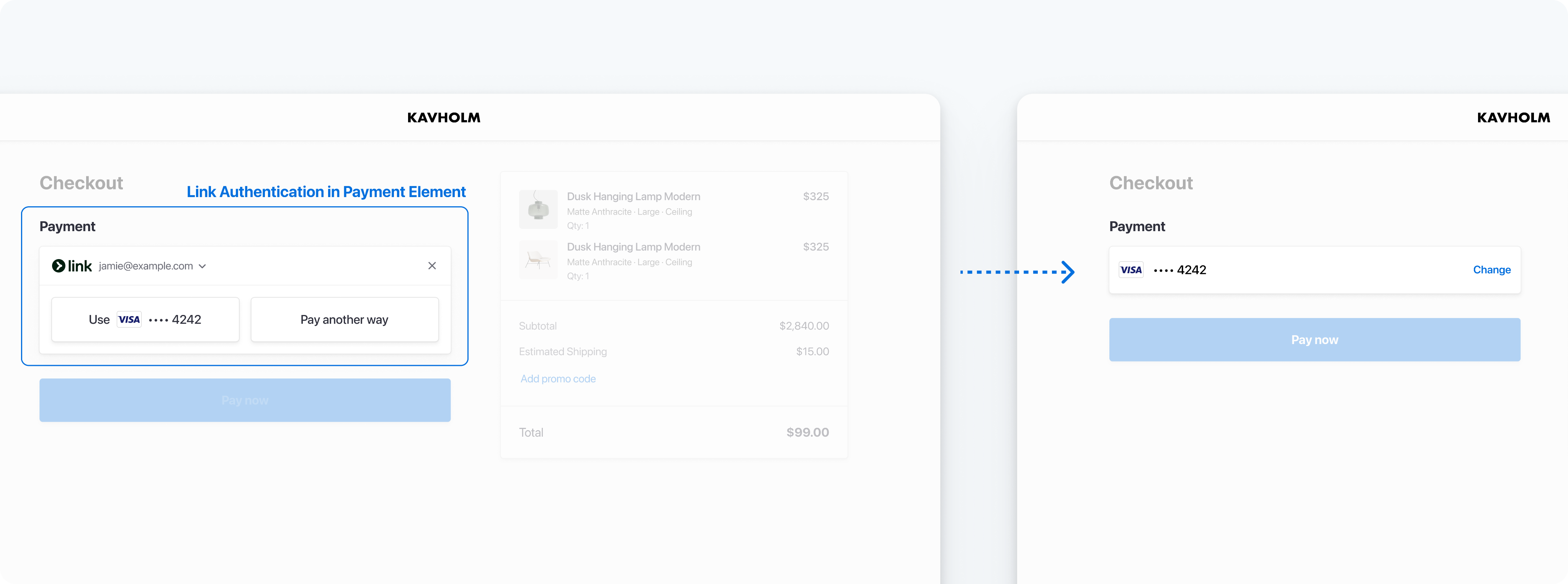
Collect a customer email address for Link authentication or enrollment
Integration options
There are two ways you can integrate Link with the Payment Element. Of these, Stripe recommends passing a customer email address to the Payment Element if available. Remember to consider how your checkout flow works when deciding between these options:
| Integration option | Checkout flow | Description |
|---|---|---|
| Pass a customer email address to the Payment Element Recommended |
| Programmatically pass a customer email address to the Payment Element. In this scenario, a customer authenticates to Link directly in the payment form instead of a separate UI component. |
| Collect a customer email address in the Payment Element |
| If a customer hasn’t enrolled with Link and they choose a supported payment method in the Payment Element, they’re prompted to save their details using Link. For those who have already enrolled, Link automatically populates their payment information. |
Use defaultValues to pass a customer email address to the Payment Element.
const paymentElement = elements.create('payment', {
  defaultValues: {
    billingDetails: {
      email: 'foo@bar.com',
    }
  },
  // Other options
});
For more information, read how to build a custom checkout page that includes Link.
The defaultValues parameter
If you’re planning on passing customer email addresses to the Payment Element, use the defaultValues object to specify a customer’s billingDetails. Prefilling as much information as possible streamlines the checkout process:
// Pass in defaultValues to prefill consumer information
const paymentElement = elements.create('payment', {
  defaultValues: {
    billingDetails: {
      name: 'John Doe',
      email: 'john.doe@example.com',
      address: {
        city: 'New York',
        country: 'US',
        line1: '123 Main St',
        postal_code: '10001',
        state: 'NY'
      }
    },
}});
Automatically prefill Link for your customers
Save your customers from re-entering details to sign up for or log into Link when they’ve already provided them elsewhere on your checkout page. Link includes a prefill tool that detects customer information such as email or phone number in your checkout, then automatically populates corresponding Link fields. This convenience encourages your customers to use Link, which has been shown to increase the likelihood that a customer successfully completes checkout. Prefilled values are never stored unless the customer completes a Link sign-up.
When a customer enters information such as their email, phone number, or name on the same checkout page as the Element where Link is enabled, Link’s prefill tool can:
- Populate the Link sign-up form with the customer email/phone/name. The customer must proceed with Link sign-up to create an account.
- Populate the Link login with the customer’s email when they already have a Link account, so they can just enter the one time password.
Enable accelerated sign-up
If you opt your customers into saving their payment details to Link by default, it can increase the rate of Link signups. Customers with payment information saved to Link can checkout without having to re-enter their payment details when they pay at your business.
This configuration automatically expands the Link sign-up fields, and can pre-fill information such as email address and phone number to help customers sign up.
This feature is enabled by default, and you can configure it from your settings page at Settings > Payment Methods > Link, or in the Connected Accounts settings. The availability of this feature is dependent on the customer’s country. Data privacy laws vary by jurisdiction; Link disables or limits this feature when local regulations prohibit it. Customers can opt out at any time.
Enable the prefill tool
The Link prefill tool requires no changes to your existing integration. The prefill tool is on by default when you enable Link. You can disable the prefill tool in the Link settings in your Dashboard at any time.
How it works
When a customer loads a page containing the Element with Link enabled and the defaultValue parameter hasn’t already provided Stripe customer data, our system analyzes the surrounding checkout page to locate input fields containing details that match Link sign-up or login fields. Link only looks for information applicable to creating or reusing a Link account.
If Stripe detects such data fields, we use the values to prefill the Link login with email, or prefill sign-up fields with customer information required to create a Link account. We don’t store the prefilled values on the browser using cookies or local storage or any other service. We only hold the values temporarily in local memory for use in the context of the session.
For current Link users, we use the prefilled information to trigger a login to Link, and don’t store any information from the page.
Customers who haven’t previously created a Link account can choose whether to use the prefilled information to sign up for Link. We only store the prefilled information if the customer takes action and provides consent to create a Link account.
Test the integration
注意
Don’t store real user data in sandbox Link accounts. Treat them as if they’re publicly available, because these test accounts are associated with your publishable key.
Currently, Link only works with credit cards, debit cards, and qualified US bank account purchases. Link requires domain registration.
You can create sandbox accounts for Link using any valid email address. The following table shows the fixed one-time passcode values that Stripe accepts for authenticating sandbox accounts:
| Value | Outcome |
|---|---|
| Any other 6 digits not listed below | Success |
| 000001 | Error, code invalid |
| 000002 | Error, code expired |
| 000003 | Error, max attempts exceeded |
Multiple funding sources
As Stripe adds additional funding source support, you don’t need to update your integration. Stripe automatically supports them with the same transaction settlement time and guarantees as card and bank account payments.