Create invoice payment plans私人预览
Learn how to create payment plans for your Stripe invoices.
Invoice payment plans let you break up an invoice’s total amount into separate payments with different due dates. This can expand your billing flexibility. For example, you could first collect a deposit and then the balance amount of a transaction at a later date. Alternatively, you could break up dues into more favorable terms for your customers by splitting them into multiple, smaller increments over time. Stripe reminds your customers of upcoming payments that they have to make and shows them a history of past payments. You can use both the Dashboard and the API to generate payment plans.
私人预览
This feature is in private preview. You can request early access by filling in the form below.
Limitations
Payment plans are currently a preview feature and have a few important limitations. Make sure that the following limitations don’t conflict with your use case:
- Payment plans aren’t supported by Stripe Revenue Recognition or the Stripe Connector for NetSuite.
- Stripe Tax doesn’t support partial refunds, so tax liability won’t be reflected accurately. Consult with your tax advisor.
- Payment plans don’t auto-charge customers with saved payment details. Customers must return to the payment page to make subsequent payments. You can’t use them with
charge_invoices.automatically - Stripe automatically emails reminders to your customers to complete subsequent payments. We send these emails 1 week before payments are due by default. Sending these emails overrides any email reminder schedules and settings for one-off invoices. You can turn off the email reminders by disabling the setting for Send finalized invoices and credit notes to customers.
- For Connect users, application fees can’t be set on payment plan-enabled invoices. You can only set fees on PaymentIntents.
- Additional fields associated with payment plans aren’t available in Sigma.
- Some Billing Analytics charts (Top Subscribers, Collections) only register invoices that are fully paid. Other charts are unaffected.
- Subscription invoices can’t have payment plans applied.
注意
If you want to enable buy now, pay later for B2C invoices, read our buy now, pay later guide for more information.
This guide shows how to set up and manage payment plans without any code using the Dashboard.
Create an invoice in the Dashboard add line item details
In the Dashboard, create an Invoice and add relevant details such as the customer, desired line items, and their prices and quantities.
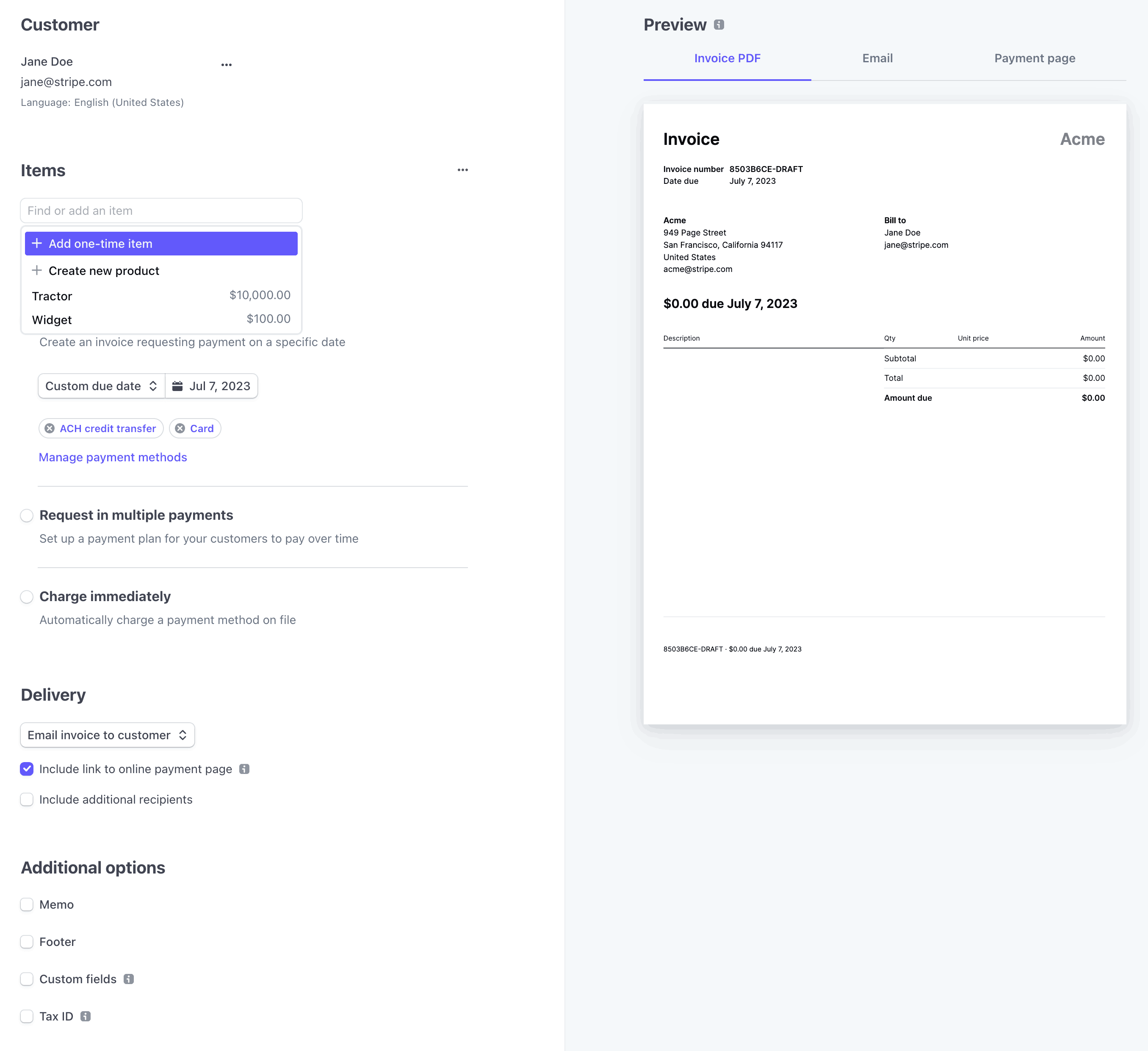
Create an invoice with the Dashboard
Enable the invoice to collect dues in multiple payments
After entering customer and line item details, select Request in Multiple Payments under Payment Collection in the invoice editor to enable payment plans on the invoice.
By default, Stripe sets up a payment plan where the amount due is evenly divided into four payments due over 4 months.
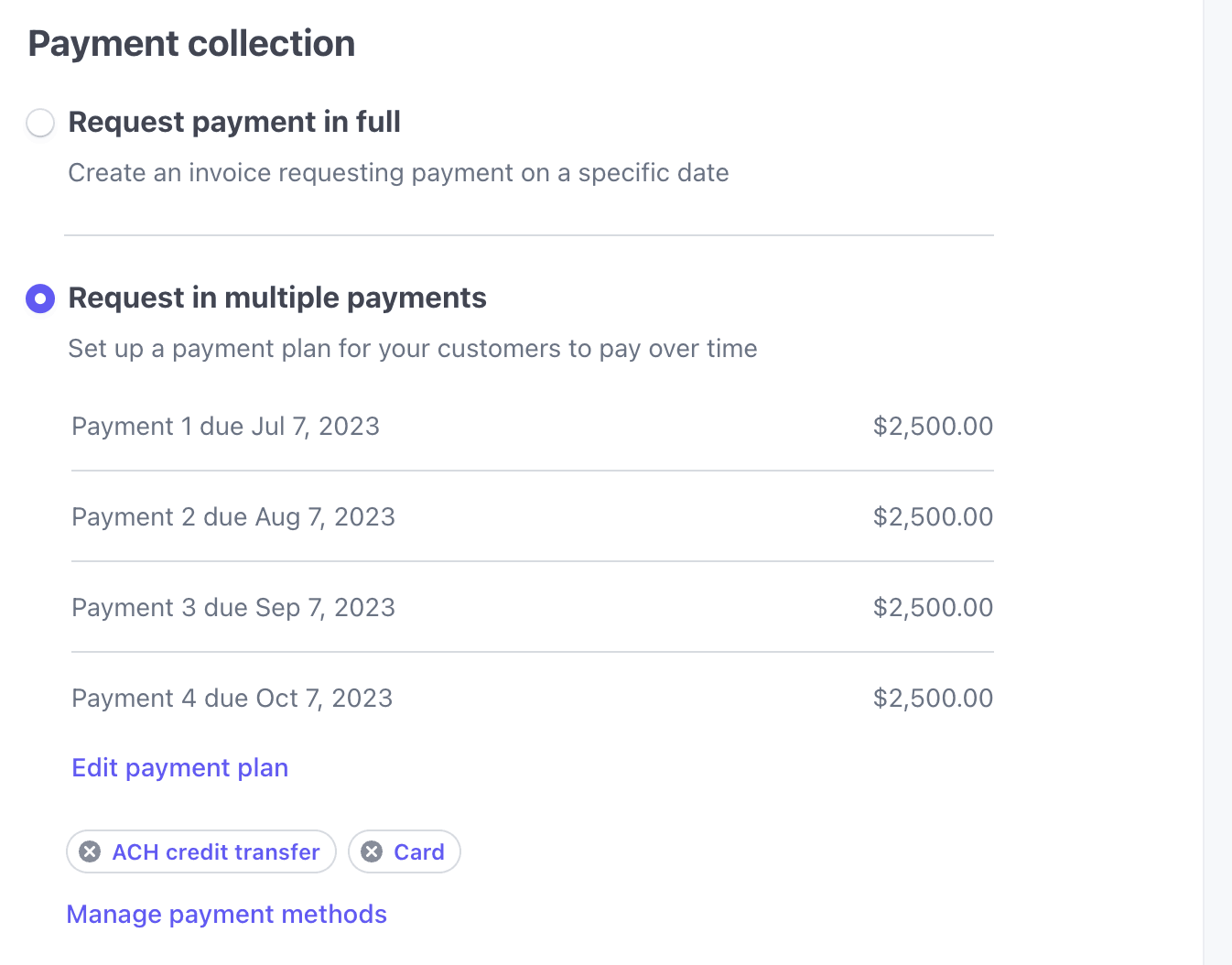
Enable multiple payments in the Dashboard
Configure individual payments and due dates
To customize the payment plan, click Edit payment plans. You can customize a payment plan in the following ways:
- Change due dates or amounts due
- Add or subtract payments,
- Relabel the names of individual payments
Toggle inputs between absolute values and percentage by selecting the gear next to the percentage / fixed amount column.
You can use Quick actions as a shortcut to evenly redistribute amounts across payments or even out amounts that don’t add up to the total amount due for the invoice. By selecting Use as deposit, the first payment is relabeled as a deposit and the redistribution of amounts due only affects subsequent payments. You can’t exit this view unless the sum of all payments is equal to the total amount due on the overall invoice.
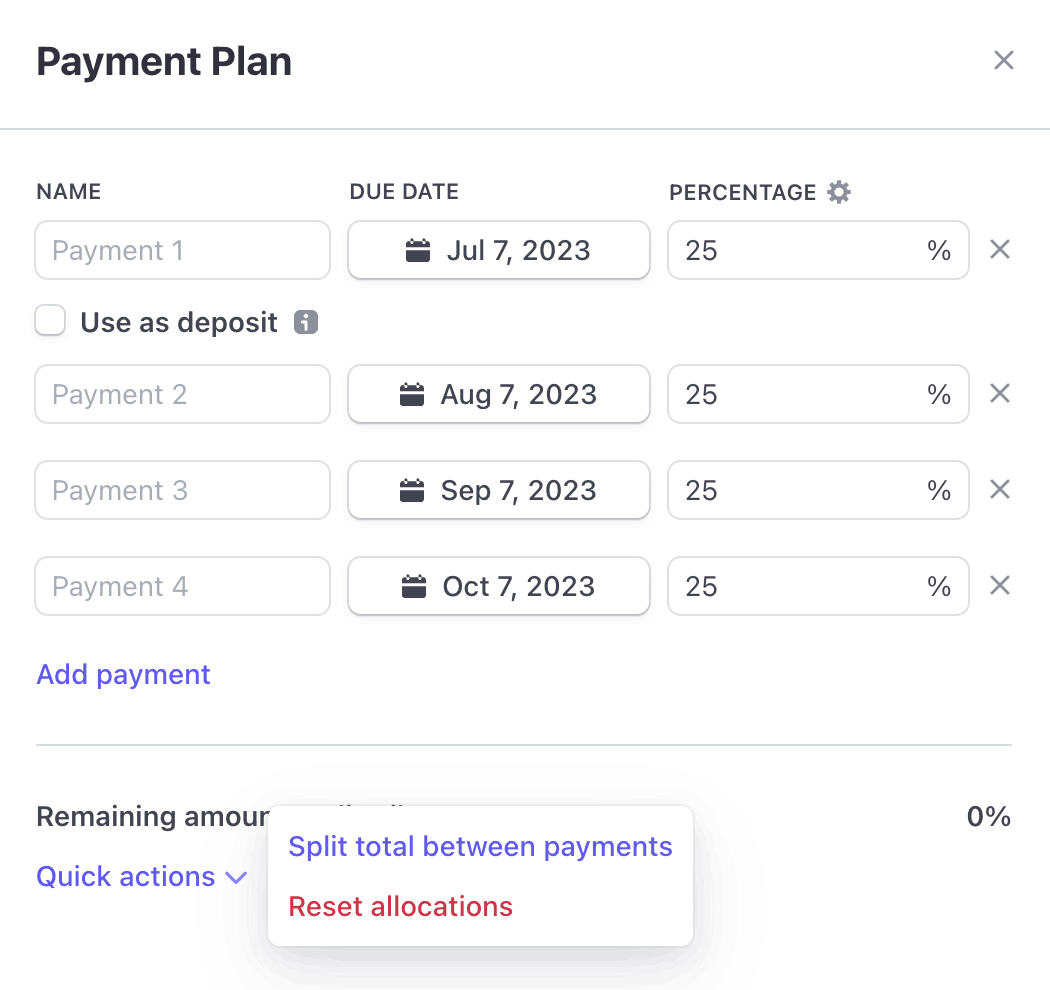
Configure the payment plan through the Dashboard
Finalize the invoice
After customizing the payment plan, you can finalize and send the invoice by clicking Review invoice. You can’t finalize an invoice if the amounts of the individual payments don’t add up to the total amount due on the invoice (for example, if line items changed after you set up the payment plan).
Post-finalization actions on invoices
You can still revise, void, or mark as uncollectible a finalized invoice with a payment plan, only before the first payment is received. Additionally, payment plans can only be “marked as paid” outside Stripe for the entire remaining amount due of the invoice, and not for a partial amount.