コンテンツにスキップ
アカウント作成/サインイン
Stripe ドキュメントのロゴ
/
AI に質問する
アカウントを作成サインイン
導入方法
決済管理
売上管理
プラットフォームとマーケットプレイス
資金管理
開発者向けリソース
API & SDKヘルプ
概要
Stripe Payments について
構築済みのシステムをアップグレード
決済分析
オンライン決済
概要ユースケースを見つけるManaged Payments を使用する
Payment Links を使用する
事前構築済みの決済ページを使用する
Elements を使用したカスタム統合の構築
アプリ内実装を構築
対面決済
Terminal
    概要
    対面支払いを受け付ける
    利用可能な国
    導入方法の設計
    リーダーを選択
      Stripe リーダー S700
      BBPOS WisePOS E
      Stripe リーダー M2
      BBPOS Chipper 2X BT
      BBPOS WisePad 3
      タッチ決済
      Verifone
        V660p
        UX700
        P630
        M425
        P400
        Verifone accessories
    導入方法の設計
    クイックスタート
    サンプルアプリケーション
    テスト
    Terminal の設定
    実装方法を設定する
    Connect での複数の売り手への支払い
    リーダーに接続する
    決済の受け付け
    カード支払いを回収
    追加の決済手段
    オフライン決済を受け付ける
    通信販売/電話販売の決済
    地域的な考慮事項
    購入時
    チップを回収する
    将来の使用に備えて支払い情報を収集して保存する
    柔軟なオーソリ
    決済後
    返金の取引
    領収書の提供
    Checkout のカスタマイズ
    カートの表示
    画面上の入力を収集
    スワイプで取得されたデータを収集
    NFC 機器のタップによって取得したデータを収集
    Apps on Devices
    リーダーを管理
    リーダーの注文、返品、交換
    リーダーの登録
    場所とゾーンの管理
    リーダーの設定
    リーダーを監視する
    リファレンス
    API リファレンス
    モバイルリーダー
    スマートリーダー
    Tap to Pay 対応リーダー
    SDK 移行ガイド
    デプロイのチェックリスト
    Stripe Terminal リーダー製品シート
決済手段
決済手段を追加
決済手段を管理
Link による購入の迅速化
決済シナリオ
複数の通貨を扱う
カスタムの決済フロー
柔軟なアクワイアリング
オーケストレーション
決済以外の機能
会社を設立する
暗号資産
エージェント型コマース
Financial Connections
Climate
不正利用について
Radar の不正防止
不審請求の申請の管理
本人確認
アメリカ
日本語
ホーム決済管理TerminalSelect your readerVerifone

メモ

このページはまだ日本語ではご利用いただけません。より多くの言語で文書が閲覧できるように現在取り組んでいます。準備が整い次第、翻訳版を提供いたしますので、もう少しお待ちください。

Verifone P630 reader非公開プレビュー

Learn how to set up the Verifone P630 reader.

プライベートプレビュー

Verifone reader support is in private preview and invite-only in the US. If you’re part of the preview, we directly provide you with the applicable reader, rather than you ordering it through the Dashboard.

The Stripe Terminal SDK connects to this reader over the internet, LAN, or handoff mode. This reader is compatible with the following integrations:

  • JavaScript SDK
  • iOS SDK
  • Android SDK
  • React Native SDK
  • Server-driven

For the P630, we recommend the server-driven integration, which uses the Stripe API instead of a Terminal SDK. To view the reader’s parts and features, see the P630 product sheet.

Turn the reader on and off

Connect the reader to power by plugging the provided USB-C cable into the port on the side of your P630 reader. Connect the opposite end of the USB-C cable to the provided power adapter and plug it into a power outlet. The P630 requires 10W of power to operate properly. Verifone power adapters and cables are recommended for the charging and operation of the P630 and its accessories. Using alternative power adapters or cables might result in failure modes, including inadequate P630 charging, and can invalidate your product warranty.

Verifone P630

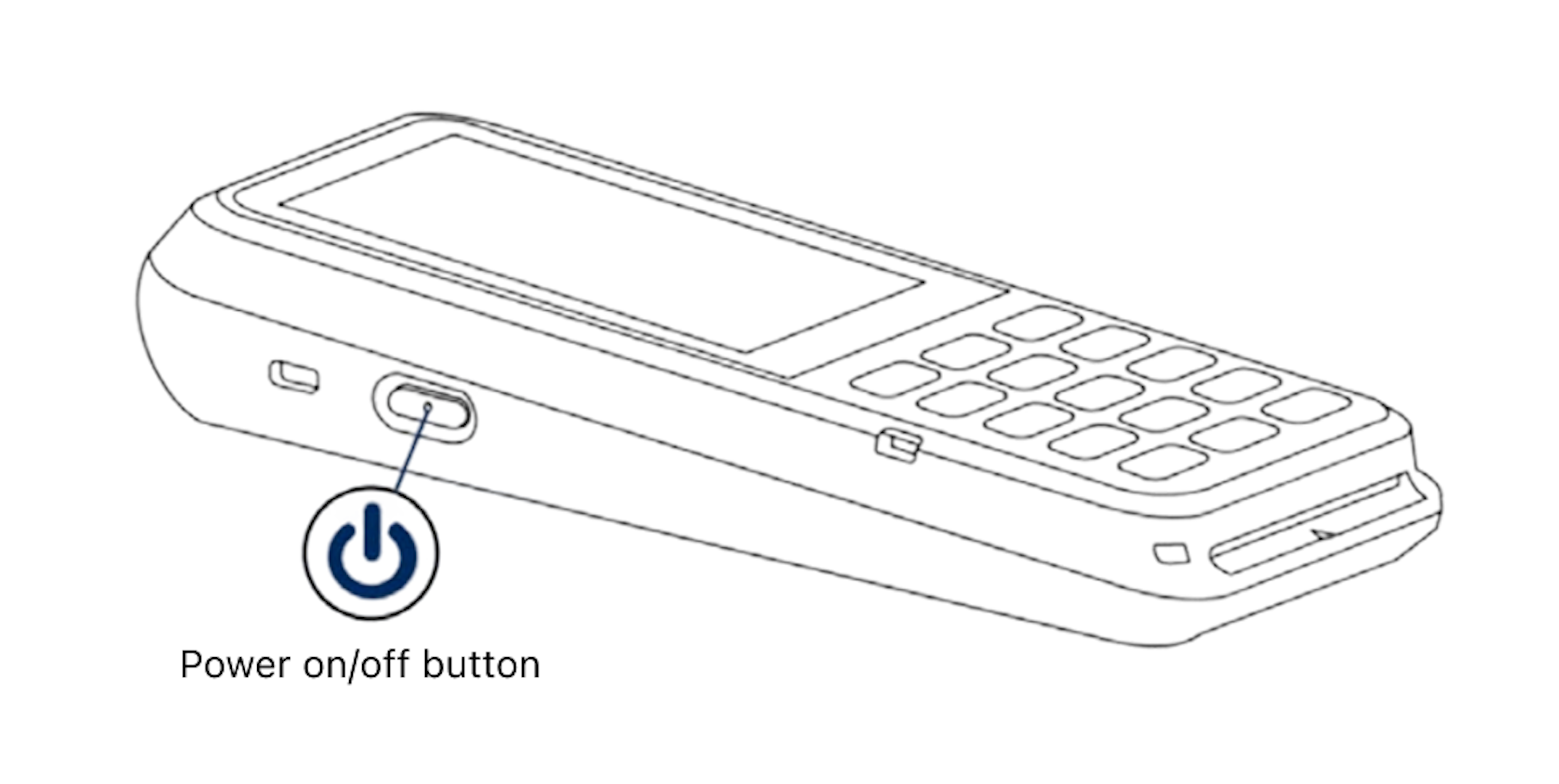
Power button

Charge the P630 device for three hours before initial use. After the reader is fully charged, hold the power button for about 3 seconds until the device displays the startup screen. Don’t let the battery charge fall below 10% for an extended period of time, because that can permanently diminish the battery capacity.

To turn off the device, hold the power button for about 3 seconds until the shutdown options appear on the screen. Touch Power off to turn it off.

In a mobile deployment, the P630 can operate for up to 10 hours on a single charge with normal use. The device can last up to 7 days in standby mode. When not in use, turn on the P630 periodically to receive automatic Stripe software updates.

Access settings

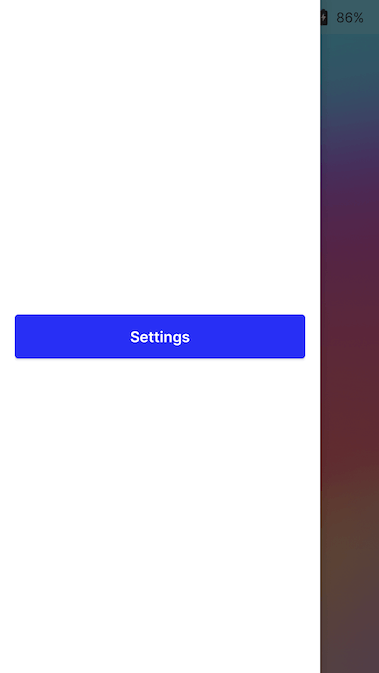
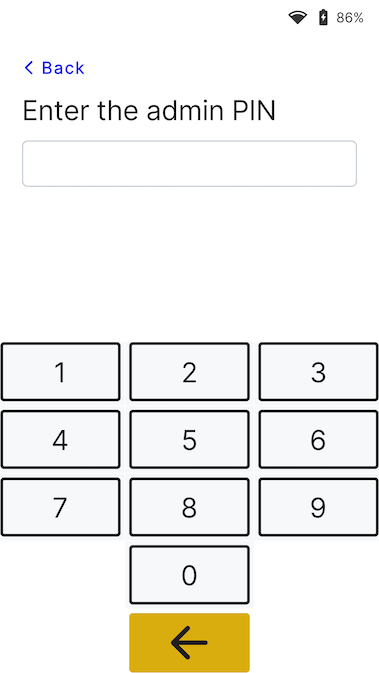
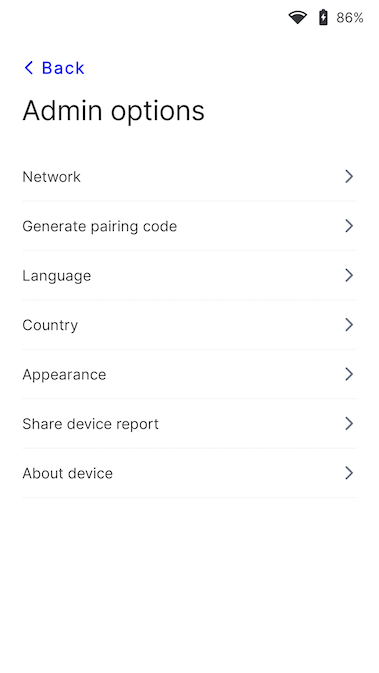
To open the settings menu, swipe right from the left edge of the reader screen to reveal a Settings button. Tap the Settings button and enter the admin pin 07139. From here, you can update your WiFi settings or generate a pairing code for device registration. Battery status appears at the top right of this screen. To close the settings menu, touch the back arrow in the top left corner.

Settings button

Admin PIN screen

Settings menu

Connect the reader to the internet

Because the P630 is a smart reader, its reader software communicates directly with Stripe. The P630 can connect to the internet using WiFi or cellular data. Your point of sale application communicates with the reader through either a LAN (using a Terminal SDK) or the internet (using the server-driven integration).

When communicating with the reader through the LAN, you must connect the reader to the same local network as your point of sale application. If you’re running into issues connecting your reader to the internet, see the P630 troubleshooting guide.

WiFi

To connect to WiFi or switch networks, go to the network and WiFi settings, choose the network, and connect. Attempting to join a new network disconnects the reader from any existing wireless connection. To learn more about supported WiFi networks, see Network requirements.

Ethernet

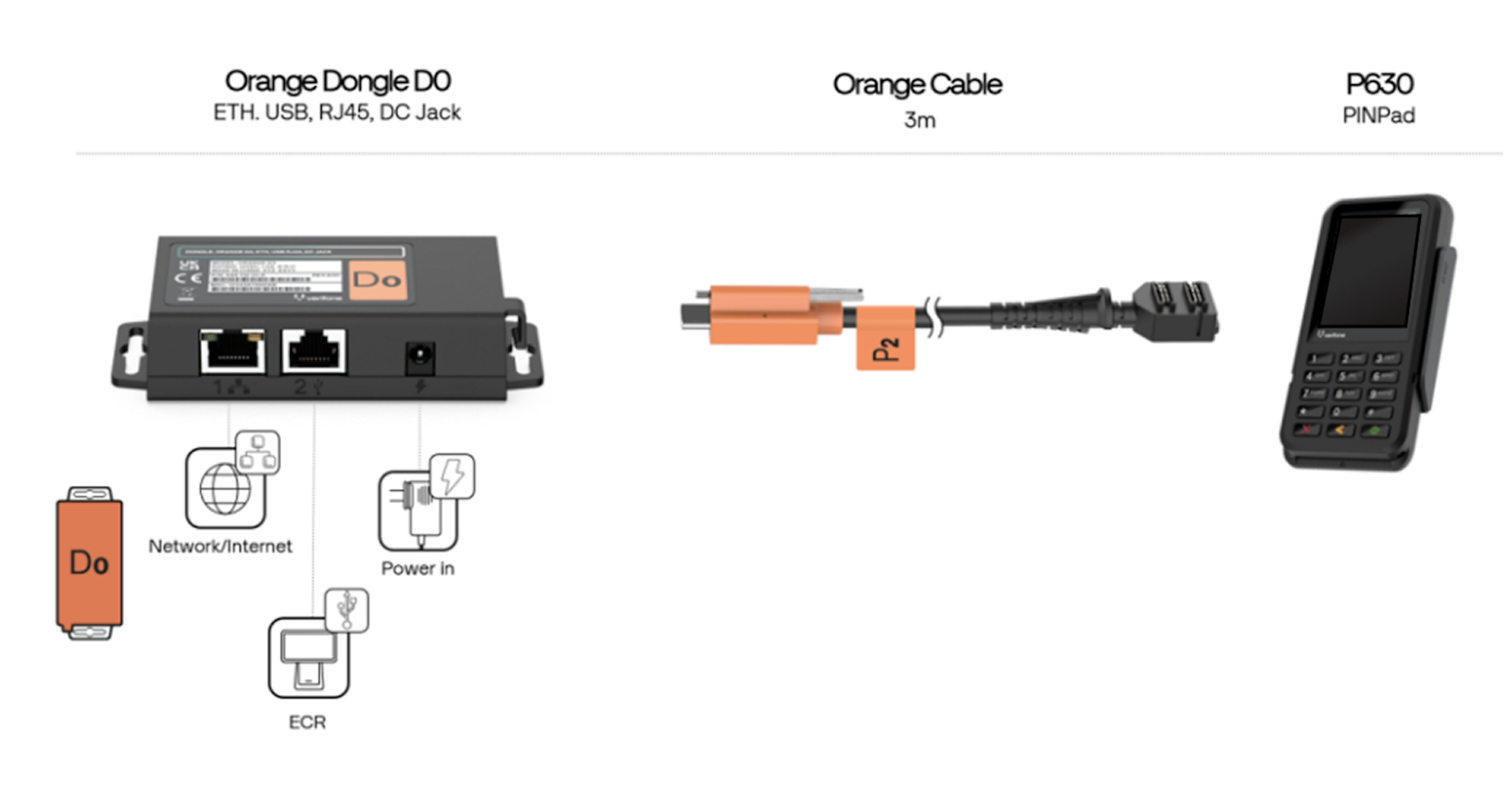
Ethernet connectivity requires the Orange Dongle, which provides wired 10/100 Ethernet connectivity.

Orange Dongle

Network priority

The P630 reader prioritizes connecting through WiFi if possible.

Change the UI appearance

By default, the UI of the P630 reader uses a light theme.

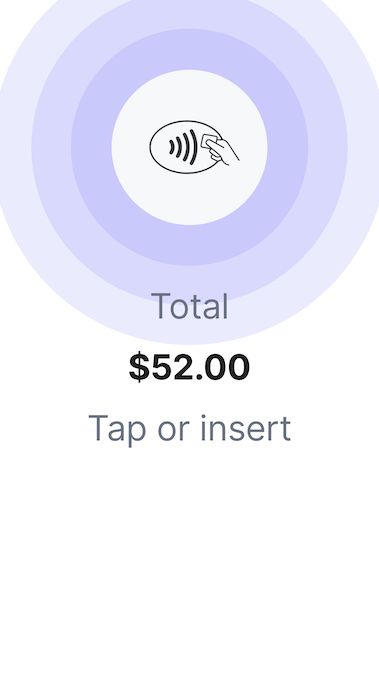
Welcome screen

Payment screen

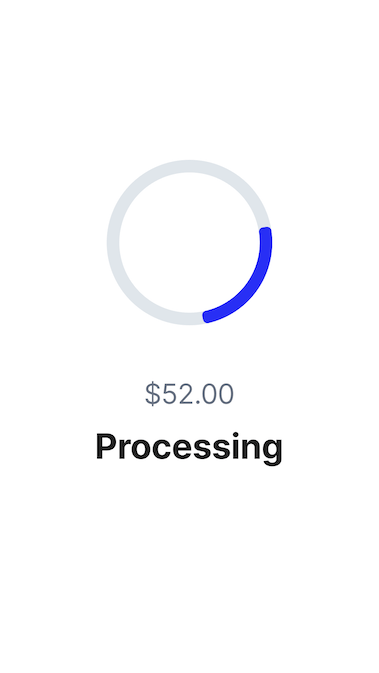
Processing screen

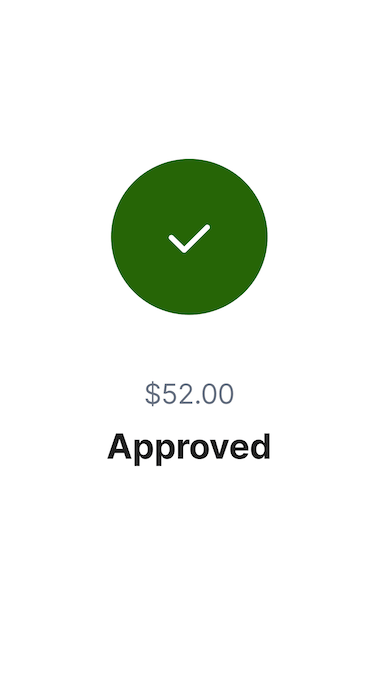
Approved screen

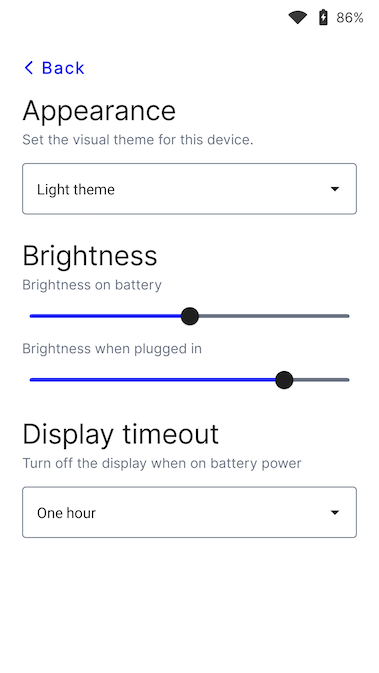
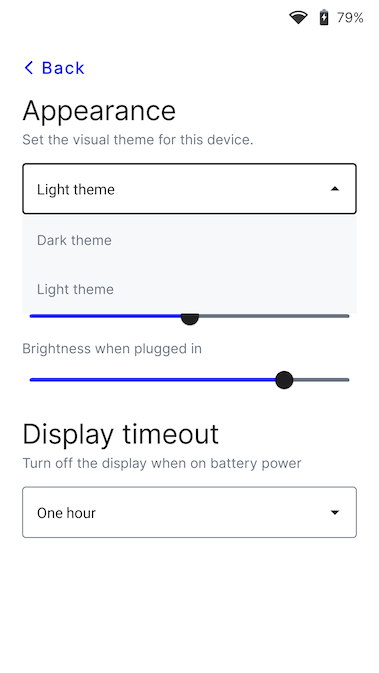
UI のデザインを変更して、設定メニューで別のテーマを使用することができます。設定に移動してデザインを選択し、ドロップダウンから新しいテーマを選択します。

Settings menu

Appearance menu

Theme menu

Change the default reader language

Access your settings. Find the language settings, and select the new language. Confirm your changes. You might need to restart the device for the change to take effect.

Custom mounting

You can mount the P630 with or without a mounting plate to a wall or flat surface. To learn more, see the P630 product sheet.

参照情報

  • Verifone accessories
  • Verifone product sheets
このページはお役に立ちましたか。
はいいいえ
  • お困りのことがございましたら 、サポートにお問い合わせください。
  • 変更ログをご覧ください。
  • ご不明な点がございましたら、お問い合わせください。
  • LLM ですか?llms.txt を読んでください。
  • Powered by Markdoc