Lecteur Verifone P630Version bêta publique
Apprenez à configurer le lecteur Verifone P630.
Version bêta publique
La prise en charge du lecteur Verifone est en version bêta publique pour les États-Unis et le Canada. Pour rejoindre la version bêta, vous devez contacter l’équipe commerciale pour commande le lecteur concerné.
Le P630 est un lecteur intelligent basé sur Android pour un usage sur le plan de travail. Le SDK Stripe Terminal se connecte à ce lecteur via Internet ou LAN. Ce lecteur est compatible avec les intégrations suivantes :
- SDK JavaScript
- SDK iOS
- SDK Android
- SDK React Native
- Piloté par le serveur
Pour le P630, nous recommandons l’intégration pilotée par serveur, qui utilise l’API Stripe plutôt que le Terminal SDK. Pour consulter les composants et fonctionnalités du lecteur, consultez lafiche produit P630.
Allumer et éteindre le lecteur
Branchez le lecteur à l’alimentation en connectant le câble d’alimentation fourni à l’arrière de votre lecteur P630. Retirez le couvercle arrière pour accéder au point de connexion. Connectez l’extrémité opposée du câble au dongle et à l’adaptateur secteur fournis, puis branchez l’adaptateur secteur dans une prise électrique. Le P630 nécessite entre 110 et 240 W de puissance pour fonctionner correctement. Nous vous recommandons d’utiliser des adaptateurs secteur et câbles Verifone pour recharger et utiliser le P630 et de ses accessoires. L’utilisation d’adaptateurs ou de câbles alternatifs peut entraîner des défaillances, y compris une charge insuffisante du P630, et peut invalider la garantie de votre produit.
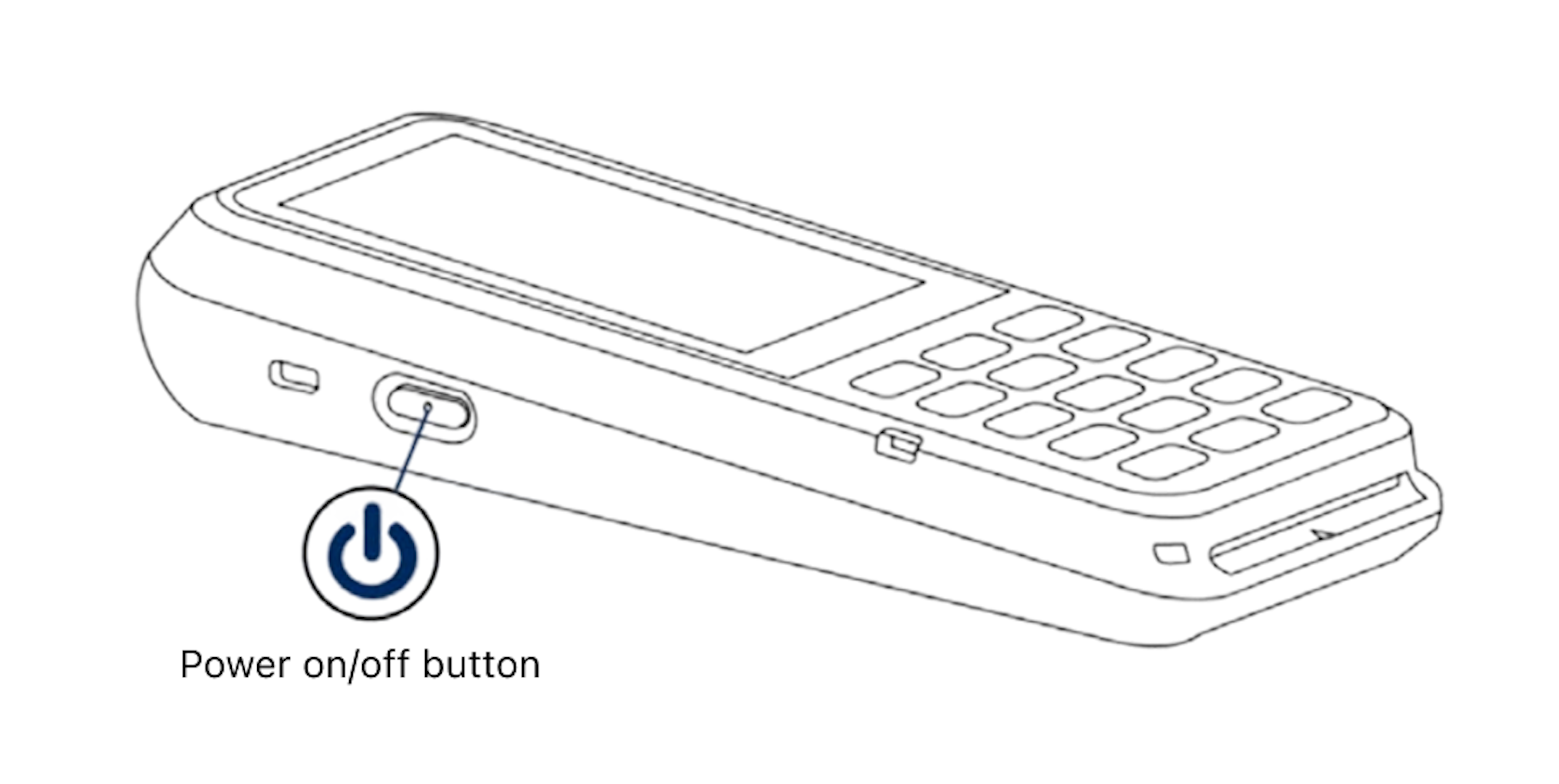
Bouton d’alimentation
Accéder aux paramètres
Pour ouvrir le menu Paramètres, faites glisser votre doigt depuis le bord gauche de l’écran du lecteur vers la droite pour faire apparaître le bouton Paramètres. Appuyez sur le bouton Paramètres et saisissez le code PIN administrateur 07139. Depuis ce menu, vous pouvez modifier les paramètres Wi-Fi ou générer un code d’association pour l’enregistrement de l’appareil. L’état de la batterie s’affiche en haut à droite de l’écran. Pour fermer le menu Paramètres, touchez la flèche de retour en haut à gauche.
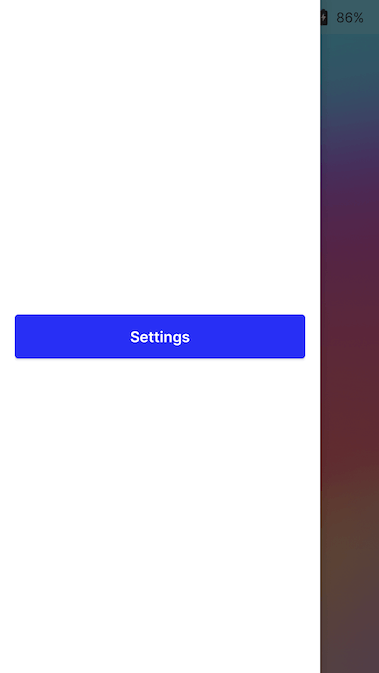
Bouton Paramètres
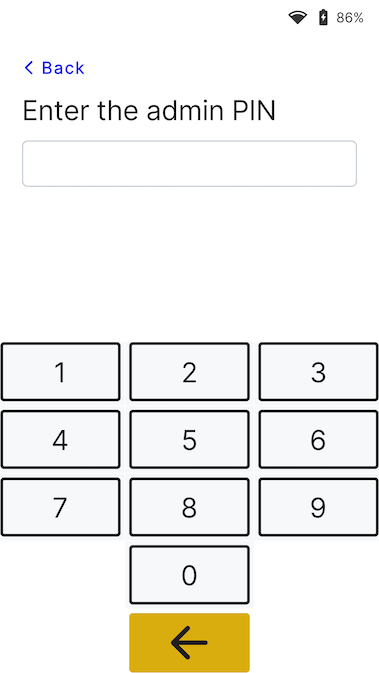
Écran de saisi du code PIN administrateur
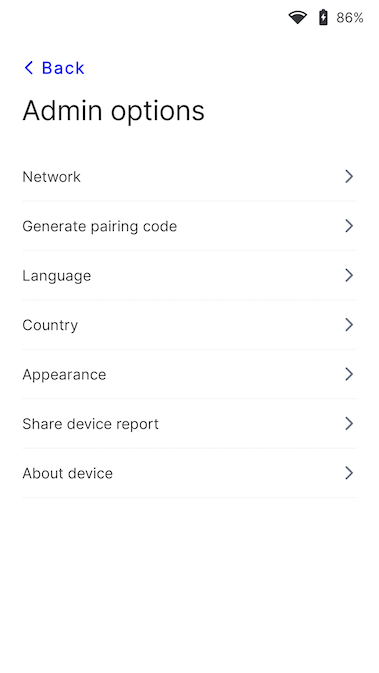
Menu Paramètres
Connecter le lecteur à Internet
Comme le P630 est un lecteur intelligent, son logiciel communique directement avec Stripe. Le P630 peut se connecter à Internet via Wi-Fi ou données mobiles. Votre application de point de vente communique avec le lecteur soit via un réseau local (LAN) en utilisant un Terminal SDK, soit via Internet grâce à l’intégration pilotée par le serveur).
Pour communiquer avec le lecteur via le LAN, vous devez le connecter au même réseau local que votre application de point de vente. Si vous rencontrez des problèmes de connexion à Internet, consultez le guide de dépannage P630.
Wi-Fi
Pour vous connecter au WiFi ou changer de réseau, allez dans les paramètres réseau et WiFi, choisissez le réseau, et connectez-vous. Tenter de rejoindre un nouveau réseau déconnecte le lecteur de toute connexion sans fil existante. Pour en savoir plus sur les réseaux WiFi pris en charge, voir Exigences réseau.
Ethernet
La connectivité Ethernet nécessite l’adaptateur Orange, qui fournit une connectivité Ethernet filaire 10/100.
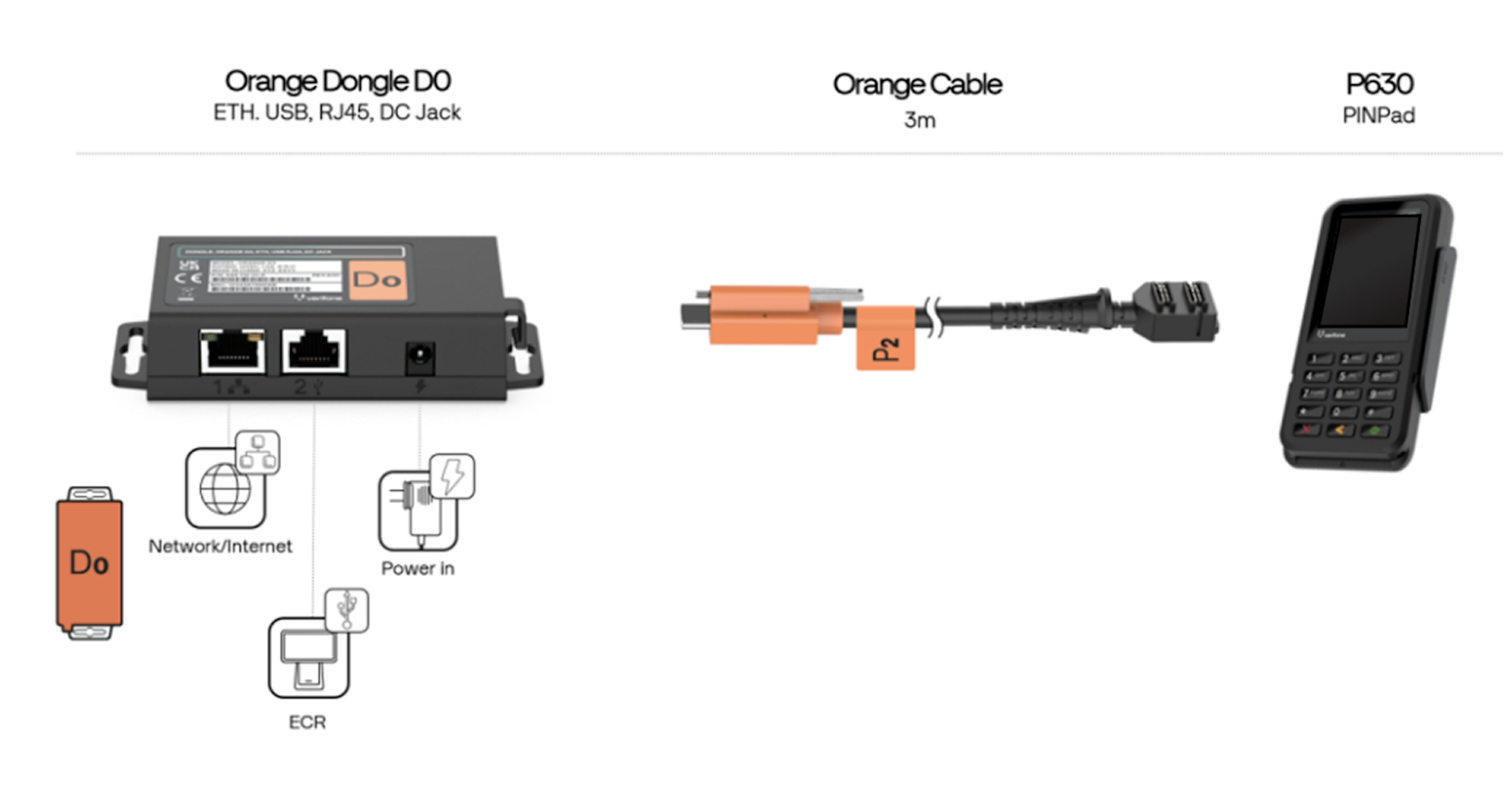
Adaptateur Orange
Priorité réseau
Le lecteur P630 privilégie la connexion via WiFi si possible.
Modifier l’apparence de l’interface utilisateur
Par défaut, l’interface utilisateur du lecteur P630 utilise un thème clair.

Écran de bienvenue
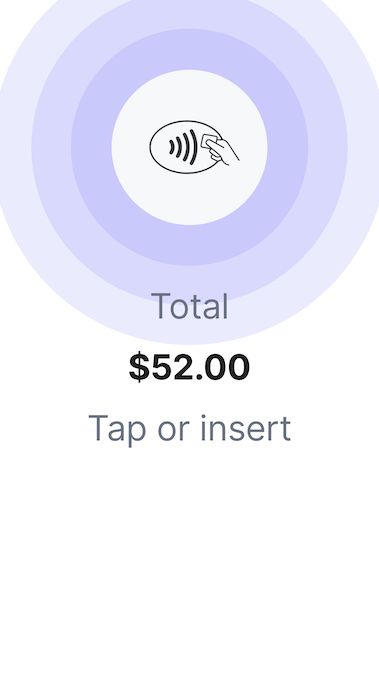
Écran de paiement
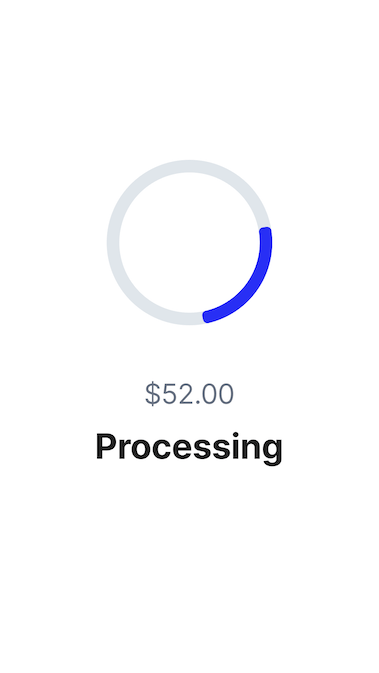
Écran de traitement
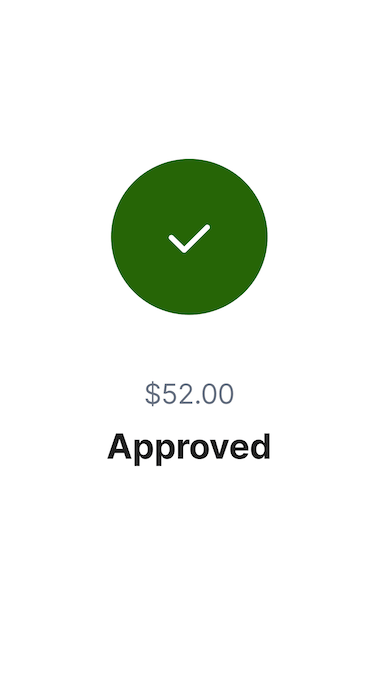
Écran de validation
Vous pouvez modifier l’apparence de l’interface utilisateur en optant pour un thème différent. Pour cela, accédez au menu Paramètres, sélectionnez Apparence, puis choisissez un nouveau thème dans le menu déroulant.
Menu Paramètres
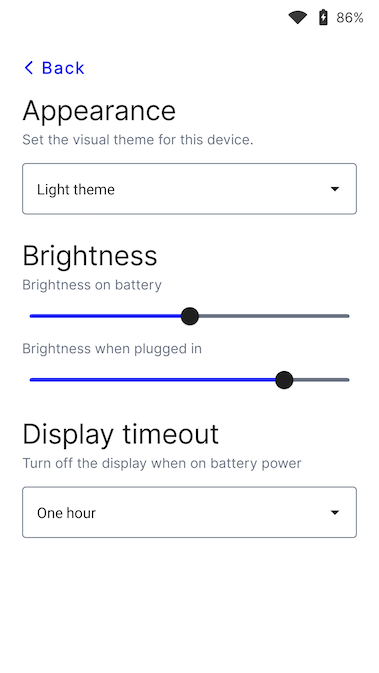
Menu Apparence
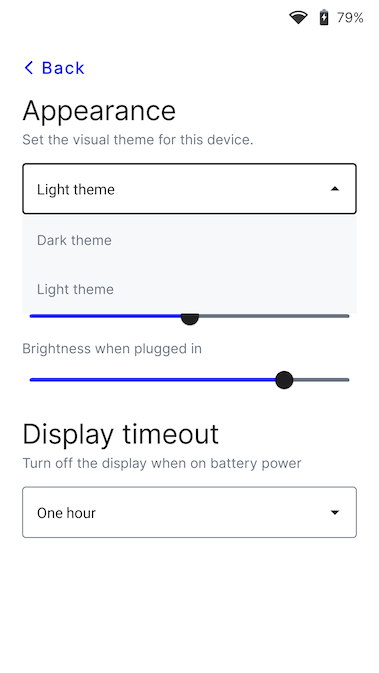
Menu Thème
Modifier la langue par défaut du lecteur
Accédez aux paramètres, puis aux réglages de langue. Sélectionnez la nouvelle langue et confirmez le changement. Un redémarrage de l’appareil peut être nécessaire pour que la modification soit prise en compte.
Fixation Custom
Vous pouvez fixer le P630 avec ou sans plaque de montage sur un mur ou une surface plane. Pour en savoir plus, consultez la fiche produit P630..