Lesegerät Verifone P630Öffentliche Vorschau
Erfahren Sie, wie Sie das Verifone P630-Lesegerät einrichten.
Öffentliche Vorschau
Das Verifone-Lesegerät wird in den USA und Kanada in der öffentlichen Vorschau unterstützt. Um an der Vorschau teilzunehmen, müssen Sie das Sales-Team kontaktieren, um das entsprechende Lesegerät zu bestellen.
Der P630 ist ein auf Android basierender Smart Reader für den Einsatz an der Verkaufstheke. Das Stripe Terminal-SDK verbindet sich über Internet oder LAN mit diesem Lesegerät. Dieses Lesegerät ist mit den folgenden Integrationen kompatibel:
- JavaScript SDK
- iOS SDK
- Android SDK
- React Native SDK
- Servergestützt
Für den P630 empfehlen wir die servergestützte Integration, die die Stripe-API anstelle eines Terminal-SDK verwendet. Die Komponenten und Funktionen des Lesegeräts finden Sie im Produktdatenblatt des P630.
Lesegerät ein- und ausschalten
Schließen Sie das Lesegerät an die Stromversorgung an, indem Sie das mitgelieferte Netzkabel in den Anschluss an der Rückseite Ihres P630-Lesegeräts stecken. Nehmen Sie die Abdeckung der Rückseite ab, um auf den Anschluss zuzugreifen. Verbinden Sie das andere Ende des Kabels mit dem mitgelieferten Dongle und Netzadapter und stecken Sie diesen in eine Steckdose. Das P630 benötigt 110 - 240 W Leistung, um ordnungsgemäß zu funktionieren. Für das Aufladen und den Betrieb des P630 sowie seines Zubehörs werden die von Verifone bereitgestellten Netzadapter und Kabel empfohlen. Die Verwendung anderer Netzadapter oder Kabel kann zu Funktionsstörungen führen, einschließlich unzureichendem Aufladen des P630 und kann die Herstellergarantie ungültig machen.
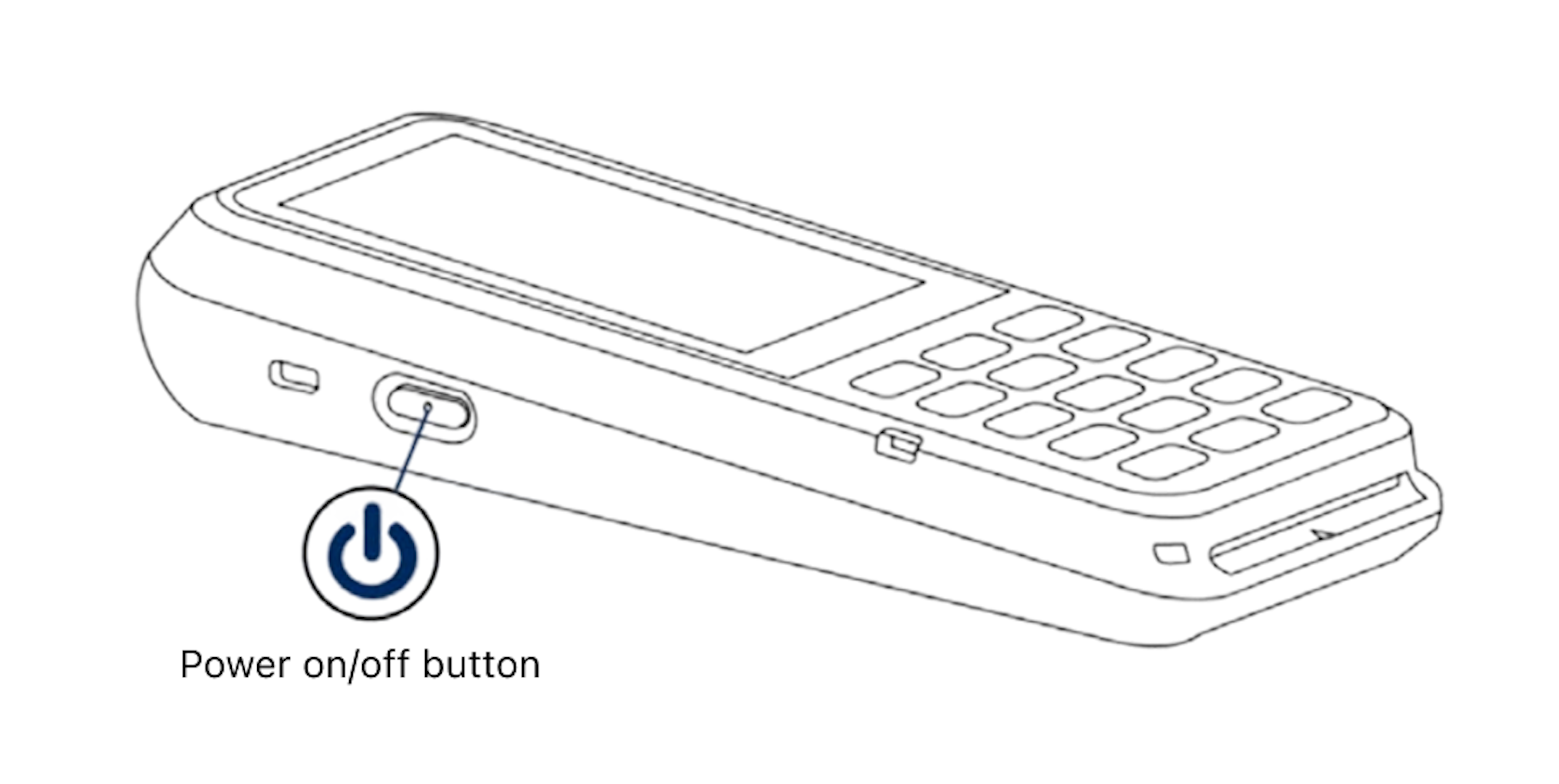
Ein-/Aus-Knopf
Zugriffseinstellungen
Um das Einstellungsmenü zu öffnen, wischen Sie vom linken Rand des Lesegerätbildschirms nach rechts, um die Schaltfläche Einstellungen anzuzeigen. Tippen Sie auf die Schaltfläche Einstellungen und geben Sie die Admin-PIN 07139 ein. Von hier aus können Sie Ihre WLAN-Einstellungen aktualisieren oder einen Pairing-Code für die Geräteregistrierung generieren. Der Akkuladestand erscheint oben rechts in diesem Bildschirm. Um das Einstellungsfenster zu schließen, tippen Sie oben links auf den Zurück-Pfeil.
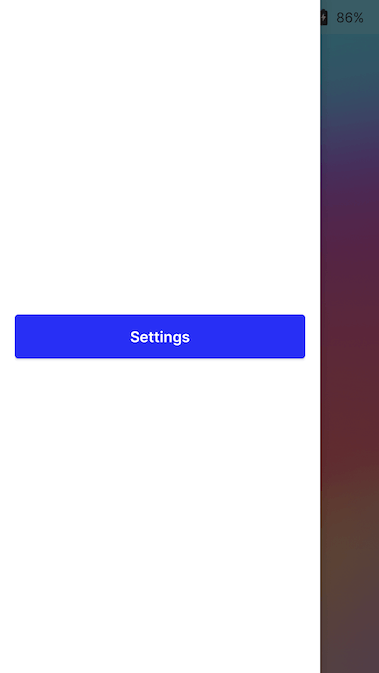
Schaltfläche „Einstellungen“
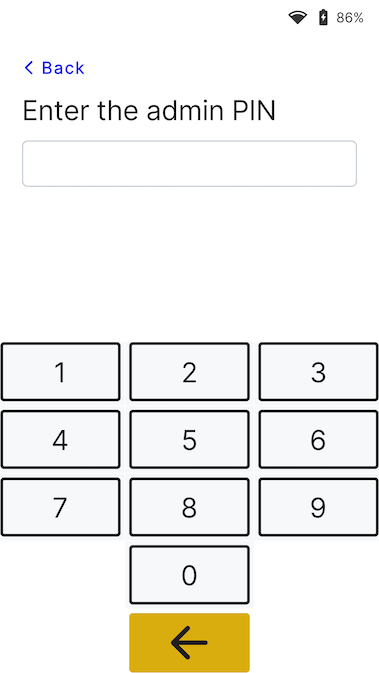
Admin-PIN-Fenster
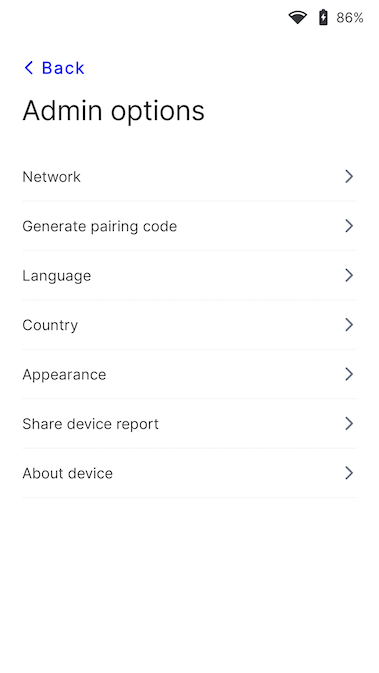
Einrichtungsmenü
Lesegerät mit dem Internet verbinden
Da das P630 ein Smart-Lesegerät ist, kommuniziert seine Lesesoftware direkt mit Stripe. Das P630 kann über WLAN oder mobile Daten eine Verbindung zum Internet herstellen. Ihre Point-of-Sale-Anwendung kommuniziert mit dem Lesegerät entweder über ein LAN (mittels Terminal-SDK) oder über das Internet (mittels servergesteuerter Integration).
Wenn Sie über das LAN mit dem Lesegerät kommunizieren, muss das Lesegerät mit demselben lokalen Netzwerk wie Ihre Point-of-Sale-Anwendung verbunden sein. Bei Problemen mit der Internetverbindung des Lesegeräts lesen Sie die P630-Fehlerbehebungsanleitung.
WLAN
Um eine Verbindung zum WLAN herzustellen oder das Netzwerk zu wechseln, navigieren Sie zu den Netzwerk- und WLAN-Einstellungen. Wählen Sie dann das Netzwerk aus und stellen Sie die Verbindung her. Beim Versuch, eine Verbindung mit einem neuen Netzwerk herzustellen, wird das Lesegerät von einer ggf. bestehenden WLAN-Verbindung getrennt. Weitere Informationen zu den unterstützten WLAN-Netzwerken finden Sie in unseren Netzwerkanforderungen.
Ethernet
Für die Ethernet-Konnektivität wird der Orange Dongle benötigt, der eine kabelgebundene 10/100-Ethernet-Verbindung bereitstellt.
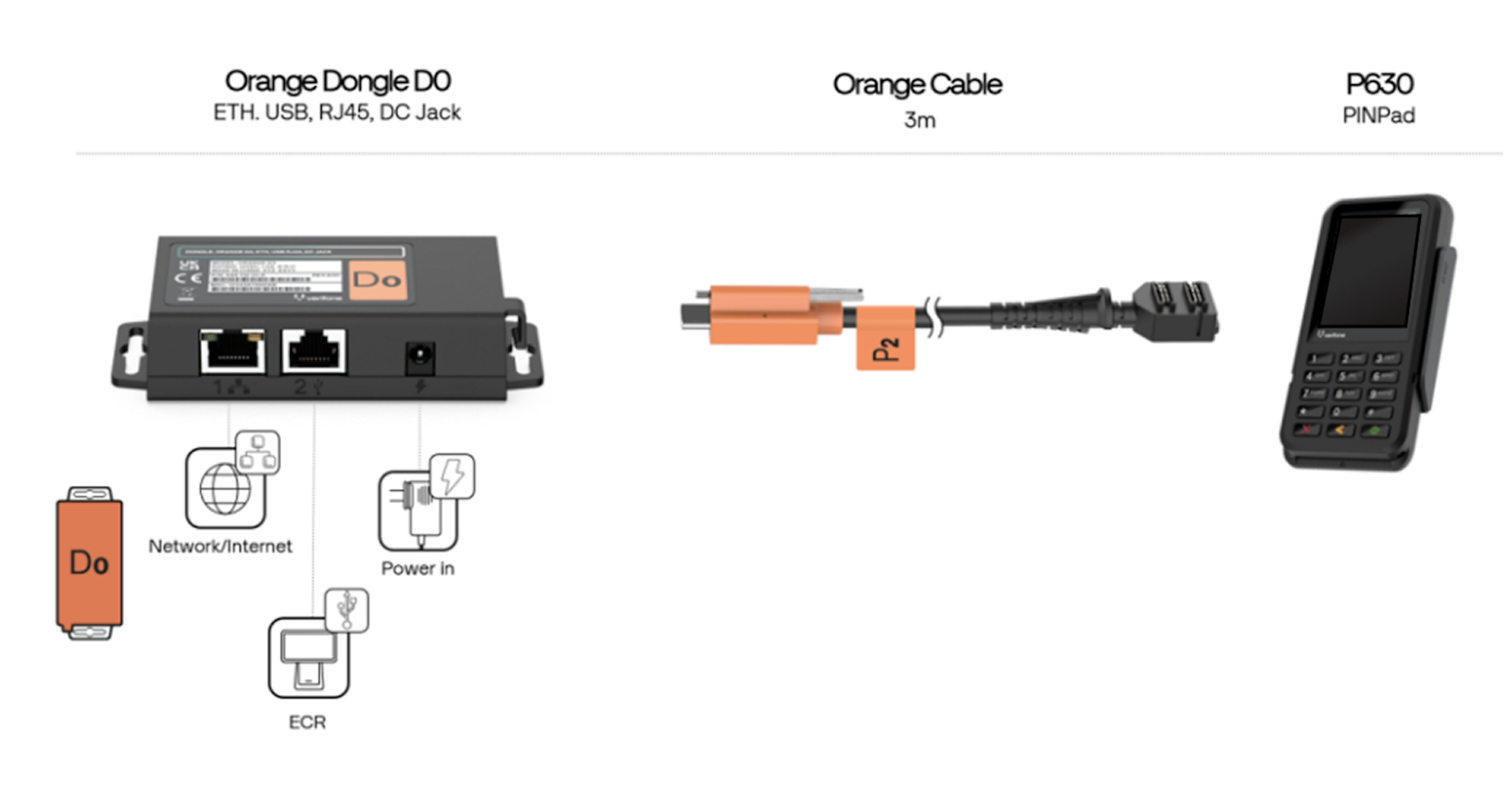
Orange Dongle
Netzwerkpriorität
Der P630-Leser bevorzugt, wenn möglich, die Verbindung über WLAN.
Erscheinungsbild der Nutzeroberfläche ändern
Standardmäßig verwendet die Nutzeroberfläche des P630-Lesegeräts ein helles Design.

Begrüßungsbildschirm
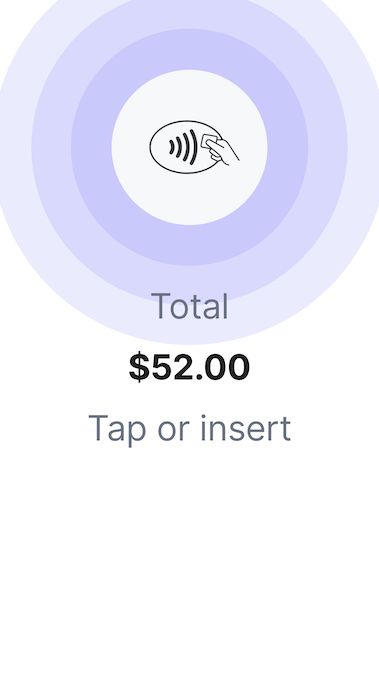
Zahlungsbildschirm
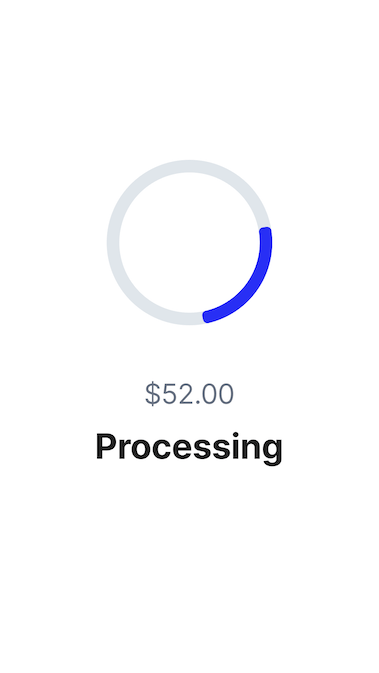
Verarbeitungsbildschirm
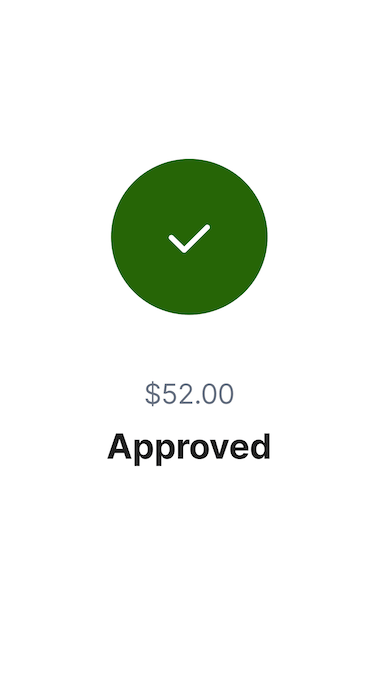
Bildschirm „Genehmigt“
Sie können das Erscheinungsbild der Nutzeroberfläche ändern, um im Einstellungsmenü einen anderen Hintergrund zu verwenden. Gehen Sie zu Einstellungen, wählen Sie dann Erscheinungsbild aus und wählen Sie ein neues Design aus der Dropdown-Liste aus.
Einrichtungsmenü
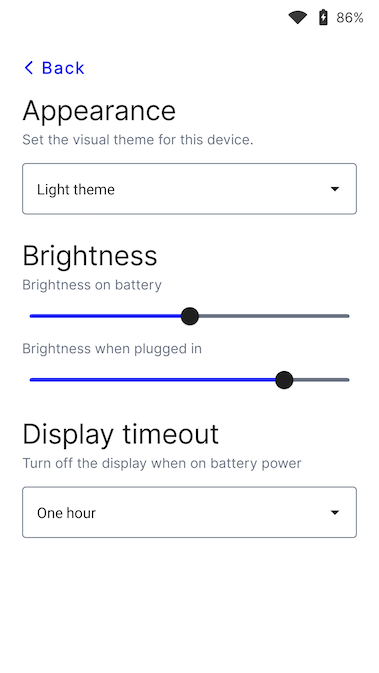
Erscheinungsbildmenü
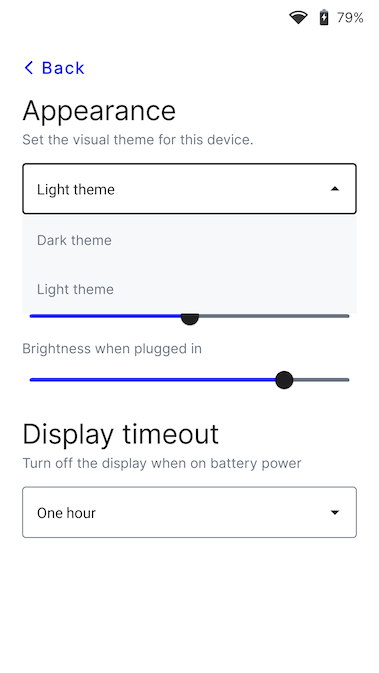
Designmenü
Standardsprache des Lesegeräts ändern
Greifen Sie auf Ihre Einstellungen zu. Suchen Sie die Spracheinstellungen und wählen Sie die neue Sprache aus. Bestätigen Sie Ihre Änderungen. Möglicherweise müssen Sie das Gerät neu starten, damit die Änderung wirksam wird.
Individuelle Montage
Sie können das P630 mit oder ohne Montageplatte an einer Wand oder einer ebenen Fläche befestigen. Weitere Informationen finden Sie im P630-Produktdatenblatt.