# Checkout migration guide
Learn how to migrate to Stripe's latest integrations.
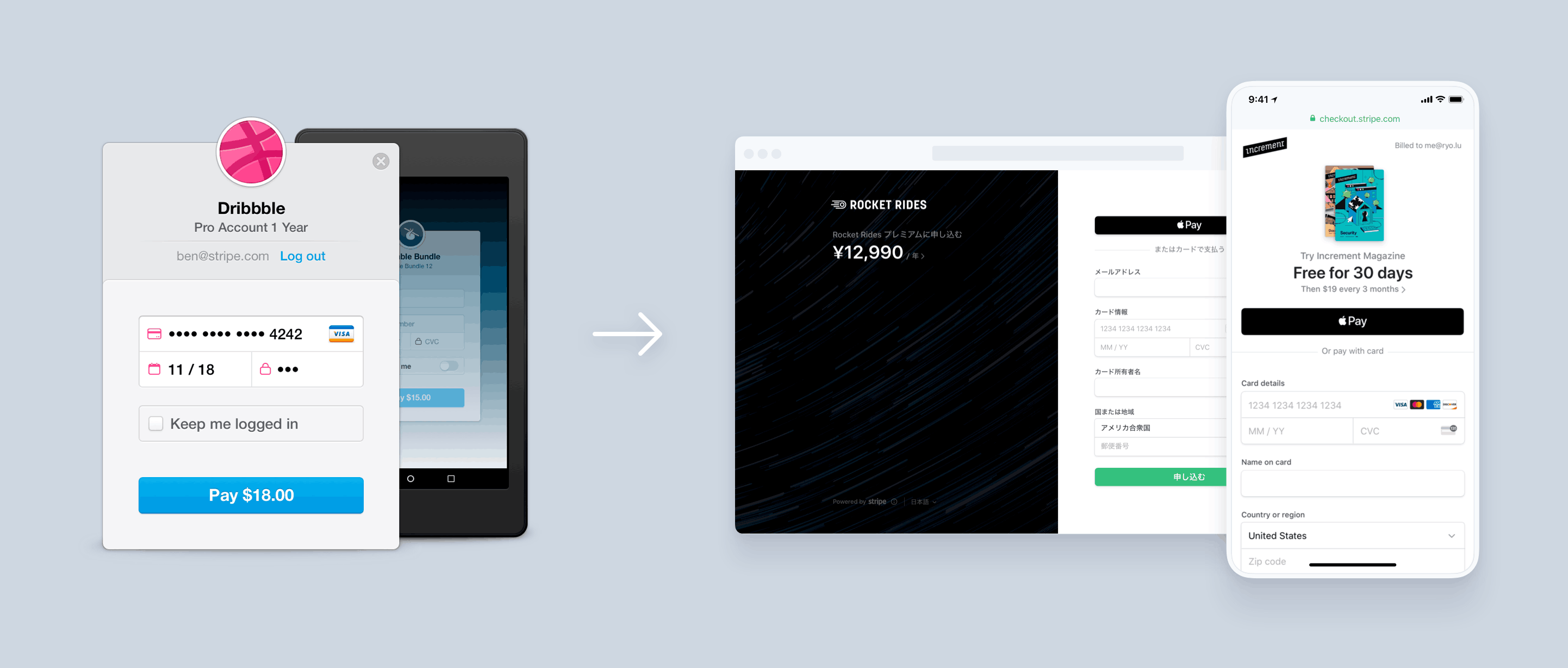
The legacy version of Checkout presented customers with a modal dialog that collected card information, and returned a token or a source to your website. In contrast, [Payment Links](https://docs.stripe.com/payment-links.md) and the current version of [Checkout](https://docs.stripe.com/payments/checkout.md) are smart payment pages hosted by Stripe that create payments or *subscriptions* (A Subscription represents the product details associated with the plan that your customer subscribes to. Allows you to charge the customer on a recurring basis). Both integrations support Apple Pay, Google Pay, Dynamic *3D Secure* (3D Secure (3DS) provides an additional layer of authentication for credit card transactions that protects businesses from liability for fraudulent card payments), *Connect* (Connect is Stripe's solution for multi-party businesses, such as marketplace or software platforms, to route payments between sellers, customers, and other recipients), re-using existing customers, and many other features. You can also [compare other payment integrations](https://docs.stripe.com/payments/online-payments.md#compare-features-and-availability) if Payment Links or Checkout doesn’t fit your use case.
## Before you begin
If you use Stripe’s [SDKs](https://docs.stripe.com/sdks.md), upgrade to the latest version.
## Choose your business model
To migrate from the legacy version of Checkout, follow the guide that most closely represents your business model. Each guide recommends an integration path along with example code.
- [Dynamic product catalog and pricing](https://docs.stripe.com/payments/checkout/migration.md#api-products)
If you have a large product catalog or require support for dynamically generated line items (such as donations or taxes).
- [Dynamic subscriptions](https://docs.stripe.com/payments/checkout/migration.md#api-subscriptions)
If you’re a SaaS provider billing users and need support for advanced features.
- [Connect platforms and marketplaces](https://docs.stripe.com/payments/checkout/migration.md#connect)
If you’re operating a marketplace connecting service providers with customers.
- [Saving payment methods for future use](https://docs.stripe.com/payments/checkout/migration.md#setup-mode)
If you’re operating a business which doesn’t charge the customer until after services rendered.
- [Simple product catalog with fixed pricing](https://docs.stripe.com/payments/checkout/migration.md#simple-products)
If you’re selling a few products with pre-determined prices.
- [Simple subscriptions](https://docs.stripe.com/payments/checkout/migration.md#simple-subscriptions)
If you’re a SaaS provider with a monthly subscription plan.
As you follow the relevant migration guide, you can also reference the [conversion table](https://docs.stripe.com/payments/checkout/migration.md#parameter-conversion) for a mapping of specific parameters and configuration options.
## Dynamic product catalog and pricing
If you’re selling products where the amount or line items are determined dynamically (for example, a large product catalog or donations), see [accepting one-time payments](https://docs.stripe.com/payments/accept-a-payment.md?integration=checkout).
You might have used the legacy version of Checkout to create a token or source on the client, and passed it to your server to create a charge. The current version of Checkout reverses this flow—you create a Session on your server, redirect your customer to Checkout, who is then redirected back to your application after the payment.
### Before
With the legacy version of Checkout, you’d display the dynamic amount and description and collect card information from your customer.
```html
```
Next, you’d send the resulting token or source to your server and charge it.
#### curl
```bash
curl https://api.stripe.com/v1/customers \
-u <>: \
-d "email"="customer@example.com" \
-d "source"="{{STRIPE_TOKEN}}"
curl https://api.stripe.com/v1/charges \
-u <>: \
-d "customer"="{{CUSTOMER_ID}}" \
-d "description"="Custom t-shirt" \
-d "amount"="{{ORDER_AMOUNT}}" \
-d "currency"="usd"
```
### After
Add a checkout button to your website that calls a server-side endpoint to create a [Checkout Session](https://docs.stripe.com/api/checkout/sessions/create.md).
```html
Buy cool new product
```
A Checkout Session is the programmatic representation of what your customer sees when they’re redirected to the payment form. You can configure it with options such as:
- [Line items](https://docs.stripe.com/api/checkout/sessions/create.md#create_checkout_session-line_items) to charge
- Currencies to use
Include a `success_url` with the URL of a page on your website that your customer is redirected to after they complete the payment.
```curl
curl https://api.stripe.com/v1/checkout/sessions \
-u "<>:" \
-d "line_items[0][price_data][currency]=usd" \
-d "line_items[0][price_data][product_data][name]=Custom t-shirt" \
-d "line_items[0][price_data][unit_amount]=2000" \
-d "line_items[0][quantity]=1" \
-d mode=payment \
--data-urlencode "success_url=https://example.com/success"
```
After creating a Checkout Session, redirect your customer to the [URL](https://docs.stripe.com/api/checkout/sessions/object.md#checkout_session_object-url) returned in the response. If you need to fulfill purchased goods after the payment, see [Fulfill Checkout and Payment Link payments](https://docs.stripe.com/checkout/fulfillment.md).
## Dynamic subscriptions
If you’re providing subscription services that are dynamically determined or require support for other advanced features, see [setting up a subscription](https://docs.stripe.com/billing/subscriptions/build-subscriptions.md).
You might have used the legacy version of Checkout to create a token or source on the client, and passed it to your server to create a customer and subscription. The current version of Checkout reverses this flow—you first create a Session on your server, redirect your customer to Checkout, who then gets redirected back to your application upon success.
### Before
With the legacy version of Checkout, you’d display the subscription information and collect card information from your customer.
```html
```
Next, you’d send the resulting token or source to your server to create a customer and a subscription.
#### curl
```bash
curl https://api.stripe.com/v1/customers \
-u <>: \
-d "email"="customer@example.com" \
-d "source"="{{STRIPE_TOKEN}}"
curl https://api.stripe.com/v1/subscriptions \
-u <>: \
-d "customer"="{{CUSTOMER_ID}}" \
-d "items[0][price]"="{PRICE_ID}" \
-d "trial_period_days"=30
```
### After
Add a checkout button to your website that calls a server-side endpoint to create a [Checkout Session](https://docs.stripe.com/api/checkout/sessions/create.md).
```html
Subscribe to cool new service
```
A Checkout Session is the programmatic representation of what your customer sees when they’re redirected to the payment form. You can configure it with options such as:
- [Line items](https://docs.stripe.com/api/checkout/sessions/create.md#create_checkout_session-line_items) to charge
- Currencies to use
Include a `success_url` with the URL of a page on your website that your customer is redirected to after they complete the payment.
```curl
curl https://api.stripe.com/v1/checkout/sessions \
-u "<>:" \
-d "line_items[0][price]={{PRICE_ID}}" \
-d "line_items[0][quantity]=1" \
-d "subscription_data[trial_period_days]=30" \
-d mode=subscription \
--data-urlencode "success_url=https://example.com/success"
```
After creating a Checkout Session, redirect your customer to the [URL](https://docs.stripe.com/api/checkout/sessions/object.md#checkout_session_object-url) returned in the response. The customer is redirected to the `success_url` after the customer and subscription are created. If you need to fulfill purchased services after the payment, see [Fulfill Checkout and Payment Link payments](https://docs.stripe.com/checkout/fulfillment.md).
## Connect platforms and marketplaces
If you’re operating a Connect platform or marketplace and create payments involving connected accounts, consider using the current version Checkout.
The following example demonstrates using the Checkout Sessions API to process a direct charge. You can also use Checkout and Connect with [destination charges](https://docs.stripe.com/connect/destination-charges.md?platform=web&ui=stripe-hosted) and [separate charges and transfers](https://docs.stripe.com/connect/separate-charges-and-transfers.md?platform=web&ui=stripe-hosted).
### Before
With the legacy version of Checkout, you’d collect card information from your customer on the client.
```html
```
Next, you’d send the resulting token or source to your server and charge it on behalf of the connected account.
#### curl
```bash
curl https://api.stripe.com/v1/charges \
-u <>: \
-d "source"="{{TOKEN_ID}}" \
-d "description"="10 cucumbers from Roger\"s Farm" \
-d "amount"=2000 \
-d "currency"="usd" \
-d "application_fee_amount"=200 \
-H "Stripe-Account: {{CONNECTED_STRIPE_ACCOUNT_ID}}"
```
### After
Add a checkout button to your website that calls a server-side endpoint to create a [Checkout Session](https://docs.stripe.com/api/checkout/sessions/create.md).
```html
Roger's Farm
```
A Checkout Session is the programmatic representation of what your customer sees when they’re redirected to the payment form. You can configure it with options such as:
- [Line items](https://docs.stripe.com/api/checkout/sessions/create.md#create_checkout_session-line_items) to charge
- Currencies to use
Include a `success_url` with the URL of a page on your website that your customer is redirected to after they complete the payment.
```curl
curl https://api.stripe.com/v1/checkout/sessions \
-u "<>:" \
-H "Stripe-Account: {{CONNECTEDACCOUNT_ID}}" \
-d "line_items[0][price_data][currency]=usd" \
--data-urlencode "line_items[0][price_data][product_data][name]=Cucumbers from Roger's Farm" \
-d "line_items[0][price_data][unit_amount]=200" \
-d "line_items[0][quantity]=10" \
-d "payment_intent_data[application_fee_amount]=200" \
-d mode=payment \
--data-urlencode "success_url=https://example.com/success"
```
After creating a Checkout Session, redirect your customer to the [URL](https://docs.stripe.com/api/checkout/sessions/object.md#checkout_session_object-url) returned in the response. If you need to fulfill purchased goods or services after the payment, see [Fulfill Checkout and Payment Link payments](https://docs.stripe.com/checkout/fulfillment.md).
## Saving payment methods for future use
If you’re providing services that don’t charge your customers immediately, see [setting up future payments](https://docs.stripe.com/payments/save-and-reuse.md?platform=checkout).
You might have used the legacy version of Checkout to create a token or source on the client, and passed it to your server to save for later use. The current version of Checkout reverses this flow—you first create a Session on your server, redirect your customer to Checkout, who then gets redirected back to your application upon success.
### Before
With the legacy version of Checkout, you’d display the charge information and collect card information from your customer.
```html
```
Next, you’d send the resulting token or source to your server to eventually create a charge.
#### curl
```bash
curl https://api.stripe.com/v1/customers \
-u <>: \
-d "email"="customer@example.com" \
-d "source"="{{STRIPE_TOKEN}}"
curl https://api.stripe.com/v1/charges \
-u <>: \
-d "customer"="{{CUSTOMER_ID}}" \
-d "description"="Cleaning service" \
-d "amount"="{{ORDER_AMOUNT}}" \
-d "currency"="usd"
```
### After
Add a checkout button to your website that calls a server-side endpoint to create a [Checkout Session](https://docs.stripe.com/api/checkout/sessions/create.md).
```html
Cleaning service
```
A Checkout Session is the programmatic representation of what your customer sees when they’re redirected to the payment form. You can configure it with options such as:
- [Line items](https://docs.stripe.com/api/checkout/sessions/create.md#create_checkout_session-line_items) to charge
- Currencies to use
Include a `success_url` with the URL of a page on your website that your customer is redirected to after they complete the payment setup.
```curl
curl https://api.stripe.com/v1/checkout/sessions \
-u "<>:" \
-d mode=setup \
-d currency=usd \
--data-urlencode "success_url=https://example.com/success?session_id={CHECKOUT_SESSION_ID}"
```
After creating a Checkout Session, redirect your customer to the [URL](https://docs.stripe.com/api/checkout/sessions/object.md#checkout_session_object-url) returned in the response to gather payment method details. The customer is redirected to the `success_url` after they complete the flow. When you’re ready to collect a payment, [retrieve the SetupIntent](https://docs.stripe.com/payments/checkout/save-and-reuse.md?payment-ui=stripe-hosted#retrieve-checkout-session) from the Checkout Session and use it to prepare the transaction.
## Simple product catalog with fixed pricing
If you’re selling products with fixed pricing (such as t-shirts or e-books), see the guide on [payment links](https://docs.stripe.com/payment-links/create.md). You might have used the legacy version of Checkout to create a token or source on the client, and passed it to your server to create a charge.
### Before
With the legacy version of Checkout, you’d display the amount and description and collect card information from your customer.
```html
```
Next, you’d send the resulting token or source to your server to create a customer and a charge.
#### Curl
```bash
curl https://api.stripe.com/v1/customers \
-u <>: \
-d "email"="{{STRIPE_EMAIL}}" \
-d "source"="{{STRIPE_TOKEN}}"
curl https://api.stripe.com/v1/charges \
-u <>: \
-d "customer"="{{CUSTOMER_ID}}" \
-d "description"="T-shirt" \
-d "amount"=500 \
-d "currency"="usd"
```
### After
Create a [Product](https://docs.stripe.com/api/products.md) and a [Price](https://docs.stripe.com/api/prices.md) representing the item. The following example creates the Product inline. You can also create these objects in the [Dashboard](https://dashboard.stripe.com/test/products).
```curl
curl https://api.stripe.com/v1/prices \
-u "<>:" \
-d currency=usd \
-d unit_amount=500 \
-d "product_data[name]=T-shirt"
```
Create a [Payment Link](https://dashboard.stripe.com/payment-links/create) in the Dashboard using the Product and Price. After you create the link, click **Buy button** to configure the design and generate the code that you can copy and paste into your website.
#### HTML
```html
Purchase your new kit
```
## Simple subscriptions
If you’re providing a simple subscription service (such as monthly access to software), see the guide on [payment links](https://docs.stripe.com/payment-links/create.md). You might have used the legacy version of Checkout to create a token or source on the client, and passed it to your server to create a customer and a subscription.
### Before
With the legacy version of Checkout, you’d display the subscription information and collect card information from your customer.
```html
```
Next, you’d send the resulting token or source to your server to create a customer and a subscription.
#### Curl
```bash
curl https://api.stripe.com/v1/customers \
-u <>: \
-d "email"="{{STRIPE_EMAIL}}" \
-d "source"="{{STRIPE_TOKEN}}"
curl https://api.stripe.com/v1/subscriptions \
-u <>: \
-d "customer"="{{CUSTOMER_ID}}" \
-d "items[][price]"="{PRICE_ID}" \
-d "items[][quantity]"=1
```
### After
Create a [Product](https://docs.stripe.com/api/products.md) and a [Price](https://docs.stripe.com/api/prices.md) representing the subscription. The following example creates the Product inline. You can also create these objects in the [Dashboard](https://dashboard.stripe.com/test/products).
```curl
curl https://api.stripe.com/v1/prices \
-u "<>:" \
-d currency=usd \
-d unit_amount=2000 \
-d "recurring[interval]=month" \
-d "product_data[name]=Gold Tier"
```
Create a [Payment Link](https://dashboard.stripe.com/payment-links/create) in the Dashboard using the Product and Price. After you create the link, click **Buy button** to configure the design and generate the code that you can copy and paste into your website.
#### HTML
```html
Purchase your new kit
```
## Parameter conversion
The current version of Checkout supports most of the functionality of the legacy version of Checkout. However, they don’t share the same API. The following table maps the parameters and configuration options between the legacy version and the current version. For a full list of configuration options, see [Checkout Sessions](https://docs.stripe.com/api/checkout/sessions.md).
| Legacy version | Current version | Integration tips |
| --- | --- | --- |
| `allowRememberMe` | Not supported | Reuse existing customers by specifying the `customer_account` or `customer` parameter when creating a [Checkout Session](https://docs.stripe.com/api/checkout/sessions/create.md). You can also enable [Link](https://docs.stripe.com/payments/link/checkout-link.md) to allow your customers to securely save and reuse their payment information. |
| `amount` | Automatically calculated as the sum of amounts over all `line_items` | The total amount is the sum of the line items you pass to Checkout. |
| `billingAddress` | `Session.billing_address_collection` | Checkout automatically collects the billing address when required for fraud-prevention or regulatory purposes. Set this parameter to `required` to always collect the billing address. |
| `closed` | When a customer wants to close Checkout, they close the browser tab. | |
| `currency` | `Session.currency` | |
| `description` | `Session.line_items.description` or `product.description` | If you specify a price, Checkout displays an automatically computed description of how often payments occur. If you specify `Session.line_items`, Checkout displays the `name` for each line item. |
| `email` | `Session.customer_email` | If you already know your customer’s email, you can prefill it with [customer_email](https://docs.stripe.com/api/checkout/sessions/create.md#create_checkout_session-customer_email) when you create the Checkout Session. |
| `image` | **Business branding**: Upload your business logo or icon in the Dashboard.
**Product images**: Specify images for each line item with `product.images`. | Checkout uses specific images for your business’s [branding](https://docs.stripe.com/payments/checkout/customization/appearance.md#branding) and for the products you’re selling. Checkout displays your business logo by default and falls back to your business icon alongside your business name. |
| `key` | No longer a parameter passed to Checkout | |
| `locale` | `Session.locale` | You can specify a supported [locale](https://docs.stripe.com/payments/checkout/custom-components.md#localization) when creating a Checkout Session. |
| `name` | `product.name` for prices specified in `Session.line_items` | If you specify a price, Checkout displays the name of the product that belongs to the price. If you specify `Session.line_items`, Checkout displays the `name` for each line item. |
| `panelLabel` | `submit_type` | Checkout automatically customizes the button text depending on the items you’re selling. For one-time payments, use [submit_type](https://docs.stripe.com/payments/checkout/custom-components.md#submit-button) to customize the button text. |
| `shippingAddress` | `session.shipping_address_collection` | [Collect shipping address information](https://docs.stripe.com/payments/collect-addresses.md?payment-ui=checkout) by passing an array of `allowed_countries` that you want to ship to. |
| `token` or `source` | `success_url` | There’s no longer a callback in JavaScript when the payment completes. As your customer is paying on a different page, set the `success_url` to redirect your customer after they’ve completed payment. |
| `zipCode` | Automatically collected by Checkout | Checkout automatically collects the postal code when required for fraud-prevention or regulatory purposes. |
## See also
- [Add more payment methods](https://docs.stripe.com/payments/payment-methods/overview.md)
- [Collect addresses and phone numbers](https://docs.stripe.com/payments/collect-addresses.md)