# Filter controls
Use the Chip component to let users filter table rows in your app.
Use [Chip](https://docs.stripe.com/stripe-apps/components/chip.md) components to let users filter which rows appear in a table by specific attributes, such as status or tier.
## Before you begin
- [Create an app](https://docs.stripe.com/stripe-apps/create-app.md) or use an existing one.
- Install the latest version of the [Stripe Apps CLI plugin](https://docs.stripe.com/stripe-apps/reference/cli.md#upgrade-the-cli).
- Review the [Stripe Apps UI components](https://docs.stripe.com/stripe-apps/components.md).
## Use Chip to filter table rows
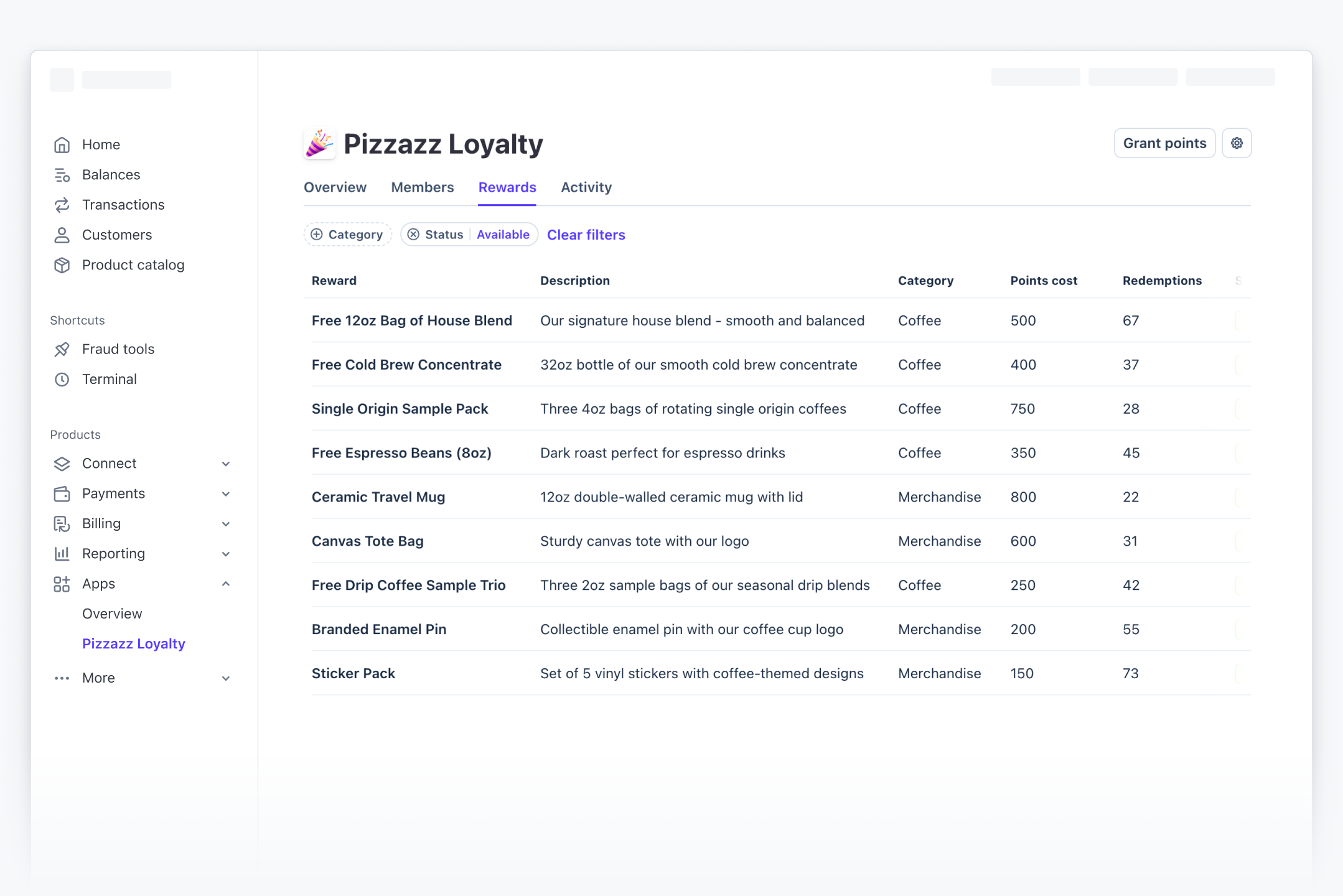
Use [Chip](https://docs.stripe.com/stripe-apps/components/chip.md) components to let users filter the rows shown in a [DataTable](https://docs.stripe.com/stripe-apps/components/datatable.md). Each chip represents one filterable attribute, such as status or tier.
Wrap it in a [Link](https://docs.stripe.com/stripe-apps/components/link.md) and use it to trigger a [Menu](https://docs.stripe.com/stripe-apps/components/menu.md).
A filter chip has two states:
- **Suggested** (no value selected): The chip displays a plus symbol (+) that opens a menu when clicked.
- **Active** (value selected): The chip displays the selected value with cancel symbol (❌) that clears the filter when clicked.
Render each state separately—wrapping an active chip in a `Link` causes `onClose` and the `Link`’s press event to be sent simultaneously, which clears the filter and reopens the menu.
```jsx
import {useState} from 'react';
import {
Box,
Chip,
Inline,
Link,
Menu,
MenuItem,
} from '@stripe/ui-extension-sdk/ui';
interface FilterChipProps {
label: string;
value: string;
options: {label: string; value: string}[];
onChange: (value: string) => void;
}
const FilterChip = ({label, value, options, onChange}: FilterChipProps) => {
const selectedLabel = value
? options.find((o) => o.value === value)?.label
: undefined;
const menuContent = options.map((opt) => (
));
if (!value) {
return (
);
}
return (
onChange('')}
/>
);
};
```
### Build a filter bar with Chips
Arrange multiple `FilterChip` components above your `DataTable` with a [Link](https://docs.stripe.com/stripe-apps/components/link.md) labeled **Clear filters** at the end, shown only when at least one filter is active.
Filter the data before passing it as `items` to the `DataTable` to keep pagination and row counts accurate.
```jsx
const MembersList = () => {
const [tierFilter, setTierFilter] = useState('');
const [statusFilter, setStatusFilter] = useState('');
const filteredMembers = membersData.filter((member) => {
const matchesTier = !tierFilter || member.tier === tierFilter;
const matchesStatus = !statusFilter || member.status === statusFilter;
return matchesTier && matchesStatus;
});
return (
{(tierFilter || statusFilter) && (
{
setTierFilter('');
setStatusFilter('');
}}
>
Clear filters
)}
);
};
```
### Best practices
- **Match filter labels to column headers**: Use labels that match the column names in the table they filter.
- **Keep filter options short**: Use concise, distinct labels that are easy to read.
- **Provide a way to clear all filters**: Display the **Clear filters** link at the end of the filter row, but only when at least one filter is active.
- **Filter data before passing it to DataTable**: Filter the source data before passing it to `DataTable`.
## Limitations
- **Chip has no built-in popover**: Use the `Link` plus the `Menu` pattern described above.
- **Active chips can’t be Menu triggers**: Wrapping an active `Chip` (one with `onClose`) inside a `Link` causes `onClose` and the `Link`’s press event to be sent simultaneously—use two separate render paths instead.
- **Menu only accepts MenuItem and MenuGroup children**: For more complex filter interfaces (such as date ranges or multi-select with checkboxes), use dedicated field components, such as the [DateRangePicker](https://docs.stripe.com/stripe-apps/components/daterangepicker.md?app-sdk-version=9).
## See also
- [Chip component](https://docs.stripe.com/stripe-apps/components/chip.md)
- [DataTable component](https://docs.stripe.com/stripe-apps/components/datatable.md)
- [Lists pattern](https://docs.stripe.com/stripe-apps/patterns/lists.md)