# Save a customer's payment method when they use it for a payment
Learn how to save your customer's payment details for future purchases when they make a payment.
# Checkout Sessions API
> This is a Checkout Sessions API for when payment-ui is embedded-components. View the full page at https://docs.stripe.com/payments/save-during-payment?payment-ui=embedded-components.
Use the [Checkout Sessions API](https://docs.stripe.com/api/checkout/sessions.md) to save payment details during a purchase. This is useful for situations such as:
- Charging a customer for an e-commerce order and storing the payment details for future purchases.
- Initiating the first payment in a series of recurring payments.
- Charging a deposit and storing the payment details to charge the full amount later.
## Compliance
You’re responsible for your compliance with all applicable laws, regulations, and network rules when saving a customer’s payment details. These requirements generally apply if you want to save your customer’s payment method for future use, such as displaying a customer’s payment method to them in the checkout flow for a future purchase or charging them when they’re not actively using your website or app. Add terms to your website or app that state how you plan to save payment method details and allow customers to opt in.
When you save a payment method, you can only use it for the specific usage you have included in your terms. To charge a payment method when a customer is offline and save it as an option for future purchases, make sure that you explicitly collect consent from the customer for this specific use. For example, include a “Save my payment method for future use” checkbox to collect consent.
To charge a customer when they’re offline, make sure your terms include the following:
- The customer’s agreement to your initiating a payment or a series of payments on their behalf for specified transactions.
- The anticipated timing and frequency of payments (for example, if the charges are for scheduled installments, subscription payments, or unscheduled top-ups).
- How you determine the payment amount.
- Your cancellation policy, if the payment method is for a subscription service.
Make sure you keep a record of your customer’s written agreement to these terms.
> When using Elements with the Checkout Sessions API, only cards are supported for saved payment methods. You can’t save other payment methods, such as bank accounts.
## Set up Stripe [Server-side]
First, [register](https://dashboard.stripe.com/register) for a Stripe account.
Use our official libraries to access the Stripe API from your application:
#### Ruby
```bash
# Available as a gem
sudo gem install stripe
```
```ruby
# If you use bundler, you can add this line to your Gemfile
gem 'stripe'
```
#### Python
```bash
# Install through pip
pip3 install --upgrade stripe
```
```bash
# Or find the Stripe package on http://pypi.python.org/pypi/stripe/
```
```python
# Find the version you want to pin:
# https://github.com/stripe/stripe-python/blob/master/CHANGELOG.md
# Specify that version in your requirements.txt file
stripe>=5.0.0
```
#### PHP
```bash
# Install the PHP library with Composer
composer require stripe/stripe-php
```
```bash
# Or download the source directly: https://github.com/stripe/stripe-php/releases
```
#### Java
```java
/*
For Gradle, add the following dependency to your build.gradle and replace with
the version number you want to use from:
- https://mvnrepository.com/artifact/com.stripe/stripe-java or
- https://github.com/stripe/stripe-java/releases/latest
*/
implementation "com.stripe:stripe-java:31.0.0"
```
```xml
com.stripestripe-java31.0.0
```
```bash
# For other environments, manually install the following JARs:
# - The Stripe JAR from https://github.com/stripe/stripe-java/releases/latest
# - Google Gson from https://github.com/google/gson
```
#### Node.js
```bash
# Install with npm
npm install stripe --save
```
#### Go
```bash
# Make sure your project is using Go Modules
go mod init
# Install stripe-go
go get -u github.com/stripe/stripe-go/v83
```
```go
// Then import the package
import (
"github.com/stripe/stripe-go/v83"
)
```
#### .NET
```bash
# Install with dotnet
dotnet add package Stripe.net
dotnet restore
```
```bash
# Or install with NuGet
Install-Package Stripe.net
```
## Create a Customer [Server-side]
To set a card up for future payments, you must attach it to a *Customer* (Customer objects represent customers of your business. They let you reuse payment methods and give you the ability to track multiple payments). Create a Customer object when your customer creates an account with your business. Customer objects allow for reusing payment methods and tracking across multiple payments.
```curl
curl https://api.stripe.com/v1/customers \
-u "<>:" \
-d name="Jenny Rosen" \
--data-urlencode email="jennyrosen@example.com"
```
```cli
stripe customers create \
--name="Jenny Rosen" \
--email="jennyrosen@example.com"
```
```ruby
client = Stripe::StripeClient.new("<>")
customer = client.v1.customers.create({
name: 'Jenny Rosen',
email: 'jennyrosen@example.com',
})
```
```python
client = StripeClient("<>")
customer = client.v1.customers.create({
"name": "Jenny Rosen",
"email": "jennyrosen@example.com",
})
```
```php
$stripe = new \Stripe\StripeClient('<>');
$customer = $stripe->customers->create([
'name' => 'Jenny Rosen',
'email' => 'jennyrosen@example.com',
]);
```
```java
StripeClient client = new StripeClient("<>");
CustomerCreateParams params =
CustomerCreateParams.builder()
.setName("Jenny Rosen")
.setEmail("jennyrosen@example.com")
.build();
Customer customer = client.v1().customers().create(params);
```
```node
const stripe = require('stripe')('<>');
const customer = await stripe.customers.create({
name: 'Jenny Rosen',
email: 'jennyrosen@example.com',
});
```
```go
sc := stripe.NewClient("<>")
params := &stripe.CustomerCreateParams{
Name: stripe.String("Jenny Rosen"),
Email: stripe.String("jennyrosen@example.com"),
}
result, err := sc.V1Customers.Create(context.TODO(), params)
```
```dotnet
var options = new CustomerCreateOptions
{
Name = "Jenny Rosen",
Email = "jennyrosen@example.com",
};
var client = new StripeClient("<>");
var service = client.V1.Customers;
Customer customer = service.Create(options);
```
Successful creation returns the [Customer](https://docs.stripe.com/api/customers/object.md) object. You can inspect the object for the customer `id` and store the value in your database for later retrieval.
You can find these customers in the [Customers](https://dashboard.stripe.com/customers) page in the Dashboard.
## Enable saved payment methods
> Global privacy laws are complicated and nuanced. Before implementing the ability to store customer payment method details, work with your legal team to make sure that it complies with your privacy and compliance framework.
To allow a customer to save their payment method for future use, specify the [saved_payment_method_options.payment_method_save](https://docs.stripe.com/api/checkout/sessions/create.md#create_checkout_session-saved_payment_method_options-payment_method_save) parameter when creating the Checkout Session.
Saving a payment method requires a [Customer](https://docs.stripe.com/api/customers/object.md). Pass an existing customer or create a new one by setting [customer_creation](https://docs.stripe.com/api/checkout/sessions/create.md#create_checkout_session-customer_creation) to `always` on the Checkout Session.
```curl
curl https://api.stripe.com/v1/checkout/sessions \
-u "<>:" \
-d "line_items[0][price]"="{{PRICE_ID}}" \
-d "line_items[0][quantity]"=2 \
-d mode=payment \
-d ui_mode=custom \
-d customer_creation=always \
-d "saved_payment_method_options[payment_method_save]"=enabled
```
```cli
stripe checkout sessions create \
-d "line_items[0][price]"="{{PRICE_ID}}" \
-d "line_items[0][quantity]"=2 \
--mode=payment \
--ui-mode=custom \
--customer-creation=always \
-d "saved_payment_method_options[payment_method_save]"=enabled
```
```ruby
# Set your secret key. Remember to switch to your live secret key in production.
# See your keys here: https://dashboard.stripe.com/apikeys
client = Stripe::StripeClient.new("<>")
session = client.v1.checkout.sessions.create({
line_items: [
{
price: '{{PRICE_ID}}',
quantity: 2,
},
],
mode: 'payment',
ui_mode: 'custom',
customer_creation: 'always',
saved_payment_method_options: {payment_method_save: 'enabled'},
})
```
```python
# Set your secret key. Remember to switch to your live secret key in production.
# See your keys here: https://dashboard.stripe.com/apikeys
client = StripeClient("<>")
# For SDK versions 12.4.0 or lower, remove '.v1' from the following line.
session = client.v1.checkout.sessions.create({
"line_items": [{"price": "{{PRICE_ID}}", "quantity": 2}],
"mode": "payment",
"ui_mode": "custom",
"customer_creation": "always",
"saved_payment_method_options": {"payment_method_save": "enabled"},
})
```
```php
// Set your secret key. Remember to switch to your live secret key in production.
// See your keys here: https://dashboard.stripe.com/apikeys
$stripe = new \Stripe\StripeClient('<>');
$session = $stripe->checkout->sessions->create([
'line_items' => [
[
'price' => '{{PRICE_ID}}',
'quantity' => 2,
],
],
'mode' => 'payment',
'ui_mode' => 'custom',
'customer_creation' => 'always',
'saved_payment_method_options' => ['payment_method_save' => 'enabled'],
]);
```
```java
// Set your secret key. Remember to switch to your live secret key in production.
// See your keys here: https://dashboard.stripe.com/apikeys
StripeClient client = new StripeClient("<>");
SessionCreateParams params =
SessionCreateParams.builder()
.addLineItem(
SessionCreateParams.LineItem.builder()
.setPrice("{{PRICE_ID}}")
.setQuantity(2L)
.build()
)
.setMode(SessionCreateParams.Mode.PAYMENT)
.setUiMode(SessionCreateParams.UiMode.CUSTOM)
.setCustomerCreation(SessionCreateParams.CustomerCreation.ALWAYS)
.setSavedPaymentMethodOptions(
SessionCreateParams.SavedPaymentMethodOptions.builder()
.setPaymentMethodSave(
SessionCreateParams.SavedPaymentMethodOptions.PaymentMethodSave.ENABLED
)
.build()
)
.build();
// For SDK versions 29.4.0 or lower, remove '.v1()' from the following line.
Session session = client.v1().checkout().sessions().create(params);
```
```node
// Set your secret key. Remember to switch to your live secret key in production.
// See your keys here: https://dashboard.stripe.com/apikeys
const stripe = require('stripe')('<>');
const session = await stripe.checkout.sessions.create({
line_items: [
{
price: '{{PRICE_ID}}',
quantity: 2,
},
],
mode: 'payment',
ui_mode: 'custom',
customer_creation: 'always',
saved_payment_method_options: {
payment_method_save: 'enabled',
},
});
```
```go
// Set your secret key. Remember to switch to your live secret key in production.
// See your keys here: https://dashboard.stripe.com/apikeys
sc := stripe.NewClient("<>")
params := &stripe.CheckoutSessionCreateParams{
LineItems: []*stripe.CheckoutSessionCreateLineItemParams{
&stripe.CheckoutSessionCreateLineItemParams{
Price: stripe.String("{{PRICE_ID}}"),
Quantity: stripe.Int64(2),
},
},
Mode: stripe.String(stripe.CheckoutSessionModePayment),
UIMode: stripe.String(stripe.CheckoutSessionUIModeCustom),
CustomerCreation: stripe.String(stripe.CheckoutSessionCustomerCreationAlways),
SavedPaymentMethodOptions: &stripe.CheckoutSessionCreateSavedPaymentMethodOptionsParams{
PaymentMethodSave: stripe.String(stripe.CheckoutSessionSavedPaymentMethodOptionsPaymentMethodSaveEnabled),
},
}
result, err := sc.V1CheckoutSessions.Create(context.TODO(), params)
```
```dotnet
// Set your secret key. Remember to switch to your live secret key in production.
// See your keys here: https://dashboard.stripe.com/apikeys
var options = new Stripe.Checkout.SessionCreateOptions
{
LineItems = new List
{
new Stripe.Checkout.SessionLineItemOptions
{
Price = "{{PRICE_ID}}",
Quantity = 2,
},
},
Mode = "payment",
UiMode = "custom",
CustomerCreation = "always",
SavedPaymentMethodOptions = new Stripe.Checkout.SessionSavedPaymentMethodOptionsOptions
{
PaymentMethodSave = "enabled",
},
};
var client = new StripeClient("<>");
var service = client.V1.Checkout.Sessions;
Stripe.Checkout.Session session = service.Create(options);
```
After you create the Checkout Session, use the [client secret](https://docs.stripe.com/api/checkout/sessions/object.md#checkout_session_object-client_secret) returned in the response to [build your checkout page](https://docs.stripe.com/payments/quickstart-checkout-sessions.md).
> In the latest version of Stripe.js, specifying `enableSave` to `auto` is optional because that’s the default value when saved payment methods are enabled on the Checkout Session.
#### HTML + JS
The Payment Element automatically displays a consent collection checkbox when saved payment methods are enabled on the Checkout Session. You can explicitly configure this behavior using [elementsOptions](https://docs.stripe.com/js/custom_checkout/init#custom_checkout_init-options-elementsOptions) on `initCheckout`.
```javascript
const checkout = stripe.initCheckout({
clientSecret,
elementsOptions: {savedPaymentMethod: {
// Default is 'auto' in the latest version of Stripe.js - this configuration is optional
enableSave: 'auto',
}
}
});
```
#### React
The Payment Element automatically displays a consent collection checkbox when saved payment methods are enabled on the Checkout Session. You can explicitly configure this behavior using [elementsOptions](https://docs.stripe.com/js/custom_checkout/react/checkout_provider#custom_checkout_react_checkout_provider-options-elementsOptions) on the `CheckoutProvider`.
```jsx
import React from 'react';
import {CheckoutProvider} from '@stripe/react-stripe-js/checkout';
import CheckoutForm from './CheckoutForm';
const App = () => {
const clientSecret = fetch('/create-checkout-session', {method: 'POST'})
.then((response) => response.json())
.then((json) => json.checkoutSessionClientSecret)
return (
);
};
export default App;
```
## Reuse a previously saved payment method
Each saved payment method is linked to a [Customer](https://docs.stripe.com/api/customers/object.md) object. Before creating the Checkout Session, authenticate your customer, and pass the corresponding [Customer ID](https://docs.stripe.com/api/customers/object.md#customer_object-id) to the Checkout Session.
> In the latest version of Stripe.js, `enableRedisplay` defaults to `auto` when saved payment methods are enabled on the Checkout Session.
The Payment Element automatically redisplays previously saved payment methods for your customer to use during checkout when saved payment methods are enabled on the Checkout Session.
```curl
curl https://api.stripe.com/v1/checkout/sessions \
-u "<>:" \
-d "line_items[0][price]"="{{PRICE_ID}}" \
-d "line_items[0][quantity]"=2 \
-d mode=payment \
-d ui_mode=custom \
-d customer="{{CUSTOMER_ID}}"
```
```cli
stripe checkout sessions create \
-d "line_items[0][price]"="{{PRICE_ID}}" \
-d "line_items[0][quantity]"=2 \
--mode=payment \
--ui-mode=custom \
--customer="{{CUSTOMER_ID}}"
```
```ruby
# Set your secret key. Remember to switch to your live secret key in production.
# See your keys here: https://dashboard.stripe.com/apikeys
client = Stripe::StripeClient.new("<>")
session = client.v1.checkout.sessions.create({
line_items: [
{
price: '{{PRICE_ID}}',
quantity: 2,
},
],
mode: 'payment',
ui_mode: 'custom',
customer: '{{CUSTOMER_ID}}',
})
```
```python
# Set your secret key. Remember to switch to your live secret key in production.
# See your keys here: https://dashboard.stripe.com/apikeys
client = StripeClient("<>")
# For SDK versions 12.4.0 or lower, remove '.v1' from the following line.
session = client.v1.checkout.sessions.create({
"line_items": [{"price": "{{PRICE_ID}}", "quantity": 2}],
"mode": "payment",
"ui_mode": "custom",
"customer": "{{CUSTOMER_ID}}",
})
```
```php
// Set your secret key. Remember to switch to your live secret key in production.
// See your keys here: https://dashboard.stripe.com/apikeys
$stripe = new \Stripe\StripeClient('<>');
$session = $stripe->checkout->sessions->create([
'line_items' => [
[
'price' => '{{PRICE_ID}}',
'quantity' => 2,
],
],
'mode' => 'payment',
'ui_mode' => 'custom',
'customer' => '{{CUSTOMER_ID}}',
]);
```
```java
// Set your secret key. Remember to switch to your live secret key in production.
// See your keys here: https://dashboard.stripe.com/apikeys
StripeClient client = new StripeClient("<>");
SessionCreateParams params =
SessionCreateParams.builder()
.addLineItem(
SessionCreateParams.LineItem.builder()
.setPrice("{{PRICE_ID}}")
.setQuantity(2L)
.build()
)
.setMode(SessionCreateParams.Mode.PAYMENT)
.setUiMode(SessionCreateParams.UiMode.CUSTOM)
.setCustomer("{{CUSTOMER_ID}}")
.build();
// For SDK versions 29.4.0 or lower, remove '.v1()' from the following line.
Session session = client.v1().checkout().sessions().create(params);
```
```node
// Set your secret key. Remember to switch to your live secret key in production.
// See your keys here: https://dashboard.stripe.com/apikeys
const stripe = require('stripe')('<>');
const session = await stripe.checkout.sessions.create({
line_items: [
{
price: '{{PRICE_ID}}',
quantity: 2,
},
],
mode: 'payment',
ui_mode: 'custom',
customer: '{{CUSTOMER_ID}}',
});
```
```go
// Set your secret key. Remember to switch to your live secret key in production.
// See your keys here: https://dashboard.stripe.com/apikeys
sc := stripe.NewClient("<>")
params := &stripe.CheckoutSessionCreateParams{
LineItems: []*stripe.CheckoutSessionCreateLineItemParams{
&stripe.CheckoutSessionCreateLineItemParams{
Price: stripe.String("{{PRICE_ID}}"),
Quantity: stripe.Int64(2),
},
},
Mode: stripe.String(stripe.CheckoutSessionModePayment),
UIMode: stripe.String(stripe.CheckoutSessionUIModeCustom),
Customer: stripe.String("{{CUSTOMER_ID}}"),
}
result, err := sc.V1CheckoutSessions.Create(context.TODO(), params)
```
```dotnet
// Set your secret key. Remember to switch to your live secret key in production.
// See your keys here: https://dashboard.stripe.com/apikeys
var options = new Stripe.Checkout.SessionCreateOptions
{
LineItems = new List
{
new Stripe.Checkout.SessionLineItemOptions
{
Price = "{{PRICE_ID}}",
Quantity = 2,
},
},
Mode = "payment",
UiMode = "custom",
Customer = "{{CUSTOMER_ID}}",
};
var client = new StripeClient("<>");
var service = client.V1.Checkout.Sessions;
Stripe.Checkout.Session session = service.Create(options);
```
#### HTML + JS
You can explicitly configure the redisplay behavior using [elementsOptions](https://docs.stripe.com/js/custom_checkout/init#custom_checkout_init-options-elementsOptions) on `initCheckout`.
```javascript
const checkout = stripe.initCheckout({
clientSecret,
elementsOptions: {
savedPaymentMethod: {
// Default is 'auto' in the latest version of Stripe.js - this configuration is optional
enableSave: 'auto',// Default is 'auto' in the latest version of Stripe.js - this configuration is optional
enableRedisplay: 'auto',
}
}
});
```
#### React
You can explicitly configure the redisplay behavior using [elementsOptions](https://docs.stripe.com/js/custom_checkout/react/checkout_provider#custom_checkout_react_checkout_provider-options-elementsOptions) on the `CheckoutProvider`.
```jsx
import React from 'react';
import {CheckoutProvider} from '@stripe/react-stripe-js/checkout';
import CheckoutForm from './CheckoutForm';
const App = () => {
const clientSecret = fetch('/create-checkout-session', {method: 'POST'})
.then((response) => response.json())
.then((json) => json.checkoutSessionClientSecret)
return (
);
};
export default App;
```
## Optional: Build a saved payment method UI
#### HTML + JS
You can build your own saved payment method UI instead of using the built-in UI provided by the Payment Element.
To prevent the Payment Element from handling consent collection and displaying the previously saved payment methods, pass in additional [elementsOptions](https://docs.stripe.com/js/custom_checkout/init#custom_checkout_init-options-elementsOptions) on `initCheckout`.
```javascript
const checkout = stripe.initCheckout({
clientSecret,
elementsOptions: {savedPaymentMethod: {
enableSave: 'never',
enableRedisplay: 'never',
}
}
});
```
#### React
You can build your own saved payment method UI instead of using the built-in UI provided by the Payment Element. To prevent the Payment Element from handling consent collection and displaying the previously saved payment methods, pass in additional [elementsOptions](https://docs.stripe.com/js/custom_checkout/react/checkout_provider#custom_checkout_react_checkout_provider-options-elementsOptions) on the `CheckoutProvider`.
```jsx
import React from 'react';
import {CheckoutProvider} from '@stripe/react-stripe-js/checkout';
import CheckoutForm from './CheckoutForm';
const App = () => {
const clientSecret = fetch('/create-checkout-session', {method: 'POST'})
.then((response) => response.json())
.then((json) => json.checkoutSessionClientSecret)
return (
);
};
export default App;
```
### Collect consent
> Global privacy laws are complicated and nuanced. Before implementing the ability to store customer payment method details, work with your legal team to make sure that it complies with your privacy and compliance framework.
In most cases, you must collect a customer’s consent before you save their payment method details. The following example shows how to obtain consent using a checkbox.
#### HTML + JS
```html
```
#### React
```jsx
import React from 'react';
type Props = {
savePaymentMethod: boolean;
onSavePaymentMethodChange: (save: boolean) => void;
}
const ConsentCollection = (props: Props) => {
const handleChange = (e: React.ChangeEvent) => {
props.onSavePaymentMethodChange(e.target.checked);
};
return (
);
};
export default ConsentCollection;
```
When you call [confirm](https://docs.stripe.com/js/custom_checkout/confirm), you can indicate to Stripe that your customer has provided consent by passing the `savePaymentMethod` parameter. When you save a customer’s payment details, you’re responsible for complying with all applicable laws, regulations, and network rules.
#### HTML + JS
```js
const checkout = stripe.initCheckout({clientSecret});
const button = document.getElementById('pay-button');
const errors = document.getElementById('confirm-errors');
const checkbox = document.getElementById('save-payment-method-checkbox');
const loadActionsResult = await checkout.loadActions();
if (loadActionsResult.type === 'success') {
const {actions} = loadActionsResult;
button.addEventListener('click', () => {
// Clear any validation errors
errors.textContent = '';
const savePaymentMethod = checkbox.checked;
actions.confirm({savePaymentMethod}).then((result) => {
if (result.type === 'error') {
errors.textContent = result.error.message;
}
});
});
}
```
#### React
```jsx
import React from 'react';
import {useCheckout} from '@stripe/react-stripe-js/checkout';
type Props = {
savePaymentMethod: boolean;
}
const PayButton = (props: Props) => {
const checkoutState = useCheckout();
const [loading, setLoading] = React.useState(false);
const [error, setError] = React.useState(null);
if (checkoutState.type === 'loading') {
return (
Loading...
);
} else if (checkoutState.type === 'error') {
return (
)
};
export default PayButton;
```
### Render saved payment methods
Use the [savedPaymentMethods](https://docs.stripe.com/js/custom_checkout/session_object#custom_checkout_session_object-savedPaymentMethods) array on the front end to render the customer’s available payment methods.
> The `savedPaymentMethods` array includes only the payment methods that have [allow_redisplay](https://docs.stripe.com/api/payment_methods/object.md#payment_method_object-allow_redisplay) set to `always`. Follow the steps for [collecting consent](https://docs.stripe.com/payments/save-during-payment.md#collect-consent) from your customer and make sure to properly set the `allow_redisplay` parameter.
#### HTML + JS
```html
```
```js
const checkout = stripe.initCheckout({clientSecret});
const loadActionsResult = await checkout.loadActions();
if (loadActionsResult.type === 'success') {
const container = document.getElementById('saved-payment-methods');
const {actions} = loadActionsResult;
actions.getSession().savedPaymentMethods.forEach((pm) => {
const label = document.createElement('label');
const radio = document.createElement('input');
radio.type = 'radio';
radio.value = pm.id;
label.appendChild(radio);
label.appendChild(document.createTextNode(`Card ending in ${pm.card.last4}`));
container.appendChild(label);
});
}
```
#### React
```jsx
import React from 'react';
import {useCheckout} from '@stripe/react-stripe-js/checkout';
type Props = {
selectedPaymentMethod: string | null;
onSelectPaymentMethod: (paymentMethod: string) => void;
};
const PaymentMethods = (props: Props) => {const checkoutState = useCheckout();
if (checkoutState.type === 'loading') {
return (
Loading...
);
} else if (checkoutState.type === 'error') {
return (
);
};
export default PaymentMethods;
```
### Confirm with a saved payment method
When your customer selects a saved payment method and is ready to complete checkout, call [confirm](https://docs.stripe.com/js/custom_checkout/confirm) and pass in the [paymentMethod](https://docs.stripe.com/js/custom_checkout/confirm#custom_checkout_session_confirm-options-paymentMethod) ID.
#### HTML + JS
```html
```
```js
const checkout = stripe.initCheckout({clientSecret});
const loadActionsResult = await checkout.loadActions();
if (loadActionsResult.type === 'success') {
const container = document.getElementById('saved-payment-methods');
const {actions} = loadActionsResult;
actions.getSession().savedPaymentMethods.forEach((pm) => {
const label = document.createElement('label');
const radio = document.createElement('input');
radio.type = 'radio';
radio.value = pm.id;
label.appendChild(radio);
label.appendChild(document.createTextNode(`Card ending in ${pm.card.last4}`));
container.appendChild(label);
});
}
```
#### React
```jsx
import React from 'react';
import {useCheckout} from '@stripe/react-stripe-js/checkout';
type Props = {
selectedPaymentMethod: string | null;
}
const PayButton = (props: Props) => {
const checkoutState = useCheckout();
const [loading, setLoading] = React.useState(false);
if (checkoutState.type === 'loading') {
return (
Loading...
);
} else if (checkoutState.type === 'error') {
return (
Error: {checkoutState.error.message}
);
}
const {confirm} = checkoutState.checkout;
const handleClick = () => {
setLoading(true);confirm({paymentMethod: props.selectedPaymentMethod}).then((result) => {
if (result.error) {
// Confirmation failed. Display the error message.
}
setLoading(false);
})
};
return (
)
};
export default PayButton;
```
# Payment Intents API
> This is a Payment Intents API for when payment-ui is elements. View the full page at https://docs.stripe.com/payments/save-during-payment?payment-ui=elements.
Use the [Payment Intents API](https://docs.stripe.com/api/payment_intents.md) to save payment details from a purchase. There are several use cases:
- Charge a customer for an e-commerce order and store the details for future purchases.
- Initiate the first payment of a series of recurring payments.
- Charge a deposit and store the details to charge the full amount later.
> #### Card-present transactions
>
> Card-present transactions, such as payments through Stripe Terminal, use a different process for saving the payment method. For details, see [the Terminal documentation](https://docs.stripe.com/terminal/features/saving-payment-details/save-after-payment.md).
## Compliance
You’re responsible for your compliance with all applicable laws, regulations, and network rules when saving a customer’s payment details. These requirements generally apply if you want to save your customer’s payment method for future use, such as displaying a customer’s payment method to them in the checkout flow for a future purchase or charging them when they’re not actively using your website or app. Add terms to your website or app that state how you plan to save payment method details and allow customers to opt in.
When you save a payment method, you can only use it for the specific usage you have included in your terms. To charge a payment method when a customer is offline and save it as an option for future purchases, make sure that you explicitly collect consent from the customer for this specific use. For example, include a “Save my payment method for future use” checkbox to collect consent.
To charge them when they’re offline, make sure your terms include the following:
- The customer’s agreement to your initiating a payment or a series of payments on their behalf for specified transactions.
- The anticipated timing and frequency of payments (for example, if the charges are for scheduled installments, subscription payments, or unscheduled top-ups).
- How you determine the payment amount.
- Your cancellation policy, if the payment method is for a subscription service.
Make sure you keep a record of your customer’s written agreement to these terms.
## Set up Stripe [Server-side]
First, [register](https://dashboard.stripe.com/register) for a Stripe account.
Use our official libraries to access the Stripe API from your application:
#### Ruby
```bash
# Available as a gem
sudo gem install stripe
```
```ruby
# If you use bundler, you can add this line to your Gemfile
gem 'stripe'
```
#### Python
```bash
# Install through pip
pip3 install --upgrade stripe
```
```bash
# Or find the Stripe package on http://pypi.python.org/pypi/stripe/
```
```python
# Find the version you want to pin:
# https://github.com/stripe/stripe-python/blob/master/CHANGELOG.md
# Specify that version in your requirements.txt file
stripe>=5.0.0
```
#### PHP
```bash
# Install the PHP library with Composer
composer require stripe/stripe-php
```
```bash
# Or download the source directly: https://github.com/stripe/stripe-php/releases
```
#### Java
```java
/*
For Gradle, add the following dependency to your build.gradle and replace with
the version number you want to use from:
- https://mvnrepository.com/artifact/com.stripe/stripe-java or
- https://github.com/stripe/stripe-java/releases/latest
*/
implementation "com.stripe:stripe-java:31.0.0"
```
```xml
com.stripestripe-java31.0.0
```
```bash
# For other environments, manually install the following JARs:
# - The Stripe JAR from https://github.com/stripe/stripe-java/releases/latest
# - Google Gson from https://github.com/google/gson
```
#### Node.js
```bash
# Install with npm
npm install stripe --save
```
#### Go
```bash
# Make sure your project is using Go Modules
go mod init
# Install stripe-go
go get -u github.com/stripe/stripe-go/v83
```
```go
// Then import the package
import (
"github.com/stripe/stripe-go/v83"
)
```
#### .NET
```bash
# Install with dotnet
dotnet add package Stripe.net
dotnet restore
```
```bash
# Or install with NuGet
Install-Package Stripe.net
```
## Create a Customer [Server-side]
To set a card up for future payments, you must attach it to a *Customer* (Customer objects represent customers of your business. They let you reuse payment methods and give you the ability to track multiple payments). Create a Customer object when your customer creates an account with your business. Customer objects allow for reusing payment methods and tracking across multiple payments.
```curl
curl https://api.stripe.com/v1/customers \
-u "<>:" \
-d name="Jenny Rosen" \
--data-urlencode email="jennyrosen@example.com"
```
```cli
stripe customers create \
--name="Jenny Rosen" \
--email="jennyrosen@example.com"
```
```ruby
client = Stripe::StripeClient.new("<>")
customer = client.v1.customers.create({
name: 'Jenny Rosen',
email: 'jennyrosen@example.com',
})
```
```python
client = StripeClient("<>")
customer = client.v1.customers.create({
"name": "Jenny Rosen",
"email": "jennyrosen@example.com",
})
```
```php
$stripe = new \Stripe\StripeClient('<>');
$customer = $stripe->customers->create([
'name' => 'Jenny Rosen',
'email' => 'jennyrosen@example.com',
]);
```
```java
StripeClient client = new StripeClient("<>");
CustomerCreateParams params =
CustomerCreateParams.builder()
.setName("Jenny Rosen")
.setEmail("jennyrosen@example.com")
.build();
Customer customer = client.v1().customers().create(params);
```
```node
const stripe = require('stripe')('<>');
const customer = await stripe.customers.create({
name: 'Jenny Rosen',
email: 'jennyrosen@example.com',
});
```
```go
sc := stripe.NewClient("<>")
params := &stripe.CustomerCreateParams{
Name: stripe.String("Jenny Rosen"),
Email: stripe.String("jennyrosen@example.com"),
}
result, err := sc.V1Customers.Create(context.TODO(), params)
```
```dotnet
var options = new CustomerCreateOptions
{
Name = "Jenny Rosen",
Email = "jennyrosen@example.com",
};
var client = new StripeClient("<>");
var service = client.V1.Customers;
Customer customer = service.Create(options);
```
Successful creation returns the [Customer](https://docs.stripe.com/api/customers/object.md) object. You can inspect the object for the customer `id` and store the value in your database for later retrieval.
You can find these customers in the [Customers](https://dashboard.stripe.com/customers) page in the Dashboard.
## Enable payment methods
View your [payment methods settings](https://dashboard.stripe.com/settings/payment_methods) and enable the payment methods you want to support. You need at least one payment method enabled to create a *PaymentIntent* (The Payment Intents API tracks the lifecycle of a customer checkout flow and triggers additional authentication steps when required by regulatory mandates, custom Radar fraud rules, or redirect-based payment methods).
By default, Stripe enables cards and other prevalent payment methods that can help you reach more customers, but we recommend turning on additional payment methods that are relevant for your business and customers. See [Payment method support](https://docs.stripe.com/payments/payment-methods/payment-method-support.md) for product and payment method support, and our [pricing page](https://stripe.com/pricing/local-payment-methods) for fees.
## Create a payment [Server-side]
> If you want to render the Payment Element without first creating a PaymentIntent, see [Collect payment details before creating an Intent](https://docs.stripe.com/payments/accept-a-payment-deferred.md?type=payment).
The [PaymentIntent](https://docs.stripe.com/api/payment_intents.md) object represents your intent to collect payment from a customer and tracks charge attempts and state changes throughout the payment process.
A high-level overview of the payments integration this document describes. (See full diagram at https://docs.stripe.com/payments/save-during-payment)
### Create the PaymentIntent
Create a PaymentIntent on your server. Specify an [amount](https://docs.stripe.com/api/payment_intents/create.md#create_payment_intent-amount), [currency](https://docs.stripe.com/api/payment_intents/create.md#create_payment_intent-currency), and [customer](https://docs.stripe.com/api/payment_intents/create.md#create_payment_intent-customer). In the latest version of the API, specifying the `automatic_payment_methods` parameter is optional because Stripe enables its functionality by default. Enable [setup_future_usage](https://docs.stripe.com/api/payment_intents/create.md#create_payment_intent-setup_future_usage). The payment methods you configured in the Dashboard are automatically added to the Payment Intent.
If you don’t want to use the Dashboard or if you want to specify payment methods manually, you can list them using the `payment_method_types` [attribute](https://docs.stripe.com/api/payment_intents/create.md#create_payment_intent-payment_method_types).
```curl
curl https://api.stripe.com/v1/payment_intents \
-u "<>:" \
-d customer="{{CUSTOMER_ID}}" \
-d amount=1099 \
-d currency=usd \
-d setup_future_usage=off_session \
-d "automatic_payment_methods[enabled]"=true
```
```cli
stripe payment_intents create \
--customer="{{CUSTOMER_ID}}" \
--amount=1099 \
--currency=usd \
--setup-future-usage=off_session \
-d "automatic_payment_methods[enabled]"=true
```
```ruby
# Set your secret key. Remember to switch to your live secret key in production.
# See your keys here: https://dashboard.stripe.com/apikeys
client = Stripe::StripeClient.new("<>")
payment_intent = client.v1.payment_intents.create({
customer: '{{CUSTOMER_ID}}',
amount: 1099,
currency: 'usd',
setup_future_usage: 'off_session',
automatic_payment_methods: {enabled: true},
})
```
```python
# Set your secret key. Remember to switch to your live secret key in production.
# See your keys here: https://dashboard.stripe.com/apikeys
client = StripeClient("<>")
# For SDK versions 12.4.0 or lower, remove '.v1' from the following line.
payment_intent = client.v1.payment_intents.create({
"customer": "{{CUSTOMER_ID}}",
"amount": 1099,
"currency": "usd",
"setup_future_usage": "off_session",
"automatic_payment_methods": {"enabled": True},
})
```
```php
// Set your secret key. Remember to switch to your live secret key in production.
// See your keys here: https://dashboard.stripe.com/apikeys
$stripe = new \Stripe\StripeClient('<>');
$paymentIntent = $stripe->paymentIntents->create([
'customer' => '{{CUSTOMER_ID}}',
'amount' => 1099,
'currency' => 'usd',
'setup_future_usage' => 'off_session',
'automatic_payment_methods' => ['enabled' => true],
]);
```
```java
// Set your secret key. Remember to switch to your live secret key in production.
// See your keys here: https://dashboard.stripe.com/apikeys
StripeClient client = new StripeClient("<>");
PaymentIntentCreateParams params =
PaymentIntentCreateParams.builder()
.setCustomer("{{CUSTOMER_ID}}")
.setAmount(1099L)
.setCurrency("usd")
.setSetupFutureUsage(PaymentIntentCreateParams.SetupFutureUsage.OFF_SESSION)
.setAutomaticPaymentMethods(
PaymentIntentCreateParams.AutomaticPaymentMethods.builder().setEnabled(true).build()
)
.build();
// For SDK versions 29.4.0 or lower, remove '.v1()' from the following line.
PaymentIntent paymentIntent = client.v1().paymentIntents().create(params);
```
```node
// Set your secret key. Remember to switch to your live secret key in production.
// See your keys here: https://dashboard.stripe.com/apikeys
const stripe = require('stripe')('<>');
const paymentIntent = await stripe.paymentIntents.create({
customer: '{{CUSTOMER_ID}}',
amount: 1099,
currency: 'usd',
setup_future_usage: 'off_session',
automatic_payment_methods: {
enabled: true,
},
});
```
```go
// Set your secret key. Remember to switch to your live secret key in production.
// See your keys here: https://dashboard.stripe.com/apikeys
sc := stripe.NewClient("<>")
params := &stripe.PaymentIntentCreateParams{
Customer: stripe.String("{{CUSTOMER_ID}}"),
Amount: stripe.Int64(1099),
Currency: stripe.String(stripe.CurrencyUSD),
SetupFutureUsage: stripe.String(stripe.PaymentIntentSetupFutureUsageOffSession),
AutomaticPaymentMethods: &stripe.PaymentIntentCreateAutomaticPaymentMethodsParams{
Enabled: stripe.Bool(true),
},
}
result, err := sc.V1PaymentIntents.Create(context.TODO(), params)
```
```dotnet
// Set your secret key. Remember to switch to your live secret key in production.
// See your keys here: https://dashboard.stripe.com/apikeys
var options = new PaymentIntentCreateOptions
{
Customer = "{{CUSTOMER_ID}}",
Amount = 1099,
Currency = "usd",
SetupFutureUsage = "off_session",
AutomaticPaymentMethods = new PaymentIntentAutomaticPaymentMethodsOptions
{
Enabled = true,
},
};
var client = new StripeClient("<>");
var service = client.V1.PaymentIntents;
PaymentIntent paymentIntent = service.Create(options);
```
> Always decide how much to charge on the server side, a trusted environment, as opposed to the client. This prevents malicious customers from being able to choose their own prices.
### Retrieve the client secret
The PaymentIntent includes a *client secret* (The client secret is a unique key returned from Stripe as part of a PaymentIntent. This key lets the client access important fields from the PaymentIntent (status, amount, currency) while hiding sensitive ones (metadata, customer)) that the client side uses to securely complete the payment process. You can use different approaches to pass the client secret to the client side.
#### Single-page application
Retrieve the client secret from an endpoint on your server, using the browser’s `fetch` function. This approach is best if your client side is a single-page application, particularly one built with a modern frontend framework like React. Create the server endpoint that serves the client secret:
#### Ruby
```ruby
get '/secret' do
intent = # ... Create or retrieve the PaymentIntent
{client_secret: intent.client_secret}.to_json
end
```
#### Python
```python
from flask import Flask, jsonify
app = Flask(__name__)
@app.route('/secret')
def secret():
intent = # ... Create or retrieve the PaymentIntent
return jsonify(client_secret=intent.client_secret)
```
#### PHP
```php
$intent->client_secret));
?>
```
#### Java
```java
import java.util.HashMap;
import java.util.Map;
import com.stripe.model.PaymentIntent;
import com.google.gson.Gson;
import static spark.Spark.get;
public class StripeJavaQuickStart {
public static void main(String[] args) {
Gson gson = new Gson();
get("/secret", (request, response) -> {
PaymentIntent intent = // ... Fetch or create the PaymentIntent
Map map = new HashMap();
map.put("client_secret", intent.getClientSecret());
return map;
}, gson::toJson);
}
}
```
#### Node.js
```javascript
const express = require('express');
const app = express();
app.get('/secret', async (req, res) => {
const intent = // ... Fetch or create the PaymentIntent
res.json({client_secret: intent.client_secret});
});
app.listen(3000, () => {
console.log('Running on port 3000');
});
```
#### Go
```go
package main
import (
"encoding/json"
"net/http"
stripe "github.com/stripe/stripe-go/v76.0.0"
)
type CheckoutData struct {
ClientSecret string `json:"client_secret"`
}
func main() {
http.HandleFunc("/secret", func(w http.ResponseWriter, r *http.Request) {
intent := // ... Fetch or create the PaymentIntent
data := CheckoutData{
ClientSecret: intent.ClientSecret,
}
w.Header().Set("Content-Type", "application/json")
w.WriteHeader(http.StatusOK)
json.NewEncoder(w).Encode(data)
})
http.ListenAndServe(":3000", nil)
}
```
#### .NET
```csharp
using System;
using Microsoft.AspNetCore.Mvc;
using Stripe;
namespace StripeExampleApi.Controllers
{
[Route("secret")]
[ApiController]
public class CheckoutApiController : Controller
{
[HttpGet]
public ActionResult Get()
{
var intent = // ... Fetch or create the PaymentIntent
return Json(new {client_secret = intent.ClientSecret});
}
}
}
```
And then fetch the client secret with JavaScript on the client side:
```javascript
(async () => {
const response = await fetch('/secret');
const {client_secret: clientSecret} = await response.json();
// Render the form using the clientSecret
})();
```
#### Server-side rendering
Pass the client secret to the client from your server. This approach works best if your application generates static content on the server before sending it to the browser.
Add the [client_secret](https://docs.stripe.com/api/payment_intents/object.md#payment_intent_object-client_secret) in your checkout form. In your server-side code, retrieve the client secret from the PaymentIntent:
#### Ruby
```erb
```
```ruby
get '/checkout' do
@intent = # ... Fetch or create the PaymentIntent
erb :checkout
end
```
#### Python
```html
```
```python
@app.route('/checkout')
def checkout():
intent = # ... Fetch or create the PaymentIntent
return render_template('checkout.html', client_secret=intent.client_secret)
```
#### PHP
```php
...
...
```
#### Java
```html
```
```java
import java.util.HashMap;
import java.util.Map;
import com.stripe.model.PaymentIntent;
import spark.ModelAndView;
import static spark.Spark.get;
public class StripeJavaQuickStart {
public static void main(String[] args) {
get("/checkout", (request, response) -> {
PaymentIntent intent = // ... Fetch or create the PaymentIntent
Map map = new HashMap();
map.put("client_secret", intent.getClientSecret());
return new ModelAndView(map, "checkout.hbs");
}, new HandlebarsTemplateEngine());
}
}
```
#### Node.js
```html
```
```javascript
const express = require('express');
const expressHandlebars = require('express-handlebars');
const app = express();
app.engine('.hbs', expressHandlebars({ extname: '.hbs' }));
app.set('view engine', '.hbs');
app.set('views', './views');
app.get('/checkout', async (req, res) => {
const intent = // ... Fetch or create the PaymentIntent
res.render('checkout', { client_secret: intent.client_secret });
});
app.listen(3000, () => {
console.log('Running on port 3000');
});
```
#### Go
```html
```
```go
package main
import (
"html/template"
"net/http"
stripe "github.com/stripe/stripe-go/v76.0.0"
)
type CheckoutData struct {
ClientSecret string
}
func main() {
checkoutTmpl := template.Must(template.ParseFiles("views/checkout.html"))
http.HandleFunc("/checkout", func(w http.ResponseWriter, r *http.Request) {
intent := // ... Fetch or create the PaymentIntent
data := CheckoutData{
ClientSecret: intent.ClientSecret,
}
checkoutTmpl.Execute(w, data)
})
http.ListenAndServe(":3000", nil)
}
```
#### .NET
```html
```
```csharp
using System;
using Microsoft.AspNetCore.Mvc;
using Stripe;
namespace StripeExampleApi.Controllers
{
[Route("/[controller]")]
public class CheckoutApiController : Controller
{
public IActionResult Index()
{
var intent = // ... Fetch or create the PaymentIntent
ViewData["ClientSecret"] = intent.ClientSecret;
return View();
}
}
}
```
## Collect payment details [Client-side]
Collect payment details on the client with the [Payment Element](https://docs.stripe.com/payments/payment-element.md). The Payment Element is a prebuilt UI component that simplifies collecting payment details for a variety of payment methods.
The Payment Element contains an iframe that securely sends payment information to Stripe over an HTTPS connection. Avoid placing the Payment Element within another iframe because some payment methods require redirecting to another page for payment confirmation.
If you do choose to use an iframe and want to accept Apple Pay or Google Pay, the iframe must have the [allow](https://developer.mozilla.org/en-US/docs/Web/HTML/Element/iframe#attr-allowpaymentrequest) attribute set to equal `"payment *"`.
The checkout page address must start with `https://` rather than `http://` for your integration to work. You can test your integration without using HTTPS, but remember to [enable it](https://docs.stripe.com/security/guide.md#tls) when you’re ready to accept live payments.
#### HTML + JS
### Set up Stripe.js
The Payment Element is automatically available as a feature of Stripe.js. Include the Stripe.js script on your checkout page by adding it to the `head` of your HTML file. Always load Stripe.js directly from js.stripe.com to remain PCI compliant. Don’t include the script in a bundle or host a copy of it yourself.
```html
Checkout
```
Create an instance of Stripe with the following JavaScript on your checkout page:
```javascript
// Set your publishable key: remember to change this to your live publishable key in production
// See your keys here: https://dashboard.stripe.com/apikeys
const stripe = Stripe('<>');
```
### Add the Payment Element to your payment page
The Payment Element needs a place to live on your payment page. Create an empty DOM node (container) with a unique ID in your payment form:
```html
```
When the previous form loads, create an instance of the Payment Element and mount it to the container DOM node. Pass the [client secret](https://docs.stripe.com/api/payment_intents/object.md#payment_intent_object-client_secret) from the previous step into `options` when you create the [Elements](https://docs.stripe.com/js/elements_object/create) instance:
Handle the client secret carefully because it can complete the charge. Don’t log it, embed it in URLs, or expose it to anyone but the customer.
```javascript
const options = {
clientSecret: '{{CLIENT_SECRET}}',
// Fully customizable with appearance API.
appearance: {/*...*/},
};
// Set up Stripe.js and Elements to use in checkout form, passing the client secret obtained in a previous stepconst elements = stripe.elements(options);
// Create and mount the Payment Element
const paymentElementOptions = { layout: 'accordion'};
const paymentElement = elements.create('payment', paymentElementOptions);
paymentElement.mount('#payment-element');
```
#### React
### Set up Stripe.js
Install [React Stripe.js](https://www.npmjs.com/package/@stripe/react-stripe-js) and the [Stripe.js loader](https://www.npmjs.com/package/@stripe/stripe-js) from the npm public registry:
```bash
npm install --save @stripe/react-stripe-js @stripe/stripe-js
```
### Add and configure the Elements provider to your payment page
To use the Payment Element component, wrap your checkout page component in an [Elements provider](https://docs.stripe.com/sdks/stripejs-react.md#elements-provider). Call `loadStripe` with your publishable key, and pass the returned `Promise` to the `Elements` provider. Also pass the [client secret](https://docs.stripe.com/api/payment_intents/object.md#payment_intent_object-client_secret) from the previous step as `options` to the `Elements` provider.
```jsx
import React from 'react';
import ReactDOM from 'react-dom';
import {Elements} from '@stripe/react-stripe-js';
import {loadStripe} from '@stripe/stripe-js';
import CheckoutForm from './CheckoutForm';
// Make sure to call `loadStripe` outside of a component’s render to avoid
// recreating the `Stripe` object on every render.
const stripePromise = loadStripe('<>');
function App() {
const options = {
// passing the client secret obtained in step 3
clientSecret: '{{CLIENT_SECRET}}',
// Fully customizable with appearance API.
appearance: {/*...*/},
};
return (
);
};
ReactDOM.render(, document.getElementById('root'));
```
### Add the Payment Element component
Use the `PaymentElement` component to build your form:
```jsx
import React from 'react';
import {PaymentElement} from '@stripe/react-stripe-js';
const CheckoutForm = () => {
return (
);
};
export default CheckoutForm;
```
Stripe Elements is a collection of drop-in UI components. To further customize your form or collect different customer information, browse the [Elements docs](https://docs.stripe.com/payments/elements.md).
The Payment Element renders a dynamic form that allows your customer to pick a payment method. For each payment method, the form automatically asks the customer to fill in all necessary payment details.
### Customize appearance
Customize the Payment Element to match the design of your site by passing the [appearance object](https://docs.stripe.com/js/elements_object/create#stripe_elements-options-appearance) into `options` when creating the `Elements` provider.
### Collect addresses
By default, the Payment Element only collects the necessary billing address details. Some behavior, such as [calculating tax](https://docs.stripe.com/api/tax/calculations/create.md) or entering shipping details, requires your customer’s full address. You can:
- Use the [Address Element](https://docs.stripe.com/elements/address-element.md) to take advantage of autocomplete and localization features to collect your customer’s full address. This helps ensure the most accurate tax calculation.
- Collect address details using your own custom form.
### Request Apple Pay merchant token
If you’ve configured your integration to [accept Apple Pay payments](https://docs.stripe.com/payments/accept-a-payment.md?platform=web&ui=elements#apple-pay-and-google-pay), we recommend configuring the Apple Pay interface to return a merchant token to enable merchant initiated transactions (MIT). [Request the relevant merchant token type](https://docs.stripe.com/apple-pay/merchant-tokens.md?pay-element=web-pe) in the Payment Element.
## Optional: Link in your checkout page [Client-side]
Let your customer check out faster by using [Link](https://docs.stripe.com/payments/link.md) in the [Payment Element](https://docs.stripe.com/payments/payment-element.md). You can autofill information for any logged-in customer already using Link, regardless of whether they initially saved their information in Link with another business. The default Payment Element integration includes a Link prompt in the card form. To manage Link in the Payment Element, go to your [payment method settings](https://dashboard.stripe.com/settings/payment_methods).
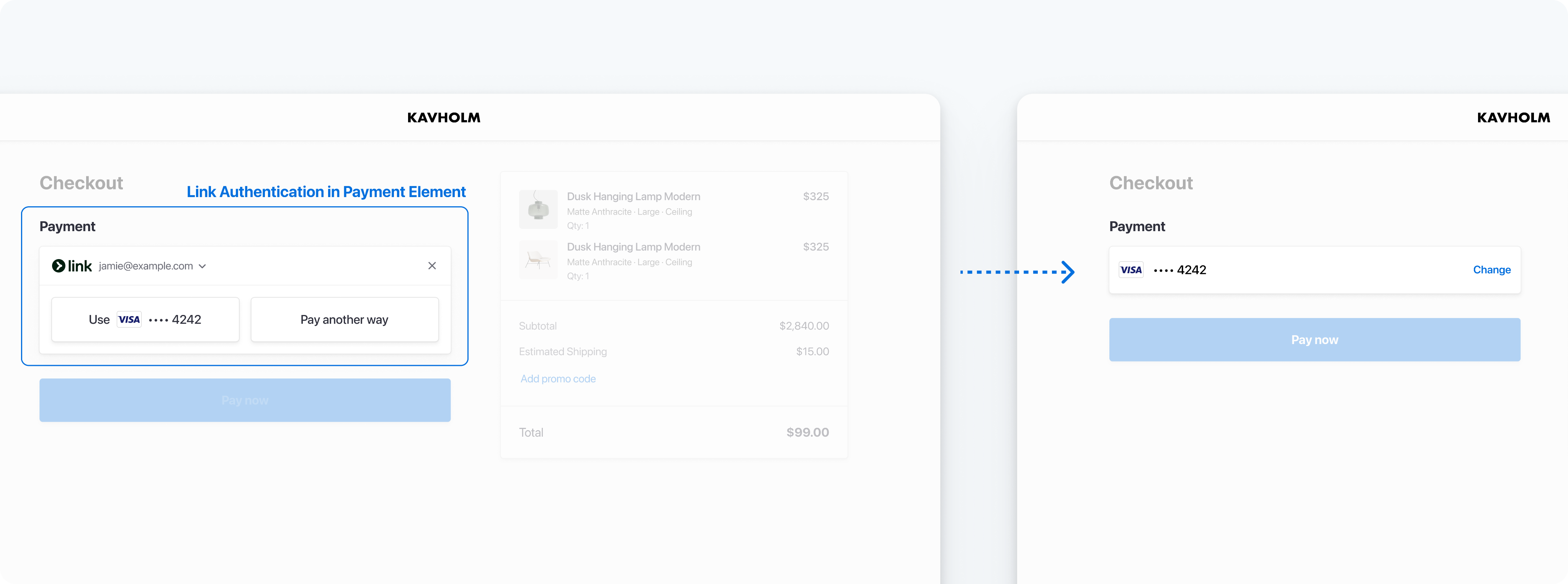
Collect a customer email address for Link authentication or enrollment
### Integration options
There are two ways you can integrate Link with the Payment Element. Of these, Stripe recommends passing a customer email address to the Payment Element if available. Remember to consider how your checkout flow works when deciding between these options:
| Integration option | Checkout flow | Description |
| ------------------------------------------------------------------ | ------------------------------------------------------------------------------------------------------------------------------------------------------------------------------------ | ---------------------------------------------------------------------------------------------------------------------------------------------------------------------------------------------------------------------------------------------------------- |
| Pass a customer email address to the Payment Element (Recommended) | - Your customer enters their email address before landing on the checkout page (in a previous account creation step, for example).
- You prefer to use your own email input field. | Programmatically pass a customer email address to the Payment Element. In this scenario, a customer authenticates to Link directly in the payment form instead of a separate UI component. |
| Collect a customer email address in the Payment Element | - Your customers can choose to enter their email and authenticate or enroll with Link directly in the Payment Element during checkout.
- No code change is required. | If a customer hasn’t enrolled with Link and they choose a supported payment method in the Payment Element, they’re prompted to save their details using Link. For those who have already enrolled, Link automatically populates their payment information. |
Use [defaultValues](https://docs.stripe.com/js/elements_object/create_payment_element#payment_element_create-options-defaultValues) to pass a customer email address to the Payment Element.
```javascript
const paymentElement = elements.create('payment', {
defaultValues: {
billingDetails: {
email: 'foo@bar.com',
}
},
// Other options
});
```
For more information, read how to [build a custom checkout page that includes Link](https://docs.stripe.com/payments/link/add-link-elements-integration.md).
## Optional: Save and retrieve customer payment methods
You can configure the Payment Element to save your customer’s payment methods for future use. This section shows you how to integrate the [saved payment methods feature](https://docs.stripe.com/payments/save-customer-payment-methods.md), which enables the Payment Element to:
- Prompt buyers for consent to save a payment method
- Save payment methods when buyers provide consent
- Display saved payment methods to buyers for future purchases
- [Automatically update lost or expired cards](https://docs.stripe.com/payments/cards/overview.md#automatic-card-updates) when buyers replace them

Save payment methods.

Reuse a previously saved payment method.
### Enable saving the payment method in the Payment Element
When creating a [PaymentIntent](https://docs.stripe.com/api/payment_intents/.md) on your server, also create a [CustomerSession](https://docs.stripe.com/api/customer_sessions/.md) providing the [Customer ID](https://docs.stripe.com/api/customers/object.md#customer_object-id) and enabling the [payment_element](https://docs.stripe.com/api/customer_sessions/object.md#customer_session_object-components-payment_element) component for your session. Configure which saved payment method [features](https://docs.stripe.com/api/customer_sessions/create.md#create_customer_session-components-payment_element-features) you want to enable. For instance, enabling [payment_method_save](https://docs.stripe.com/api/customer_sessions/create.md#create_customer_session-components-payment_element-features-payment_method_save) displays a checkbox offering customers to save their payment details for future use.
You can specify `setup_future_usage` on a PaymentIntent or Checkout Session to override the default behavior for saving payment methods. This ensures that you automatically save the payment method for future use, even if the customer doesn’t explicitly choose to save it.
> Allowing buyers to remove their saved payment methods by enabling [payment_method_remove](https://docs.stripe.com/api/customer_sessions/create.md#create_customer_session-components-payment_element-features-payment_method_remove) impacts subscriptions that depend on that payment method. Removing the payment method detaches the [PaymentMethod](https://docs.stripe.com/api/payment_methods.md) from that [Customer](https://docs.stripe.com/api/customers.md).
#### Ruby
```ruby
# Set your secret key. Remember to switch to your live secret key in production.
# See your keys here: https://dashboard.stripe.com/apikeys
Stripe.api_key = '<>'
post '/create-intent-and-customer-session' do
intent = Stripe::PaymentIntent.create({
amount: 1099,
currency: 'usd',
# In the latest version of the API, specifying the `automatic_payment_methods` parameter
# is optional because Stripe enables its functionality by default.
automatic_payment_methods: {enabled: true},
customer: {{CUSTOMER_ID}},
})
customer_session = Stripe::CustomerSession.create({
customer: {{CUSTOMER_ID}},
components: {
payment_element: {
enabled: true,
features: {
payment_method_redisplay: 'enabled',
payment_method_save: 'enabled',
payment_method_save_usage: 'off_session',
payment_method_remove: 'enabled',
},
},
},
})
{
client_secret: intent.client_secret,
customer_session_client_secret: customer_session.client_secret
}.to_json
end
```
#### Python
```python
# Set your secret key. Remember to switch to your live secret key in production.
# See your keys here: https://dashboard.stripe.com/apikeys
stripe.api_key = '<>'
@app.route('/create-intent-and-customer-session', methods=['POST'])
def createIntentAndCustomerSession():
intent = stripe.PaymentIntent.create(
amount=1099,
currency='usd',
# In the latest version of the API, specifying the `automatic_payment_methods` parameter
# is optional because Stripe enables its functionality by default.
automatic_payment_methods={
'enabled': True,
},
customer={{CUSTOMER_ID}},
)
customer_session = stripe.CustomerSession.create(
customer={{CUSTOMER_ID}},
components={
"payment_element": {
"enabled": True,
"features": {
"payment_method_redisplay": "enabled",
"payment_method_save": "enabled",
"payment_method_save_usage": "off_session",
"payment_method_remove": "enabled",
},
},
},
)
return jsonify(
client_secret=intent.client_secret,
customer_session_client_secret=customer_session.client_secret
)
```
#### PHP
```php
// Set your secret key. Remember to switch to your live secret key in production.
// See your keys here: https://dashboard.stripe.com/apikeys
$stripe = new \Stripe\StripeClient('<>');
$intent = $stripe->paymentIntents->create(
[
'amount' => 1099,
'currency' => 'usd',
// In the latest version of the API, specifying the `automatic_payment_methods` parameter
// is optional because Stripe enables its functionality by default.
'automatic_payment_methods' => ['enabled' => true],
'customer' => {{CUSTOMER_ID}},
]
);
$customer_session = $stripe->customerSessions->create([
'customer' => {{CUSTOMER_ID}},
'components' => [
'payment_element' => [
'enabled' => true,
'features' => [
'payment_method_redisplay' => 'enabled',
'payment_method_save' => 'enabled',
'payment_method_save_usage' => 'off_session',
'payment_method_remove' => 'enabled',
],
],
],
]);
echo json_encode(array(
'client_secret' => $intent->client_secret,
'customer_session_client_secret' => $customer_session->client_secret
));
```
#### Node.js
```javascript
// Set your secret key. Remember to switch to your live secret key in production.
// See your keys here: https://dashboard.stripe.com/apikeys
const stripe = require('stripe')('<>');
app.post('/create-intent-and-customer-session', async (req, res) => {
const intent = await stripe.paymentIntents.create({
amount: 1099,
currency: 'usd',
// In the latest version of the API, specifying the `automatic_payment_methods` parameter
// is optional because Stripe enables its functionality by default.
automatic_payment_methods: {enabled: true},
customer: {{CUSTOMER_ID}},
});
const customerSession = await stripe.customerSessions.create({
customer: {{CUSTOMER_ID}},
components: {
payment_element: {
enabled: true,
features: {
payment_method_redisplay: 'enabled',
payment_method_save: 'enabled',
payment_method_save_usage: 'off_session',
payment_method_remove: 'enabled',
},
},
},
});
res.json({
client_secret: intent.client_secret,
customer_session_client_secret: customerSession.client_secret
});
});
```
#### Java
```java
// Set your secret key. Remember to switch to your live secret key in production.
// See your keys here: https://dashboard.stripe.com/apikeys
Stripe.apiKey = "<>";
post(
"/create-intent-and-customer-session",
(request, response) -> {
response.type("application/json");
PaymentIntentCreateParams intentParams = PaymentIntentCreateParams.builder()
.setAmount(1099L)
.setCurrency("usd")
// In the latest version of the API, specifying the `automatic_payment_methods` parameter
// is optional because Stripe enables its functionality by default.
.setAutomaticPaymentMethods(
PaymentIntentCreateParams.AutomaticPaymentMethods.builder().setEnabled(true).build()
)
.setCustomer({{CUSTOMER_ID}})
.build();
PaymentIntent paymentIntent = PaymentIntent.create(intentParams);
CustomerSessionCreateParams csParams = CustomerSessionCreateParams.builder()
.setCustomer({{CUSTOMER_ID}})
.setComponents(CustomerSessionCreateParams.Components.builder().build())
.putExtraParam("components[payment_element][enabled]", true)
.putExtraParam(
"components[payment_element][features][payment_method_redisplay]",
"enabled"
)
.putExtraParam(
"components[payment_element][features][payment_method_save]",
"enabled"
)
.putExtraParam(
"components[payment_element][features][payment_method_save_usage]",
"off_session"
)
.putExtraParam(
"components[payment_element][features][payment_method_remove]",
"enabled"
)
.build();
CustomerSession customerSession = CustomerSession.create(csParams);
Map responseData = new HashMap<>();
responseData.put("clientSecret", paymentIntent.getClientSecret());
responseData.put("customerSessionClientSecret", customerSession.getClientSecret());
return StripeObject.PRETTY_PRINT_GSON.toJson(responseData);
}
);
```
#### Go
```go
// Set your secret key. Remember to switch to your live secret key in production.
// See your keys here: https://dashboard.stripe.com/apikeys
stripe.Key = "<>"
type CheckoutData struct {
ClientSecret string `json:"client_secret"`
CustomerSessionClientSecret string `json:"customer_session_client_secret"`
}
func main() {
http.HandleFunc("/create-intent-and-customer-session", func(w http.ResponseWriter, r *http.Request) {
intentParams := &stripe.PaymentIntentParams{
Amount: stripe.Int64(1099),
Currency: stripe.String(string(stripe.CurrencyUSD)),
// In the latest version of the API, specifying the `automatic_payment_methods` parameter
// is optional because Stripe enables its functionality by default.
AutomaticPaymentMethods: &stripe.PaymentIntentAutomaticPaymentMethodsParams{
Enabled: stripe.Bool(true),
},
Customer: stripe.String({{CUSTOMER_ID}}),
};
intent, _ := .New(intentParams);
csParams := &stripe.CustomerSessionParams{
Customer: stripe.String({{CUSTOMER_ID}}),
Components: &stripe.CustomerSessionComponentsParams{},
}
csParam.AddExtra("components[payment_element][enabled]", true)
csParam.AddExtra(
"components[payment_element][features][payment_method_redisplay]",
"enabled",
)
csParam.AddExtra(
"components[payment_element][features][payment_method_save]",
"enabled",
)
csParam.AddExtra(
"components[payment_element][features][payment_method_save_usage]",
"off_session",
)
csParam.AddExtra(
"components[payment_element][features][payment_method_remove]",
"enabled",
)
customerSession, _ := customersession.New(csParams)
data := CheckoutData{
ClientSecret: intent.ClientSecret,
CustomerSessionClientSecret: customerSession.ClientSecret
}
w.Header().Set("Content-Type", "application/json")
w.WriteHeader(http.StatusOK)
json.NewEncoder(w).Encode(data)
})
}
```
#### .NET
```csharp
// Set your secret key. Remember to switch to your live secret key in production.
// See your keys here: https://dashboard.stripe.com/apikeys
StripeConfiguration.ApiKey = "<>";
namespace StripeExampleApi.Controllers
{
[Route("create-intent-and-customer-session")]
[ApiController]
public class CheckoutApiController : Controller
{
[HttpPost]
public ActionResult Post()
{
var intentOptions = new PaymentIntentCreateOptions
{
Amount = 1099,
Currency = "usd",
// In the latest version of the API, specifying the `automatic_payment_methods` parameter
// is optional because Stripe enables its functionality by default.
AutomaticPaymentMethods = new PaymentIntentAutomaticPaymentMethodsOptions
{
Enabled = true,
},
Customer = {{CUSTOMER_ID}},
};
var intentService = new PaymentIntentService();
var intent = intentService.Create(intentOptions);
var customerSessionOptions = new CustomerSessionCreateOptions
{
Customer = {{CUSTOMER_ID}},
Components = new CustomerSessionComponentsOptions(),
}
customerSessionOptions.AddExtraParam("components[payment_element][enabled]", true);
customerSessionOptions.AddExtraParam(
"components[payment_element][features][payment_method_redisplay]",
"enabled");
customerSessionOptions.AddExtraParam(
"components[payment_element][features][payment_method_save]",
"enabled");
customerSessionOptions.AddExtraParam(
"components[payment_element][features][payment_method_save_usage]",
"off_session");
customerSessionOptions.AddExtraParam(
"components[payment_element][features][payment_method_remove]",
"enabled");
var customerSessionService = new CustomerSessionService();
var customerSession = customerSessionService.Create(customerSessionOptions);
return Json(new {
client_secret = intent.ClientSecret,
customerSessionClientSecret = customerSession.ClientSecret
});
}
}
}
```
Your Elements instance uses the CustomerSession’s *client secret* (A client secret is used with your publishable key to authenticate a request for a single object. Each client secret is unique to the object it's associated with) to access that customer’s saved payment methods. [Handle errors](https://docs.stripe.com/error-handling.md) properly when you create the CustomerSession. If an error occurs, you don’t need to provide the CustomerSession client secret to the Elements instance, as it’s optional.
Create the Elements instance using the client secrets for both the PaymentIntent and the CustomerSession. Then, use this Elements instance to create a Payment Element.
```javascript
// Create the CustomerSession and obtain its clientSecret
const res = await fetch("/create-intent-and-customer-session", {
method: "POST"
});
const {
customer_session_client_secret: customerSessionClientSecret
} = await res.json();
const elementsOptions = {
clientSecret: '{{CLIENT_SECRET}}',customerSessionClientSecret,
// Fully customizable with appearance API.
appearance: {/*...*/},
};
// Set up Stripe.js and Elements to use in checkout form, passing the client secret
// and CustomerSession's client secret obtained in a previous step
const elements = stripe.elements(elementsOptions);
// Create and mount the Payment Element
const paymentElementOptions = { layout: 'accordion'};
const paymentElement = elements.create('payment', paymentElementOptions);
paymentElement.mount('#payment-element');
```
When confirming the PaymentIntent, Stripe.js automatically controls setting [setup_future_usage](https://docs.stripe.com/api/payment_intents/object.md#payment_intent_object-setup_future_usage) on the PaymentIntent and [allow_redisplay](https://docs.stripe.com/api/payment_methods/object.md#payment_method_object-allow_redisplay) on the PaymentMethod, depending on whether the customer checked the box to save their payment details.
### Enforce CVC recollection
Optionally, specify `require_cvc_recollection` [when creating the PaymentIntent](https://docs.stripe.com/api/payment_intents/create.md#create_payment_intent-payment_method_options-card-require_cvc_recollection) to enforce CVC recollection when a customer is paying with a card.
### Detect the selection of a saved payment method
To control dynamic content when a saved payment method is selected, listen to the Payment Element `change` event, which is populated with the selected payment method.
```javascript
paymentElement.on('change', function(event) {
if (event.value.payment_method) {
// Control dynamic content if a saved payment method is selected
}
})
```
## Optional: Collect address details [Client-side]
#### HTML + JS
The [Address Element](https://docs.stripe.com/elements/address-element.md) lets you collect shipping or billing addresses. Create an empty DOM node for the Address Element. Display it after the Link Authentication Element:
```html
```
Then, create an instance of the Address Element, and mount it to the DOM node:
```javascript
// Customize the appearance of Elements using the Appearance API.
const appearance = { /* ... */ };
// Enable the skeleton loader UI for the optimal loading experience.
const loader = 'auto';
const stripe = Stripe('<>');
// Create an elements group from the Stripe instance passing in the clientSecret and, optionally, appearance.
const elements = stripe.elements({clientSecret, appearance, loader});
// Create Element instances
const linkAuthenticationElement = elements.create("linkAuthentication");const addressElement = elements.create("address", {
mode: 'shipping',
allowedCountries: ['US']
});
const paymentElement = elements.create("payment");
// Mount the Elements to their corresponding DOM node
linkAuthenticationElement.mount("#link-authentication-element");addressElement.mount("#address-element");
paymentElement.mount("#payment-element");
```
Display the Address Element before the Payment Element. The Payment Element dynamically detects address data collected by the Address Element, hiding unnecessary fields and collecting additional billing address details as necessary.
### Retrieve address information
The Address Element automatically passes the shipping address when a customer submits payment, but you can also retrieve the address details on the frontend using the `change` event. The `change` event sends whenever the user updates any field in the Address Element, or after selecting saved addresses:
```javascript
addressElement.on('change', (event: AddressChangeEvent) => {
const address = event.value;
})
```
### Prefill a shipping address
Use [defaultValues](https://docs.stripe.com/js/elements_object/create_address_element#address_element_create-options-defaultValues) to prefill address information, speeding checkout for your customers.
```javascript
// Create addressElement with the defaultValues option
const addressElement = elements.create("address", {
mode: 'shipping',
defaultValues: {
name: 'Jane Doe',
address: {
line1: '354 Oyster Point Blvd',
line2: '',
city: 'South San Francisco',
state: 'CA',
postal_code: '94080',
country: 'US',
}
}
});
// Mount the Element to its corresponding DOM node
addressElement.mount("#address-element");
```
#### React
To collect addresses, create an empty DOM node for the [Address Element](https://docs.stripe.com/elements/address-element.md) to render into. The Address Element must be displayed after the Link Authentication Element for Link to autofill a customer’s saved address details:
```jsx
import {loadStripe} from "@stripe/stripe-js";
import {
Elements,
LinkAuthenticationElement,AddressElement,
PaymentElement,
} from "@stripe/react-stripe-js";
const stripe = loadStripe('<>');
// Customize the appearance of Elements using the Appearance API.
const appearance = {/* ... */};
// Enable the skeleton loader UI for the optimal loading experience.
const loader = 'auto';
const CheckoutPage = ({clientSecret}) => (
);
export default function CheckoutForm() {
return (
);
}
```
Display the `AddressElement` before the `PaymentElement`. The `PaymentElement` dynamically detects address data collected by the `AddressElement`, hiding unnecessary fields and collecting additional billing address details as necessary.
### Retrieve address information
The `AddressElement` automatically passes the shipping address when a customer submits the payment, but you can also retrieve the address details on the frontend using the `onChange` property. The `onChange` handler sends an event whenever the user updates any field in the Address Element or selects a saved address:
```jsx
{
setAddressState(event.value);
}} />
```
### Prefill a shipping address
Use [defaultValues](https://docs.stripe.com/js/elements_object/create_address_element#address_element_create-options-defaultValues) to prefill address information, speeding checkout for your customers.
```jsx
```
## Optional: Customize the layout [Client-side]
You can customize the Payment Element’s layout (accordion or tabs) to fit your checkout interface. For more information about each of the properties, see [elements.create](https://docs.stripe.com/js/elements_object/create_payment_element#payment_element_create-options).
#### Accordion
You can start using the layout features by passing a layout `type` and other optional properties when creating the Payment Element:
```javascript
const paymentElement = elements.create('payment', {
layout: {
type: 'accordion',
defaultCollapsed: false,
radios: true,
spacedAccordionItems: false
}
});
```
#### Tabs
### Specify the layout
Set the value for layout to `tabs`. You also have the option to specify other properties, such as the ones in the following example:
```javascript
const paymentElement = elements.create('payment', {
layout: {
type: 'tabs',
defaultCollapsed: false,
}
});
```
The following image is the same Payment Element rendered using different layout configurations:
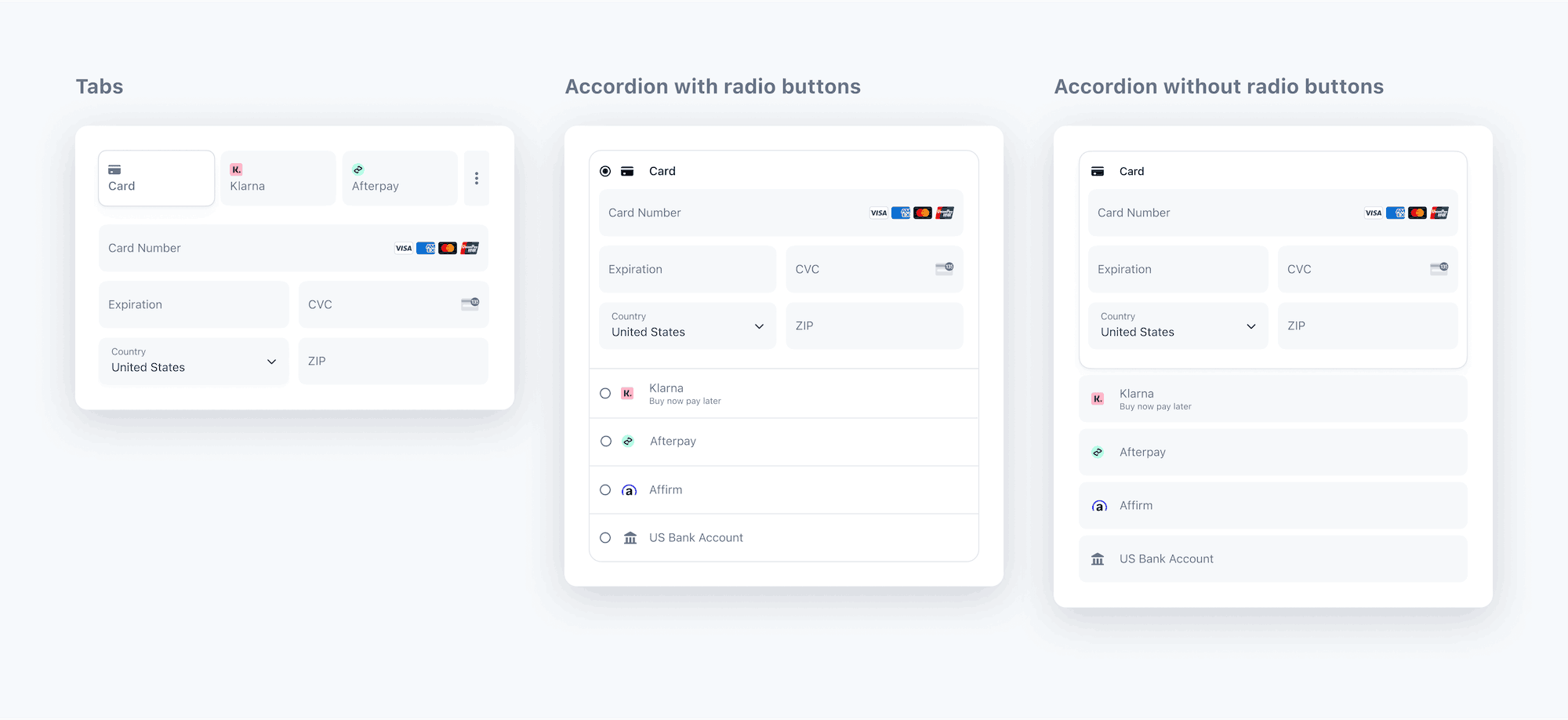
Payment Element layouts
## Optional: Customize the appearance [Client-side]
Now that you’ve added the Payment Element to your page, you can customize its appearance to make it fit your design. To learn more about customizing the Payment Element, see [Elements Appearance API](https://docs.stripe.com/elements/appearance-api.md).
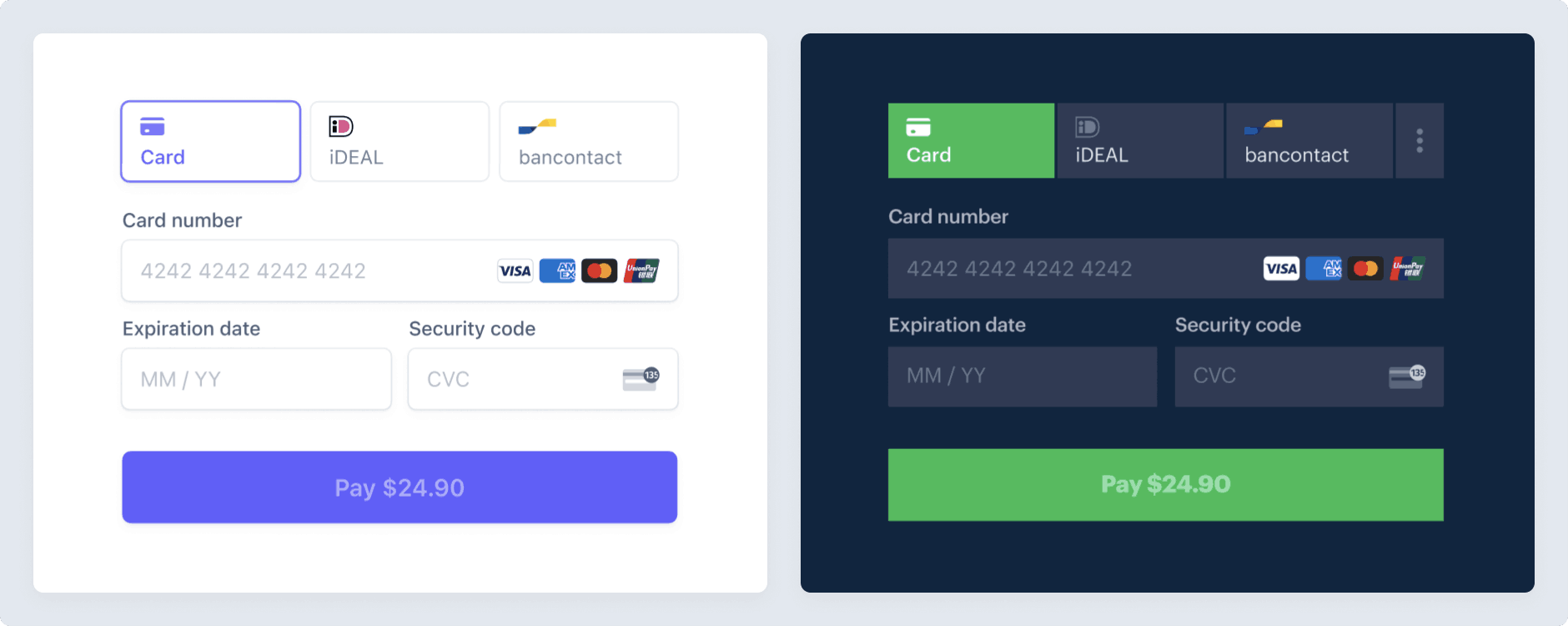
Customize the Payment Element
## Optional: Fetch updates from the server [Client-side]
You might want to update attributes on the PaymentIntent after the Payment Element renders, such as the [amount](https://docs.stripe.com/api/payment_intents/update.md#update_payment_intent-amount) (for example, discount codes or shipping costs). You can [update the PaymentIntent](https://docs.stripe.com/api/payment_intents/update.md) on your server, then call [elements.fetchUpdates](https://docs.stripe.com/js/elements_object/fetch_updates) to see the new amount reflected in the Payment Element. This example shows you how to create the server endpoint that updates the amount on the PaymentIntent:
#### Ruby
```ruby
get '/update' do
intent = Stripe::PaymentIntent.update(
'{{PAYMENT_INTENT_ID}}',
{amount: 1499},
)
{status: intent.status}.to_json
end
```
#### Python
```python
@app.route('/update')
def secret():
intent = stripe.PaymentIntent.modify(
"{{PAYMENT_INTENT_ID}}",
amount=1499,
)
return jsonify(status=intent.status)
```
#### PHP
```php
paymentIntents->update(
'{{PAYMENT_INTENT_ID}}',
['amount' => 1499]
);
echo json_encode(array('status' => $intent->status));
?>
```
#### Java
```java
import java.util.HashMap;
import java.util.Map;
import com.stripe.model.PaymentIntent;
import com.google.gson.Gson;
import static spark.Spark.get;
public class StripeJavaQuickStart {
public static void main(String[] args) {
Gson gson = new Gson();
get("/update", (request, response) -> {
PaymentIntent paymentIntent =
PaymentIntent.retrieve(
"{{PAYMENT_INTENT_ID}}"
);
Map params = new HashMap<>();
params.put("amount", 1499);
PaymentIntent updatedPaymentIntent =
paymentIntent.update(params);
Map response = new HashMap();
response.put("status", updatedPaymentIntent.getStatus());
return map;
}, gson::toJson);
}
}
```
#### Node.js
```javascript
app.get('/update', async (req, res) => {
const intent = await stripe.paymentIntents.update(
'{{PAYMENT_INTENT_ID}}',
{amount: 1499}
);
res.json({status: intent.status});
});
```
#### Go
```go
package main
import (
"encoding/json"
"net/http"
stripe "github.com/stripe/stripe-go/v76.0.0"
)
type UpdateData struct {
Status string `json:"status"`
}
func main() {
http.HandleFunc("/update", func(w http.ResponseWriter, r *http.Request) {
params := &stripe.PaymentIntentParams{
Amount: stripe.Int64(1499),
}
pi, _ := paymentintent.Update(
"{{PAYMENT_INTENT_ID}}",
params,
)
data := UpdateData{
Status: pi.Status,
}
w.Header().Set("Content-Type", "application/json")
w.WriteHeader(http.StatusOK)
json.NewEncoder(w).Encode(data)
})
http.ListenAndServe(":3000", nil)
}
```
#### .NET
```csharp
using System;
using Microsoft.AspNetCore.Mvc;
using Stripe;
namespace StripeExampleApi.Controllers
{
[Route("update")]
[ApiController]
public class CheckoutApiController : Controller
{
[HttpPost]
public ActionResult Post()
{
var options = new PaymentIntentUpdateOptions
{
Amount = 1499,
};
var service = new PaymentIntentService();
var intent = service.Update(
"{{PAYMENT_INTENT_ID}}",
options);
return Json(new {status = intent.Status});
}
}
}
```
This example demonstrates how to update the UI to reflect these changes on the client side:
```javascript
(async () => {
const response = await fetch('/update');
if (response.status === 'requires_payment_method') {
const {error} = await elements.fetchUpdates();
}
})();
```
## Submit the payment to Stripe [Client-side]
Use [stripe.confirmPayment](https://docs.stripe.com/js/payment_intents/confirm_payment) to complete the payment using details from the Payment Element. Provide a [return_url](https://docs.stripe.com/api/payment_intents/create.md#create_payment_intent-return_url) to this function to indicate where Stripe should redirect the user after they complete the payment. Your user may be first redirected to an intermediate site, like a bank authorization page, before being redirected to the `return_url`. Card payments immediately redirect to the `return_url` when a payment is successful.
If you don’t want to redirect for card payments after payment completion, you can set [redirect](https://docs.stripe.com/js/payment_intents/confirm_payment#confirm_payment_intent-options-redirect) to `if_required`. This only redirects customers that check out with redirect-based payment methods.
#### HTML + JS
```javascript
const form = document.getElementById('payment-form');
form.addEventListener('submit', async (event) => {
event.preventDefault();
const {error} = await stripe.confirmPayment({
//`Elements` instance that was used to create the Payment Element
elements,
confirmParams: {
return_url: 'https://example.com/order/123/complete',
},
});
if (error) {
// This point will only be reached if there is an immediate error when
// confirming the payment. Show error to your customer (for example, payment
// details incomplete)
const messageContainer = document.querySelector('#error-message');
messageContainer.textContent = error.message;
} else {
// Your customer will be redirected to your `return_url`. For some payment
// methods like iDEAL, your customer will be redirected to an intermediate
// site first to authorize the payment, then redirected to the `return_url`.
}
});
```
#### React
To call [stripe.confirmPayment](https://docs.stripe.com/js/payment_intents/confirm_payment) from your payment form component, use the [useStripe](https://docs.stripe.com/sdks/stripejs-react.md#usestripe-hook) and [useElements](https://docs.stripe.com/sdks/stripejs-react.md#useelements-hook) hooks.
If you prefer traditional class components over hooks, you can instead use an [ElementsConsumer](https://docs.stripe.com/sdks/stripejs-react.md#elements-consumer).
```jsx
import React, {useState} from 'react';
import {useStripe, useElements, PaymentElement} from '@stripe/react-stripe-js';
const CheckoutForm = () => {
const stripe = useStripe();
const elements = useElements();
const [errorMessage, setErrorMessage] = useState(null);
const handleSubmit = async (event) => {
// We don't want to let default form submission happen here,
// which would refresh the page.
event.preventDefault();
if (!stripe || !elements) {
// Stripe.js hasn't yet loaded.
// Make sure to disable form submission until Stripe.js has loaded.
return;
}
const {error} = await stripe.confirmPayment({
//`Elements` instance that was used to create the Payment Element
elements,
confirmParams: {
return_url: 'https://example.com/order/123/complete',
},
});
if (error) {
// This point will only be reached if there is an immediate error when
// confirming the payment. Show error to your customer (for example, payment
// details incomplete)
setErrorMessage(error.message);
} else {
// Your customer will be redirected to your `return_url`. For some payment
// methods like iDEAL, your customer will be redirected to an intermediate
// site first to authorize the payment, then redirected to the `return_url`.
}
};
return (
)
};
export default CheckoutForm;
```
> `stripe.confirmPayment` may take several seconds to complete. During that time, disable your form from being resubmitted and show a waiting indicator like a spinner. If you receive an error, show it to the customer, re-enable the form, and hide the waiting indicator. If the customer must perform additional steps to complete the payment, such as authentication, Stripe.js walks them through that process.
If the payment succeeded, the card is saved to the Customer object. This is reflected on the *PaymentMethod* (PaymentMethods represent your customer's payment instruments, used with the Payment Intents or Setup Intents APIs)’s [customer](https://docs.stripe.com/api/payment_methods/object.md#payment_method_object-customer) field. At this point, associate the ID of the *Customer* (Customer objects represent customers of your business. They let you reuse payment methods and give you the ability to track multiple payments) object with your own internal representation of a customer, if you have one. Now you can use the stored PaymentMethod object to collect payments from your customer in the future without prompting them for their payment details again.
Make sure the `return_url` corresponds to a page on your website that provides the status of the payment. When Stripe redirects the customer to the `return_url`, we provide the following URL query parameters:
| Parameter | Description |
| ------------------------------ | --------------------------------------------------------------------------------------------------------------------------------------------- |
| `payment_intent` | The unique identifier for the `PaymentIntent`. |
| `payment_intent_client_secret` | The [client secret](https://docs.stripe.com/api/payment_intents/object.md#payment_intent_object-client_secret) of the `PaymentIntent` object. |
> If you have tooling that tracks the customer’s browser session, you might need to add the `stripe.com` domain to the referrer exclude list. Redirects cause some tools to create new sessions, which prevents you from tracking the complete session.
Use one of the query parameters to retrieve the PaymentIntent. Inspect the [status of the PaymentIntent](https://docs.stripe.com/payments/paymentintents/lifecycle.md) to decide what to show your customers. You can also append your own query parameters when providing the `return_url`, which persist through the redirect process.
#### HTML + JS
```javascript
// Initialize Stripe.js using your publishable key
const stripe = Stripe('<>');
// Retrieve the "payment_intent_client_secret" query parameter appended to
// your return_url by Stripe.js
const clientSecret = new URLSearchParams(window.location.search).get(
'payment_intent_client_secret'
);
// Retrieve the PaymentIntent
stripe.retrievePaymentIntent(clientSecret).then(({paymentIntent}) => {
const message = document.querySelector('#message')
// Inspect the PaymentIntent `status` to indicate the status of the payment
// to your customer.
//
// Some payment methods will [immediately succeed or fail][0] upon
// confirmation, while others will first enter a `processing` state.
//
// [0]: https://stripe.com/docs/payments/payment-methods#payment-notification
switch (paymentIntent.status) {
case 'succeeded':
message.innerText = 'Success! Payment received.';
break;
case 'processing':
message.innerText = "Payment processing. We'll update you when payment is received.";
break;
case 'requires_payment_method':
message.innerText = 'Payment failed. Please try another payment method.';
// Redirect your user back to your payment page to attempt collecting
// payment again
break;
default:
message.innerText = 'Something went wrong.';
break;
}
});
```
#### React
```jsx
import React, {useState, useEffect} from 'react';
import {useStripe} from '@stripe/react-stripe-js';
const PaymentStatus = () => {
const stripe = useStripe();
const [message, setMessage] = useState(null);
useEffect(() => {
if (!stripe) {
return;
}
// Retrieve the "payment_intent_client_secret" query parameter appended to
// your return_url by Stripe.js
const clientSecret = new URLSearchParams(window.location.search).get(
'payment_intent_client_secret'
);
// Retrieve the PaymentIntent
stripe
.retrievePaymentIntent(clientSecret)
.then(({paymentIntent}) => {
// Inspect the PaymentIntent `status` to indicate the status of the payment
// to your customer.
//
// Some payment methods will [immediately succeed or fail][0] upon
// confirmation, while others will first enter a `processing` state.
//
// [0]: https://stripe.com/docs/payments/payment-methods#payment-notification
switch (paymentIntent.status) {
case 'succeeded':
setMessage('Success! Payment received.');
break;
case 'processing':
setMessage("Payment processing. We'll update you when payment is received.");
break;
case 'requires_payment_method':
// Redirect your user back to your payment page to attempt collecting
// payment again
setMessage('Payment failed. Please try another payment method.');
break;
default:
setMessage('Something went wrong.');
break;
}
});
}, [stripe]);
return message;
};
export default PaymentStatus;
```
## Charge the saved payment method later [Server-side]
> `bancontact`, `ideal`, and `sofort` are one-time payment methods by default. When set up for future usage, they generate a `sepa_debit` reusable payment method type so you need to use `sepa_debit` to query for saved payment methods.
> #### Compliance
>
> You’re responsible for your compliance with all applicable laws, regulations, and network rules when saving a customer’s payment details. When rendering past payment methods to your end customer for future purchases, make sure you’re listing payment methods where you’ve collected consent from the customer to save the payment method details for this specific future use. To differentiate between payment methods attached to customers that can and can’t be presented to your end customer as a saved payment method for future purchases, use the [allow_redisplay](https://docs.stripe.com/api/payment_methods/object.md#payment_method_object-allow_redisplay) parameter.
When you’re ready to charge your customer *off-session* (A payment is described as off-session if it occurs without the direct involvement of the customer, using previously-collected payment information), use the Customer and PaymentMethod IDs to create a PaymentIntent. To find a payment method to charge, list the payment methods associated with your customer. This example lists cards but you can list any supported [type](https://docs.stripe.com/api/payment_methods/object.md#payment_method_object-type).
```curl
curl -G https://api.stripe.com/v1/payment_methods \
-u "<>:" \
-d customer="{{CUSTOMER_ID}}" \
-d type=card
```
```cli
stripe payment_methods list \
--customer="{{CUSTOMER_ID}}" \
--type=card
```
```ruby
# Set your secret key. Remember to switch to your live secret key in production.
# See your keys here: https://dashboard.stripe.com/apikeys
client = Stripe::StripeClient.new("<>")
payment_methods = client.v1.payment_methods.list({
customer: '{{CUSTOMER_ID}}',
type: 'card',
})
```
```python
# Set your secret key. Remember to switch to your live secret key in production.
# See your keys here: https://dashboard.stripe.com/apikeys
client = StripeClient("<>")
# For SDK versions 12.4.0 or lower, remove '.v1' from the following line.
payment_methods = client.v1.payment_methods.list({
"customer": "{{CUSTOMER_ID}}",
"type": "card",
})
```
```php
// Set your secret key. Remember to switch to your live secret key in production.
// See your keys here: https://dashboard.stripe.com/apikeys
$stripe = new \Stripe\StripeClient('<>');
$paymentMethods = $stripe->paymentMethods->all([
'customer' => '{{CUSTOMER_ID}}',
'type' => 'card',
]);
```
```java
// Set your secret key. Remember to switch to your live secret key in production.
// See your keys here: https://dashboard.stripe.com/apikeys
StripeClient client = new StripeClient("<>");
PaymentMethodListParams params =
PaymentMethodListParams.builder()
.setCustomer("{{CUSTOMER_ID}}")
.setType(PaymentMethodListParams.Type.CARD)
.build();
// For SDK versions 29.4.0 or lower, remove '.v1()' from the following line.
StripeCollection stripeCollection =
client.v1().paymentMethods().list(params);
```
```node
// Set your secret key. Remember to switch to your live secret key in production.
// See your keys here: https://dashboard.stripe.com/apikeys
const stripe = require('stripe')('<>');
const paymentMethods = await stripe.paymentMethods.list({
customer: '{{CUSTOMER_ID}}',
type: 'card',
});
```
```go
// Set your secret key. Remember to switch to your live secret key in production.
// See your keys here: https://dashboard.stripe.com/apikeys
sc := stripe.NewClient("<>")
params := &stripe.PaymentMethodListParams{
Customer: stripe.String("{{CUSTOMER_ID}}"),
Type: stripe.String(stripe.PaymentMethodTypeCard),
}
result := sc.V1PaymentMethods.List(context.TODO(), params)
```
```dotnet
// Set your secret key. Remember to switch to your live secret key in production.
// See your keys here: https://dashboard.stripe.com/apikeys
var options = new PaymentMethodListOptions
{
Customer = "{{CUSTOMER_ID}}",
Type = "card",
};
var client = new StripeClient("<>");
var service = client.V1.PaymentMethods;
StripeList paymentMethods = service.List(options);
```
When you have the Customer and PaymentMethod IDs, create a PaymentIntent with the amount and currency of the payment. Set a few other parameters to make the off-session payment:
- Set [off_session](https://docs.stripe.com/api/payment_intents/confirm.md#confirm_payment_intent-off_session) to `true` to indicate that the customer isn’t in your checkout flow during a payment attempt and can’t fulfill an authentication request made by a partner, such as a card issuer, bank, or other payment institution. If, during your checkout flow, a partner requests authentication, Stripe requests exemptions using customer information from a previous *on-session* (A payment is described as on-session if it occurs while the customer is actively in your checkout flow and able to authenticate the payment method) transaction. If the conditions for exemption aren’t met, the PaymentIntent might throw an error.
- Set the value of the PaymentIntent’s [confirm](https://docs.stripe.com/api/payment_intents/create.md#create_payment_intent-confirm) property to `true`, which causes confirmation to occur immediately when the PaymentIntent is created.
- Set [payment_method](https://docs.stripe.com/api.md#create_payment_intent-payment_method) to the ID of the PaymentMethod and [customer](https://docs.stripe.com/api.md#create_payment_intent-customer) to the ID of the Customer.
#### curl
```bash
curl https://api.stripe.com/v1/payment_intents \
-u <>: \
-d amount=1099 \
-d currency=usd \
# In the latest version of the API, specifying the `automatic_payment_methods` parameter is optional because Stripe enables its functionality by default.
-d "automatic_payment_methods[enabled]"=true \-d customer="{{CUSTOMER_ID}}" \
-d payment_method="{{PAYMENT_METHOD_ID}}" \
-d return_url="https://example.com/order/123/complete" \
-d off_session=true \
-d confirm=true
```
#### Stripe CLI
```bash
stripe payment_intents create \
--amount=1099 \
--currency=usd \
-d "automatic_payment_methods[enabled]"=true \
# In the latest version of the API, specifying the `automatic_payment_methods` parameter is optional because Stripe enables its functionality by default.--customer={{CUSTOMER_ID}} \
--payment-method={{PAYMENT_METHOD_ID}} \
--return-url="https://example.com/order/123/complete" \
--off-session=true \
--confirm=true
```
#### Ruby
```ruby
# Set your secret key. Remember to switch to your live secret key in production.
# See your keys here: https://dashboard.stripe.com/apikeys
Stripe.api_key = '<>'
begin
intent = Stripe::PaymentIntent.create({
amount: 1099,
currency: 'usd',
# In the latest version of the API, specifying the `automatic_payment_methods` parameter is optional because Stripe enables its functionality by default.
automatic_payment_methods: {enabled: true},customer: '{{CUSTOMER_ID}}',
payment_method: '{{PAYMENT_METHOD_ID}}',
return_url: 'https://example.com/order/123/complete',
off_session: true,
confirm: true,
})
rescue Stripe::CardError => e
# Error code will be authentication_required if authentication is needed
puts "Error is: \#{e.error.code}"
payment_intent_id = e.error.payment_intent.id
payment_intent = Stripe::PaymentIntent.retrieve(payment_intent_id)
puts payment_intent.id
end
```
#### Python
```python
# Set your secret key. Remember to switch to your live secret key in production.
# See your keys here: https://dashboard.stripe.com/apikeys
stripe.api_key = '<>'
try:
stripe.PaymentIntent.create(
amount=1099,
currency='usd',
# In the latest version of the API, specifying the `automatic_payment_methods` parameter is optional because Stripe enables its functionality by default.
automatic_payment_methods={"enabled": True},customer='{{CUSTOMER_ID}}',
payment_method='{{PAYMENT_METHOD_ID}}',
return_url='https://example.com/order/123/complete',
off_session=True,
confirm=True,
)
except stripe.error.CardError as e:
err = e.error
# Error code will be authentication_required if authentication is needed
print("Code is: %s" % err.code)
payment_intent_id = err.payment_intent['id']
payment_intent = stripe.PaymentIntent.retrieve(payment_intent_id)
```
#### PHP
```php
// Set your secret key. Remember to switch to your live secret key in production.
// See your keys here: https://dashboard.stripe.com/apikeys
\Stripe\Stripe::setApiKey('<>');
try {
\Stripe\PaymentIntent::create([
'amount' => 1099,
'currency' => 'usd',
// In the latest version of the API, specifying the `automatic_payment_methods` parameter is optional because Stripe enables its functionality by default.
'automatic_payment_methods' => ['enabled' => true],'customer' => '{{CUSTOMER_ID}}',
'payment_method' => '{{PAYMENT_METHOD_ID}}',
'return_url' => 'https://example.com/order/123/complete',
'off_session' => true,
'confirm' => true,
]);
} catch (\Stripe\Exception\CardException $e) {
// Error code will be authentication_required if authentication is needed
echo 'Error code is:' . $e->getError()->code;
$payment_intent_id = $e->getError()->payment_intent->id;
$payment_intent = \Stripe\PaymentIntent::retrieve($payment_intent_id);
}
```
#### Java
```java
// Set your secret key. Remember to switch to your live secret key in production.
// See your keys here: https://dashboard.stripe.com/apikeys
Stripe.apiKey = "<>";
PaymentIntentCreateParams params =
PaymentIntentCreateParams.builder()
.setCurrency("usd")
.setAmount(1099)
// In the latest version of the API, specifying the `automatic_payment_methods` parameter is optional because Stripe enables its functionality by default.
.setAutomaticPaymentMethods(
PaymentIntentCreateParams.AutomaticPaymentMethods.builder().setEnabled(true).build()
).setCustomer("{{CUSTOMER_ID}}")
.setPaymentMethod("{{PAYMENT_METHOD_ID}}")
.setReturnUrl("https://example.com/order/123/complete")
.setConfirm(true)
.setOffSession(true)
.build();
try {
PaymentIntent.create(params);
} catch (CardException e) {
// Error code will be authentication_required if authentication is needed
System.out.println("Error code is : " + e.getCode());
String paymentIntentId = e.getStripeError().getPaymentIntent().getId();
PaymentIntent paymentIntent = PaymentIntent.retrieve(paymentIntentId);
System.out.println(paymentIntent.getId());
}
```
#### Node.js
```javascript
// Set your secret key. Remember to switch to your live secret key in production.
// See your keys here: https://dashboard.stripe.com/apikeys
const stripe = require('stripe')('<>');
try {
const paymentIntent = await stripe.paymentIntents.create({
amount: 1099,
currency: 'usd',
// In the latest version of the API, specifying the `automatic_payment_methods` parameter is optional because Stripe enables its functionality by default.
automatic_payment_methods: {enabled: true},customer: '{{CUSTOMER_ID}}',
payment_method: '{{PAYMENT_METHOD_ID}}',
return_url: 'https://example.com/order/123/complete',
off_session: true,
confirm: true,
});
} catch (err) {
// Error code will be authentication_required if authentication is needed
console.log('Error code is: ', err.code);
const paymentIntentRetrieved = await stripe.paymentIntents.retrieve(err.raw.payment_intent.id);
console.log('PI retrieved: ', paymentIntentRetrieved.id);
}
```
#### Go
```go
// Set your secret key. Remember to switch to your live secret key in production.
// See your keys here: https://dashboard.stripe.com/apikeys
stripe.Key = "<>"
params := &stripe.PaymentIntentParams{
Amount: stripe.Int64(1099),
Currency: stripe.String(string(stripe.CurrencyUSD)),
// In the latest version of the API, specifying the `automatic_payment_methods` parameter is optional because Stripe enables its functionality by default.
AutomaticPaymentMethods: &stripe.PaymentIntentAutomaticPaymentMethodsParams{
Enabled: stripe.Bool(true),
},Customer: stripe.String("{{CUSTOMER_ID}}"),
PaymentMethod: stripe.String("{{PAYMENT_METHOD_ID}}"),
ReturnUrl: stripe.String("https://example.com/order/123/complete"),
Confirm: stripe.Bool(true),
OffSession: stripe.Bool(true),
}
_, err := paymentintent.New(params)
if err != nil {
if stripeErr, ok := err.(*stripe.Error); ok {
// Error code will be authentication_required if authentication is needed
fmt.Printf("Error code: %v", stripeErr.Code)
paymentIntentID := stripeErr.PaymentIntent.ID
paymentIntent, _ := paymentintent.Get(paymentIntentID, nil)
fmt.Printf("PI: %v", paymentIntent.ID)
}
}
```
#### .NET
```dotnet
// Set your secret key. Remember to switch to your live secret key in production.
// See your keys here: https://dashboard.stripe.com/apikeys
StripeConfiguration.ApiKey = "<>";
try
{
var service = new PaymentIntentService();
var options = new PaymentIntentCreateOptions
{
Amount = 1099,
Currency = "usd",
// In the latest version of the API, specifying the `automatic_payment_methods` parameter is optional because Stripe enables its functionality by default.
AutomaticPaymentMethods = new PaymentIntentAutomaticPaymentMethodsOptions
{
Enabled = true,
},Customer = "{{CUSTOMER_ID}}",
PaymentMethod = "{{PAYMENT_METHOD_ID}}",
ReturnUrl = "https://example.com/order/123/complete",
Confirm = true,
OffSession = true,
};
service.Create(options);
}
catch (StripeException e)
{
switch (e.StripeError.Type)
{
case "card_error":
// Error code will be authentication_required if authentication is needed
Console.WriteLine("Error code: " + e.StripeError.Code);
var paymentIntentId = e.StripeError.PaymentIntent.Id;
var service = new PaymentIntentService();
var paymentIntent = service.Get(paymentIntentId);
Console.WriteLine(paymentIntent.Id);
break;
default:
break;
}
}
```
## Optional: Save payment details for future use [Server-side]
As described in the [Create a PaymentIntent](https://docs.stripe.com/payments/save-during-payment.md?platform=web#web-create-payment-intent) step, you can [save payment details](https://docs.stripe.com/payments/accept-a-payment.md#save-payment-method-details) to a customer by passing the [setup_future_usage](https://docs.stripe.com/api/payment_intents/object.md#payment_intent_object-setup_future_usage) argument. While you can make a subset of payment methods [reusable](https://docs.stripe.com/payments/accept-a-payment.md#save-payment-method-details) in this way, you can’t make all payment methods reusable. A single payment intent can handle both reusable and non-reusable payment methods. See the [Payment method support](https://docs.stripe.com/payments/payment-methods/payment-method-support.md#additional-api-supportability) page to learn more about which payment methods are compatible with [setup_future_usage](https://docs.stripe.com/api/payment_intents/object.md#payment_intent_object-setup_future_usage).
For example, you can accept card payments and Giropay (which you can’t reuse). When customers select the card payment method, you can save the payment method to the customer for [future usage](https://docs.stripe.com/payments/accept-a-payment.md#save-payment-method-details) by configuring `setup_future_usage=off_session` on the `payment_method_options[card]` object.
If the customer declines to have their payment details saved, disable `setup_future_usage` in the PaymentIntent on the server-side. We don’t support making this adjustment on the client-side.
#### Manage payment methods from the Dashboard
You can manage payment methods from the [Dashboard](https://dashboard.stripe.com/settings/payment_methods). Stripe handles the return of eligible payment methods based on factors such as the transaction’s amount, currency, and payment flow.
#### curl
```bash
curl https://api.stripe.com/v1/payment_intents \
-u <>: \
-d "amount"=1099 \
-d "currency"="usd" \
-d "automatic_payment_methods[enabled]"="true" \
-d "payment_method_options[card][setup_future_usage]"="off_session"
```
#### Ruby
```ruby
# Set your secret key. Remember to switch to your live secret key in production.
# See your keys here: https://dashboard.stripe.com/apikeys
Stripe.api_key = '<>'
Stripe::PaymentIntent.create({
amount: 1099,
currency: 'usd',
# In the latest version of the API, specifying the `automatic_payment_methods` parameter is optional because Stripe enables its functionality by default.
automatic_payment_methods: {
enabled: true,
},
payment_method_options: {
card: {
setup_future_usage: 'off_session'
},
},
})
```
#### Python
```python
# Set your secret key. Remember to switch to your live secret key in production.
# See your keys here: https://dashboard.stripe.com/apikeys
stripe.api_key = '<>'
stripe.PaymentIntent.create(
amount=1099,
currency='usd',
# In the latest version of the API, specifying the `automatic_payment_methods` parameter is optional because Stripe enables its functionality by default.
automatic_payment_methods={
'enabled': True,
},
payment_method_options={
'card': {
'setup_future_usage': 'off_session',
},
},
)
```
#### PHP
```php
// Set your secret key. Remember to switch to your live secret key in production.
// See your keys here: https://dashboard.stripe.com/apikeys
\Stripe\Stripe::setApiKey('<>');
\Stripe\PaymentIntent::create([
'amount' => 1099,
'currency' => 'usd',
// In the latest version of the API, specifying the `automatic_payment_methods` parameter is optional because Stripe enables its functionality by default.
'automatic_payment_methods' => [
'enabled' => 'true',
],
'payment_method_options' => [
'card' => [
'setup_future_usage' => 'off_session',
],
],
]);
```
#### Node.js
```javascript
// Set your secret key. Remember to switch to your live secret key in production.
// See your keys here: https://dashboard.stripe.com/apikeys
const stripe = require('stripe')('<>');
const paymentIntent = await stripe.paymentIntents.create({
amount: 1099,
currency: 'usd',
// In the latest version of the API, specifying the `automatic_payment_methods` parameter is optional because Stripe enables its functionality by default.
automatic_payment_methods: {
enabled: true,
},
payment_method_options: {
card: {
setup_future_usage: 'off_session',
},
},
});
```
#### Stripe CLI
```bash
stripe payment_intents create \
--amount=1099 \
--currency=usd \
-d "automatic_payment_methods[enabled]"=true \
-d "payment_method_options[card][setup_future_usage]"="off_session"
```
#### Listing payment methods manually
Alternatively, you can list `card` and `giropay` using [payment method types](https://docs.stripe.com/api/payment_intents/create.md#create_payment_intent-payment_method_types) like in the example below.
#### curl
```bash
curl https://api.stripe.com/v1/payment_intents \
-u <>: \
-d "amount"=1099 \
-d "currency"="usd" \
-d "payment_method_types[]"="card" \
-d "payment_method_types[]"="giropay" \
-d "payment_method_options[card][setup_future_usage]"="off_session"
```
#### Ruby
```ruby
# Set your secret key. Remember to switch to your live secret key in production.
# See your keys here: https://dashboard.stripe.com/apikeys
Stripe.api_key = '<>'
Stripe::PaymentIntent.create({
amount: 1099,
currency: 'usd',
payment_method_types: ['card', 'giropay'],
payment_method_options: {
card: {
setup_future_usage: 'off_session'
},
},
})
```
#### Python
```python
# Set your secret key. Remember to switch to your live secret key in production.
# See your keys here: https://dashboard.stripe.com/apikeys
stripe.api_key = '<>'
stripe.PaymentIntent.create(
# Make sure the total amount fits within Afterpay transaction amount limits:
# https://stripe.com/docs/payments/afterpay-clearpay#collection-schedule
amount=1099,
currency='usd',
payment_method_types=['card', 'giropay'],
payment_method_options={
'card': {
'setup_future_usage': 'off_session',
},
)
```
#### PHP
```php
// Set your secret key. Remember to switch to your live secret key in production.
// See your keys here: https://dashboard.stripe.com/apikeys
\Stripe\Stripe::setApiKey('<>');
\Stripe\PaymentIntent::create([
'amount' => 1099,
'currency' => 'usd',
'payment_method_types' => ['card', 'giropay'],
'payment_method_options' => [
'card' => [
'setup_future_usage' => 'off_session',
],
],
]);
```
#### Node.js
```javascript
// Set your secret key. Remember to switch to your live secret key in production.
// See your keys here: https://dashboard.stripe.com/apikeys
const stripe = require('stripe')('<>');
const paymentIntent = await stripe.paymentIntents.create({
amount: 1099,
currency: 'usd',
payment_method_types: ['card', 'giropay'],
payment_method_options: {
card: {
setup_future_usage: 'off_session',
},
},
});
```
#### Stripe CLI
```bash
stripe payment_intents create \
--amount=1099 \
--currency=usd \
-d "payment_method_types[]"="card" \
-d "payment_method_types[]"="giropay" \
-d "payment_method_options[card][setup_future_usage]"="off_session"
```
## Test the integration
Use test payment details and the test redirect page to verify your integration. Click the tabs below to view details for each payment method.
#### Cards
| Payment method | Scenario | How to test |
| -------------- | --------------------------------------------------------------------------------------------------------------------------------------------------------------------------------------------------------------------------------------------------------------------------------------------------------------- | --------------------------------------------------------------------------------------------------------------------------- |
| Credit card | The card setup succeeds and doesn’t require *authentication* (Strong Customer Authentication (SCA) is a regulatory requirement in effect as of September 14, 2019, that impacts many European online payments. It requires customers to use two-factor authentication like 3D Secure to verify their purchase). | Fill out the credit card form using the credit card number `4242 4242 4242 4242` with any expiration, CVC, and postal code. |
| Credit card | The card requires authentication for the initial setup, then succeeds for subsequent payments. | Fill out the credit card form using the credit card number `4000 0025 0000 3155` with any expiration, CVC, and postal code. |
| Credit card | The card requires authentication for the initial setup and also requires authentication for subsequent payments. | Fill out the credit card form using the credit card number `4000 0027 6000 3184` with any expiration, CVC, and postal code. |
| Credit card | The card is declined during setup. | Fill out the credit card form using the credit card number `4000 0000 0000 9995` with any expiration, CVC, and postal code. |
#### Bank redirects
| Payment method | Scenario | How to test |
| ----------------- | -------------------------------------------------------------------------------------------------------------------------------------------------------- | -------------------------------------------------------------------------------------------------------------------------------------------------------------------------------------- |
| Bancontact | Your customer successfully sets up a SEPA Direct Debit payment method for future usage by using Bancontact. | Use any name in the Bancontact form, then click **Authorize test setup** on the redirect page. |
| Bancontact | Your customer fails to authenticate on the Bancontact redirect page. | Use any name in the Bancontact form, then click **Fail test setup** on the redirect page. |
| BECS Direct Debit | Your customer successfully pays with BECS Direct Debit. | Fill out the form using the account number `900123456`. The confirmed PaymentIntent initially transitions to `processing`, then transitions to the `succeeded` status 3 minutes later. |
| BECS Direct Debit | Your customer’s payment fails with an `account_closed` error code. | Fill out the form using the account number `111111113`. |
| iDEAL | Your customer successfully sets up a [SEPA Direct Debit](https://docs.stripe.com/payments/sepa-debit.md) payment method for future usage by using iDEAL. | Use any name and bank in the iDEAL form, then click **Authorize test setup** on the redirect page. |
| iDEAL | Your customer fails to authenticate on the iDEAL redirect page. | Select any bank and use any name in the iDEAL form, then click **Fail test setup** on the redirect page. |
#### Bank debits
| Payment method | Scenario | How to test |
| ----------------- | ------------------------------------------------------------------------------------------------ | ------------------------------------------------------------------------------------------------------------------------------------------------------------------------------------------------- |
| SEPA Direct Debit | Your customer successfully pays with SEPA Direct Debit. | Fill out the form using the account number `AT321904300235473204`. The confirmed PaymentIntent initially transitions to processing, then transitions to the succeeded status three minutes later. |
| SEPA Direct Debit | Your customer’s payment intent status transition from `processing` to `requires_payment_method`. | Fill out the form using the account number `AT861904300235473202`. |
### Test charging a saved SEPA Debit PaymentMethod
Confirming the PaymentIntent using iDEAL, Bancontact, or Sofort, generates a [SEPA Direct Debit](https://docs.stripe.com/payments/sepa-debit.md) *PaymentMethod* (PaymentMethods represent your customer's payment instruments, used with the Payment Intents or Setup Intents APIs). SEPA Direct Debit is a [delayed notification](https://docs.stripe.com/payments/payment-methods.md#payment-notification) payment method that transitions to an intermediate `processing` state before transitioning several days later to a `succeeded` or `requires_payment_method` state.
#### Email
Set `payment_method.billing_details.email` to one of the following values to test the PaymentIntent status transitions. You can include your own custom text at the beginning of the email address followed by an underscore. For example, `test_1_generatedSepaDebitIntentsFail@example.com` results in a SEPA Direct Debit PaymentMethod that always fails when used with a PaymentIntent.
| Email Address | Description |
| ------------------------------------------------------ | ----------------------------------------------------------------------------------------------------------------- |
| `generatedSepaDebitIntentsSucceed@example.com` | The PaymentIntent status transitions from `processing` to `succeeded`. |
| `generatedSepaDebitIntentsSucceedDelayed@example.com` | The PaymentIntent status transitions from `processing` to `succeeded` after at least three minutes. |
| `generatedSepaDebitIntentsFail@example.com` | The PaymentIntent status transitions from `processing` to `requires_payment_method`. |
| `generatedSepaDebitIntentsFailDelayed@example.com` | The PaymentIntent status transitions from `processing` to `requires_payment_method` after at least three minutes. |
| `generatedSepaDebitIntentsSucceedDisputed@example.com` | The PaymentIntent status transitions from `processing` to `succeeded`, but a dispute is created immediately. |
#### PaymentMethod
Use these PaymentMethods to test that the PaymentIntent status transitions. These tokens are useful for automated testing to immediately attach the PaymentMethod to the SetupIntent on the server.
| Payment Method | Description |
| -------------------------------------------------------- | ----------------------------------------------------------------------------------------------------------------- |
| `pm_bancontact_generatedSepaDebitIntentsSucceed` | The PaymentIntent status transitions from `processing` to `succeeded`. |
| `pm_bancontact_generatedSepaDebitIntentsSucceedDelayed` | The PaymentIntent status transitions from `processing` to `succeeded` after at least three minutes. |
| `pm_bancontact_generatedSepaDebitIntentsFail` | The PaymentIntent status transitions from `processing` to `requires_payment_method`. |
| `pm_bancontact_generatedSepaDebitIntentsFailDelayed` | The PaymentIntent status transitions from `processing` to `requires_payment_method` after at least three minutes. |
| `pm_bancontact_generatedSepaDebitIntentsSucceedDisputed` | The PaymentIntent status transitions from `processing` to `succeeded`, but a dispute is created immediately. |
## Optional: Apple Pay and Google Pay [Client-side]
When you [enable card payments](https://docs.stripe.com/payments/save-and-reuse.md?platform=web&ui=elements#create-intent), we display Apple Pay and Google Pay for customers whose environment meets the [wallet display conditions](https://docs.stripe.com/testing/wallets.md). To accept payments from these wallets, you must also:
- Enable them in your [payment methods settings](https://dashboard.stripe.com/settings/payment_methods). Apple Pay is enabled by default.
- [Register your domain](https://docs.stripe.com/payments/payment-methods/pmd-registration.md).
> #### Regional Testing
>
> Stripe Elements doesn’t support Google Pay or Apple Pay for Stripe accounts and customers in India. Therefore, you can’t test your Google Pay or Apple Pay integration if the tester’s IP address is in India, even if the Stripe account is based outside India.
## See also
- [Save payment details during in-app payments](https://docs.stripe.com/payments/mobile/save-during-payment.md)
- [Save payment details in a Checkout session](https://docs.stripe.com/payments/checkout/how-checkout-works.md#save-payment-methods)
- [Accept a payment](https://docs.stripe.com/payments/accept-a-payment.md)
- [Set up future payments](https://docs.stripe.com/payments/save-and-reuse.md)
- [Handle post-payment events](https://docs.stripe.com/webhooks/handling-payment-events.md)