# Accept in-app payments
Build a customized payments integration in your iOS, Android, or React Native app using the Payment Element.
The Payment Element is a customizable component that renders a list of payment methods that you can add into any screen in your app. When customers interact with payment methods in the list, the component opens individual bottom sheets to collect payment details.
> #### Accounts v2 API support
>
> The Payment Sheet doesn’t support *customer-configured Accounts* (Account configurations represent role-based functionality that you can enable for accounts, such as merchant, customer, or recipient). It only supports `Customer` objects.
# Accept a payment and save the payment method
Use the [Payment Intents API](https://docs.stripe.com/api/payment_intents.md) to save payment details from a purchase. There are several use cases:
- Charge a customer for an e-commerce order and store the details for future purchases.
- Initiate the first payment of a series of recurring payments.
- Charge a deposit and store the details to charge the full amount later.
> #### Card-present transactions
>
> Card-present transactions, such as payments through Stripe Terminal, use a different process for saving the payment method. For details, see [the Terminal documentation](https://docs.stripe.com/terminal/features/saving-payment-details/save-after-payment.md).
## Compliance
You’re responsible for your compliance with all applicable laws, regulations, and network rules when saving a customer’s payment details for future use, such as displaying a customer’s payment method to them in the checkout flow for a future purchase or charging them when they’re not actively using your website or app. Before saving or charging a customer’s payment method, make sure you:
- Add terms to your website or app that state how you plan to save payment method details, such as:
- The customer’s agreement allowing you to initiate a payment or a series of payments on their behalf for specified transactions.
- The anticipated timing and frequency of payments (for example, if the charges are for scheduled installments, subscription payments, or unscheduled top-ups).
- How you determine the payment amount.
- Your cancellation policy, if the payment method is for a subscription service.
- Use a saved payment method for only the purpose stated in your terms.
- Collect explicit consent from the customer for this specific use. For example, include a "Save my payment method for future checkbox.
- Keep a record of your customer’s written agreement to your terms.
## Set up Stripe [Server-side] [Client-side]
### Server-side
This integration requires endpoints on your server that talk to the Stripe API. Use our official libraries for access to the Stripe API from your server:
#### Ruby
```bash
# Available as a gem
sudo gem install stripe
```
```ruby
# If you use bundler, you can add this line to your Gemfile
gem 'stripe'
```
### Client-side
The [React Native SDK](https://github.com/stripe/stripe-react-native) is open source and fully documented. Internally, it uses the [native iOS](https://github.com/stripe/stripe-ios) and [Android](https://github.com/stripe/stripe-android) SDKs. To install Stripe’s React Native SDK, run one of the following commands in your project’s directory (depending on which package manager you use):
#### yarn
```bash
yarn add @stripe/stripe-react-native
```
#### npm
```bash
npm install @stripe/stripe-react-native
```
Next, install some other necessary dependencies:
- For iOS, go to the **ios** directory and run `pod install` to ensure that you also install the required native dependencies.
- For Android, there are no more dependencies to install.
> We recommend following the [official TypeScript guide](https://reactnative.dev/docs/typescript#adding-typescript-to-an-existing-project) to add TypeScript support.
### Stripe initialization
To initialize Stripe in your React Native app, either wrap your payment screen with the `StripeProvider` component, or use the `initStripe` initialization method. Only the API [publishable key](https://docs.stripe.com/keys.md#obtain-api-keys) in `publishableKey` is required. The following example shows how to initialize Stripe using the `StripeProvider` component.
```jsx
import { useState, useEffect } from 'react';
import { StripeProvider } from '@stripe/stripe-react-native';
function App() {
const [publishableKey, setPublishableKey] = useState('');
const fetchPublishableKey = async () => {
const key = await fetchKey(); // fetch key from your server here
setPublishableKey(key);
};
useEffect(() => {
fetchPublishableKey();
}, []);
return (
{/* Your app code here */}
);
}
```
> Use your API [test keys](https://docs.stripe.com/keys.md#obtain-api-keys) while you test and develop, and your [live mode](https://docs.stripe.com/keys.md#test-live-modes) keys when you publish your app.
## Enable payment methods
View your [payment methods settings](https://dashboard.stripe.com/settings/payment_methods) and enable the payment methods you want to support. You need at least one payment method enabled to create a *PaymentIntent* (The Payment Intents API tracks the lifecycle of a customer checkout flow and triggers additional authentication steps when required by regulatory mandates, custom Radar fraud rules, or redirect-based payment methods).
By default, Stripe enables cards and other prevalent payment methods that can help you reach more customers, but we recommend turning on additional payment methods that are relevant for your business and customers. See [Payment method support](https://docs.stripe.com/payments/payment-methods/payment-method-support.md) for product and payment method support, and our [pricing page](https://stripe.com/pricing/local-payment-methods) for fees.
## Collect payment details [Client-side]
### Initialize the Embedded Payment Element
Use the `useEmbeddedPaymentElement` hook to create and display the Embedded Payment Element in your React Native app. This hook requires two configuration objects:
- `EmbeddedPaymentElementConfiguration`: General settings (for example, `returnURL`).
- `IntentConfiguration`: Payment-specific details (for example, amount, currency, and a `confirmationTokenConfirmHandler` callback).
The hook returns an object with the `embeddedPaymentElementView` React component and other helper methods. For a full list of options and return values, see the [Stripe React Native SDK docs](https://stripe.dev/stripe-react-native/api-reference/interfaces/UseEmbeddedPaymentElementResult.html).
> Implementing `confirmationTokenConfirmHandler` is required, but for this step you can leave it as an empty function and implement it later.
```jsx
import { useState, useCallback, useEffect } from 'react';
import {
useEmbeddedPaymentElement,
IntentConfiguration,
EmbeddedPaymentElementConfiguration,
IntentCreationCallbackParams,
} from '@stripe/stripe-react-native';
function MyCheckoutComponent() {
const [intentConfig, setIntentConfig] = useState(null);
const [elementConfig, setElementConfig] = useState(null);
const initialize = useCallback(() => {
const newIntentConfig: IntentConfiguration = {
mode: {
amount: 1099,
currencyCode: 'USD',
setupFutureUse: 'OffSession',
},
confirmationTokenConfirmHandler: async (
confirmationToken,
callback: (params: IntentCreationCallbackParams) => void
) => {
// You'll implement this in the "Confirm the payment" section below
},
};
const newElementConfig: EmbeddedPaymentElementConfiguration = {
merchantDisplayName: 'Your Business Name',
returnURL: 'your-app://stripe-redirect',
};
setIntentConfig(newIntentConfig);
setElementConfig(newElementConfig);
}, []);
const {
embeddedPaymentElementView,
paymentOption,
confirm,
update,
clearPaymentOption,
loadingError,
isLoaded,
} = useEmbeddedPaymentElement(
intentConfig!,
elementConfig!
);
useEffect(() => {
initialize();
}, [initialize]);
}
```
### Add the Embedded Payment Element view
After the `useEmbeddedPaymentElement` hook has successfully initialized, include the `embeddedPaymentElementView` in your component to display the Embedded Payment Element in your checkout UI.
> If `isLoaded` never becomes `true`, verify that `embeddedPaymentElementView` remains in your component’s render tree at all times. On Android, the native view must be mounted for initialization to complete. Use opacity to control visibility instead of conditionally rendering the view, as shown in the example below.
```jsx
import { View, Text, ActivityIndicator } from 'react-native';
function MyCheckoutComponent() {
// Other component code remains the same
return (
{/* Handle loading errors through the loadingError property */}
{loadingError && (
Failed to load payment form: {loadingError.message || String(loadingError)}
)}
{/* Keep the view in the render tree for Android, control visibility with opacity */}
{embeddedPaymentElementView}
{/* Show loading indicator while the view is loading */}
{!loadingError && !isLoaded && (
)}
);
}
```
Now you can run your app and see the Embedded Mobile Payment Element.
### (Optional) Display the selected payment option
The `useEmbeddedPaymentElement` hook provides a `paymentOption` property in its return object. You can use this to access details about the customer’s selected payment option, such as a label (for example, “····4242”), image (for example, a VISA logo), or billing details to display in your UI.
The `paymentOption` property is reactive, meaning it automatically updates when the selected payment option changes. You don’t need to implement a separate delegate method. Instead, you can use this property directly in your component, and React re-renders the component whenever the `paymentOption` changes.
```jsx
import { View, Text, Image } from 'react-native';
function MyCheckoutComponent() {
// Other component code remains the same
return (
// Other component code remains the same
// Display the currently selected payment option (label and image)
{paymentOption?.image && (
)}
Selected: {paymentOption?.label ?? 'None'}
);
}
```
### (Optional) Update payment details
As the customer performs actions that change the payment details (for example, applying a discount code), update the `EmbeddedPaymentElement` instance to reflect the new values by calling the update method. Some payment methods, like Apple Pay and Google Pay, show the amount in the UI, so make sure it’s always accurate and up to date.
When the update call completes, update your UI. The update call might change the customer’s currently selected payment option.
> Always use `await` when calling the `update` API to ensure loading states are properly sequenced. Without `await`, the loading indicator might disappear before the update completes.
```jsx
import { useState, useCallback } from 'react';
import { View, Button, ActivityIndicator } from 'react-native';
function MyCheckoutComponent() {
// Other component code remains the same
const [isUpdating, setIsUpdating] = useState(false);
const handleUpdate = useCallback(async () => {
// Create a new IntentConfiguration object with updated values
const updatedIntentConfig: IntentConfiguration = {
...intentConfig!,
mode: {
amount: 999, // Updated amount after applying discount code
currencyCode: 'USD',
setupFutureUse: 'OffSession',
},
};
setIsUpdating(true);
try {
await update(updatedIntentConfig);
} catch (error) {
// Handle any unexpected errors
console.error('Unexpected error during update:', error);
} finally {
setIsUpdating(false);
}
}, [intentConfig, update]);
// Example of how to use the handleUpdate function
const applyDiscountCode = useCallback(async (discountCode: string) => {
// Validate discount code with your server
try {
const response = await fetch('https://your-server.com/apply-discount', {
method: 'POST',
headers: { 'Content-Type': 'application/json' },
body: JSON.stringify({ discountCode }),
});
if (response.ok) {
// Update the intent configuration with the new amount
await handleUpdate();
}
} catch (error) {
console.error('Failed to apply discount:', error);
}
}, [handleUpdate]);
return (
{/* Hide view and show loading indicator during update */}
{embeddedPaymentElementView}
{isUpdating && (
)}
);
}
```
### Confirm the payment
When the customer taps the checkout button, call the `confirm()` method provided by the `useEmbeddedPaymentElement` hook to complete the payment. Make sure to disable user interaction during the confirmation process to prevent multiple submissions or interfering actions.
```jsx
import { useCallback, useState } from 'react';
import { View, Button, Alert, ActivityIndicator } from 'react-native';
function MyCheckoutComponent() {
// Other component code remains the same.
const [isProcessing, setIsProcessing] = useState(false);
const { confirm } = useEmbeddedPaymentElement(intentConfig!, elementConfig!);
const handleSubmit = useCallback(async () => {
setIsProcessing(true); // Disable user interaction, show a spinner.
try {
const result = await confirm();
switch (result.status) {
case 'completed':
// Payment completed - show a confirmation screen.
Alert.alert('Success', 'Payment was completed successfully!');
break;
case 'failed':
// Encountered an unrecoverable error. You can display the error to the user, log it, and so on.
Alert.alert('Error', `Payment failed: ${result.error.message}`);
break;
case 'canceled':
// Customer canceled - you should probably do nothing.
console.log('Payment was canceled by the user');
break;
}
} catch (error) {
// Handle any unexpected errors
console.error('Unexpected error during confirmation:', error);
Alert.alert('Error', 'An unexpected error occurred');
} finally {
setIsProcessing(false); // Re-enable user interaction, hide spinner.
}
}, [confirm]);
// The rest of the component code.
return (
{/* Other UI elements */}
{isProcessing && }
);
}
```
Next, implement the `confirmationTokenConfirmHandler` callback you passed to the `IntentConfiguration` earlier to send a request to your server. Your server creates a `PaymentIntent` and returns its client secret. For more information about this process, see [Creating a PaymentIntent](https://docs.stripe.com/payments/payment-intents.md#creating-a-paymentintent).
When the server request returns, call the `intentCreationCallback` with either your server response’s client secret or an error. The Embedded Payment Element confirms the `PaymentIntent` using the client secret or displays a localized error message in its UI. After confirmation completes, the Embedded Payment Element becomes unusable. At this point, navigate the user to a receipt screen or similar confirmation page in your app.
```jsx
function MyCheckoutComponent() {
const handleConfirm = useCallback(async (
confirmationToken,
intentCreationCallback: (params: IntentCreationCallbackParams) => void
) => {
try {
// Make a request to your own server and receive a client secret or an error.
const response = await fetch('https://your-server.com/create-intent', {
method: 'POST',
headers: {
'Content-Type': 'application/json',
},
body: JSON.stringify({
confirmation_token_id: confirmationToken.id,
// Add any other necessary data.
}),
});
if (!response.ok) {
throw new Error('Server response was not ok');
}
const { clientSecret } = await response.json();
// Call the `intentCreationCallback` with the client secret.
intentCreationCallback({ clientSecret });
} catch (error) {
// Call the `intentCreationCallback` with the error.
intentCreationCallback({ error: (error as IntentCreationError) });
}
}, []);
const intentConfig: IntentConfiguration = {
mode: {
amount: 1099,
currencyCode: 'USD',
setupFutureUse: 'OffSession',
},
confirmationTokenConfirmHandler: handleConfirm,
};
// The rest of your component code
return (
// Your component
);
}
```
### (Optional) Clear the selected payment option
If you have payment options external to the Embedded Payment Element, you might need to clear the selected payment option. To do this, use the `clearPaymentOption` function provided by the `useEmbeddedPaymentElement` hook to deselect the currently selected payment option.
```jsx
function MyCheckoutComponent() {
// The rest of your component code
const handleDeselectPaymentMethod = useCallback(() => {
clearPaymentOption();
}, [clearPaymentOption]);
// The rest of your component code
}
```
## Set up a return URL (iOS Only) [Client-side]
When a customer exits your app (for example to authenticate in Safari or their banking app), provide a way for them to automatically return to your app. Many payment method types *require* a return URL. If you don’t provide one, we can’t present payment methods that require a return URL to your users, even if you’ve enabled them.
To provide a return URL:
1. [Register](https://developer.apple.com/documentation/xcode/defining-a-custom-url-scheme-for-your-app#Register-your-URL-scheme) a custom URL. Universal links aren’t supported.
1. [Configure](https://reactnative.dev/docs/linking) your custom URL.
1. Set up your root component to forward the URL to the Stripe SDK as shown below.
> If you’re using Expo, [set your scheme](https://docs.expo.io/guides/linking/#in-a-standalone-app) in the `app.json` file.
```jsx
import { useEffect, useCallback } from 'react';
import { Linking, View } from 'react-native';
import { useStripe } from '@stripe/stripe-react-native';
export default function MyApp() {
const { handleURLCallback } = useStripe();
const handleDeepLink = useCallback(
async (url: string | null) => {
if (url) {
const stripeHandled = await handleURLCallback(url);
if (stripeHandled) {
// This was a Stripe URL - you can return or add extra handling here as you see fit
} else {
// This was NOT a Stripe URL – handle as you normally would
}
}
},
[handleURLCallback]
);
useEffect(() => {
const getUrlAsync = async () => {
const initialUrl = await Linking.getInitialURL();
handleDeepLink(initialUrl);
};
getUrlAsync();
const deepLinkListener = Linking.addEventListener(
'url',
(event: { url: string }) => {
handleDeepLink(event.url);
}
);
return () => deepLinkListener.remove();
}, [handleDeepLink]);
return (
);
}
```
For more information on native URL schemes, refer to the [Android](https://developer.android.com/training/app-links/deep-linking) and [iOS](https://developer.apple.com/documentation/xcode/allowing_apps_and_websites_to_link_to_your_content/defining_a_custom_url_scheme_for_your_app) docs.
## Create a PaymentIntent [Server-side]
On your server, create a *PaymentIntent* (The Payment Intents API tracks the lifecycle of a customer checkout flow and triggers additional authentication steps when required by regulatory mandates, custom Radar fraud rules, or redirect-based payment methods) with an amount and currency. You can manage payment methods from the [Dashboard](https://dashboard.stripe.com/settings/payment_methods). Stripe handles the return of eligible payment methods based on factors such as the transaction’s amount, currency, and payment flow. To prevent malicious customers from choosing their own prices, always decide how much to charge on the server-side (a trusted environment) and not the client.
If the call succeeds, return the PaymentIntent *client secret* (The client secret is a unique key returned from Stripe as part of a PaymentIntent. This key lets the client access important fields from the PaymentIntent (status, amount, currency) while hiding sensitive ones (metadata, customer)). If the call fails, [handle the error](https://docs.stripe.com/error-handling.md) and return an error message with a brief explanation for your customer.
> Verify that all IntentConfiguration properties match your PaymentIntent (for example, `setup_future_usage`, `amount`, and `currency`).
#### Ruby
```ruby
require 'stripe'
# Don't put any keys in code. See https://docs.stripe.com/keys-best-practices.
client = Stripe::StripeClient.new('<>')
post '/create-intent' do
data = JSON.parse request.body.read
params = {
customer: ..., # The Customer ID you previously created
amount: 1099,
currency: 'usd',
setup_future_usage: 'off_session',
automatic_payment_methods: {enabled: true},
}
begin
intent = client.v1.payment_intents.create(params)
{client_secret: intent.client_secret}.to_json
rescue Stripe::StripeError => e
{error: e.error.message}.to_json
end
end
```
## Handle post-payment events [Server-side]
Stripe sends a [payment_intent.succeeded](https://docs.stripe.com/api/events/types.md#event_types-payment_intent.succeeded) event when the payment completes. Use the [Dashboard webhook tool](https://dashboard.stripe.com/webhooks) or follow the [webhook guide](https://docs.stripe.com/webhooks/quickstart.md) to receive these events and run actions, such as sending an order confirmation email to your customer, logging the sale in a database, or starting a shipping workflow.
Listen for these events rather than waiting on a callback from the client. On the client, the customer could close the browser window or quit the app before the callback executes, and malicious clients could manipulate the response. Setting up your integration to listen for asynchronous events is what enables you to accept [different types of payment methods](https://stripe.com/payments/payment-methods-guide) with a single integration.
In addition to handling the `payment_intent.succeeded` event, we recommend handling these other events when collecting payments with the Payment Element:
| Event | Description | Action |
| ------------------------------------------------------------------------------------------------------------------------------- | ----------------------------------------------------------------------------------------------------------------------------------------------------------------------------------------------------------------------------------------------------------------------------------- | ------------------------------------------------------------------------------------------------------------------------------------------------------------------------------------------------ |
| [payment_intent.succeeded](https://docs.stripe.com/api/events/types.md?lang=php#event_types-payment_intent.succeeded) | Sent when a customer successfully completes a payment. | Send the customer an order confirmation and *fulfill* (Fulfillment is the process of providing the goods or services purchased by a customer, typically after payment is collected) their order. |
| [payment_intent.processing](https://docs.stripe.com/api/events/types.md?lang=php#event_types-payment_intent.processing) | Sent when a customer successfully initiates a payment, but the payment has yet to complete. This event is most commonly sent when the customer initiates a bank debit. It’s followed by either a `payment_intent.succeeded` or `payment_intent.payment_failed` event in the future. | Send the customer an order confirmation that indicates their payment is pending. For digital goods, you might want to fulfill the order before waiting for payment to complete. |
| [payment_intent.payment_failed](https://docs.stripe.com/api/events/types.md?lang=php#event_types-payment_intent.payment_failed) | Sent when a customer attempts a payment, but the payment fails. | If a payment transitions from `processing` to `payment_failed`, offer the customer another attempt to pay. |
## Test the integration
#### Cards
| Card number | Scenario | How to test |
| ------------------- | --------------------------------------------------------------------------------------------------------------------------------------------------------------------------------------------------------------------------------------------------------------------------------------------- | ----------------------------------------------------------------------------------------------------- |
| 4242424242424242 | The card payment succeeds and doesn’t require authentication. | Fill out the credit card form using the credit card number with any expiration, CVC, and postal code. |
| 4000002500003155 | The card payment requires *authentication* (Strong Customer Authentication (SCA) is a regulatory requirement in effect as of September 14, 2019, that impacts many European online payments. It requires customers to use two-factor authentication like 3D Secure to verify their purchase). | Fill out the credit card form using the credit card number with any expiration, CVC, and postal code. |
| 4000000000009995 | The card is declined with a decline code like `insufficient_funds`. | Fill out the credit card form using the credit card number with any expiration, CVC, and postal code. |
| 6205500000000000004 | The UnionPay card has a variable length of 13-19 digits. | Fill out the credit card form using the credit card number with any expiration, CVC, and postal code. |
#### Bank redirects
| Payment method | Scenario | How to test |
| ----------------- | ----------------------------------------------------------------------------------------------------------------------------------------------------------------------------------------------- | -------------------------------------------------------------------------------------------------------------------------------------------------------- |
| Bancontact, iDEAL | Your customer fails to authenticate on the redirect page for a redirect-based and immediate notification payment method. | Choose any redirect-based payment method, fill out the required details, and confirm the payment. Then click **Fail test payment** on the redirect page. |
| Pay by Bank | Your customer successfully pays with a redirect-based and [delayed notification](https://docs.stripe.com/payments/payment-methods.md#payment-notification) payment method. | Choose the payment method, fill out the required details, and confirm the payment. Then click **Complete test payment** on the redirect page. |
| Pay by Bank | Your customer fails to authenticate on the redirect page for a redirect-based and delayed notification payment method. | Choose the payment method, fill out the required details, and confirm the payment. Then click **Fail test payment** on the redirect page. |
| BLIK | BLIK payments fail in a variety of ways—immediate failures (for example, the code is expired or invalid), delayed errors (the bank declines) or timeouts (the customer didn’t respond in time). | Use email patterns to [simulate the different failures.](https://docs.stripe.com/payments/blik/accept-a-payment.md#simulate-failures) |
#### Bank debits
| Payment method | Scenario | How to test |
| ----------------- | ------------------------------------------------------------------------------------------------- | ------------------------------------------------------------------------------------------------------------------------------------------------------------------------------------------------- |
| SEPA Direct Debit | Your customer successfully pays with SEPA Direct Debit. | Fill out the form using the account number `AT321904300235473204`. The confirmed PaymentIntent initially transitions to processing, then transitions to the succeeded status three minutes later. |
| SEPA Direct Debit | Your customer’s payment intent status transitions from `processing` to `requires_payment_method`. | Fill out the form using the account number `AT861904300235473202`. |
See [Testing](https://docs.stripe.com/testing.md) for additional information to test your integration.
## Enable card scanning
> Enabling card scanning is required for Apple’s iOS app review process. Card scanning is not required for Android’s app review process, but we recommend enabling it.
### iOS
To enable card scanning support for iOS, set the `NSCameraUsageDescription` (**Privacy - Camera Usage Description**) in the `Info.plist` of your application, and provide a reason for accessing the camera (for example, “To scan cards”).
### (Optional) Android
To enable card scanning support, [request production access](https://developers.google.com/pay/api/android/guides/test-and-deploy/request-prod-access) to the Google Pay API from the [Google Pay and Wallet Console](https://pay.google.com/business/console?utm_source=devsite&utm_medium=devsite&utm_campaign=devsite).
- If you’ve enabled Google Pay, the card scanning feature is automatically available in our UI on eligible devices. To learn more about eligible devices, see the [Google Pay API constraints](https://developers.google.com/pay/payment-card-recognition/debit-credit-card-recognition)
- **Important:** The card scanning feature only appears in builds signed with the same signing key registered in the [Google Pay & Wallet Console](https://pay.google.com/business/console). Test or debug builds using different signing keys (for example, builds distributed through Firebase App Tester) won’t show the **Scan card** option. To test card scanning in pre-release builds, you must either:
- Sign your test builds with your production signing key
- Add your test signing key fingerprint to the Google Pay and Wallet Console
If your app doesn’t support Google Pay, you can use the Stripe card scanner.
> The Stripe card scanner is in public preview.
To enable card scanning support, add `stripecardscan` to the `dependencies` block of your [app/build.gradle](https://developer.android.com/studio/build/dependencies) file:
#### Groovy
```groovy
implementation 'com.stripe:stripecardscan:23.9.1'
```
## Optional: Set SetupFutureUsage on individual payment methods (Preview) [Server-side] [Client-side]
For more granularity, set `setupFutureUsage` for specific payment methods with [PaymentSheet.IntentConfiguration.Mode.PaymentMethodOptions](https://github.com/stripe/stripe-react-native/blob/2062b16b039259d77105a940bd9637cdc2ca9ac1/src/types/PaymentSheet.ts#L585).
```jsx
import { useState, useCallback, useEffect } from 'react';
import {
useEmbeddedPaymentElement,
IntentConfiguration,
EmbeddedPaymentElementConfiguration,
IntentCreationCallbackParams,
} from '@stripe/stripe-react-native';
function MyCheckoutComponent() {
const [intentConfig, setIntentConfig] = useState(null);
const [elementConfig, setElementConfig] = useState(null);
const initialize = useCallback(() => {
const newIntentConfig: IntentConfiguration = {
mode: {
amount: 1099,
currencyCode: 'USD',paymentMethodOptions: {
setupFutureUsageValues: {
card: 'OffSession',
cashapp: 'OnSession',
},
},
},
confirmHandler: (confirmationToken, intentCreationCallback) => {
// Handle ConfirmationToken...
},
};
const newElementConfig: EmbeddedPaymentElementConfiguration = {
merchantDisplayName: 'Your Business Name',
returnURL: 'your-app://stripe-redirect',
};
setIntentConfig(newIntentConfig);
setElementConfig(newElementConfig);
}, []);
const {
embeddedPaymentElementView,
paymentOption,
confirm,
update,
clearPaymentOption,
loadingError,
} = useEmbeddedPaymentElement(
intentConfig!,
elementConfig!
);
useEffect(() => {
initialize();
}, [initialize]);
}
```
Learn more about [the `setupFutureUsage` values](https://docs.stripe.com/api/payment_intents/object.md#payment_intent_object-payment_method_options) that are supported for each payment method.
Next, make sure your server doesn’t set `setup_future_usage` or `payment_method_options[X][setup_future_usage]` on the PaymentIntent. The SDK automatically handles setting it based on the `IntentConfiguration`.
#### Ruby
```ruby
require 'stripe'
# Don't put any keys in code. See https://docs.stripe.com/keys-best-practices.
client = Stripe::StripeClient.new('<>')
post '/create-intent' do
data = JSON.parse request.body.read
params = {
amount: 1099,
currency: 'usd',
confirmation_token: data['confirmation_token'],
# In the latest version of the API, specifying the `automatic_payment_methods` parameter is optional because Stripe enables its functionality by default.
automatic_payment_methods: {enabled: true},
}
begin
intent = client.v1.payment_intents.create(params)
{client_secret: intent.client_secret}.to_json
rescue Stripe::StripeError => e
{error: e.error.message}.to_json
end
end
```
## Optional: Enable saved cards [Server-side] [Client-side]
`EmbeddedPaymentElement` can allow the customer to save their card and can include the customer’s saved cards in available payment methods. The customer must have an associated customer-configured [Account](https://docs.stripe.com/api/v2/core/accounts/create.md#v2_create_accounts-configuration-customer) object or a [Customer](https://docs.stripe.com/api/customers/create.md) object on your server. To enable a checkbox that allows the customer to save their card, create a [CustomerSession](https://docs.stripe.com/api/customer_sessions.md), with `payment_method_save` set to `enabled`.
#### Accounts v2
```javascript
// Don't put any keys in code. See https://docs.stripe.com/keys-best-practices.
const stripe = require("stripe")("<>");
const express = require('express');
const app = express();
app.set('trust proxy', true);
app.use(express.json());
app.post('/payment-sheet', async (req, res) => {
// Use an existing Account ID if this is a returning customer.
const customer_account = await stripe.v2.core.accounts.create();
const customerSession = await stripe.customerSessions.create({
customer_account: customer_account.id,
mobile_payment_element: {
enabled: true,
features: {
payment_method_save: 'enabled',
payment_method_redisplay: 'enabled',
payment_method_remove: 'enabled'
}
},
});
res.json({
customerSessionClientSecret: customerSession.client_secret,
customer_account: customer_account.id,
});
});
```
Next, configure EmbeddedPaymentElement with the customer’s ID and the CustomerSession client secret.
```jsx
const embeddedConfig: EmbeddedPaymentElementConfiguration = {
merchantDisplayName: "Example, Inc.",
customerId: customer_account,
customerSessionClientSecret: customerSessionClientSecret,
...
};
```
#### Customers v1
```javascript
// Don't put any keys in code. See https://docs.stripe.com/keys-best-practices.
const stripe = require("stripe")("<>");
const express = require('express');
const app = express();
app.set('trust proxy', true);
app.use(express.json());
app.post('/payment-sheet', async (req, res) => {
// Use an existing Customer ID if this is a returning customer.
const customer = await stripe.customers.create();
const customerSession = await stripe.customerSessions.create({
customer: customer.id,
mobile_payment_element: {
enabled: true,
features: {
payment_method_save: 'enabled',
payment_method_redisplay: 'enabled',
payment_method_remove: 'enabled'
}
},
});
res.json({
customerSessionClientSecret: customerSession.client_secret,
customer: customer.id,
});
});
```
Next, configure EmbeddedPaymentElement with the customer’s ID and the CustomerSession client secret.
```jsx
const embeddedConfig: EmbeddedPaymentElementConfiguration = {
merchantDisplayName: "Example, Inc.",
customerId: customer,
customerSessionClientSecret: customerSessionClientSecret,
...
};
```
## Optional: Allow delayed payment methods [Client-side]
*Delayed payment methods* (A payment method that can't immediately return payment status when a customer attempts a transaction (for example, ACH debits). Businesses commonly hold an order in a pending state until payment is successful with these payment methods) don’t guarantee that you’ll receive funds from your customer at the end of checkout. That’s because they take time to settle (for example, US Bank Accounts, SEPA Debit, iDEAL, Bancontact, and Sofort) or because they require customer action to complete (for example, OXXO, Konbini, and Boleto).
By default, `EmbeddedPaymentElement` doesn’t display delayed payment methods. To display them, when you initialize `EmbeddedPaymentElementConfiguration`, set `allowsDelayedPaymentMethods` to true.
```jsx
const embeddedConfig: EmbeddedPaymentElementConfiguration = {
// Other EmbeddedPaymentElementConfiguration remains the same
allowsDelayedPaymentMethods: true,
};
```
If the customer successfully uses one of these delayed payment methods in `EmbeddedPaymentElement`, the payment result returned is `.completed`.
## Optional: Enable Apple Pay
### Register for an Apple Merchant ID
Obtain an Apple Merchant ID by [registering for a new identifier](https://developer.apple.com/account/resources/identifiers/add/merchant) on the Apple Developer website.
Fill out the form with a description and identifier. Your description is for your own records and you can modify it in the future. Stripe recommends using the name of your app as the identifier (for example, `merchant.com.{{YOUR_APP_NAME}}`).
### Create a new Apple Pay certificate
Create a certificate for your app to encrypt payment data.
Go to the [iOS Certificate Settings](https://dashboard.stripe.com/settings/ios_certificates) in the Dashboard, click **Add new application**, and follow the guide.
Download a Certificate Signing Request (CSR) file to get a secure certificate from Apple that allows you to use Apple Pay.
One CSR file must be used to issue exactly one certificate. If you switch your Apple Merchant ID, you must go to the [iOS Certificate Settings](https://dashboard.stripe.com/settings/ios_certificates) in the Dashboard to obtain a new CSR and certificate.
### Integrate with Xcode
Add the Apple Pay capability to your app. In Xcode, open your project settings, click the **Signing & Capabilities** tab, and add the **Apple Pay** capability. You might be prompted to log in to your developer account at this point. Select the merchant ID you created earlier, and your app is ready to accept Apple Pay.
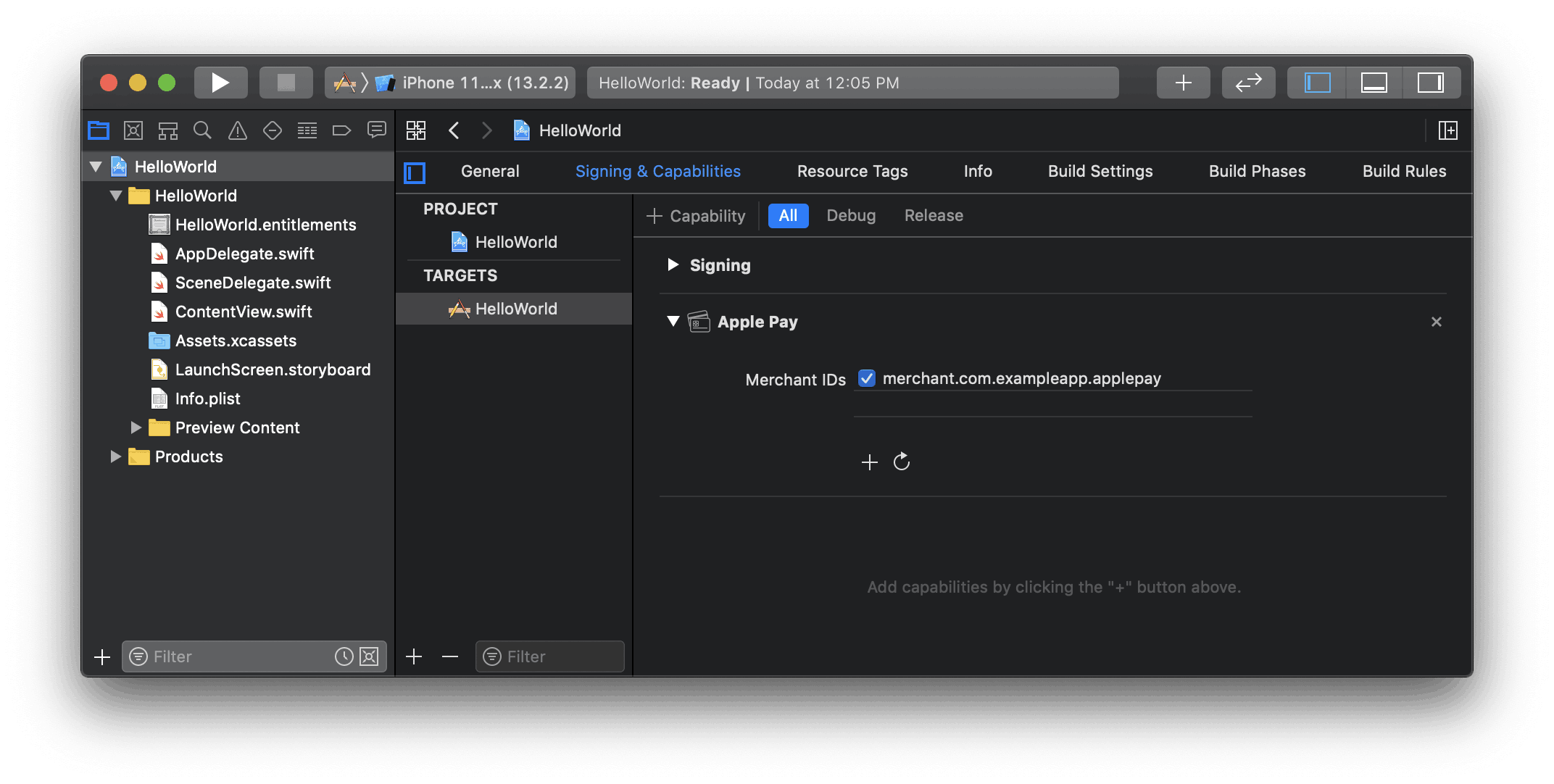
Enable the Apple Pay capability in Xcode
### Add Apple Pay
#### One-time payment
Pass your merchant ID when you create `StripeProvider`:
```javascript
import { StripeProvider } from '@stripe/stripe-react-native';
function App() {
return (
{/* Your app code here */}
);
}
```
When you initialize `EmbeddedPaymentElementConfiguration`, pass in your [ApplePayParams](https://stripe.dev/stripe-react-native/api-reference/modules/PaymentSheet.html#ApplePayParams):
```javascript
const embeddedConfig: EmbeddedPaymentElementConfiguration = {
// ...
applePay: {
merchantCountryCode: 'US',
},
};
```
#### Recurring payments
When you initialize `EmbeddedPaymentElementConfiguration`, pass in an [ApplePayParams](https://stripe.dev/stripe-react-native/api-reference/modules/PaymentSheet.html#ApplePayParams) with `merchantCountryCode` set to the country code of your business.
In accordance with [Apple’s guidelines](https://developer.apple.com/design/human-interface-guidelines/apple-pay#Supporting-subscriptions) for recurring payments, you must also set a `cardItems` that includes a [RecurringCartSummaryItem](https://stripe.dev/stripe-react-native/api-reference/modules/ApplePay.html#RecurringCartSummaryItem) with the amount you intend to charge (for example, “59.95 USD a month”).
You can also adopt [merchant tokens](https://developer.apple.com/apple-pay/merchant-tokens/) by setting the `request` with its `type` set to `PaymentRequestType.Recurring`
To learn more about how to use recurring payments with Apple Pay, see [Apple’s PassKit documentation](https://developer.apple.com/documentation/passkit/pkpaymentrequest).
#### iOS (React Native)
```javascript
const initialize = useCallback(() => {
const recurringSummaryItem = {
label: 'My Subscription',
amount: '59.99',
paymentType: 'Recurring',
intervalCount: 1,
intervalUnit: 'month',
// Payment starts today
startDate: new Date().getTime() / 1000,
// Payment ends in one year
endDate: new Date().getTime() / 1000 + 60 * 60 * 24 * 365,
};
const embeddedConfig: EmbeddedPaymentElementConfiguration = {
// ...
applePay: {
merchantCountryCode: 'US',
cartItems: [recurringSummaryItem],
request: {
type: PaymentRequestType.Recurring,
description: 'Recurring',
managementUrl: 'https://my-backend.example.com/customer-portal',
billing: recurringSummaryItem,
billingAgreement:
"You'll be billed $59.99 every month for the next 12 months. To cancel at any time, go to Account and click 'Cancel Membership.'",
},
},
};
});
```
### Order tracking
To add [order tracking](https://developer.apple.com/design/human-interface-guidelines/technologies/wallet/designing-order-tracking) information in iOS 16 or later, configure a `setOrderTracking` callback function. Stripe calls your implementation after the payment is complete, but before iOS dismisses the Apple Pay sheet.
In your implementation of `setOrderTracking` callback function, fetch the order details from your server for the completed order, and pass the details to the provided `completion` function.
To learn more about order tracking, see [Apple’s Wallet Orders documentation](https://developer.apple.com/documentation/walletorders).
#### iOS (React Native)
```javascript
const embeddedConfig: EmbeddedPaymentElementConfiguration = {
// ...
applePay: {
// ...
setOrderTracking: async complete => {
const apiEndpoint =
Platform.OS === 'ios'
? 'http://localhost:4242'
: 'http://10.0.2.2:4567';
const response = await fetch(
`${apiEndpoint}/retrieve-order?orderId=${orderId}`,
{
method: 'GET',
headers: {
'Content-Type': 'application/json',
},
},
);
if (response.status === 200) {
const orderDetails = await response.json();
// orderDetails should include orderIdentifier, orderTypeIdentifier,
// authenticationToken and webServiceUrl
complete(orderDetails);
}
},
},
};
```
## Optional: Enable Google Pay
### Set up your integration
To use Google Pay, first enable the Google Pay API by adding the following to the `` tag of your **AndroidManifest.xml**:
```xml
...
```
For more details, see Google Pay’s [Set up Google Pay API](https://developers.google.com/pay/api/android/guides/setup) for Android.
### Add Google Pay
When you initialize `EmbeddedPaymentElement`, set `merchantCountryCode` to the country code of your business and set `googlePay` to true.
You can also use the test environment by passing the `testEnv` parameter. You can only test Google Pay on a physical Android device. Follow the [React Native docs](https://reactnative.dev/docs/running-on-device) to test your application on a physical device.
```javascript
const embeddedConfig: EmbeddedPaymentElementConfiguration = {
// ...
googlePay: {
merchantCountryCode: 'US',
testEnv: true, // use test environment
},
};
```
## Optional: Customize the sheet
All customization is configured using `EmbeddedPaymentElementConfiguration`.
### Appearance
Customize colors, fonts, and so on to match the look and feel of your app by using the [appearance API](https://docs.stripe.com/elements/appearance-api/mobile.md?platform=react-native).
### Merchant display name
Specify a customer-facing business name by setting `merchantDisplayName`. By default, this is your app’s name.
```javascript
const embeddedConfig: EmbeddedPaymentElementConfiguration = {
// ...
merchantDisplayName: 'Example Inc.',
};
```
### Dark mode
By default, `EmbeddedPaymentElement` automatically adapts to the user’s system-wide appearance settings (light and dark mode). You can change this by setting the `style` property to `alwaysLight` or `alwaysDark` mode on iOS.
```javascript
const embeddedConfig: EmbeddedPaymentElementConfiguration = {
// ...
style: 'alwaysDark',
};
```
On Android, set light or dark mode on your app:
```
// force dark
AppCompatDelegate.setDefaultNightMode(AppCompatDelegate.MODE_NIGHT_YES)
// force light
AppCompatDelegate.setDefaultNightMode(AppCompatDelegate.MODE_NIGHT_NO)
```