# Adaptive Pricing
Learn about using Adaptive Pricing to allow customers to pay in their local currency.
> This page describes how to enable Adaptive Pricing using the Checkout Sessions API. Adaptive Pricing isn’t supported using the Payment Intents API.
Adaptive Pricing lets your customers pay in their local currency in more than [150 countries](https://docs.stripe.com/payments/custom/localize-prices/adaptive-pricing.md#supported-currencies). With Adaptive Pricing, Stripe uses machine learning to determine the most relevant presentment currency, then automatically calculates the localized price and handles all currency conversion.
Use Adaptive Pricing to:
- Display pricing in local currencies based on location using the [Currency Selector Element](https://docs.stripe.com/elements/currency-selector-element.md)
- Calculate prices in real-time using an exchange rate guaranteed for 24 hours
- Unlock payment methods that require local currency
- Facilitate compliance when presenting supported currencies
#### Integration effort
Complexity: 2/5
#### Fees
View information on [fees and our FAQ](https://support.stripe.com/questions/adaptive-pricing).
#### UI customization
Place the [Currency Selector Element](https://docs.stripe.com/elements/currency-selector-element.md) anywhere on your checkout page.
## Enable Adaptive Pricing in the Dashboard [Dashboard]
Manage Adaptive Pricing for Checkout in your [Payments settings](https://dashboard.stripe.com/settings/adaptive-pricing) in the Dashboard. You can enable Adaptive Pricing in a sandbox and live mode. Disabling Adaptive Pricing doesn’t affect Checkout Sessions that have already been converted. To use Adaptive Pricing with Elements, use a [currency for your prices](https://docs.stripe.com/api/checkout/sessions/object.md#checkout_session_object-currency) that’s one of your settlement currencies. To add a settlement currency, [set up multi-currency settlement](https://docs.stripe.com/payouts/multi-currency-settlement.md#enable-multi-currency-settlement).
## Localize and format prices [Client-side]
It’s important to display prices consistently according to the selected currency throughout your checkout page, including line items, shipping rates, discounts, tax, and totals.
When using Elements with Adaptive Pricing, the Elements [Session object](https://docs.stripe.com/js/custom_checkout/session_object) can contain localized values if Adaptive Pricing is active. Design your integration as though the session could contain amounts and currencies relevant to any country your customers might be visiting your site from. This workflow relies on preformatted fields like [session.total.total.amount](https://docs.stripe.com/js/custom_checkout/session_object#custom_checkout_session_object-total-total-amount). The [Checkout Session](https://docs.stripe.com/api/checkout/sessions/object.md) object returned in the Stripe API remains in the same currency set in your Stripe integration with customer context available under [presentment_details](https://docs.stripe.com/api/checkout/sessions/object.md#checkout_session_object-presentment_details) and it won’t match exactly with the Elements [Session object](https://docs.stripe.com/js/custom_checkout/session_object).
#### HTML + JS
The [Session object](https://docs.stripe.com/js/custom_checkout/session_object) provides formatted currency values that you can use directly in your UI.
```javascript
const { actions } = await checkout.loadActions();
const { total } = actions.getSession();
// Display the formatted amounts in your UI
document.getElementById('order-total').textContent = total.total.amount;
```
#### React
The [useCheckoutElements](https://docs.stripe.com/js/react_stripe_js/checkout/use_checkout_elements) hook provides formatted currency values that you can use directly in your UI.
```jsx
import React from 'react';
import {useCheckoutElements} from '@stripe/react-stripe-js/checkout';
const OrderSummary = () => {
const checkoutState = useCheckoutElements();
if (checkoutState.type === 'success') {
// Display the formatted amounts in your UI
return (
Total: {checkoutState.checkout.total.total.amount}
);
}
};
```
## Render the Currency Selector Element [Client-side]
The [Currency Selector Element](https://docs.stripe.com/elements/currency-selector-element.md) is an embeddable UI component that facilitates Adaptive Pricing. Display it near the order total.
> You are responsible for complying with laws that apply to price localization in your or your customers’ regions. You must render the Currency Selector Element in your use of Adaptive Pricing with Elements. Stripe recommends you consult your legal counsel for advice specific to your business.
#### HTML + JS
Create a container DOM element to mount the Currency Selector Element. Then create an instance of the Currency Selector Element using [checkout.createCurrencySelectorElement](https://docs.stripe.com/js/custom_checkout/create_currency_selector_element) and mount it by calling [element.mount](https://docs.stripe.com/js/element/mount), providing either a CSS selector or the container DOM element. You can decide to only create the Currency Selector Element when the [currencyOptions](https://docs.stripe.com/js/custom_checkout/session_object#custom_checkout_session_object-currencyOptions) are populated. If there are no `currencyOptions` and the Currency Selector Element is mounted, nothing displays.
```html
```
```javascript
const currencySelectorElement = checkout.createCurrencySelectorElement();
currencySelectorElement.mount('#currency-selector');
```
#### React
Mount the `CurrencySelectorElement` component within the `CheckoutElementsProvider`. You can decide to only to mount the `CurrencySelectorElement` when the [currencyOptions](https://docs.stripe.com/js/react_stripe_js/checkout/use_checkout_elements#react_use_checkout_elements-currencyOptions) are populated. If there are no `currencyOptions` and the `CurrencySelectorElement` is mounted, nothing displays.
```jsx
import React from 'react';
import {CurrencySelectorElement} from '@stripe/react-stripe-js/checkout';
const OrderSummary = () => {
return (
);
};
```
### Troubleshoot missing currency options
If `currencyOptions` is empty, verify that the transaction meets all of the following criteria:
- The Checkout Session includes `adaptivePricing.allowed` set to `true`.
- The integration or price currency is eligible for settlement by the merchant of record.
- The customer is cross-border.
- The Checkout Session supports the currency pair.
### Design best practices
We offer a configurable **Currency Selector Element** for your checkout page. Follow these best practices when choosing where to place your selector:
- Add the **Currency Selector** near where payment details are entered, ideally directly above the **Payment Element**, since the selected currency might affect available payment methods.
- If the **Payment Element** isn’t initially visible (due to multi-step flows or being lower on the page), position the **Currency Selector** near the total price display.
- For one-time payments, the local and integration amounts will be visible on the **Currency Selector**. For subscriptions, the **Currency Selector** will not show these amounts. Ensure you show the total price on your checkout page.
- If you’re using the [Express Checkout Element](https://docs.stripe.com/elements/express-checkout-element.md), we recommend placing the Currency Selector Element above the Express Checkout Element to ensure your customers know what currency they will be charged in.
- Apply these tips to your page layouts for all screen sizes.
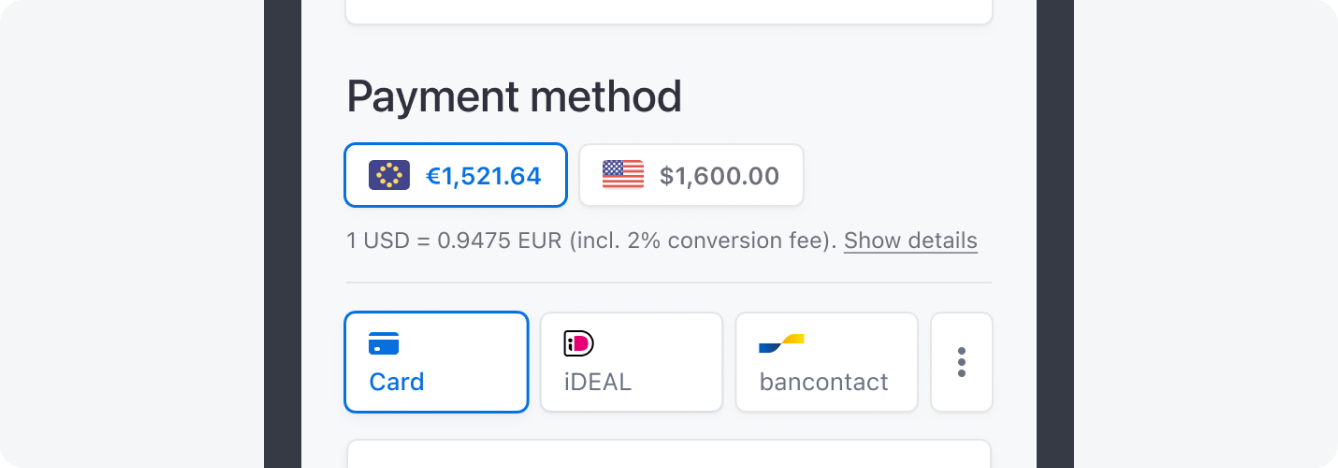
> #### Do
>
> Place the Currency Selector above the Payment Element. If you’re only accepting cards, you can also place it directly below the Payment Element.
## Mark your integration as ready for Adaptive Pricing [Client-side]
Once you have [localized and formatted your prices](https://docs.stripe.com/payments/custom/localize-prices/adaptive-pricing.md#localize-prices) and [rendered the currency selector](https://docs.stripe.com/payments/custom/localize-prices/adaptive-pricing.md#render-currency-selector-element), mark your integration as ready for Adaptive Pricing by setting the [adaptivePricing.allowed](https://docs.stripe.com/js/custom_checkout/init#custom_checkout_init-options-adaptivePricing-allowed) parameter when you initialize checkout. You must configure this client-side setting and also enable Adaptive Pricing in the Checkout Session for an [eligible currency](https://docs.stripe.com/payments/custom/localize-prices/adaptive-pricing.md#restrictions).
#### HTML + JS
```js
const checkout = stripe.initCheckoutElementsSdk({
clientSecret,
// Mark your integration as ready for Adaptive Pricing
adaptivePricing: {
allowed: true
}
});
// Use `checkout` to build your checkout page
```
#### React
```jsx
>")}
options={{
clientSecret,
// Mark your integration as ready for Adaptive Pricing
adaptivePricing: {allowed: true}
}}
>
{/* your components here */}
```
After your integration is marked as ready, you can manage Adaptive Pricing in your [Payments settings](https://dashboard.stripe.com/settings/adaptive-pricing) in the Dashboard, or per [Checkout Session](https://docs.stripe.com/api/checkout/sessions.md) using the [adaptive_pricing.enabled](https://docs.stripe.com/api/checkout/sessions/create.md#create_checkout_session-adaptive_pricing-enabled) parameter.
## Configure local payment methods [Dashboard]
Adaptive Pricing can increase the usage of local payment methods by ensuring customers have the option to pay in their local currency and with payment methods most relevant to them. As an example, 70% of all e-commerce transactions in the Netherlands use iDEAL, but it only works with EUR. You can configure which payment methods you accept in your [payment methods settings](https://dashboard.stripe.com/settings/payment_methods) if you use dynamic payment methods. Adaptive Pricing provides access to the following payment methods that require presenting in local currency:
- Alipay
- Amazon Pay
- Bacs Debit
- Bancontact
- Bizum
- BLIK
- EPS
- iDEAL
- Link
- P24
- Pix
- South Korean cards
- MB WAY
- Naver Pay
- Kakao Pay
- Pay by Bank
- PAYCO
- PayPal
- Revolut Pay
- Samsung Pay
- Satispay
- SEPA Debit
- TWINT
- WeChat Pay
- Klarna (EU+UK only)
- UPI
> For cross-border subscriptions, Adaptive Pricing supports only card payments, Link, Apple Pay, and Google Pay.
## Testing
To test local currency presentment, use the [Stripe.js testing assistant](https://docs.stripe.com/sdks/stripejs-testing-assistant.md#elements-inspector) to simulate the customer’s location and see how your integration will behave in different countries.
When it’s possible to present the customer’s local currency in Checkout, the [Checkout Session](https://docs.stripe.com/api/checkout/sessions/object.md) object changes. Fields like `currency`, `payment_method_types`, and `amount_total` reflect the local currency and price.
### Testing with customer email
You can also test local currency presentment using a location-formatted customer email.
Pass in a customer email that includes a suffix in a `+location_XX` format in the local part of the email. `XX` must be a valid [two-letter ISO country code](https://www.nationsonline.org/oneworld/country_code_list.htm).
For example, to test currency presentment for a customer in France, pass in an email like `test+location_FR@example.com`. When you view your checkout page with the Currency Selector Element and Payment Element using a Checkout Session created with a location-formatted email, you see the same currency as a customer does in the specified country.
When you create a Checkout Session, pass the location-formatted email as [customer_email](https://docs.stripe.com/api/checkout/sessions/object.md#checkout_session_object-customer_email) to simulate a particular country.
```curl
curl https://api.stripe.com/v1/checkout/sessions \
-u <>: \
-d "line_items[0][price]"="{{PRICE_ID}}" \
-d "line_items[0][quantity]"=1 \
-d mode=payment \
-d ui_mode=elements \
-d return_url="https://example.com/return" \
--data-urlencode customer_email="test+location_FR@example.com"
```
You can also create a new customer and specify an email for them that contains the `+location_XX` suffix. Stripe test cards work as usual.
## Restrictions
Adaptive Pricing isn’t available for businesses using Elements with the Payment Intents API.
Adaptive Pricing isn’t supported for Indian businesses.
Additionally, Adaptive Pricing requires the [currency for your prices](https://docs.stripe.com/api/checkout/sessions/object.md#checkout_session_object-currency) to be one of your settlement currencies. Prices automatically convert during checkout. This applies to [prices](https://docs.stripe.com/products-prices/manage-prices.md#prices-create) you create and reference with a price ID and prices you create inline with [price_data](https://docs.stripe.com/api/checkout/sessions/create.md#create_checkout_session-line_items-price_data) when you create a Checkout Session.
If you process payments through a platform, we require your platform’s integration currency to be the settlement currency of the merchant of record on the charge.
Adaptive Pricing doesn’t apply for Checkout Sessions that:
- Contain prices where the customer’s local currency is already defined in the price’s [currency_options](https://docs.stripe.com/payments/checkout/localize-prices/manual-currency-prices.md). For example, if a price has `currency_options` for EUR and GBP, Adaptive Pricing won’t convert to EUR or GBP, but it can still convert to other currencies like CAD or JPY.
- Use [capture_method](https://docs.stripe.com/api/checkout/sessions/create.md#create_checkout_session-payment_intent_data-capture_method) as `manual`.
Checkout Sessions that aren’t supported by Adaptive Pricing present prices in the original currency that you’ve set your prices in.
See our [support page](https://support.stripe.com/questions/adaptive-pricing) for more information.
## Supported currencies
Businesses in supported regions can automatically convert prices to the local currencies of their customers in the following markets:
### North America
- AG
- AW
- BS
- BB
- BZ
- BM
- CA
- KY
- CR
- DM
- DO
- GD
- GT
- HT
- HN
- MX
- JM
- PA
- KN
- LC
- VC
- TT
- US
### South America
- BR
- BO
- CO
- CL
- FK
- GY
- PY
- PE
- UY
### Europe
- AL
- AD
- AT
- BE
- BA
- HR
- CY
- CZ
- DK
- EE
- FI
- FR
- DE
- GI
- GR
- HU
- IS
- IE
- IT
- LV
- LT
- LU
- MT
- MC
- MD
- ME
- NL
- MK
- NO
- PL
- PT
- RO
- SM
- RS
- SK
- SI
- ES
- SE
- CH
- UA
- GB
- VA
### Asia
- AF
- AM
- AZ
- BD
- BN
- KH
- CN
- GE
- HK
- IN
- ID
- IL
- JP
- KZ
- KG
- MO
- MY
- MV
- MN
- NP
- PK
- PH
- QA
- SA
- SG
- KR
- LK
- TW
- TJ
- TH
- TR
- AE
- UZ
- VN
- YE
### Oceania
- AU
- PF
- NC
- NZ
- WF
### Africa
- AO
- DZ
- BJ
- BW
- BF
- BI
- CM
- CV
- CF
- TD
- CI
- DJ
- GQ
- GA
- GM
- GN
- GW
- KE
- LR
- MG
- ML
- MU
- MA
- MZ
- NA
- NE
- CG
- RW
- SH
- ST
- SN
- ZA
- TZ
- TG
- UG
- ZM
## Pricing
- You pay 0%
- Your customers pay 2–4%
You don’t directly pay any additional Stripe fees for Adaptive Pricing, as all such fees are paid for by your customers. The Stripe-provided exchange rate you present to your customers includes a 2–4% conversion fee, increasing their purchase price by a corresponding amount. Stripe determines the fee, which varies for the purposes of increasing customer conversion. Your customer doesn’t pay this fee if they choose to pay in your integration currency, but their bank’s exchange rate and fees might apply. For detailed information about current Stripe fees, see our [pricing page](https://stripe.com/pricing).
## Exchange rate
Stripe uses the mid-market exchange rate and applies a fee to guarantee the rate through settlement.
Learn more about how Stripe handles [currency conversions](https://docs.stripe.com/currencies.md) and [Adaptive Pricing fees](https://support.stripe.com/questions/adaptive-pricing#:~:text=Adaptive%20Pricing%20is%20a%20Checkout,latest%20Stripe%2Dprovided%20exchange%20rates).
## Refunds
You can issue a refund in your integration currency, and Stripe refunds your customer in the currency they used to make the payment. The refund uses the same exchange rate as the original transaction, so there are no extra costs for you, and your customer gets back the exact amount they paid.
Learn more about how Stripe helps you manage [refunds](https://docs.stripe.com/refunds.md).
## See also
- [Adaptive Pricing FAQ](https://support.stripe.com/questions/adaptive-pricing)