# Collect payment details before creating an Intent
Build an integration where you can render the Payment Element prior to creating a PaymentIntent or SetupIntent.
# Set up a payment method
A setup flow allows you to set up a payment method for future payments without charging your customer right away. In this integration, you’ll build a custom payment flow where you render the Payment Element, create the *SetupIntent* (The Setup Intents API lets you build dynamic flows for collecting payment method details for future payments. It tracks the lifecycle of a payment setup flow and can trigger additional authentication steps if required by law or by the payment method), and confirm the setup from the buyer’s browser.
## Set up Stripe [Server-side]
First, [create a Stripe account](https://dashboard.stripe.com/register) or [sign in](https://dashboard.stripe.com/login).
Use our official libraries to access the Stripe API from your application:
#### Ruby
```bash
# Available as a gem
sudo gem install stripe
```
```ruby
# If you use bundler, you can add this line to your Gemfile
gem 'stripe'
```
## Enable payment methods
> This integration path doesn’t support BLIK or pre-authorized debits that use the Automated Clearing Settlement System (ACSS). Also, if you create the deferred intent from the client-side, you can’t use `customer_balance` with dynamic payment methods because the PaymentIntent requires a customer-configured [Account](https://docs.stripe.com/api/v2/core/accounts/object.md#v2_account_object-configuration-customer) or [Customer](https://docs.stripe.com/api/customers/object.md) object, which the client-side flow doesn’t support. To use `customer_balance`, create the `PaymentIntent` server-side with an `Account` or `Customer` and return its `client_secret` to the client.
View your [payment methods settings](https://dashboard.stripe.com/settings/payment_methods) and enable the payment methods you want to support. You need at least one payment method enabled to create a *SetupIntent* (The Setup Intents API lets you build dynamic flows for collecting payment method details for future payments. It tracks the lifecycle of a payment setup flow and can trigger additional authentication steps if required by law or by the payment method).
By default, Stripe enables cards and other prevalent payment methods that can help you reach more customers, but we recommend turning on additional payment methods that are relevant for your business and customers. See [Payment method support](https://docs.stripe.com/payments/payment-methods/payment-method-support.md) for product and payment method support, and our [pricing page](https://stripe.com/pricing/local-payment-methods) for fees.
## Collect payment details [Client-side]
Use the [Payment Element](https://docs.stripe.com/payments/payment-element.md) to securely send payment information collected in an iFrame to Stripe over an HTTPS connection.
> #### Conflicting iFrames
>
> Avoid placing the Payment Element within another iframe because it conflicts with payment methods that require redirecting to another page for payment confirmation.
Your checkout page URL must start with `https://` rather than `http://` for your integration to work. You can test your integration without using HTTPS, but remember to [enable it](https://docs.stripe.com/security/guide.md#tls) when you’re ready to accept live payments.
#### HTML + JS
### Set up Stripe.js
The Payment Element is automatically available as a feature of Stripe.js. Include the Stripe.js script on your checkout page by adding it to the `head` of your HTML file. Always load Stripe.js directly from js.stripe.com to remain PCI compliant. Don’t include the script in a bundle or host a copy of it yourself.
```html
Checkout
```
Create an instance of Stripe with the following JavaScript on your checkout page:
```javascript
// Set your publishable key: remember to change this to your live publishable key in production
// See your keys here: https://dashboard.stripe.com/apikeys
const stripe = Stripe('<>');
```
### Add the Payment Element to your checkout page
The Payment Element needs a place to live on your checkout page. Create an empty DOM node (container) with a unique ID in your payment form:
```html
```
After your form loads, create an Elements instance with the mode ‘setup’. Then, create an instance of the Payment Element and mount it to the container DOM node.
```javascript
const options = {mode: 'setup',
currency: 'usd',
// Fully customizable with appearance API.
appearance: {/*...*/},
};
// Set up Stripe.js and Elements to use in checkout formconst elements = stripe.elements(options);
// Create and mount the Payment Element
const paymentElementOptions = { layout: 'accordion'};
const paymentElement = elements.create('payment', paymentElementOptions);
paymentElement.mount('#payment-element');
```
#### React
### Set up Stripe.js
Install [React Stripe.js](https://www.npmjs.com/package/@stripe/react-stripe-js) and the [Stripe.js loader](https://www.npmjs.com/package/@stripe/stripe-js) from the npm public registry.
```bash
npm install --save @stripe/react-stripe-js @stripe/stripe-js
```
### Add and configure the Elements provider to your checkout page
To use the Payment Element component, wrap your checkout page component in an [Elements provider](https://docs.stripe.com/sdks/stripejs-react.md#elements-provider). Call `loadStripe` with your publishable key, and pass the returned `Promise` to the `Elements` provider, as well as `mode: 'setup'`.
```jsx
import React from 'react';
import ReactDOM from 'react-dom';
import {Elements} from '@stripe/react-stripe-js';
import {loadStripe} from '@stripe/stripe-js';
import SetupForm from './SetupForm';
// Make sure to call `loadStripe` outside of a component's render to avoid
// recreating the `Stripe` object on every render.
const stripePromise = loadStripe('<>');
function App() {
const options = {mode: 'setup',
currency: 'usd',
// Fully customizable with appearance API.
appearance: {/*...*/},
};
return (
);
};
ReactDOM.render(, document.getElementById('root'));
```
### Add the Payment Element component
Use the `PaymentElement` component to build your form.
```jsx
import React from 'react';
import {PaymentElement} from '@stripe/react-stripe-js';
const SetupForm = () => {
return (
);
};
export default SetupForm;
```
The Payment Element renders a dynamic form that allows your customer to pick a payment method. The form automatically collects all necessary payments details for the payment method selected by the customer.
You can customize the Payment Element to match the design of your site by passing the [appearance object](https://docs.stripe.com/elements/appearance-api.md) into `options` when creating the `Elements` provider.
### Collect addresses
By default, the Payment Element only collects the necessary billing address details. Some behavior, such as [calculating tax](https://docs.stripe.com/api/tax/calculations/create.md) or entering shipping details, requires your customer’s full address. You can:
- Use the [Address Element](https://docs.stripe.com/elements/address-element.md) to take advantage of autocomplete and localization features to collect your customer’s full address. This helps ensure the most accurate tax calculation.
- Collect address details using your own custom form.
## Optional: Customize the layout [Client-side]
You can customize the Payment Element’s layout (accordion or tabs) to fit your checkout interface. For more information about each of the properties, see [elements.create](https://docs.stripe.com/js/elements_object/create_payment_element#payment_element_create-options).
#### Accordion
You can start using the layout features by passing a layout `type` and other optional properties when creating the Payment Element:
```javascript
const paymentElement = elements.create('payment', {
layout: {
type: 'accordion',
defaultCollapsed: false,
radios: 'always',
spacedAccordionItems: false
}
});
```
#### Tabs
### Specify the layout
Set the value for layout to `tabs`. You also have the option to specify other properties, such as the ones in the following example:
```javascript
const paymentElement = elements.create('payment', {
layout: {
type: 'tabs',
defaultCollapsed: false,
}
});
```
The following image is the same Payment Element rendered using different layout configurations:
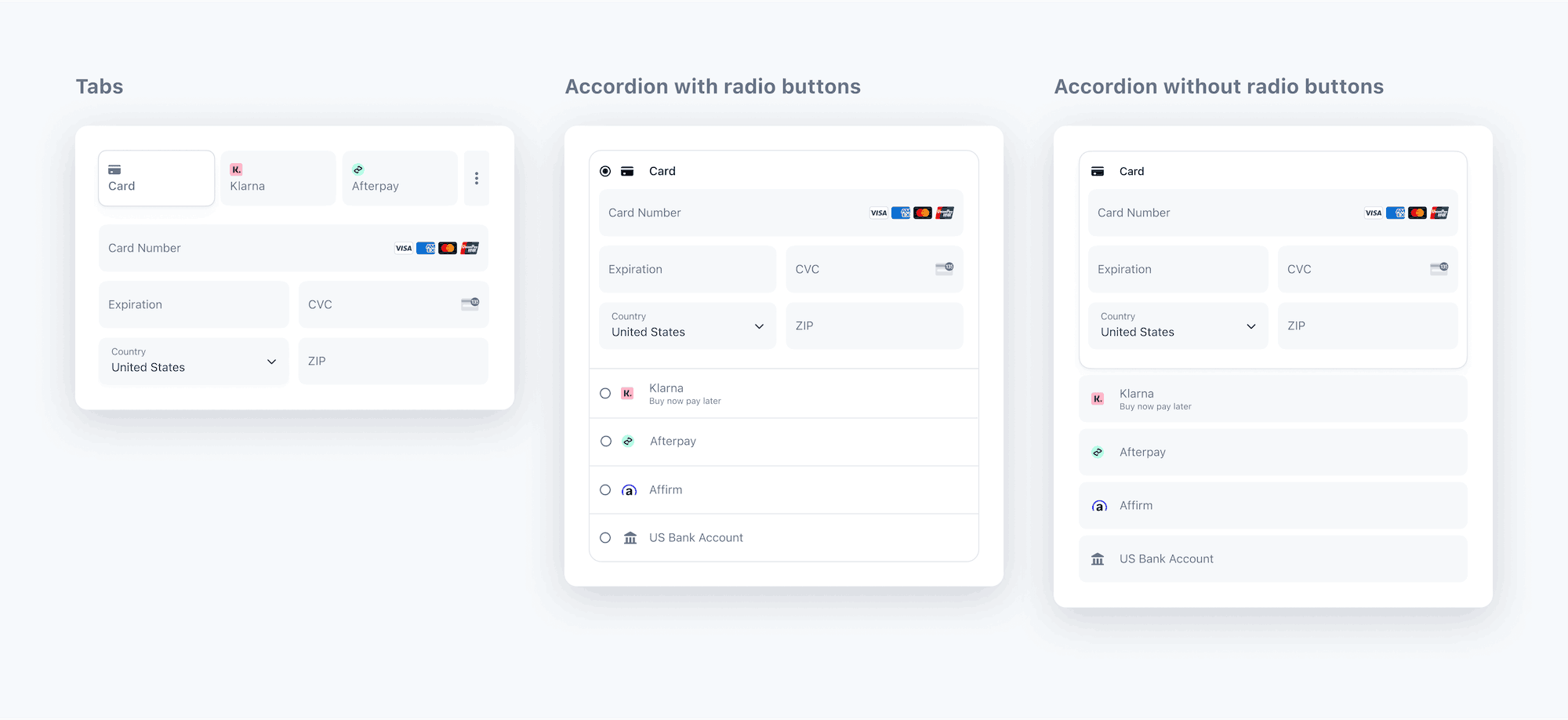
Payment Element layouts
## Optional: Customize the appearance [Client-side]
Now that you’ve added the Payment Element to your page, you can customize its appearance to make it fit your design. To learn more about customizing the Payment Element, see [Elements Appearance API](https://docs.stripe.com/elements/appearance-api.md).
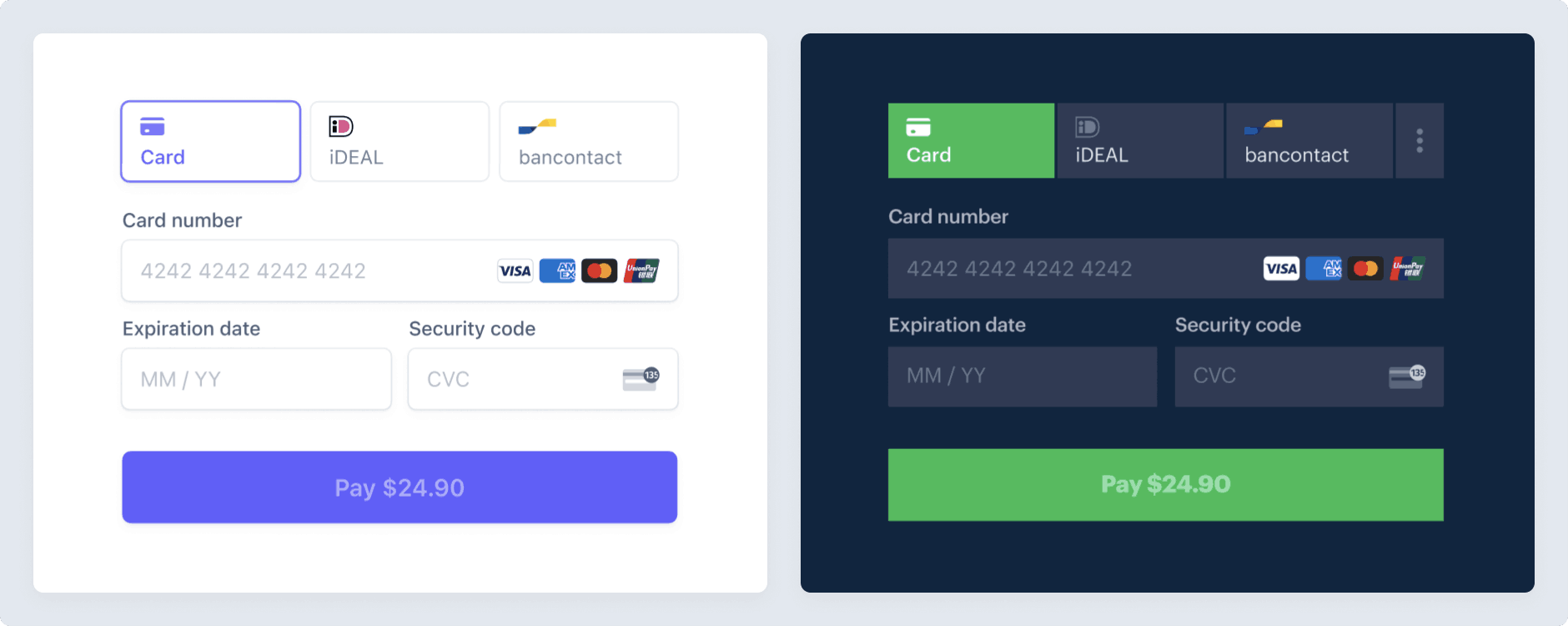
Customize the Payment Element
## Optional: Save and retrieve customer payment methods
You can configure the Payment Element to save your customer’s payment methods for future use. This section shows you how to integrate the [saved payment methods feature](https://docs.stripe.com/payments/save-customer-payment-methods.md), which enables the Payment Element to:
- Prompt buyers for consent to save a payment method
- Save payment methods when buyers provide consent
- Display saved payment methods to buyers for future purchases
- [Automatically update lost or expired cards](https://docs.stripe.com/payments/cards/overview.md#automatic-card-updates) when buyers replace them

Save payment methods.

Reuse a previously saved payment method.
### Enable saving the payment method in the Payment Element
Create a [CustomerSession](https://docs.stripe.com/api/customer_sessions/.md) on your server by providing the customer’s ID (using either `customer` for a `Customer` object or `customer_account` for a customer-configured `Account` object) and enabling the [payment_element](https://docs.stripe.com/api/customer_sessions/object.md#customer_session_object-components-payment_element) component for your session. Configure which saved payment method [features](https://docs.stripe.com/api/customer_sessions/create.md#create_customer_session-components-payment_element-features) you want to enable. For instance, enabling [payment_method_save](https://docs.stripe.com/api/customer_sessions/create.md#create_customer_session-components-payment_element-features-payment_method_save) displays a checkbox that allows customers to save their payment details for future use.
You can specify `setup_future_usage` on a PaymentIntent or Checkout Session to override the default behavior for saving payment methods. This ensures that you automatically save the payment method for future use, even if the customer doesn’t explicitly choose to save it. If you intend to specify `setup_future_usage`, don’t set `payment_method_save_usage` in the same payment transaction because this causes an integration error.
> #### Use the Accounts v2 API to represent customers
>
> The Accounts v2 API is generally available for Connect users, and in public preview for other Stripe users. If you’re part of the Accounts v2 preview, you need to specify a [specify a preview version](https://docs.stripe.com/api-v2-overview.md#sdk-and-api-versioning) in your code.
>
> To request access to the Accounts v2 preview,
>
> For most use cases, we recommend [modeling your customers as customer-configured Account objects](https://docs.stripe.com/accounts-v2/use-accounts-as-customers.md) instead of using [Customer](https://docs.stripe.com/api/customers.md) objects.
#### Accounts v2
#### Ruby
```ruby
# Don't put any keys in code. See https://docs.stripe.com/keys-best-practices.
# Find your keys at https://dashboard.stripe.com/apikeys.
client = Stripe::StripeClient.new('<>')
post '/create-customer-session' do
customer_session = client.v1.customer_sessions.create({
customer_account: {{CUSTOMER_ACCOUNT_ID}},
components: {
payment_element: {
enabled: true,
features: {
payment_method_redisplay: 'enabled',
payment_method_save: 'enabled',
payment_method_save_usage: 'off_session',
payment_method_remove: 'enabled',
},
},
},
})
{
customer_session_client_secret: customer_session.client_secret
}.to_json
end
```
#### Customers v1
#### Ruby
```ruby
# Don't put any keys in code. See https://docs.stripe.com/keys-best-practices.
# Find your keys at https://dashboard.stripe.com/apikeys.
client = Stripe::StripeClient.new('<>')
post '/create-customer-session' do
customer_session = client.v1.customer_sessions.create({
customer: {{CUSTOMER_ID}},
components: {
payment_element: {
enabled: true,
features: {
payment_method_redisplay: 'enabled',
payment_method_save: 'enabled',
payment_method_save_usage: 'off_session',
payment_method_remove: 'enabled',
},
},
},
})
{
customer_session_client_secret: customer_session.client_secret
}.to_json
end
```
Your Elements instance uses the CustomerSession’s *client secret* (A client secret is used with your publishable key to authenticate a request for a single object. Each client secret is unique to the object it's associated with) to access that customer’s saved payment methods. [Handle errors](https://docs.stripe.com/error-handling.md) properly when you create the CustomerSession. If an error occurs, you don’t need to provide the CustomerSession client secret to the Elements instance, as it’s optional.
Create the Elements instance using the CustomerSession client secret. Then, use the Elements instance to create a Payment Element.
```javascript
// Create the CustomerSession and obtain its clientSecret
const res = await fetch("/create-customer-session", {
method: "POST"
});
const {
customer_session_client_secret: customerSessionClientSecret
} = await res.json();
const elementsOptions = {
mode: 'setup',
currency: 'usd',customerSessionClientSecret,
// Fully customizable with appearance API.
appearance: {/*...*/},
};
// Set up Stripe.js and Elements to use in checkout form, passing the client secret
// and CustomerSession's client secret obtained in a previous step
const elements = stripe.elements(elementsOptions);
// Create and mount the Payment Element
const paymentElementOptions = { layout: 'accordion'};
const paymentElement = elements.create('payment', paymentElementOptions);
paymentElement.mount('#payment-element');
```
When confirming the SetupIntent, Stripe.js automatically controls setting [allow_redisplay](https://docs.stripe.com/api/payment_methods/object.md#payment_method_object-allow_redisplay) on the PaymentMethod, depending on whether the customer checked the box to save their payment details.
### Detect the selection of a saved payment method
To control dynamic content when a saved payment method is selected, listen to the Payment Element `change` event, which is populated with the selected payment method.
```javascript
paymentElement.on('change', function(event) {
if (event.value.payment_method) {
// Control dynamic content if a saved payment method is selected
}
})
```
## Optional: Additional Elements options [Client-side]
The [Elements object](https://docs.stripe.com/js/elements_object/create_without_intent) accepts additional options that influence payment collection. Based on the options provided, the Payment Element displays available payment methods from those you’ve enabled. Learn more about [payment method support](https://docs.stripe.com/payments/payment-methods/payment-method-support.md).
Make sure the Elements options you provide (such as `captureMethod`, `setupFutureUsage`, and `paymentMethodOptions`) match the equivalent parameters you pass when creating and confirming the Intent. Mismatched parameters can result in unexpected behavior or errors.
| Property | Type | Description | Required |
| ---------------------------- | -------------------------------------------------- | --------------------------------------------------------------------------------------------------------------------------------------------------------------------------------------------------------------------------------------------------------------------------------------------------------------------------------------------------------------------------------------------------------------------------------------------------------------------------------------------------------------------------------------------------------------------------------------------------------------------------------------------------------------------------------------------------------------------------------------------------------------- | ------------------------------------- |
| `mode` | - `payment`
- `setup`
- `subscription` | Indicates whether the Payment Element is used with a *PaymentIntent* (The Payment Intents API tracks the lifecycle of a customer checkout flow and triggers additional authentication steps when required by regulatory mandates, custom Radar fraud rules, or redirect-based payment methods), *SetupIntent* (The Setup Intents API lets you build dynamic flows for collecting payment method details for future payments. It tracks the lifecycle of a payment setup flow and can trigger additional authentication steps if required by law or by the payment method), or *Subscription* (A Subscription represents the product details associated with the plan that your customer subscribes to. Allows you to charge the customer on a recurring basis). | Yes |
| `currency` | `string` | The currency of the amount to charge the customer. | Yes |
| `amount` | `number` | The amount to charge the customer, shown in Apple Pay, Google Pay, or BNPL UIs. | For `payment` and `subscription` mode |
| `setupFutureUsage` | - `off_session`
- `on_session` | Indicates that you intend to make future payments with the payment details collected by the Payment Element. | No |
| `captureMethod` | - `automatic`
- `automatic_async`
- `manual` | Controls when to capture the funds from the customer’s account. | No |
| `onBehalfOf` | `string` | Connect only. The Stripe account ID, which is the business of record. See [use cases](https://docs.stripe.com/connect/charges.md) to determine if this option is relevant for your integration. | No |
| `paymentMethodTypes` | `string[]` | A list of payment method types to render. You can omit this attribute to manage your payment methods in the [Stripe Dashboard](https://dashboard.stripe.com/settings/payment_methods). | No |
| `paymentMethodConfiguration` | `string` | The [payment method configuration](https://docs.stripe.com/api/payment_method_configurations.md) to use when managing your payment methods in the [Stripe Dashboard](https://dashboard.stripe.com/settings/payment_methods). If not specified, your default configuration is used. | No |
| `paymentMethodCreation` | `manual` | Allows PaymentMethods to be created from the Elements instance using [stripe.createPaymentMethod](https://docs.stripe.com/js/payment_methods/create_payment_method_elements). | No |
| `paymentMethodOptions` | `{us_bank_account: {verification_method: string}}` | Verification options for the `us_bank_account` payment method. Accepts the same verification methods as [Payment Intents](https://docs.stripe.com/api/payment_intents/create.md#create_payment_intent-payment_method_options-us_bank_account-verification_method). | No |
| `paymentMethodOptions` | `{card: {installments: {enabled: boolean}}}` | Allows manually enabling the card installment plan selection UI if applicable when you aren’t managing your payment methods in the [Stripe Dashboard](https://dashboard.stripe.com/settings/payment_methods). You must set `mode='payment'` *and* explicitly specify `paymentMethodTypes`. Otherwise an error is raised. Incompatible with `paymentMethodCreation='manual'`. | No |
| `paymentMethodOptions` | `{[paymentMethod]: {setup_future_usage: string}}` | Allows you to specify `setup_future_usage` for only payment methods that support reuse. Only applicable when `mode` is `payment`. The value for each payment method must match the corresponding `payment_method_options[paymentMethod][setup_future_usage]` on the PaymentIntent during confirmation. See the [Stripe.js reference](https://docs.stripe.com/js/elements_object/create_without_intent#stripe_elements_no_intent-options-paymentMethodOptions) for supported payment methods and values. | No |
## Optional: Create a ConfirmationToken
If you want to build a multi-page checkout or collect payment method details before running additional validations, see [Build a two-step checkout flow](https://docs.stripe.com/payments/build-a-two-step-confirmation.md). With this flow, you create a [ConfirmationToken](https://docs.stripe.com/api/confirmation_tokens.md) on the client to collect payment details and then use it to create a SetupIntent on the server.
## Create a customer [Server-side]
To set up a payment method for future payments, you must attach it to an object that represents your customer. When your customer creates an account or has their first transaction with your business, create either a customer-configured [Account](https://docs.stripe.com/api/v2/core/accounts/create.md) object with the Accounts v2 API or a [Customer](https://docs.stripe.com/api/customers/create.md) object with the Customers API.
> #### Use the Accounts v2 API to represent customers
>
> The Accounts v2 API is generally available for Connect users, and in public preview for other Stripe users. If you’re part of the Accounts v2 preview, you need to specify a [specify a preview version](https://docs.stripe.com/api-v2-overview.md#sdk-and-api-versioning) in your code.
>
> To request access to the Accounts v2 preview,
>
> For most use cases, we recommend [modeling your customers as customer-configured Account objects](https://docs.stripe.com/accounts-v2/use-accounts-as-customers.md) instead of using [Customer](https://docs.stripe.com/api/customers.md) objects.
#### Accounts v2
```curl
curl -X POST https://api.stripe.com/v2/core/accounts \
-H "Authorization: Bearer <>" \
-H "Stripe-Version: 2026-04-22.preview" \
--json '{
"contact_email": "jenny.rosen@example.com",
"display_name": "Jenny Rosen",
"identity": {
"individual": {
"given_name": "Jenny Rosen",
"address": {
"city": "San Francisco",
"country": "US",
"line1": "123 Main Street",
"postal_code": "94605",
"state": "CA"
}
}
},
"configuration": {
"customer": {
"capabilities": {
"automatic_indirect_tax": {
"requested": true
}
},
"shipping": {
"address": {
"city": "San Francisco",
"country": "US",
"line1": "123 Main Street",
"postal_code": "94605",
"state": "CA"
}
}
}
},
"include": [
"configuration.customer",
"identity"
]
}'
```
#### Customers v1
```curl
curl https://api.stripe.com/v1/customers \
-u "<>:" \
--data-urlencode "email=jenny.rosen@example.com" \
-d "name=Jenny Rosen" \
-d "shipping[address][city]=San Francisco" \
-d "shipping[address][country]=US" \
-d "shipping[address][line1]=123 Main Street" \
-d "shipping[address][postal_code]=9460" \
-d "shipping[address][state]=CA" \
-d "shipping[name]=Jenny Rosen" \
-d "address[city]=San Francisco" \
-d "address[country]=US" \
-d "address[line1]=123 Main Street" \
-d "address[postal_code]=9460" \
-d "address[state]=CA"
```
## Create a SetupIntent [Server-side]
When the customer submits your payment form, create a *SetupIntent* (The Setup Intents API lets you build dynamic flows for collecting payment method details for future payments. It tracks the lifecycle of a payment setup flow and can trigger additional authentication steps if required by law or by the payment method) on your server. With `automatic_payment_methods` enabled, the SetupIntent is created using the payment methods you configured in the Dashboard.
Included on a SetupIntent is a client secret. Return this value to your client for Stripe.js to use to securely complete the setup process.
#### Accounts v2
#### Ruby
```ruby
require 'stripe'
# Don't put any keys in code. See https://docs.stripe.com/keys-best-practices.
Stripe.api_key = '<>'
post '/create-intent' do
# If you used a Tax Calculation, optionally recalculate taxes
# confirmation_token = Stripe::ConfirmationToken.retrieve(params[:confirmation_token_id])
# summarized_payment_details = summarize_payment_details(confirmation_token)
intent = Stripe::SetupIntent.create({
# To allow saving and retrieving payment methods, provide the Account ID.
customer_account: customer_account.id,
# Specifying the `automatic_payment_methods` parameter is optional because Stripe enables its functionality by default.
automatic_payment_methods: {enabled: true},
# If you used a Tax Calculation, link it to the PaymentIntent to make sure any transitions accurately reflect the tax.
# hooks: {
# inputs: {
# tax: {
# calculation: tax_calculation.id
# }
# }
#}
},
#{
# stripe_version: '2025-09-30.preview' }
)
{client_secret: intent.client_secret}.to_json
end
```
#### Customers v1
#### Ruby
```ruby
require 'stripe'
# Don't put any keys in code. See https://docs.stripe.com/keys-best-practices.
client = Stripe::StripeClient.new('<>')
post '/create-intent' do
# If you used a Tax Calculation, optionally recalculate taxes
# confirmation_token = client.v1.confirmation_tokens.retrieve(params[:confirmation_token_id])
# summarized_payment_details = summarize_payment_details(confirmation_token)
intent = client.v1.setup_intents.create({
# To allow saving and retrieving payment methods, provide the Customer ID.
customer: customer.id,
# Specifying the `automatic_payment_methods` parameter is optional because Stripe enables its functionality by default.
automatic_payment_methods: {enabled: true},
# If you used a Tax Calculation, link it to the PaymentIntent to make sure any transitions accurately reflect the tax.
# hooks: {
# inputs: {
# tax: {
# calculation: tax_calculation.id
# }
# }
#}
},
#{
# stripe_version: '2025-09-30.preview' }
)
{client_secret: intent.client_secret}.to_json
end
```
> #### Setting `payment_method_options` for `us_bank_account` payments
>
> Setting `payment_method_options` at this step won’t affect collected payment methods. Instead, configure payment methods in the [Dashboard](https://dashboard.stripe.com/settings/payment_methods).
## Submit the setup to Stripe [Client-side]
Use [stripe.confirmSetup](https://docs.stripe.com/js/setup_intents/confirm_setup) to complete the setup using details from the Payment Element.
Provide a [return_url](https://docs.stripe.com/api/setup_intents/create.md#create_setup_intent-return_url) to this function to indicate where Stripe should redirect the user after they complete the setup. Your user might be initially redirected to an intermediate site, like a bank authorization page, before being redirected to the `return_url`. Card setups immediately redirect to the `return_url` when a setup is successful.
If you don’t want to redirect for card setups after setup completion, you can set [redirect](https://docs.stripe.com/js/setup_intents/confirm_setup#confirm_setup_intent-options-redirect) to `if_required`. This only redirects customers that check out with redirect-based payment methods.
#### HTML + JS
```javascript
const form = document.getElementById('payment-form');
const submitBtn = document.getElementById('submit');
const handleError = (error) => {
const messageContainer = document.querySelector('#error-message');
messageContainer.textContent = error.message;
submitBtn.disabled = false;
}
form.addEventListener('submit', async (event) => {
// We don't want to let default form submission happen here,
// which would refresh the page.
event.preventDefault();
// Prevent multiple form submissions
if (submitBtn.disabled) {
return;
}
// Disable form submission while loading
submitBtn.disabled = true;
// Trigger form validation and wallet collection
const {error: submitError} = await elements.submit();
if (submitError) {
handleError(submitError);
return;
}
// Create the SetupIntent and obtain clientSecret
const res = await fetch("/create-intent", {
method: "POST",
});
const {client_secret: clientSecret} = await res.json();
// Confirm the SetupIntent using the details collected by the Payment Element
const {error} = await stripe.confirmSetup({
elements,
clientSecret,
confirmParams: {
return_url: 'https://example.com/order/123/complete',
},
});
if (error) {
// This point is only reached if there's an immediate error when
// confirming the setup. Show the error to your customer (for example, payment details incomplete)
handleError(error);
} else {
// Your customer is redirected to your `return_url`. For some payment
// methods like iDEAL, your customer is redirected to an intermediate
// site first to authorize the payment, then redirected to the `return_url`.
}
});
```
#### React
```jsx
import React, {useState} from 'react';
import {useStripe, useElements, PaymentElement} from '@stripe/react-stripe-js';
export default function SetupForm() {
const stripe = useStripe();
const elements = useElements();
const [errorMessage, setErrorMessage] = useState();
const [loading, setLoading] = useState(false);
const handleError = (error) => {
setLoading(false);
setErrorMessage(error.message);
}
const handleSubmit = async (event) => {
// We don't want to let default form submission happen here,
// which would refresh the page.
event.preventDefault();
if (!stripe) {
// Stripe.js hasn't yet loaded.
// Make sure to disable form submission until Stripe.js has loaded.
return;
}
setLoading(true);
// Trigger form validation and wallet collection
const {error: submitError} = await elements.submit();
if (submitError) {
handleError(submitError);
return;
}
// Create the SetupIntent and obtain clientSecret
const res = await fetch("/create-intent", {
method: "POST",
});
const {client_secret: clientSecret} = await res.json();
// Confirm the SetupIntent using the details collected by the Payment Element
const {error} = await stripe.confirmSetup({
elements,
clientSecret,
confirmParams: {
return_url: 'https://example.com/complete',
},
});
if (error) {
// This point is only reached if there's an immediate error when
// confirming the setup. Show the error to your customer (for example, payment details incomplete)
handleError(error);
} else {
// Your customer is redirected to your `return_url`. For some payment
// methods like iDEAL, your customer is redirected to an intermediate
// site first to authorize the payment, then redirected to the `return_url`.
}
};
return (
);
}
```
## Charge the saved payment method later [Server-side]
> `bancontact` and `ideal` are one-time payment methods by default. When set up for future usage, they generate a `sepa_debit` reusable payment method type so you need to use `sepa_debit` to query for saved payment methods.
> #### Compliance
>
> You’re responsible for your compliance with all applicable laws, regulations, and network rules when saving a customer’s payment details. When rendering past payment methods to your end customer for future purchases, make sure you’re listing payment methods where you’ve collected consent from the customer to save the payment method details for this specific future use. To differentiate between payment methods attached to customers that can and can’t be presented to your end customer as a saved payment method for future purchases, use the [allow_redisplay](https://docs.stripe.com/api/payment_methods/object.md#payment_method_object-allow_redisplay) parameter.
To find a payment method to charge, list the payment methods associated with your customer. This example lists cards, but you can list any supported [type](https://docs.stripe.com/api/payment_methods/object.md#payment_method_object-type).
> #### Use the Accounts v2 API to represent customers
>
> The Accounts v2 API is generally available for Connect users, and in public preview for other Stripe users. If you’re part of the Accounts v2 preview, you need to specify a [specify a preview version](https://docs.stripe.com/api-v2-overview.md#sdk-and-api-versioning) in your code.
>
> To request access to the Accounts v2 preview,
>
> For most use cases, we recommend [modeling your customers as customer-configured Account objects](https://docs.stripe.com/accounts-v2/use-accounts-as-customers.md) instead of using [Customer](https://docs.stripe.com/api/customers.md) objects.
#### Accounts v2
```curl
curl -G https://api.stripe.com/v1/payment_methods \
-u "<>:" \
-d "customer_account={{CUSTOMERACCOUNT_ID}}" \
-d type=card
```
#### Customers v1
```curl
curl -G https://api.stripe.com/v1/payment_methods \
-u "<>:" \
-d "customer={{CUSTOMER_ID}}" \
-d type=card
```
When you’re ready to charge your customer *off-session* (A payment is described as off-session if it occurs without the direct involvement of the customer, using previously-collected payment information), use the ID of the `Customer` or customer-configured `Account` and the `PaymentMethod` ID to create a `PaymentIntent` with the amount and currency of the payment. Set a few other parameters to make the off-session payment:
- Set [off_session](https://docs.stripe.com/api/payment_intents/create.md#create_payment_intent-off_session) to true to indicate that the customer isn’t in your checkout flow to respond to any authentication requests. If, during your checkout flow, a partner (such as a card issuer or bank) requests authentication, Stripe requests exemptions using customer information from a previous *on-session* (A payment is described as on-session if it occurs while the customer is actively in your checkout flow and able to authenticate the payment method) transaction. If the conditions for exemption aren’t met, the `PaymentIntent` might throw an error.
- Set [confirm](https://docs.stripe.com/api/payment_intents/create.md#create_payment_intent-confirm) to true to trigger confirmation immediately when the `PaymentIntent` is created.
- Set [payment_method](https://docs.stripe.com/api.md#create_payment_intent-payment_method) to the `PaymentMethod`’s ID.
- Depending on how you represent customers in your integration, set either [customer_account](https://docs.stripe.com/api/payment_intents/create.md#create_payment_intent-customer_account) to the ID of the customer-configured `Account` or [customer](https://docs.stripe.com/api.md#create_payment_intent-customer) to the ID of the `Customer`.
#### Accounts v2
```curl
curl https://api.stripe.com/v1/payment_intents \
-u "<>:" \
-d amount=1099 \
-d currency=usd \
-d "automatic_payment_methods[enabled]=true" \
-d "customer_account={{CUSTOMERACCOUNT_ID}}" \
-d payment_method={{PAYMENT_METHOD_ID}} \
--data-urlencode "return_url=https://example.com/order/123/complete" \
-d off_session=true \
-d confirm=true
```
#### Customers v1
```curl
curl https://api.stripe.com/v1/payment_intents \
-u "<>:" \
-d amount=1099 \
-d currency=usd \
-d "automatic_payment_methods[enabled]=true" \
-d "customer={{CUSTOMER_ID}}" \
-d payment_method={{PAYMENT_METHOD_ID}} \
--data-urlencode "return_url=https://example.com/order/123/complete" \
-d off_session=true \
-d confirm=true
```
When a payment attempt fails, the request also fails with a 402 HTTP status code and the status of the PaymentIntent is *requires\_payment\_method* (This status appears as "requires_source" in API versions before 2019-02-11). You must notify your customer to return to your application to complete the payment (for example, by sending an email or in-app notification).
Check the code of the [error](https://docs.stripe.com/api/errors/handling.md) raised by the Stripe API library. If the payment failed due to an [authentication_required](https://docs.stripe.com/declines/codes.md) decline code, use the declined PaymentIntent’s client secret with confirmPayment to allow the customer to authenticate the payment.
```javascript
const form = document.getElementById('payment-form');
form.addEventListener('submit', async (event) => {
event.preventDefault();
const {error} = await stripe.confirmPayment({
// The client secret of the PaymentIntent
clientSecret,
confirmParams: {
return_url: 'https://example.com/order/123/complete',
},
});
if (error) {
// This point will only be reached if there is an immediate error when
// confirming the payment. Show error to your customer (for example, payment
// details incomplete)
const messageContainer = document.querySelector('#error-message');
messageContainer.textContent = error.message;
} else {
// Your customer will be redirected to your `return_url`. For some payment
// methods like iDEAL, your customer will be redirected to an intermediate
// site first to authorize the payment, then redirected to the `return_url`.
}
});
```
> `stripe.confirmPayment` can take several seconds to complete. During that time, disable your form from being resubmitted and show a waiting indicator like a spinner. If you receive an error, show it to the customer, re-enable the form, and hide the waiting indicator. If the customer must perform additional steps to complete the payment, such as authentication, Stripe.js walks them through that process.
If the payment failed for other reasons, such as insufficient funds, send your customer to a payment page to enter a new payment method. You can reuse the existing PaymentIntent to attempt the payment again with the new payment details.
## See also
- [Design an integration](https://docs.stripe.com/payments/payment-element/design-an-integration.md)