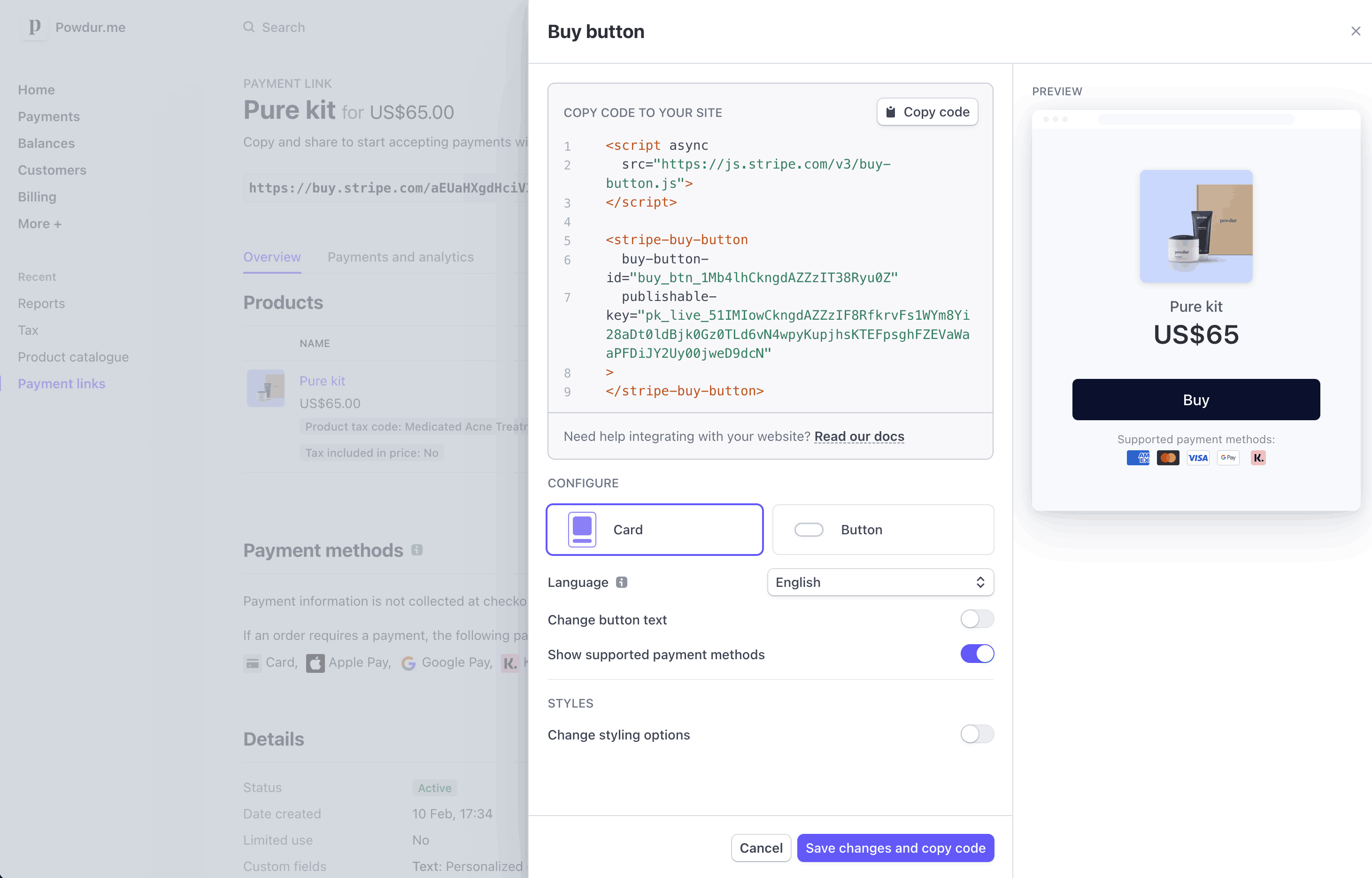
# Create an embeddable buy button Use Payment Links to create an embeddable buy button for your website. Create an embeddable buy button to sell a product, subscription, or accept a payment on your website. Start by selecting an existing link from the [Payment Links list view](https://dashboard.stripe.com/payment-links) or by [creating a new link](https://dashboard.stripe.com/payment-links/create) where you can decide which products to sell and customize the checkout UI. After you create your link, click **Buy button** to configure the buy button design and generate the code that you can copy and paste into your website. ## Customize the button By default, your buy button uses the same branding and call to action configured for your payment link. You can: - Choose between a simple button and a card widget. - Set brand colors, shapes, and fonts to match your website. - Set the language of the button and payment page to match your website’s language. - Customize your button’s call to action. ![Customize the buy button](https://b.stripecdn.com/docs-statics-srv/assets/buy-button-card-layout.4003c3e9ffe3ce4378092dbdcd456ed9.png) Customize the buy button ## Embed the button Stripe provides an embed code composed of a ` ``` ## Attributes to customize checkout | Parameter | Description | Syntax | | -------------------------------- | ---------------------------------------------------------------------------------------------------------------------------------------------------------------------------------------------------------------------------------------------------------------------------------------------------------------------------------------------------------------------------------------------------------------------------------------------------------------------- | ----------------------------------------------------------------------------------------------------------------------------------------------------------------------------------------------------------------------- | | `client-reference-id` | Use `client-reference-id` to attach a unique string of your choice to the `CheckoutSession`. The string can be a customer ID, a cart ID, or something similar that you use to reconcile the `CheckoutSession` with your internal systems. If you pass this parameter to your ``, it’s sent in the [checkout.session.completed webhook](https://docs.stripe.com/api/events/types.md#event_types-checkout.session.completed) upon payment completion. | The `client-reference-id` can contain alphanumeric characters, dashes, or underscores, and be any value up to 200 characters. Invalid values are silently dropped, but your payment page continues to work as expected. | | `customer-email` | Use `customer-email` to prefill the email address on the payment page. When the property is set, the buy button passes it to the `CheckoutSession`’s `customer_email` attribute. The customer can’t edit the email address on the payment page. | The `customer-email` must be a valid email. Invalid values are silently dropped, but your payment pages continues to work as expected. | | `customer-session-client-secret` | Use `customer-session-client-secret` to [pass an existing customer](https://docs.stripe.com/payment-links/buy-button.md#pass-an-existing-customer). | The `customer-session-client-secret` value must be generated from the [client_secret](https://docs.stripe.com/api/customer_sessions/object.md#customer_session_object-client_secret). | ## Pass an existing customer > #### Compare Accounts v2 and Customers v1 references > > The Accounts v2 API is in GA for Connect users, and in public preview for other Stripe users. > > For most use cases, we recommend [modeling your customers as customer-configured Account objects](https://docs.stripe.com/connect/use-accounts-as-customers.md) instead of using [Customer](https://docs.stripe.com/api/customers.md) objects. #### Accounts v2 You can provide an existing [customer-configured Account](https://docs.stripe.com/api/v2/core/accounts/object.md#v2_account_object-configuration-customer) object to `CheckoutSessions` created from the buy button. Authenticate the customer on the server, then create a `CustomerSession` for them and return the [client_secret](https://docs.stripe.com/api/customer_sessions/object.md#customer_session_object-client_secret) to the client. ```curl curl https://api.stripe.com/v1/customer_sessions \ -u "<>:" \ -d "customer_account={{CUSTOMERACCOUNT_ID}}" \ -d "components[buy_button][enabled]=true" ``` #### Customer v1 You can provide an existing [Customer](https://docs.stripe.com/api/customers.md) object to `CheckoutSessions` created from the buy button. Authenticate the customer on the server, then create a `CustomerSession` for them and return the [client_secret](https://docs.stripe.com/api/customer_sessions/object.md#customer_session_object-client_secret) to the client. ```curl curl https://api.stripe.com/v1/customer_sessions \ -u "<>:" \ -d "customer={{CUSTOMER_ID}}" \ -d "components[buy_button][enabled]=true" ``` Set the `customer-session-client-secret` attribute on the `` web component to the [client_secret](https://docs.stripe.com/api/customer_sessions/object.md#customer_session_object-client_secret) from the CustomerSession. You must provide the [client_secret](https://docs.stripe.com/api/customer_sessions/object.md#customer_session_object-client_secret) within 30 minutes. After providing the client secret, you have an additional 30 minutes until the `CustomerSession` expires. After it expires, the buy button can’t create any `CheckoutSessions`. Don’t cache the client secret. Instead, generate a new one every time you render a buy button. #### HTML ```html ``` ## Content Security Policy If you’ve deployed a [Content Security Policy](https://developer.mozilla.org/en-US/docs/Web/HTTP/CSP), the policy directives that the buy button requires are: - frame-src, https://js.stripe.com - script-src, https://js.stripe.com ## Limitations Rendering the buy button requires a website domain. To test the buy button locally, run a local HTTP server to host your website’s `index.html` file over the localhost domain. To run a local HTTP server, use Python’s [SimpleHTTPServer](https://developer.mozilla.org/en-US/docs/Learn/Common_questions/set_up_a_local_testing_server#running_a_simple_local_http_server) or the [http-server](https://www.npmjs.com/package/http-server) npm module. ## Track payments After your customer makes a payment using a payment link, you can see it in the [payments overview](https://dashboard.stripe.com/payments) in the Dashboard. If you’re new to Stripe, you receive an email after your first payment. To receive emails for all successful payments, update your notification preferences in your [Personal details](https://dashboard.stripe.com/settings/user) settings. If you’re selling a subscription or [saving a payment method for future use](https://docs.stripe.com/payment-links/customize.md#save-payment-details-for-future-use) and don’t specify an existing customer, the Checkout Session creates a new [customer](https://docs.stripe.com/api/checkout/sessions/create.md#create_checkout_session-customer_creation). For one-time payments, the Checkout Session uses a [guest customer](https://docs.stripe.com/payments/checkout/guest-customers.md) instead. Learn more about handling [payment links post-payment](https://docs.stripe.com/payment-links/post-payment.md), like how to configure post-payment behavior for a buy button or payment link.