# Create separate charges and transfers
Create charges on your platform account and transfer funds to multiple connected accounts.
Create *separate charges and transfers* to transfer funds from one payment to multiple connected accounts, or when a specific user isn’t known at the time of the payment. The charge on your platform account is decoupled from the transfers to your connected accounts. With this charge type:
- You create a charge on your platform’s account and also transfer funds to your connected accounts. The payment appears as a charge on your account and there are also transfers to connected accounts (amount determined by you), which are withdrawn from your account balance.
- You can transfer funds to multiple connected accounts.
- Your account balance is debited for the cost of the Stripe fees, refunds, and chargebacks.
This charge type helps marketplaces split payments between multiple parties. For example, a restaurant delivery platform that splits payments between the restaurant and the deliverer.
> Funds segregation is a private preview feature that keeps payment funds in a protected holding state before you transfer them to connected accounts. This prevents allocated funds from being used for unrelated platform operations. Contact your Stripe account manager to request access.
Stripe supports separate charges and transfers in the following regions:
- AT
- AU
- BE
- BG
- BR
- CA
- CH
- CY
- CZ
- DE
- DK
- EE
- ES
- FI
- FR
- GB
- GR
- HR
- HU
- IE
- IT
- JP
- LI
- LT
- LU
- LV
- MT
- MX
- MY
- NL
- NO
- NZ
- PL
- PT
- RO
- SE
- SG
- SI
- SK
- US
In most scenarios, your platform and any connected account must be in the same region. Attempting to transfer funds across a disallowed border returns an error. For information about cross-region support, see [cross-border transfers](https://docs.stripe.com/connect/account-capabilities.md#transfers-cross-border). You must only use transfers in combination with the permitted use cases for [charges](https://docs.stripe.com/connect/charges.md), [tops-ups](https://docs.stripe.com/connect/top-ups.md) and [fees](https://docs.stripe.com/connect/separate-charges-and-transfers.md#collect-fees). We recommend using separate charges and transfers for connected accounts that have access to the Express Dashboard or no Dashboard access.
Redirect to a Stripe-hosted payment page using [Stripe Checkout](https://docs.stripe.com/payments/checkout.md). See how this integration [compares to Stripe’s other integration types](https://docs.stripe.com/payments/online-payments.md#compare-features-and-availability).
#### Integration effort
Complexity: 2/5
#### Integration type
Redirect to Stripe-hosted payment page
#### UI customization
Limited customization
- 20 preset fonts
- 3 preset border radius
- Custom background and border color
- Custom logo
[Try it out](https://checkout.stripe.dev/)
First, [register](https://dashboard.stripe.com/register) for a Stripe account.
Use our official libraries to access the Stripe API from your application:
#### Ruby
```bash
# Available as a gem
sudo gem install stripe
```
```ruby
# If you use bundler, you can add this line to your Gemfile
gem 'stripe'
```
#### Python
```bash
# Install through pip
pip3 install --upgrade stripe
```
```bash
# Or find the Stripe package on http://pypi.python.org/pypi/stripe/
```
```python
# Find the version you want to pin:
# https://github.com/stripe/stripe-python/blob/master/CHANGELOG.md
# Specify that version in your requirements.txt file
stripe>=5.0.0
```
#### PHP
```bash
# Install the PHP library with Composer
composer require stripe/stripe-php
```
```bash
# Or download the source directly: https://github.com/stripe/stripe-php/releases
```
#### Java
```java
/*
For Gradle, add the following dependency to your build.gradle and replace with
the version number you want to use from:
- https://mvnrepository.com/artifact/com.stripe/stripe-java or
- https://github.com/stripe/stripe-java/releases/latest
*/
implementation "com.stripe:stripe-java:31.0.0"
```
```xml
com.stripe
stripe-java
31.0.0
```
```bash
# For other environments, manually install the following JARs:
# - The Stripe JAR from https://github.com/stripe/stripe-java/releases/latest
# - Google Gson from https://github.com/google/gson
```
#### Node.js
```bash
# Install with npm
npm install stripe --save
```
#### Go
```bash
# Make sure your project is using Go Modules
go mod init
# Install stripe-go
go get -u github.com/stripe/stripe-go/v83
```
```go
// Then import the package
import (
"github.com/stripe/stripe-go/v83"
)
```
#### .NET
```bash
# Install with dotnet
dotnet add package Stripe.net
dotnet restore
```
```bash
# Or install with NuGet
Install-Package Stripe.net
```
## Create a Checkout Session [Client-side] [Server-side]
A [Checkout Session](https://docs.stripe.com/api/checkout/sessions.md) controls what your customer sees in the payment form such as line items, the order amount and currency, and acceptable payment methods. Add a checkout button to your website that calls a server-side endpoint to create a Checkout Session.
```html
Checkout
```
On your server, create a Checkout Session and redirect your customer to the [URL](https://docs.stripe.com/api/checkout/sessions/object.md#checkout_session_object-url) returned in the response.
```curl
curl https://api.stripe.com/v1/checkout/sessions \
-u "<>:" \
-d "line_items[0][price_data][currency]"=usd \
-d "line_items[0][price_data][product_data][name]"="Restaurant delivery service" \
-d "line_items[0][price_data][unit_amount]"=10000 \
-d "line_items[0][quantity]"=1 \
-d "payment_intent_data[transfer_group]"=ORDER100 \
-d mode=payment \
--data-urlencode success_url="https://example.com/success?session_id={CHECKOUT_SESSION_ID}"
```
```cli
stripe checkout sessions create \
-d "line_items[0][price_data][currency]"=usd \
-d "line_items[0][price_data][product_data][name]"="Restaurant delivery service" \
-d "line_items[0][price_data][unit_amount]"=10000 \
-d "line_items[0][quantity]"=1 \
-d "payment_intent_data[transfer_group]"=ORDER100 \
--mode=payment \
--success-url="https://example.com/success?session_id={CHECKOUT_SESSION_ID}"
```
```ruby
# Set your secret key. Remember to switch to your live secret key in production.
# See your keys here: https://dashboard.stripe.com/apikeys
client = Stripe::StripeClient.new("<>")
session = client.v1.checkout.sessions.create({
line_items: [
{
price_data: {
currency: 'usd',
product_data: {name: 'Restaurant delivery service'},
unit_amount: 10000,
},
quantity: 1,
},
],
payment_intent_data: {transfer_group: 'ORDER100'},
mode: 'payment',
success_url: 'https://example.com/success?session_id={CHECKOUT_SESSION_ID}',
})
```
```python
# Set your secret key. Remember to switch to your live secret key in production.
# See your keys here: https://dashboard.stripe.com/apikeys
client = StripeClient("<>")
# For SDK versions 12.4.0 or lower, remove '.v1' from the following line.
session = client.v1.checkout.sessions.create({
"line_items": [
{
"price_data": {
"currency": "usd",
"product_data": {"name": "Restaurant delivery service"},
"unit_amount": 10000,
},
"quantity": 1,
},
],
"payment_intent_data": {"transfer_group": "ORDER100"},
"mode": "payment",
"success_url": "https://example.com/success?session_id={CHECKOUT_SESSION_ID}",
})
```
```php
// Set your secret key. Remember to switch to your live secret key in production.
// See your keys here: https://dashboard.stripe.com/apikeys
$stripe = new \Stripe\StripeClient('<>');
$session = $stripe->checkout->sessions->create([
'line_items' => [
[
'price_data' => [
'currency' => 'usd',
'product_data' => ['name' => 'Restaurant delivery service'],
'unit_amount' => 10000,
],
'quantity' => 1,
],
],
'payment_intent_data' => ['transfer_group' => 'ORDER100'],
'mode' => 'payment',
'success_url' => 'https://example.com/success?session_id={CHECKOUT_SESSION_ID}',
]);
```
```java
// Set your secret key. Remember to switch to your live secret key in production.
// See your keys here: https://dashboard.stripe.com/apikeys
StripeClient client = new StripeClient("<>");
SessionCreateParams params =
SessionCreateParams.builder()
.addLineItem(
SessionCreateParams.LineItem.builder()
.setPriceData(
SessionCreateParams.LineItem.PriceData.builder()
.setCurrency("usd")
.setProductData(
SessionCreateParams.LineItem.PriceData.ProductData.builder()
.setName("Restaurant delivery service")
.build()
)
.setUnitAmount(10000L)
.build()
)
.setQuantity(1L)
.build()
)
.setPaymentIntentData(
SessionCreateParams.PaymentIntentData.builder().setTransferGroup("ORDER100").build()
)
.setMode(SessionCreateParams.Mode.PAYMENT)
.setSuccessUrl("https://example.com/success?session_id={CHECKOUT_SESSION_ID}")
.build();
// For SDK versions 29.4.0 or lower, remove '.v1()' from the following line.
Session session = client.v1().checkout().sessions().create(params);
```
```node
// Set your secret key. Remember to switch to your live secret key in production.
// See your keys here: https://dashboard.stripe.com/apikeys
const stripe = require('stripe')('<>');
const session = await stripe.checkout.sessions.create({
line_items: [
{
price_data: {
currency: 'usd',
product_data: {
name: 'Restaurant delivery service',
},
unit_amount: 10000,
},
quantity: 1,
},
],
payment_intent_data: {
transfer_group: 'ORDER100',
},
mode: 'payment',
success_url: 'https://example.com/success?session_id={CHECKOUT_SESSION_ID}',
});
```
```go
// Set your secret key. Remember to switch to your live secret key in production.
// See your keys here: https://dashboard.stripe.com/apikeys
sc := stripe.NewClient("<>")
params := &stripe.CheckoutSessionCreateParams{
LineItems: []*stripe.CheckoutSessionCreateLineItemParams{
&stripe.CheckoutSessionCreateLineItemParams{
PriceData: &stripe.CheckoutSessionCreateLineItemPriceDataParams{
Currency: stripe.String(stripe.CurrencyUSD),
ProductData: &stripe.CheckoutSessionCreateLineItemPriceDataProductDataParams{
Name: stripe.String("Restaurant delivery service"),
},
UnitAmount: stripe.Int64(10000),
},
Quantity: stripe.Int64(1),
},
},
PaymentIntentData: &stripe.CheckoutSessionCreatePaymentIntentDataParams{
TransferGroup: stripe.String("ORDER100"),
},
Mode: stripe.String(stripe.CheckoutSessionModePayment),
SuccessURL: stripe.String("https://example.com/success?session_id={CHECKOUT_SESSION_ID}"),
}
result, err := sc.V1CheckoutSessions.Create(context.TODO(), params)
```
```dotnet
// Set your secret key. Remember to switch to your live secret key in production.
// See your keys here: https://dashboard.stripe.com/apikeys
var options = new Stripe.Checkout.SessionCreateOptions
{
LineItems = new List
{
new Stripe.Checkout.SessionLineItemOptions
{
PriceData = new Stripe.Checkout.SessionLineItemPriceDataOptions
{
Currency = "usd",
ProductData = new Stripe.Checkout.SessionLineItemPriceDataProductDataOptions
{
Name = "Restaurant delivery service",
},
UnitAmount = 10000,
},
Quantity = 1,
},
},
PaymentIntentData = new Stripe.Checkout.SessionPaymentIntentDataOptions
{
TransferGroup = "ORDER100",
},
Mode = "payment",
SuccessUrl = "https://example.com/success?session_id={CHECKOUT_SESSION_ID}",
};
var client = new StripeClient("<>");
var service = client.V1.Checkout.Sessions;
Stripe.Checkout.Session session = service.Create(options);
```
- `line_items` - This attribute represents the items the customer is purchasing. The items are displayed in the Stripe-hosted checkout page.
- `payment_intent_data[transfer_group]` - Use a unique string as the `transfer_group` to identify objects that are associated with each other. When Stripe automatically creates a charge for a PaymentIntent with a `transfer_group` value, it assigns the same value to the charge’s `transfer_group`.
- `success_url` - Stripe redirects the customer to the success URL after they complete a payment and replaces the `{CHECKOUT_SESSION_ID}` string with the Checkout Session ID. Use this to retrieve the Checkout Session and inspect the status to decide what to show your customer. You can also append your own query parameters, which persist through the redirect process. See [customize redirect behavior with a Stripe-hosted page](https://docs.stripe.com/payments/checkout/custom-success-page.md) for more information.
(See full diagram at https://docs.stripe.com/connect/separate-charges-and-transfers)
## Handle post-payment events [Server-side]
Stripe sends a [checkout.session.completed](https://docs.stripe.com/api/events/types.md#event_types-checkout.session.completed) event when the payment completes. [Use a webhook to receive these events](https://docs.stripe.com/webhooks/quickstart.md) and run actions, like sending an order confirmation email to your customer, logging the sale in a database, or starting a shipping workflow.
Listen for these events rather than waiting on a callback from the client. On the client, the customer could close the browser window or quit the app before the callback executes. Some payment methods also take 2-14 days for payment confirmation. Setting up your integration to listen for asynchronous events enables you to accept multiple [payment methods](https://stripe.com/payments/payment-methods-guide) with a single integration.
Stripe recommends handling all of the following events when collecting payments with Checkout:
| Event | Description | Next steps |
| -------------------------------------------------------------------------------------------------------------------------------------------- | ------------------------------------------------------------------------------------- | --------------------------------------------------------------------------- |
| [checkout.session.completed](https://docs.stripe.com/api/events/types.md#event_types-checkout.session.completed) | The customer has successfully authorized the payment by submitting the Checkout form. | Wait for the payment to succeed or fail. |
| [checkout.session.async_payment_succeeded](https://docs.stripe.com/api/events/types.md#event_types-checkout.session.async_payment_succeeded) | The customer’s payment succeeded. | Fulfill the purchased goods or services. |
| [checkout.session.async_payment_failed](https://docs.stripe.com/api/events/types.md#event_types-checkout.session.async_payment_failed) | The payment was declined, or failed for some other reason. | Contact the customer through email and request that they place a new order. |
These events all include the [Checkout Session](https://docs.stripe.com/api/checkout/sessions.md) object. After the payment succeeds, the underlying *PaymentIntent* (The Payment Intents API tracks the lifecycle of a customer checkout flow and triggers additional authentication steps when required by regulatory mandates, custom Radar fraud rules, or redirect-based payment methods) [status](https://docs.stripe.com/payments/paymentintents/lifecycle.md) changes from `processing` to `succeeded` or a failure status.
## Create a Transfer [Server-side]
On your server, send funds from your account to a connected account by creating a [Transfer](https://docs.stripe.com/api/transfers/create.md) and specifying the `transfer_group` used.
```curl
curl https://api.stripe.com/v1/transfers \
-u "<>:" \
-d amount=7000 \
-d currency=usd \
-d destination="{{CONNECTEDACCOUNT_ID}}" \
-d transfer_group=ORDER100
```
```cli
stripe transfers create \
--amount=7000 \
--currency=usd \
--destination="{{CONNECTEDACCOUNT_ID}}" \
--transfer-group=ORDER100
```
```ruby
# Set your secret key. Remember to switch to your live secret key in production.
# See your keys here: https://dashboard.stripe.com/apikeys
client = Stripe::StripeClient.new("<>")
transfer = client.v1.transfers.create({
amount: 7000,
currency: 'usd',
destination: '{{CONNECTEDACCOUNT_ID}}',
transfer_group: 'ORDER100',
})
```
```python
# Set your secret key. Remember to switch to your live secret key in production.
# See your keys here: https://dashboard.stripe.com/apikeys
client = StripeClient("<>")
# For SDK versions 12.4.0 or lower, remove '.v1' from the following line.
transfer = client.v1.transfers.create({
"amount": 7000,
"currency": "usd",
"destination": "{{CONNECTEDACCOUNT_ID}}",
"transfer_group": "ORDER100",
})
```
```php
// Set your secret key. Remember to switch to your live secret key in production.
// See your keys here: https://dashboard.stripe.com/apikeys
$stripe = new \Stripe\StripeClient('<>');
$transfer = $stripe->transfers->create([
'amount' => 7000,
'currency' => 'usd',
'destination' => '{{CONNECTEDACCOUNT_ID}}',
'transfer_group' => 'ORDER100',
]);
```
```java
// Set your secret key. Remember to switch to your live secret key in production.
// See your keys here: https://dashboard.stripe.com/apikeys
StripeClient client = new StripeClient("<>");
TransferCreateParams params =
TransferCreateParams.builder()
.setAmount(7000L)
.setCurrency("usd")
.setDestination("{{CONNECTEDACCOUNT_ID}}")
.setTransferGroup("ORDER100")
.build();
// For SDK versions 29.4.0 or lower, remove '.v1()' from the following line.
Transfer transfer = client.v1().transfers().create(params);
```
```node
// Set your secret key. Remember to switch to your live secret key in production.
// See your keys here: https://dashboard.stripe.com/apikeys
const stripe = require('stripe')('<>');
const transfer = await stripe.transfers.create({
amount: 7000,
currency: 'usd',
destination: '{{CONNECTEDACCOUNT_ID}}',
transfer_group: 'ORDER100',
});
```
```go
// Set your secret key. Remember to switch to your live secret key in production.
// See your keys here: https://dashboard.stripe.com/apikeys
sc := stripe.NewClient("<>")
params := &stripe.TransferCreateParams{
Amount: stripe.Int64(7000),
Currency: stripe.String(stripe.CurrencyUSD),
Destination: stripe.String("{{CONNECTEDACCOUNT_ID}}"),
TransferGroup: stripe.String("ORDER100"),
}
result, err := sc.V1Transfers.Create(context.TODO(), params)
```
```dotnet
// Set your secret key. Remember to switch to your live secret key in production.
// See your keys here: https://dashboard.stripe.com/apikeys
var options = new TransferCreateOptions
{
Amount = 7000,
Currency = "usd",
Destination = "{{CONNECTEDACCOUNT_ID}}",
TransferGroup = "ORDER100",
};
var client = new StripeClient("<>");
var service = client.V1.Transfers;
Transfer transfer = service.Create(options);
```
Transfer and charge amounts don’t have to match. You can split a single charge between multiple transfers or include multiple charges in a single transfer. The following example creates an additional transfer associated with the same `transfer_group`.
```curl
curl https://api.stripe.com/v1/transfers \
-u "<>:" \
-d amount=2000 \
-d currency=usd \
-d destination={{OTHER_CONNECTED_ACCOUNT_ID}} \
-d transfer_group=ORDER100
```
```cli
stripe transfers create \
--amount=2000 \
--currency=usd \
--destination={{OTHER_CONNECTED_ACCOUNT_ID}} \
--transfer-group=ORDER100
```
```ruby
# Set your secret key. Remember to switch to your live secret key in production.
# See your keys here: https://dashboard.stripe.com/apikeys
client = Stripe::StripeClient.new("<>")
transfer = client.v1.transfers.create({
amount: 2000,
currency: 'usd',
destination: '{{OTHER_CONNECTED_ACCOUNT_ID}}',
transfer_group: 'ORDER100',
})
```
```python
# Set your secret key. Remember to switch to your live secret key in production.
# See your keys here: https://dashboard.stripe.com/apikeys
client = StripeClient("<>")
# For SDK versions 12.4.0 or lower, remove '.v1' from the following line.
transfer = client.v1.transfers.create({
"amount": 2000,
"currency": "usd",
"destination": "{{OTHER_CONNECTED_ACCOUNT_ID}}",
"transfer_group": "ORDER100",
})
```
```php
// Set your secret key. Remember to switch to your live secret key in production.
// See your keys here: https://dashboard.stripe.com/apikeys
$stripe = new \Stripe\StripeClient('<>');
$transfer = $stripe->transfers->create([
'amount' => 2000,
'currency' => 'usd',
'destination' => '{{OTHER_CONNECTED_ACCOUNT_ID}}',
'transfer_group' => 'ORDER100',
]);
```
```java
// Set your secret key. Remember to switch to your live secret key in production.
// See your keys here: https://dashboard.stripe.com/apikeys
StripeClient client = new StripeClient("<>");
TransferCreateParams params =
TransferCreateParams.builder()
.setAmount(2000L)
.setCurrency("usd")
.setDestination("{{OTHER_CONNECTED_ACCOUNT_ID}}")
.setTransferGroup("ORDER100")
.build();
// For SDK versions 29.4.0 or lower, remove '.v1()' from the following line.
Transfer transfer = client.v1().transfers().create(params);
```
```node
// Set your secret key. Remember to switch to your live secret key in production.
// See your keys here: https://dashboard.stripe.com/apikeys
const stripe = require('stripe')('<>');
const transfer = await stripe.transfers.create({
amount: 2000,
currency: 'usd',
destination: '{{OTHER_CONNECTED_ACCOUNT_ID}}',
transfer_group: 'ORDER100',
});
```
```go
// Set your secret key. Remember to switch to your live secret key in production.
// See your keys here: https://dashboard.stripe.com/apikeys
sc := stripe.NewClient("<>")
params := &stripe.TransferCreateParams{
Amount: stripe.Int64(2000),
Currency: stripe.String(stripe.CurrencyUSD),
Destination: stripe.String("{{OTHER_CONNECTED_ACCOUNT_ID}}"),
TransferGroup: stripe.String("ORDER100"),
}
result, err := sc.V1Transfers.Create(context.TODO(), params)
```
```dotnet
// Set your secret key. Remember to switch to your live secret key in production.
// See your keys here: https://dashboard.stripe.com/apikeys
var options = new TransferCreateOptions
{
Amount = 2000,
Currency = "usd",
Destination = "{{OTHER_CONNECTED_ACCOUNT_ID}}",
TransferGroup = "ORDER100",
};
var client = new StripeClient("<>");
var service = client.V1.Transfers;
Transfer transfer = service.Create(options);
```
### Transfer options
You can assign any value to the `transfer_group` string, but it must represent a single business action. You can also make a transfer with neither an associated charge nor a `transfer_group`—for example, when you must pay a provider but there’s no associated customer payment.
> The `transfer_group` only identifies associated objects. It doesn’t affect any standard functionality. To prevent a transfer from executing before the funds from the associated charge are available, use the transfer’s `source_transaction` attribute.
By default, a transfer request fails when the amount exceeds the platform’s [available account balance](https://docs.stripe.com/connect/account-balances.md). Stripe doesn’t automatically retry failed transfer requests.
You can avoid failed transfer requests for transfers that are associated with charges. When you specify the associated charge [as the transfer’s source_transaction](https://docs.stripe.com/connect/separate-charges-and-transfers.md#transfer-availability), the transfer request automatically succeeds. However, we don’t execute the transfer until the funds from that charge are available in the platform account.
> If you use separate charges and transfers, take that into account when planning your *payout* (A payout is the transfer of funds to an external account, usually a bank account, in the form of a deposit) schedule. Automatic payouts can interfere with transfers that don’t have a defined `source_transaction`.
## Test the integration
#### Cards
| Card number | Scenario | How to test |
| ------------------- | --------------------------------------------------------------------------------------------------------------------------------------------------------------------------------------------------------------------------------------------------------------------------------------------- | ----------------------------------------------------------------------------------------------------- |
| 4242424242424242 | The card payment succeeds and doesn’t require authentication. | Fill out the credit card form using the credit card number with any expiration, CVC, and postal code. |
| 4000002500003155 | The card payment requires *authentication* (Strong Customer Authentication (SCA) is a regulatory requirement in effect as of September 14, 2019, that impacts many European online payments. It requires customers to use two-factor authentication like 3D Secure to verify their purchase). | Fill out the credit card form using the credit card number with any expiration, CVC, and postal code. |
| 4000000000009995 | The card is declined with a decline code like `insufficient_funds`. | Fill out the credit card form using the credit card number with any expiration, CVC, and postal code. |
| 6205500000000000004 | The UnionPay card has a variable length of 13-19 digits. | Fill out the credit card form using the credit card number with any expiration, CVC, and postal code. |
#### Wallets
| Payment method | Scenario | How to test |
| -------------- | ---------------------------------------------------------------------------------------------------------------------------------------------------------------------------- | ------------------------------------------------------------------------------------------------------------------------------------------------------------ |
| Alipay | Your customer successfully pays with a redirect-based and [immediate notification](https://docs.stripe.com/payments/payment-methods.md#payment-notification) payment method. | Choose any redirect-based payment method, fill out the required details, and confirm the payment. Then click **Complete test payment** on the redirect page. |
#### Bank redirects
| Payment method | Scenario | How to test |
| -------------------------------------- | ----------------------------------------------------------------------------------------------------------------------------------------------------------------------------------------------- | ------------------------------------------------------------------------------------------------------------------------------------------------------------------------------------------------------- |
| BECS Direct Debit | Your customer successfully pays with BECS Direct Debit. | Fill out the form using the account number `900123456` and BSB `000000`. The confirmed PaymentIntent initially transitions to `processing`, then transitions to the `succeeded` status 3 minutes later. |
| BECS Direct Debit | Your customer’s payment fails with an `account_closed` error code. | Fill out the form using the account number `111111113` and BSB `000000`. |
| Bancontact, EPS, iDEAL, and Przelewy24 | Your customer fails to authenticate on the redirect page for a redirect-based and immediate notification payment method. | Choose any redirect-based payment method, fill out the required details, and confirm the payment. Then click **Fail test payment** on the redirect page. |
| Pay by Bank | Your customer successfully pays with a redirect-based and [delayed notification](https://docs.stripe.com/payments/payment-methods.md#payment-notification) payment method. | Choose the payment method, fill out the required details, and confirm the payment. Then click **Complete test payment** on the redirect page. |
| Pay by Bank | Your customer fails to authenticate on the redirect page for a redirect-based and delayed notification payment method. | Choose the payment method, fill out the required details, and confirm the payment. Then click **Fail test payment** on the redirect page. |
| BLIK | BLIK payments fail in a variety of ways—immediate failures (for example, the code is expired or invalid), delayed errors (the bank declines) or timeouts (the customer didn’t respond in time). | Use email patterns to [simulate the different failures.](https://docs.stripe.com/payments/blik/accept-a-payment.md#simulate-failures) |
#### Bank debits
| Payment method | Scenario | How to test |
| ----------------- | ------------------------------------------------------------------------------------------------- | ------------------------------------------------------------------------------------------------------------------------------------------------------------------------------------------------- |
| SEPA Direct Debit | Your customer successfully pays with SEPA Direct Debit. | Fill out the form using the account number `AT321904300235473204`. The confirmed PaymentIntent initially transitions to processing, then transitions to the succeeded status three minutes later. |
| SEPA Direct Debit | Your customer’s payment intent status transitions from `processing` to `requires_payment_method`. | Fill out the form using the account number `AT861904300235473202`. |
#### Vouchers
| Payment method | Scenario | How to test |
| -------------- | ------------------------------------------------- | ------------------------------------------------------------------------------------------------------ |
| Boleto, OXXO | Your customer pays with a Boleto or OXXO voucher. | Select Boleto or OXXO as the payment method and submit the payment. Close the dialog after it appears. |
See [Testing](https://docs.stripe.com/testing.md) for additional information to test your integration.
## Optional: Enable additional payment methods
Navigate to [Manage payment methods for your connected accounts](https://dashboard.stripe.com/settings/payment_methods/connected_accounts) in the Dashboard to configure which payment methods your connected accounts accept. Changes to default settings apply to all new and existing connected accounts.
Consult the following resources for payment method information:
- [A guide to payment methods](https://stripe.com/payments/payment-methods-guide#choosing-the-right-payment-methods-for-your-business) to help you choose the correct payment methods for your platform.
- [Account capabilities](https://docs.stripe.com/connect/account-capabilities.md) to make sure your chosen payment methods work for your connected accounts.
- [Payment method and product support](https://docs.stripe.com/payments/payment-methods/payment-method-support.md#product-support) tables to make sure your chosen payment methods work for your Stripe products and payments flows.
For each payment method, you can select one of the following dropdown options:
| **On by default** | Your connected accounts accept this payment method during checkout. Some payment methods can only be off or blocked. This is because your connected accounts with *access to the Stripe Dashboard* (Platforms can provide connected accounts with access to the full Stripe Dashboard or the Express Dashboard. Otherwise, platforms build an interface for connected accounts using embedded components or the Stripe API) must activate them in their settings page. |
| ------------------ | ---------------------------------------------------------------------------------------------------------------------------------------------------------------------------------------------------------------------------------------------------------------------------------------------------------------------------------------------------------------------------------------------------------------------------------------------------------------------- |
| **Off by default** | Your connected accounts don’t accept this payment method during checkout. If you allow your connected accounts with *access to the Stripe Dashboard* (Platforms can provide connected accounts with access to the full Stripe Dashboard or the Express Dashboard. Otherwise, platforms build an interface for connected accounts using embedded components or the Stripe API) to manage their own payment methods, they have the ability to turn it on. |
| **Blocked** | Your connected accounts don’t accept this payment method during checkout. If you allow your connected accounts with *access to the Stripe Dashboard* (Platforms can provide connected accounts with access to the full Stripe Dashboard or the Express Dashboard. Otherwise, platforms build an interface for connected accounts using embedded components or the Stripe API) to manage their own payment methods, they don’t have the option to turn it on. |
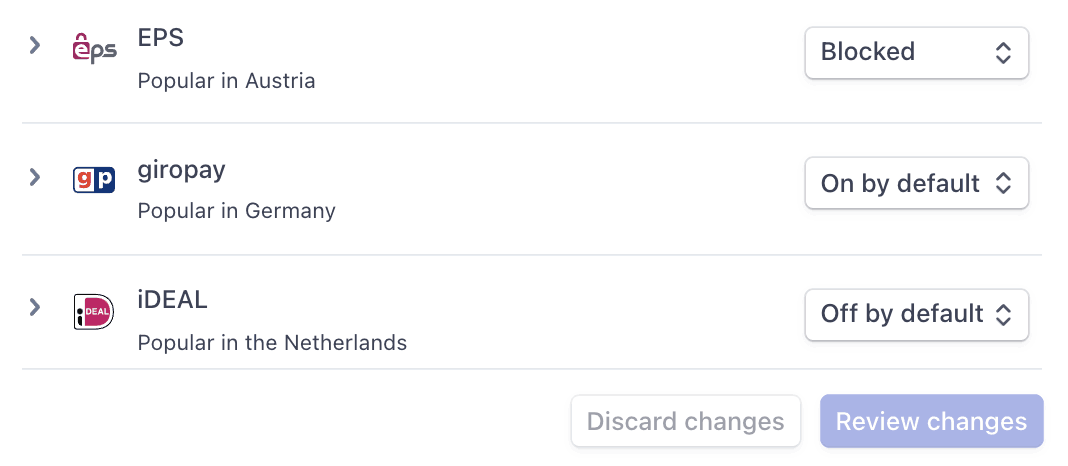
Payment method options
If you make a change to a payment method, you must click **Review changes** in the bottom bar of your screen and **Save and apply** to update your connected accounts.
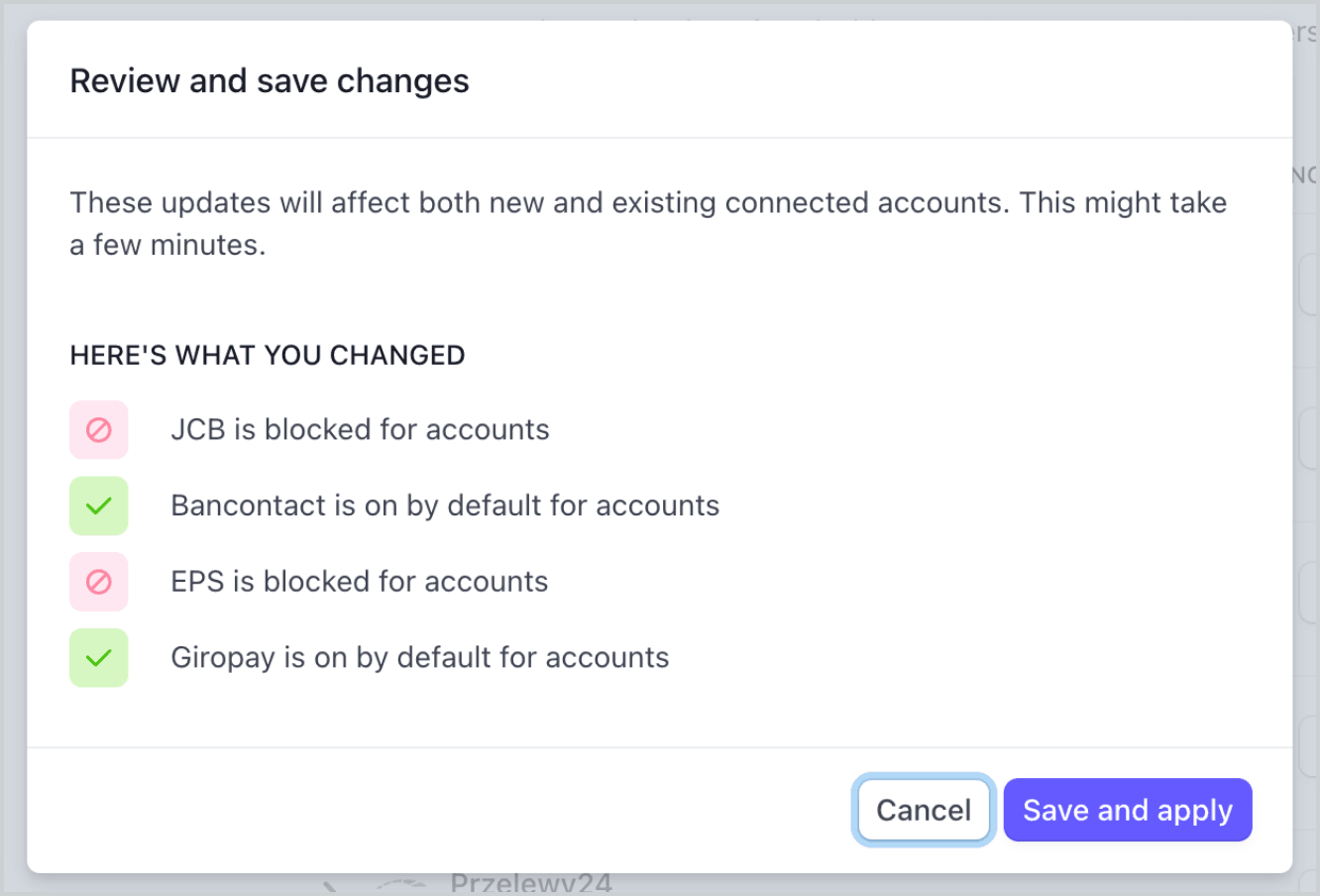
Save dialog
### Allow connected accounts to manage payment methods
Stripe recommends allowing your connected accounts to customize their own payment methods. This option allows each connected account with *access to the Stripe Dashboard* (Platforms can provide connected accounts with access to the full Stripe Dashboard or the Express Dashboard. Otherwise, platforms build an interface for connected accounts using embedded components or the Stripe API) to view and update their [Payment methods](https://dashboard.stripe.com/settings/payment_methods) page. Only owners of the connected accounts can customize their payment methods. The Stripe Dashboard displays the set of payment method defaults you applied to all new and existing connected accounts. Your connected accounts can override these defaults, excluding payment methods you have blocked.
Check the **Account customization** checkbox to enable this option. You must click **Review changes** in the bottom bar of your screen and then select **Save and apply** to update this setting.

Account customization checkbox
### Payment method capabilities
To allow your connected accounts to accept additional payment methods, their `Accounts` must have active payment method capabilities.
If you selected the “On by default” option for a payment method in [Manage payment methods for your connected accounts](https://dashboard.stripe.com/settings/payment_methods/connected_accounts), Stripe automatically requests the necessary capability for new and existing connected accounts if they meet the verification requirements. If the connected account doesn’t meet the requirements or if you want to have direct control, you can manually request the capability in the Dashboard or with the API.
Most payment methods have the same verification requirements as the `card_payments` capability, with some restrictions and exceptions. The [payment method capabilities table](https://docs.stripe.com/connect/account-capabilities.md#payment-methods) lists the payment methods that require additional verification.
#### Dashboard
[Find a connected account](https://docs.stripe.com/connect/dashboard/managing-individual-accounts.md#finding-accounts) in the Dashboard to edit its capabilities and view outstanding verification requirements.
#### API
For an existing connected account, you can [list](https://docs.stripe.com/api/capabilities/list.md) their existing capabilities to determine whether you need to request additional capabilities.
```curl
curl https://api.stripe.com/v1/accounts/{{CONNECTEDACCOUNT_ID}}/capabilities \
-u "<>:"
```
```cli
stripe accounts capabilities {{CONNECTEDACCOUNT_ID}}
```
```ruby
# Set your secret key. Remember to switch to your live secret key in production.
# See your keys here: https://dashboard.stripe.com/apikeys
client = Stripe::StripeClient.new("<>")
capabilities = client.v1.accounts.capabilities.list('{{CONNECTEDACCOUNT_ID}}')
```
```python
# Set your secret key. Remember to switch to your live secret key in production.
# See your keys here: https://dashboard.stripe.com/apikeys
client = StripeClient("<>")
# For SDK versions 12.4.0 or lower, remove '.v1' from the following line.
capabilities = client.v1.accounts.capabilities.list("{{CONNECTEDACCOUNT_ID}}")
```
```php
// Set your secret key. Remember to switch to your live secret key in production.
// See your keys here: https://dashboard.stripe.com/apikeys
$stripe = new \Stripe\StripeClient('<>');
$capabilities = $stripe->accounts->allCapabilities('{{CONNECTEDACCOUNT_ID}}', []);
```
```java
// Set your secret key. Remember to switch to your live secret key in production.
// See your keys here: https://dashboard.stripe.com/apikeys
StripeClient client = new StripeClient("<>");
AccountCapabilityListParams params = AccountCapabilityListParams.builder().build();
// For SDK versions 29.4.0 or lower, remove '.v1()' from the following line.
StripeCollection stripeCollection =
client.v1().accounts().capabilities().list("{{CONNECTEDACCOUNT_ID}}", params);
```
```node
// Set your secret key. Remember to switch to your live secret key in production.
// See your keys here: https://dashboard.stripe.com/apikeys
const stripe = require('stripe')('<>');
const capabilities = await stripe.accounts.listCapabilities(
'{{CONNECTEDACCOUNT_ID}}'
);
```
```go
// Set your secret key. Remember to switch to your live secret key in production.
// See your keys here: https://dashboard.stripe.com/apikeys
sc := stripe.NewClient("<>")
params := &stripe.CapabilityListParams{
Account: stripe.String("{{CONNECTEDACCOUNT_ID}}"),
}
result := sc.V1Capabilities.List(context.TODO(), params)
```
```dotnet
// Set your secret key. Remember to switch to your live secret key in production.
// See your keys here: https://dashboard.stripe.com/apikeys
var client = new StripeClient("<>");
var service = client.V1.Accounts.Capabilities;
StripeList capabilities = service.List("{{CONNECTEDACCOUNT_ID}}");
```
Request additional capabilities by [updating](https://docs.stripe.com/api/capabilities/update.md) each connected account’s capabilities.
```curl
curl https://api.stripe.com/v1/accounts/{{CONNECTEDACCOUNT_ID}}/capabilities/us_bank_account_ach_payments \
-u "<>:" \
-d requested=true
```
```cli
stripe capabilities update {{CONNECTEDACCOUNT_ID}} us_bank_account_ach_payments \
--requested=true
```
```ruby
# Set your secret key. Remember to switch to your live secret key in production.
# See your keys here: https://dashboard.stripe.com/apikeys
client = Stripe::StripeClient.new("<>")
capability = client.v1.accounts.capabilities.update(
'{{CONNECTEDACCOUNT_ID}}',
'us_bank_account_ach_payments',
{requested: true},
)
```
```python
# Set your secret key. Remember to switch to your live secret key in production.
# See your keys here: https://dashboard.stripe.com/apikeys
client = StripeClient("<>")
# For SDK versions 12.4.0 or lower, remove '.v1' from the following line.
capability = client.v1.accounts.capabilities.update(
"{{CONNECTEDACCOUNT_ID}}",
"us_bank_account_ach_payments",
{"requested": True},
)
```
```php
// Set your secret key. Remember to switch to your live secret key in production.
// See your keys here: https://dashboard.stripe.com/apikeys
$stripe = new \Stripe\StripeClient('<>');
$capability = $stripe->accounts->updateCapability(
'{{CONNECTEDACCOUNT_ID}}',
'us_bank_account_ach_payments',
['requested' => true]
);
```
```java
// Set your secret key. Remember to switch to your live secret key in production.
// See your keys here: https://dashboard.stripe.com/apikeys
StripeClient client = new StripeClient("<>");
AccountCapabilityUpdateParams params =
AccountCapabilityUpdateParams.builder().setRequested(true).build();
// For SDK versions 29.4.0 or lower, remove '.v1()' from the following line.
Capability capability =
client.v1().accounts().capabilities().update(
"{{CONNECTEDACCOUNT_ID}}",
"us_bank_account_ach_payments",
params
);
```
```node
// Set your secret key. Remember to switch to your live secret key in production.
// See your keys here: https://dashboard.stripe.com/apikeys
const stripe = require('stripe')('<>');
const capability = await stripe.accounts.updateCapability(
'{{CONNECTEDACCOUNT_ID}}',
'us_bank_account_ach_payments',
{
requested: true,
}
);
```
```go
// Set your secret key. Remember to switch to your live secret key in production.
// See your keys here: https://dashboard.stripe.com/apikeys
sc := stripe.NewClient("<>")
params := &stripe.CapabilityUpdateParams{
Requested: stripe.Bool(true),
Account: stripe.String("{{CONNECTEDACCOUNT_ID}}"),
}
result, err := sc.V1Capabilities.Update(
context.TODO(), "us_bank_account_ach_payments", params)
```
```dotnet
// Set your secret key. Remember to switch to your live secret key in production.
// See your keys here: https://dashboard.stripe.com/apikeys
var options = new AccountCapabilityUpdateOptions { Requested = true };
var client = new StripeClient("<>");
var service = client.V1.Accounts.Capabilities;
Capability capability = service.Update(
"{{CONNECTEDACCOUNT_ID}}",
"us_bank_account_ach_payments",
options);
```
There can be a delay before the requested capability becomes active. If the capability has any activation requirements, the response includes them in the `requirements` arrays.
## Specify the settlement merchant
The settlement merchant is dependent on the [capabilities](https://docs.stripe.com/connect/account-capabilities.md) set on an account and how a charge is created. The settlement merchant determines whose information is used to make the charge. This includes the statement descriptor (either the platform’s or the connected account’s) that’s displayed on the customer’s credit card or bank statement for that charge.
Specifying the settlement merchant allows you to be more explicit about who to create charges for. For example, some platforms prefer to be the settlement merchant because the end customer interacts directly with their platform (such as on-demand platforms). However, some platforms have connected accounts that interact directly with end customers instead (such as a storefront on an e-commerce platform). In these scenarios, it might make more sense for the connected account to be the settlement merchant.
You can set the `on_behalf_of` parameter to the ID of a connected account to make that account the settlement merchant for the payment. When using `on_behalf_of`:
- Charges *settle* (When funds are available in your Stripe balance) in the connected account’s country and *settlement currency* (The settlement currency is the currency your bank account uses).
- The fee structure for the connected account’s country is used.
- The connected account’s statement descriptor is displayed on the customer’s credit card statement.
- If the connected account is in a different country than the platform, the connected account’s address and phone number are displayed on the customer’s credit card statement.
- The number of days that a [pending balance](https://docs.stripe.com/connect/account-balances.md) is held before being paid out depends on the [delay_days](https://docs.stripe.com/api/accounts/create.md#create_account-settings-payouts-schedule-delay_days) setting on the connected account.
> #### Accounts v2 API
>
> You can’t use the Accounts v2 API to manage payout settings. Use the Accounts v1 API.
If `on_behalf_of` is omitted, the platform is the business of record for the payment.
> The `on_behalf_of` parameter is supported only for connected accounts with a payments capability such as [card_payments](https://docs.stripe.com/connect/account-capabilities.md#card-payments). Accounts under the [recipient service agreement](https://docs.stripe.com/connect/service-agreement-types.md#recipient) can’t request `card_payments` or other payments capabilities.
```curl
curl https://api.stripe.com/v1/checkout/sessions \
-u "<>:" \
-d "line_items[0][price_data][currency]"=usd \
-d "line_items[0][price_data][product_data][name]"="Restaurant delivery service" \
-d "line_items[0][price_data][unit_amount]"=10000 \
-d "line_items[0][quantity]"=1 \
-d "payment_intent_data[on_behalf_of]"="{{CONNECTEDACCOUNT_ID}}" \
-d "payment_intent_data[transfer_group]"=ORDER100 \
-d mode=payment \
--data-urlencode success_url="https://example.com/success"
```
```cli
stripe checkout sessions create \
-d "line_items[0][price_data][currency]"=usd \
-d "line_items[0][price_data][product_data][name]"="Restaurant delivery service" \
-d "line_items[0][price_data][unit_amount]"=10000 \
-d "line_items[0][quantity]"=1 \
-d "payment_intent_data[on_behalf_of]"="{{CONNECTEDACCOUNT_ID}}" \
-d "payment_intent_data[transfer_group]"=ORDER100 \
--mode=payment \
--success-url="https://example.com/success"
```
```ruby
# Set your secret key. Remember to switch to your live secret key in production.
# See your keys here: https://dashboard.stripe.com/apikeys
client = Stripe::StripeClient.new("<>")
session = client.v1.checkout.sessions.create({
line_items: [
{
price_data: {
currency: 'usd',
product_data: {name: 'Restaurant delivery service'},
unit_amount: 10000,
},
quantity: 1,
},
],
payment_intent_data: {
on_behalf_of: '{{CONNECTEDACCOUNT_ID}}',
transfer_group: 'ORDER100',
},
mode: 'payment',
success_url: 'https://example.com/success',
})
```
```python
# Set your secret key. Remember to switch to your live secret key in production.
# See your keys here: https://dashboard.stripe.com/apikeys
client = StripeClient("<>")
# For SDK versions 12.4.0 or lower, remove '.v1' from the following line.
session = client.v1.checkout.sessions.create({
"line_items": [
{
"price_data": {
"currency": "usd",
"product_data": {"name": "Restaurant delivery service"},
"unit_amount": 10000,
},
"quantity": 1,
},
],
"payment_intent_data": {
"on_behalf_of": "{{CONNECTEDACCOUNT_ID}}",
"transfer_group": "ORDER100",
},
"mode": "payment",
"success_url": "https://example.com/success",
})
```
```php
// Set your secret key. Remember to switch to your live secret key in production.
// See your keys here: https://dashboard.stripe.com/apikeys
$stripe = new \Stripe\StripeClient('<>');
$session = $stripe->checkout->sessions->create([
'line_items' => [
[
'price_data' => [
'currency' => 'usd',
'product_data' => ['name' => 'Restaurant delivery service'],
'unit_amount' => 10000,
],
'quantity' => 1,
],
],
'payment_intent_data' => [
'on_behalf_of' => '{{CONNECTEDACCOUNT_ID}}',
'transfer_group' => 'ORDER100',
],
'mode' => 'payment',
'success_url' => 'https://example.com/success',
]);
```
```java
// Set your secret key. Remember to switch to your live secret key in production.
// See your keys here: https://dashboard.stripe.com/apikeys
StripeClient client = new StripeClient("<>");
SessionCreateParams params =
SessionCreateParams.builder()
.addLineItem(
SessionCreateParams.LineItem.builder()
.setPriceData(
SessionCreateParams.LineItem.PriceData.builder()
.setCurrency("usd")
.setProductData(
SessionCreateParams.LineItem.PriceData.ProductData.builder()
.setName("Restaurant delivery service")
.build()
)
.setUnitAmount(10000L)
.build()
)
.setQuantity(1L)
.build()
)
.setPaymentIntentData(
SessionCreateParams.PaymentIntentData.builder()
.setOnBehalfOf("{{CONNECTEDACCOUNT_ID}}")
.setTransferGroup("ORDER100")
.build()
)
.setMode(SessionCreateParams.Mode.PAYMENT)
.setSuccessUrl("https://example.com/success")
.build();
// For SDK versions 29.4.0 or lower, remove '.v1()' from the following line.
Session session = client.v1().checkout().sessions().create(params);
```
```node
// Set your secret key. Remember to switch to your live secret key in production.
// See your keys here: https://dashboard.stripe.com/apikeys
const stripe = require('stripe')('<>');
const session = await stripe.checkout.sessions.create({
line_items: [
{
price_data: {
currency: 'usd',
product_data: {
name: 'Restaurant delivery service',
},
unit_amount: 10000,
},
quantity: 1,
},
],
payment_intent_data: {
on_behalf_of: '{{CONNECTEDACCOUNT_ID}}',
transfer_group: 'ORDER100',
},
mode: 'payment',
success_url: 'https://example.com/success',
});
```
```go
// Set your secret key. Remember to switch to your live secret key in production.
// See your keys here: https://dashboard.stripe.com/apikeys
sc := stripe.NewClient("<>")
params := &stripe.CheckoutSessionCreateParams{
LineItems: []*stripe.CheckoutSessionCreateLineItemParams{
&stripe.CheckoutSessionCreateLineItemParams{
PriceData: &stripe.CheckoutSessionCreateLineItemPriceDataParams{
Currency: stripe.String(stripe.CurrencyUSD),
ProductData: &stripe.CheckoutSessionCreateLineItemPriceDataProductDataParams{
Name: stripe.String("Restaurant delivery service"),
},
UnitAmount: stripe.Int64(10000),
},
Quantity: stripe.Int64(1),
},
},
PaymentIntentData: &stripe.CheckoutSessionCreatePaymentIntentDataParams{
OnBehalfOf: stripe.String("{{CONNECTEDACCOUNT_ID}}"),
TransferGroup: stripe.String("ORDER100"),
},
Mode: stripe.String(stripe.CheckoutSessionModePayment),
SuccessURL: stripe.String("https://example.com/success"),
}
result, err := sc.V1CheckoutSessions.Create(context.TODO(), params)
```
```dotnet
// Set your secret key. Remember to switch to your live secret key in production.
// See your keys here: https://dashboard.stripe.com/apikeys
var options = new Stripe.Checkout.SessionCreateOptions
{
LineItems = new List
{
new Stripe.Checkout.SessionLineItemOptions
{
PriceData = new Stripe.Checkout.SessionLineItemPriceDataOptions
{
Currency = "usd",
ProductData = new Stripe.Checkout.SessionLineItemPriceDataProductDataOptions
{
Name = "Restaurant delivery service",
},
UnitAmount = 10000,
},
Quantity = 1,
},
},
PaymentIntentData = new Stripe.Checkout.SessionPaymentIntentDataOptions
{
OnBehalfOf = "{{CONNECTEDACCOUNT_ID}}",
TransferGroup = "ORDER100",
},
Mode = "payment",
SuccessUrl = "https://example.com/success",
};
var client = new StripeClient("<>");
var service = client.V1.Checkout.Sessions;
Stripe.Checkout.Session session = service.Create(options);
```
Embed a prebuilt payment form on your site using [Stripe Checkout](https://docs.stripe.com/payments/checkout.md). See how this integration [compares to Stripe’s other integration types](https://docs.stripe.com/payments/online-payments.md#compare-features-and-availability).
#### Integration effort
Complexity: 2/5
#### Integration type
Embed prebuilt payment form on your site
#### UI customization
Limited customization
- 20 preset fonts
- 3 preset border radius
- Custom background and border color
- Custom logo
First, [register](https://dashboard.stripe.com/register) for a Stripe account.
Use our official libraries to access the Stripe API from your application:
#### Ruby
```bash
# Available as a gem
sudo gem install stripe
```
```ruby
# If you use bundler, you can add this line to your Gemfile
gem 'stripe'
```
#### Python
```bash
# Install through pip
pip3 install --upgrade stripe
```
```bash
# Or find the Stripe package on http://pypi.python.org/pypi/stripe/
```
```python
# Find the version you want to pin:
# https://github.com/stripe/stripe-python/blob/master/CHANGELOG.md
# Specify that version in your requirements.txt file
stripe>=5.0.0
```
#### PHP
```bash
# Install the PHP library with Composer
composer require stripe/stripe-php
```
```bash
# Or download the source directly: https://github.com/stripe/stripe-php/releases
```
#### Java
```java
/*
For Gradle, add the following dependency to your build.gradle and replace with
the version number you want to use from:
- https://mvnrepository.com/artifact/com.stripe/stripe-java or
- https://github.com/stripe/stripe-java/releases/latest
*/
implementation "com.stripe:stripe-java:31.0.0"
```
```xml
com.stripe
stripe-java
31.0.0
```
```bash
# For other environments, manually install the following JARs:
# - The Stripe JAR from https://github.com/stripe/stripe-java/releases/latest
# - Google Gson from https://github.com/google/gson
```
#### Node.js
```bash
# Install with npm
npm install stripe --save
```
#### Go
```bash
# Make sure your project is using Go Modules
go mod init
# Install stripe-go
go get -u github.com/stripe/stripe-go/v83
```
```go
// Then import the package
import (
"github.com/stripe/stripe-go/v83"
)
```
#### .NET
```bash
# Install with dotnet
dotnet add package Stripe.net
dotnet restore
```
```bash
# Or install with NuGet
Install-Package Stripe.net
```
## Create a Checkout Session [Client-side] [Server-side]
A [Checkout Session](https://docs.stripe.com/api/checkout/sessions.md) controls what your customer sees in the embeddable payment form such as line items, the order amount and currency. Create a Checkout Session in a server-side endpoint (for example, `/create-checkout-session`). The response includes a `client_secret` which you’ll use in the next step to mount Checkout.
```curl
curl https://api.stripe.com/v1/checkout/sessions \
-u "<>:" \
-d "line_items[0][price_data][currency]"=usd \
-d "line_items[0][price_data][product_data][name]"="Restaurant delivery service" \
-d "line_items[0][price_data][unit_amount]"=10000 \
-d "line_items[0][quantity]"=1 \
-d "payment_intent_data[transfer_group]"=ORDER100 \
-d mode=payment \
-d ui_mode=embedded \
--data-urlencode return_url="https://example.com/return?session_id={CHECKOUT_SESSION_ID}"
```
```cli
stripe checkout sessions create \
-d "line_items[0][price_data][currency]"=usd \
-d "line_items[0][price_data][product_data][name]"="Restaurant delivery service" \
-d "line_items[0][price_data][unit_amount]"=10000 \
-d "line_items[0][quantity]"=1 \
-d "payment_intent_data[transfer_group]"=ORDER100 \
--mode=payment \
--ui-mode=embedded \
--return-url="https://example.com/return?session_id={CHECKOUT_SESSION_ID}"
```
```ruby
# Set your secret key. Remember to switch to your live secret key in production.
# See your keys here: https://dashboard.stripe.com/apikeys
client = Stripe::StripeClient.new("<>")
session = client.v1.checkout.sessions.create({
line_items: [
{
price_data: {
currency: 'usd',
product_data: {name: 'Restaurant delivery service'},
unit_amount: 10000,
},
quantity: 1,
},
],
payment_intent_data: {transfer_group: 'ORDER100'},
mode: 'payment',
ui_mode: 'embedded',
return_url: 'https://example.com/return?session_id={CHECKOUT_SESSION_ID}',
})
```
```python
# Set your secret key. Remember to switch to your live secret key in production.
# See your keys here: https://dashboard.stripe.com/apikeys
client = StripeClient("<>")
# For SDK versions 12.4.0 or lower, remove '.v1' from the following line.
session = client.v1.checkout.sessions.create({
"line_items": [
{
"price_data": {
"currency": "usd",
"product_data": {"name": "Restaurant delivery service"},
"unit_amount": 10000,
},
"quantity": 1,
},
],
"payment_intent_data": {"transfer_group": "ORDER100"},
"mode": "payment",
"ui_mode": "embedded",
"return_url": "https://example.com/return?session_id={CHECKOUT_SESSION_ID}",
})
```
```php
// Set your secret key. Remember to switch to your live secret key in production.
// See your keys here: https://dashboard.stripe.com/apikeys
$stripe = new \Stripe\StripeClient('<>');
$session = $stripe->checkout->sessions->create([
'line_items' => [
[
'price_data' => [
'currency' => 'usd',
'product_data' => ['name' => 'Restaurant delivery service'],
'unit_amount' => 10000,
],
'quantity' => 1,
],
],
'payment_intent_data' => ['transfer_group' => 'ORDER100'],
'mode' => 'payment',
'ui_mode' => 'embedded',
'return_url' => 'https://example.com/return?session_id={CHECKOUT_SESSION_ID}',
]);
```
```java
// Set your secret key. Remember to switch to your live secret key in production.
// See your keys here: https://dashboard.stripe.com/apikeys
StripeClient client = new StripeClient("<>");
SessionCreateParams params =
SessionCreateParams.builder()
.addLineItem(
SessionCreateParams.LineItem.builder()
.setPriceData(
SessionCreateParams.LineItem.PriceData.builder()
.setCurrency("usd")
.setProductData(
SessionCreateParams.LineItem.PriceData.ProductData.builder()
.setName("Restaurant delivery service")
.build()
)
.setUnitAmount(10000L)
.build()
)
.setQuantity(1L)
.build()
)
.setPaymentIntentData(
SessionCreateParams.PaymentIntentData.builder().setTransferGroup("ORDER100").build()
)
.setMode(SessionCreateParams.Mode.PAYMENT)
.setUiMode(SessionCreateParams.UiMode.EMBEDDED)
.setReturnUrl("https://example.com/return?session_id={CHECKOUT_SESSION_ID}")
.build();
// For SDK versions 29.4.0 or lower, remove '.v1()' from the following line.
Session session = client.v1().checkout().sessions().create(params);
```
```node
// Set your secret key. Remember to switch to your live secret key in production.
// See your keys here: https://dashboard.stripe.com/apikeys
const stripe = require('stripe')('<>');
const session = await stripe.checkout.sessions.create({
line_items: [
{
price_data: {
currency: 'usd',
product_data: {
name: 'Restaurant delivery service',
},
unit_amount: 10000,
},
quantity: 1,
},
],
payment_intent_data: {
transfer_group: 'ORDER100',
},
mode: 'payment',
ui_mode: 'embedded',
return_url: 'https://example.com/return?session_id={CHECKOUT_SESSION_ID}',
});
```
```go
// Set your secret key. Remember to switch to your live secret key in production.
// See your keys here: https://dashboard.stripe.com/apikeys
sc := stripe.NewClient("<>")
params := &stripe.CheckoutSessionCreateParams{
LineItems: []*stripe.CheckoutSessionCreateLineItemParams{
&stripe.CheckoutSessionCreateLineItemParams{
PriceData: &stripe.CheckoutSessionCreateLineItemPriceDataParams{
Currency: stripe.String(stripe.CurrencyUSD),
ProductData: &stripe.CheckoutSessionCreateLineItemPriceDataProductDataParams{
Name: stripe.String("Restaurant delivery service"),
},
UnitAmount: stripe.Int64(10000),
},
Quantity: stripe.Int64(1),
},
},
PaymentIntentData: &stripe.CheckoutSessionCreatePaymentIntentDataParams{
TransferGroup: stripe.String("ORDER100"),
},
Mode: stripe.String(stripe.CheckoutSessionModePayment),
UIMode: stripe.String(stripe.CheckoutSessionUIModeEmbedded),
ReturnURL: stripe.String("https://example.com/return?session_id={CHECKOUT_SESSION_ID}"),
}
result, err := sc.V1CheckoutSessions.Create(context.TODO(), params)
```
```dotnet
// Set your secret key. Remember to switch to your live secret key in production.
// See your keys here: https://dashboard.stripe.com/apikeys
var options = new Stripe.Checkout.SessionCreateOptions
{
LineItems = new List
{
new Stripe.Checkout.SessionLineItemOptions
{
PriceData = new Stripe.Checkout.SessionLineItemPriceDataOptions
{
Currency = "usd",
ProductData = new Stripe.Checkout.SessionLineItemPriceDataProductDataOptions
{
Name = "Restaurant delivery service",
},
UnitAmount = 10000,
},
Quantity = 1,
},
},
PaymentIntentData = new Stripe.Checkout.SessionPaymentIntentDataOptions
{
TransferGroup = "ORDER100",
},
Mode = "payment",
UiMode = "embedded",
ReturnUrl = "https://example.com/return?session_id={CHECKOUT_SESSION_ID}",
};
var client = new StripeClient("<>");
var service = client.V1.Checkout.Sessions;
Stripe.Checkout.Session session = service.Create(options);
```
- `line_items` - This attribute represents the items the customer is purchasing. The items are displayed in the embedded payment form.
- `payment_intent_data[transfer_group]` - Use a unique string as the `transfer_group` to identify objects that are associated with each other. When Stripe automatically creates a charge for a PaymentIntent with a `transfer_group` value, it assigns the same value to the charge’s `transfer_group`.
- `return_url` - Stripe redirects the customer to the return URL after they complete a payment attempt and replaces the `{CHECKOUT_SESSION_ID}` string with the Checkout Session ID. Use this to retrieve the Checkout Session and inspect the status to decide what to show your customer. Make sure the return URL corresponds to a page on your website that provides the status of the payment. You can also append your own query parameters, which persist through the redirect process. See [customize redirect behavior with an embedded form](https://docs.stripe.com/payments/checkout/custom-success-page.md?payment-ui=embedded-form) for more information.
(See full diagram at https://docs.stripe.com/connect/separate-charges-and-transfers)
## Mount Checkout [Client-side]
#### HTML + JS
Checkout is available as part of [Stripe.js](https://docs.stripe.com/js.md). Include the Stripe.js script on your page by adding it to the head of your HTML file. Next, create an empty DOM node (container) to use for mounting.
```html
```
Initialize Stripe.js with your publishable API key. Pass the `client_secret` from the previous step into `options` when you create the Checkout instance:
```javascript
// Initialize Stripe.js
const stripe = Stripe('<>');
initialize();
// Fetch Checkout Session and retrieve the client secret
async function initialize() {
const fetchClientSecret = async () => {
const response = await fetch("/create-checkout-session", {
method: "POST",
});
const { clientSecret } = await response.json();
return clientSecret;
};
// Initialize Checkout
const checkout = await stripe.initEmbeddedCheckout({
fetchClientSecret,
});
// Mount Checkout
checkout.mount('#checkout');
}
```
#### React
Install Connect.js and the React Connect.js libraries from the [npm public registry](https://www.npmjs.com/package/@stripe/react-connect-js).
```bash
npm install --save @stripe/connect-js @stripe/react-connect-js
```
To use the Embedded Checkout component, create an `EmbeddedCheckoutProvider`. Call `loadStripe` with your publishable API key and pass the returned `Promise` to the provider. Use the `options` prop accepted by the provider to pass the `client_secret` from the previous step.
```jsx
import * as React from 'react';
import {loadStripe} from '@stripe/stripe-js';
import {
EmbeddedCheckoutProvider,
EmbeddedCheckout
} from '@stripe/react-stripe-js';
// Make sure to call `loadStripe` outside of a component’s render to avoid
// recreating the `Stripe` object on every render.
const stripePromise = loadStripe('<>');
const App = ({clientSecret}) => {
const options = {clientSecret};
return (
)
}
```
Checkout is rendered in an iframe that securely sends payment information to Stripe over an HTTPS connection. Avoid placing Checkout within another iframe because some payment methods require redirecting to another page for payment confirmation.
## Handle post-payment events [Server-side]
Stripe sends a [checkout.session.completed](https://docs.stripe.com/api/events/types.md#event_types-checkout.session.completed) event when the payment completes. [Use a webhook to receive these events](https://docs.stripe.com/webhooks/quickstart.md) and run actions, like sending an order confirmation email to your customer, logging the sale in a database, or starting a shipping workflow.
Listen for these events rather than waiting on a callback from the client. On the client, the customer could close the browser window or quit the app before the callback executes. Some payment methods also take 2-14 days for payment confirmation. Setting up your integration to listen for asynchronous events enables you to accept multiple [payment methods](https://stripe.com/payments/payment-methods-guide) with a single integration.
Stripe recommends handling all of the following events when collecting payments with Checkout:
| Event | Description | Next steps |
| -------------------------------------------------------------------------------------------------------------------------------------------- | ------------------------------------------------------------------------------------- | --------------------------------------------------------------------------- |
| [checkout.session.completed](https://docs.stripe.com/api/events/types.md#event_types-checkout.session.completed) | The customer has successfully authorized the payment by submitting the Checkout form. | Wait for the payment to succeed or fail. |
| [checkout.session.async_payment_succeeded](https://docs.stripe.com/api/events/types.md#event_types-checkout.session.async_payment_succeeded) | The customer’s payment succeeded. | Fulfill the purchased goods or services. |
| [checkout.session.async_payment_failed](https://docs.stripe.com/api/events/types.md#event_types-checkout.session.async_payment_failed) | The payment was declined, or failed for some other reason. | Contact the customer through email and request that they place a new order. |
These events all include the [Checkout Session](https://docs.stripe.com/api/checkout/sessions.md) object. After the payment succeeds, the underlying *PaymentIntent* (The Payment Intents API tracks the lifecycle of a customer checkout flow and triggers additional authentication steps when required by regulatory mandates, custom Radar fraud rules, or redirect-based payment methods) [status](https://docs.stripe.com/payments/paymentintents/lifecycle.md) changes from `processing` to `succeeded` or a failure status.
## Create a Transfer [Server-side]
On your server, send funds from your account to a connected account by creating a [Transfer](https://docs.stripe.com/api/transfers/create.md) and specifying the `transfer_group` used.
```curl
curl https://api.stripe.com/v1/transfers \
-u "<>:" \
-d amount=7000 \
-d currency=usd \
-d destination="{{CONNECTEDACCOUNT_ID}}" \
-d transfer_group=ORDER100
```
```cli
stripe transfers create \
--amount=7000 \
--currency=usd \
--destination="{{CONNECTEDACCOUNT_ID}}" \
--transfer-group=ORDER100
```
```ruby
# Set your secret key. Remember to switch to your live secret key in production.
# See your keys here: https://dashboard.stripe.com/apikeys
client = Stripe::StripeClient.new("<>")
transfer = client.v1.transfers.create({
amount: 7000,
currency: 'usd',
destination: '{{CONNECTEDACCOUNT_ID}}',
transfer_group: 'ORDER100',
})
```
```python
# Set your secret key. Remember to switch to your live secret key in production.
# See your keys here: https://dashboard.stripe.com/apikeys
client = StripeClient("<>")
# For SDK versions 12.4.0 or lower, remove '.v1' from the following line.
transfer = client.v1.transfers.create({
"amount": 7000,
"currency": "usd",
"destination": "{{CONNECTEDACCOUNT_ID}}",
"transfer_group": "ORDER100",
})
```
```php
// Set your secret key. Remember to switch to your live secret key in production.
// See your keys here: https://dashboard.stripe.com/apikeys
$stripe = new \Stripe\StripeClient('<>');
$transfer = $stripe->transfers->create([
'amount' => 7000,
'currency' => 'usd',
'destination' => '{{CONNECTEDACCOUNT_ID}}',
'transfer_group' => 'ORDER100',
]);
```
```java
// Set your secret key. Remember to switch to your live secret key in production.
// See your keys here: https://dashboard.stripe.com/apikeys
StripeClient client = new StripeClient("<>");
TransferCreateParams params =
TransferCreateParams.builder()
.setAmount(7000L)
.setCurrency("usd")
.setDestination("{{CONNECTEDACCOUNT_ID}}")
.setTransferGroup("ORDER100")
.build();
// For SDK versions 29.4.0 or lower, remove '.v1()' from the following line.
Transfer transfer = client.v1().transfers().create(params);
```
```node
// Set your secret key. Remember to switch to your live secret key in production.
// See your keys here: https://dashboard.stripe.com/apikeys
const stripe = require('stripe')('<>');
const transfer = await stripe.transfers.create({
amount: 7000,
currency: 'usd',
destination: '{{CONNECTEDACCOUNT_ID}}',
transfer_group: 'ORDER100',
});
```
```go
// Set your secret key. Remember to switch to your live secret key in production.
// See your keys here: https://dashboard.stripe.com/apikeys
sc := stripe.NewClient("<>")
params := &stripe.TransferCreateParams{
Amount: stripe.Int64(7000),
Currency: stripe.String(stripe.CurrencyUSD),
Destination: stripe.String("{{CONNECTEDACCOUNT_ID}}"),
TransferGroup: stripe.String("ORDER100"),
}
result, err := sc.V1Transfers.Create(context.TODO(), params)
```
```dotnet
// Set your secret key. Remember to switch to your live secret key in production.
// See your keys here: https://dashboard.stripe.com/apikeys
var options = new TransferCreateOptions
{
Amount = 7000,
Currency = "usd",
Destination = "{{CONNECTEDACCOUNT_ID}}",
TransferGroup = "ORDER100",
};
var client = new StripeClient("<>");
var service = client.V1.Transfers;
Transfer transfer = service.Create(options);
```
Transfer and charge amounts don’t have to match. You can split a single charge between multiple transfers or include multiple charges in a single transfer. The following example creates an additional transfer associated with the same `transfer_group`.
```curl
curl https://api.stripe.com/v1/transfers \
-u "<>:" \
-d amount=2000 \
-d currency=usd \
-d destination={{OTHER_CONNECTED_ACCOUNT_ID}} \
-d transfer_group=ORDER100
```
```cli
stripe transfers create \
--amount=2000 \
--currency=usd \
--destination={{OTHER_CONNECTED_ACCOUNT_ID}} \
--transfer-group=ORDER100
```
```ruby
# Set your secret key. Remember to switch to your live secret key in production.
# See your keys here: https://dashboard.stripe.com/apikeys
client = Stripe::StripeClient.new("<>")
transfer = client.v1.transfers.create({
amount: 2000,
currency: 'usd',
destination: '{{OTHER_CONNECTED_ACCOUNT_ID}}',
transfer_group: 'ORDER100',
})
```
```python
# Set your secret key. Remember to switch to your live secret key in production.
# See your keys here: https://dashboard.stripe.com/apikeys
client = StripeClient("<>")
# For SDK versions 12.4.0 or lower, remove '.v1' from the following line.
transfer = client.v1.transfers.create({
"amount": 2000,
"currency": "usd",
"destination": "{{OTHER_CONNECTED_ACCOUNT_ID}}",
"transfer_group": "ORDER100",
})
```
```php
// Set your secret key. Remember to switch to your live secret key in production.
// See your keys here: https://dashboard.stripe.com/apikeys
$stripe = new \Stripe\StripeClient('<>');
$transfer = $stripe->transfers->create([
'amount' => 2000,
'currency' => 'usd',
'destination' => '{{OTHER_CONNECTED_ACCOUNT_ID}}',
'transfer_group' => 'ORDER100',
]);
```
```java
// Set your secret key. Remember to switch to your live secret key in production.
// See your keys here: https://dashboard.stripe.com/apikeys
StripeClient client = new StripeClient("<>");
TransferCreateParams params =
TransferCreateParams.builder()
.setAmount(2000L)
.setCurrency("usd")
.setDestination("{{OTHER_CONNECTED_ACCOUNT_ID}}")
.setTransferGroup("ORDER100")
.build();
// For SDK versions 29.4.0 or lower, remove '.v1()' from the following line.
Transfer transfer = client.v1().transfers().create(params);
```
```node
// Set your secret key. Remember to switch to your live secret key in production.
// See your keys here: https://dashboard.stripe.com/apikeys
const stripe = require('stripe')('<>');
const transfer = await stripe.transfers.create({
amount: 2000,
currency: 'usd',
destination: '{{OTHER_CONNECTED_ACCOUNT_ID}}',
transfer_group: 'ORDER100',
});
```
```go
// Set your secret key. Remember to switch to your live secret key in production.
// See your keys here: https://dashboard.stripe.com/apikeys
sc := stripe.NewClient("<>")
params := &stripe.TransferCreateParams{
Amount: stripe.Int64(2000),
Currency: stripe.String(stripe.CurrencyUSD),
Destination: stripe.String("{{OTHER_CONNECTED_ACCOUNT_ID}}"),
TransferGroup: stripe.String("ORDER100"),
}
result, err := sc.V1Transfers.Create(context.TODO(), params)
```
```dotnet
// Set your secret key. Remember to switch to your live secret key in production.
// See your keys here: https://dashboard.stripe.com/apikeys
var options = new TransferCreateOptions
{
Amount = 2000,
Currency = "usd",
Destination = "{{OTHER_CONNECTED_ACCOUNT_ID}}",
TransferGroup = "ORDER100",
};
var client = new StripeClient("<>");
var service = client.V1.Transfers;
Transfer transfer = service.Create(options);
```
### Transfer options
You can assign any value to the `transfer_group` string, but it must represent a single business action. You can also make a transfer with neither an associated charge nor a `transfer_group`—for example, when you must pay a provider but there’s no associated customer payment.
> The `transfer_group` only identifies associated objects. It doesn’t affect any standard functionality. To prevent a transfer from executing before the funds from the associated charge are available, use the transfer’s `source_transaction` attribute.
By default, a transfer request fails when the amount exceeds the platform’s [available account balance](https://docs.stripe.com/connect/account-balances.md). Stripe doesn’t automatically retry failed transfer requests.
You can avoid failed transfer requests for transfers that are associated with charges. When you specify the associated charge [as the transfer’s source_transaction](https://docs.stripe.com/connect/separate-charges-and-transfers.md#transfer-availability), the transfer request automatically succeeds. However, we don’t execute the transfer until the funds from that charge are available in the platform account.
> If you use separate charges and transfers, take that into account when planning your *payout* (A payout is the transfer of funds to an external account, usually a bank account, in the form of a deposit) schedule. Automatic payouts can interfere with transfers that don’t have a defined `source_transaction`.
## Test the integration
#### Cards
| Card number | Scenario | How to test |
| ------------------- | --------------------------------------------------------------------------------------------------------------------------------------------------------------------------------------------------------------------------------------------------------------------------------------------- | ----------------------------------------------------------------------------------------------------- |
| 4242424242424242 | The card payment succeeds and doesn’t require authentication. | Fill out the credit card form using the credit card number with any expiration, CVC, and postal code. |
| 4000002500003155 | The card payment requires *authentication* (Strong Customer Authentication (SCA) is a regulatory requirement in effect as of September 14, 2019, that impacts many European online payments. It requires customers to use two-factor authentication like 3D Secure to verify their purchase). | Fill out the credit card form using the credit card number with any expiration, CVC, and postal code. |
| 4000000000009995 | The card is declined with a decline code like `insufficient_funds`. | Fill out the credit card form using the credit card number with any expiration, CVC, and postal code. |
| 6205500000000000004 | The UnionPay card has a variable length of 13-19 digits. | Fill out the credit card form using the credit card number with any expiration, CVC, and postal code. |
#### Wallets
| Payment method | Scenario | How to test |
| -------------- | ---------------------------------------------------------------------------------------------------------------------------------------------------------------------------- | ------------------------------------------------------------------------------------------------------------------------------------------------------------ |
| Alipay | Your customer successfully pays with a redirect-based and [immediate notification](https://docs.stripe.com/payments/payment-methods.md#payment-notification) payment method. | Choose any redirect-based payment method, fill out the required details, and confirm the payment. Then click **Complete test payment** on the redirect page. |
#### Bank redirects
| Payment method | Scenario | How to test |
| -------------------------------------- | ----------------------------------------------------------------------------------------------------------------------------------------------------------------------------------------------- | ------------------------------------------------------------------------------------------------------------------------------------------------------------------------------------------------------- |
| BECS Direct Debit | Your customer successfully pays with BECS Direct Debit. | Fill out the form using the account number `900123456` and BSB `000000`. The confirmed PaymentIntent initially transitions to `processing`, then transitions to the `succeeded` status 3 minutes later. |
| BECS Direct Debit | Your customer’s payment fails with an `account_closed` error code. | Fill out the form using the account number `111111113` and BSB `000000`. |
| Bancontact, EPS, iDEAL, and Przelewy24 | Your customer fails to authenticate on the redirect page for a redirect-based and immediate notification payment method. | Choose any redirect-based payment method, fill out the required details, and confirm the payment. Then click **Fail test payment** on the redirect page. |
| Pay by Bank | Your customer successfully pays with a redirect-based and [delayed notification](https://docs.stripe.com/payments/payment-methods.md#payment-notification) payment method. | Choose the payment method, fill out the required details, and confirm the payment. Then click **Complete test payment** on the redirect page. |
| Pay by Bank | Your customer fails to authenticate on the redirect page for a redirect-based and delayed notification payment method. | Choose the payment method, fill out the required details, and confirm the payment. Then click **Fail test payment** on the redirect page. |
| BLIK | BLIK payments fail in a variety of ways—immediate failures (for example, the code is expired or invalid), delayed errors (the bank declines) or timeouts (the customer didn’t respond in time). | Use email patterns to [simulate the different failures.](https://docs.stripe.com/payments/blik/accept-a-payment.md#simulate-failures) |
#### Bank debits
| Payment method | Scenario | How to test |
| ----------------- | ------------------------------------------------------------------------------------------------- | ------------------------------------------------------------------------------------------------------------------------------------------------------------------------------------------------- |
| SEPA Direct Debit | Your customer successfully pays with SEPA Direct Debit. | Fill out the form using the account number `AT321904300235473204`. The confirmed PaymentIntent initially transitions to processing, then transitions to the succeeded status three minutes later. |
| SEPA Direct Debit | Your customer’s payment intent status transitions from `processing` to `requires_payment_method`. | Fill out the form using the account number `AT861904300235473202`. |
#### Vouchers
| Payment method | Scenario | How to test |
| -------------- | ------------------------------------------------- | ------------------------------------------------------------------------------------------------------ |
| Boleto, OXXO | Your customer pays with a Boleto or OXXO voucher. | Select Boleto or OXXO as the payment method and submit the payment. Close the dialog after it appears. |
See [Testing](https://docs.stripe.com/testing.md) for additional information to test your integration.
## Optional: Enable additional payment methods
Navigate to [Manage payment methods for your connected accounts](https://dashboard.stripe.com/settings/payment_methods/connected_accounts) in the Dashboard to configure which payment methods your connected accounts accept. Changes to default settings apply to all new and existing connected accounts.
Consult the following resources for payment method information:
- [A guide to payment methods](https://stripe.com/payments/payment-methods-guide#choosing-the-right-payment-methods-for-your-business) to help you choose the correct payment methods for your platform.
- [Account capabilities](https://docs.stripe.com/connect/account-capabilities.md) to make sure your chosen payment methods work for your connected accounts.
- [Payment method and product support](https://docs.stripe.com/payments/payment-methods/payment-method-support.md#product-support) tables to make sure your chosen payment methods work for your Stripe products and payments flows.
For each payment method, you can select one of the following dropdown options:
| **On by default** | Your connected accounts accept this payment method during checkout. Some payment methods can only be off or blocked. This is because your connected accounts with *access to the Stripe Dashboard* (Platforms can provide connected accounts with access to the full Stripe Dashboard or the Express Dashboard. Otherwise, platforms build an interface for connected accounts using embedded components or the Stripe API) must activate them in their settings page. |
| ------------------ | ---------------------------------------------------------------------------------------------------------------------------------------------------------------------------------------------------------------------------------------------------------------------------------------------------------------------------------------------------------------------------------------------------------------------------------------------------------------------- |
| **Off by default** | Your connected accounts don’t accept this payment method during checkout. If you allow your connected accounts with *access to the Stripe Dashboard* (Platforms can provide connected accounts with access to the full Stripe Dashboard or the Express Dashboard. Otherwise, platforms build an interface for connected accounts using embedded components or the Stripe API) to manage their own payment methods, they have the ability to turn it on. |
| **Blocked** | Your connected accounts don’t accept this payment method during checkout. If you allow your connected accounts with *access to the Stripe Dashboard* (Platforms can provide connected accounts with access to the full Stripe Dashboard or the Express Dashboard. Otherwise, platforms build an interface for connected accounts using embedded components or the Stripe API) to manage their own payment methods, they don’t have the option to turn it on. |

Payment method options
If you make a change to a payment method, you must click **Review changes** in the bottom bar of your screen and **Save and apply** to update your connected accounts.

Save dialog
### Allow connected accounts to manage payment methods
Stripe recommends allowing your connected accounts to customize their own payment methods. This option allows each connected account with *access to the Stripe Dashboard* (Platforms can provide connected accounts with access to the full Stripe Dashboard or the Express Dashboard. Otherwise, platforms build an interface for connected accounts using embedded components or the Stripe API) to view and update their [Payment methods](https://dashboard.stripe.com/settings/payment_methods) page. Only owners of the connected accounts can customize their payment methods. The Stripe Dashboard displays the set of payment method defaults you applied to all new and existing connected accounts. Your connected accounts can override these defaults, excluding payment methods you have blocked.
Check the **Account customization** checkbox to enable this option. You must click **Review changes** in the bottom bar of your screen and then select **Save and apply** to update this setting.

Account customization checkbox
### Payment method capabilities
To allow your connected accounts to accept additional payment methods, their `Accounts` must have active payment method capabilities.
If you selected the “On by default” option for a payment method in [Manage payment methods for your connected accounts](https://dashboard.stripe.com/settings/payment_methods/connected_accounts), Stripe automatically requests the necessary capability for new and existing connected accounts if they meet the verification requirements. If the connected account doesn’t meet the requirements or if you want to have direct control, you can manually request the capability in the Dashboard or with the API.
Most payment methods have the same verification requirements as the `card_payments` capability, with some restrictions and exceptions. The [payment method capabilities table](https://docs.stripe.com/connect/account-capabilities.md#payment-methods) lists the payment methods that require additional verification.
#### Dashboard
[Find a connected account](https://docs.stripe.com/connect/dashboard/managing-individual-accounts.md#finding-accounts) in the Dashboard to edit its capabilities and view outstanding verification requirements.
#### API
For an existing connected account, you can [list](https://docs.stripe.com/api/capabilities/list.md) their existing capabilities to determine whether you need to request additional capabilities.
```curl
curl https://api.stripe.com/v1/accounts/{{CONNECTEDACCOUNT_ID}}/capabilities \
-u "<>:"
```
```cli
stripe accounts capabilities {{CONNECTEDACCOUNT_ID}}
```
```ruby
# Set your secret key. Remember to switch to your live secret key in production.
# See your keys here: https://dashboard.stripe.com/apikeys
client = Stripe::StripeClient.new("<>")
capabilities = client.v1.accounts.capabilities.list('{{CONNECTEDACCOUNT_ID}}')
```
```python
# Set your secret key. Remember to switch to your live secret key in production.
# See your keys here: https://dashboard.stripe.com/apikeys
client = StripeClient("<>")
# For SDK versions 12.4.0 or lower, remove '.v1' from the following line.
capabilities = client.v1.accounts.capabilities.list("{{CONNECTEDACCOUNT_ID}}")
```
```php
// Set your secret key. Remember to switch to your live secret key in production.
// See your keys here: https://dashboard.stripe.com/apikeys
$stripe = new \Stripe\StripeClient('<>');
$capabilities = $stripe->accounts->allCapabilities('{{CONNECTEDACCOUNT_ID}}', []);
```
```java
// Set your secret key. Remember to switch to your live secret key in production.
// See your keys here: https://dashboard.stripe.com/apikeys
StripeClient client = new StripeClient("<>");
AccountCapabilityListParams params = AccountCapabilityListParams.builder().build();
// For SDK versions 29.4.0 or lower, remove '.v1()' from the following line.
StripeCollection stripeCollection =
client.v1().accounts().capabilities().list("{{CONNECTEDACCOUNT_ID}}", params);
```
```node
// Set your secret key. Remember to switch to your live secret key in production.
// See your keys here: https://dashboard.stripe.com/apikeys
const stripe = require('stripe')('<>');
const capabilities = await stripe.accounts.listCapabilities(
'{{CONNECTEDACCOUNT_ID}}'
);
```
```go
// Set your secret key. Remember to switch to your live secret key in production.
// See your keys here: https://dashboard.stripe.com/apikeys
sc := stripe.NewClient("<>")
params := &stripe.CapabilityListParams{
Account: stripe.String("{{CONNECTEDACCOUNT_ID}}"),
}
result := sc.V1Capabilities.List(context.TODO(), params)
```
```dotnet
// Set your secret key. Remember to switch to your live secret key in production.
// See your keys here: https://dashboard.stripe.com/apikeys
var client = new StripeClient("<>");
var service = client.V1.Accounts.Capabilities;
StripeList capabilities = service.List("{{CONNECTEDACCOUNT_ID}}");
```
Request additional capabilities by [updating](https://docs.stripe.com/api/capabilities/update.md) each connected account’s capabilities.
```curl
curl https://api.stripe.com/v1/accounts/{{CONNECTEDACCOUNT_ID}}/capabilities/us_bank_account_ach_payments \
-u "<>:" \
-d requested=true
```
```cli
stripe capabilities update {{CONNECTEDACCOUNT_ID}} us_bank_account_ach_payments \
--requested=true
```
```ruby
# Set your secret key. Remember to switch to your live secret key in production.
# See your keys here: https://dashboard.stripe.com/apikeys
client = Stripe::StripeClient.new("<>")
capability = client.v1.accounts.capabilities.update(
'{{CONNECTEDACCOUNT_ID}}',
'us_bank_account_ach_payments',
{requested: true},
)
```
```python
# Set your secret key. Remember to switch to your live secret key in production.
# See your keys here: https://dashboard.stripe.com/apikeys
client = StripeClient("<>")
# For SDK versions 12.4.0 or lower, remove '.v1' from the following line.
capability = client.v1.accounts.capabilities.update(
"{{CONNECTEDACCOUNT_ID}}",
"us_bank_account_ach_payments",
{"requested": True},
)
```
```php
// Set your secret key. Remember to switch to your live secret key in production.
// See your keys here: https://dashboard.stripe.com/apikeys
$stripe = new \Stripe\StripeClient('<>');
$capability = $stripe->accounts->updateCapability(
'{{CONNECTEDACCOUNT_ID}}',
'us_bank_account_ach_payments',
['requested' => true]
);
```
```java
// Set your secret key. Remember to switch to your live secret key in production.
// See your keys here: https://dashboard.stripe.com/apikeys
StripeClient client = new StripeClient("<>");
AccountCapabilityUpdateParams params =
AccountCapabilityUpdateParams.builder().setRequested(true).build();
// For SDK versions 29.4.0 or lower, remove '.v1()' from the following line.
Capability capability =
client.v1().accounts().capabilities().update(
"{{CONNECTEDACCOUNT_ID}}",
"us_bank_account_ach_payments",
params
);
```
```node
// Set your secret key. Remember to switch to your live secret key in production.
// See your keys here: https://dashboard.stripe.com/apikeys
const stripe = require('stripe')('<>');
const capability = await stripe.accounts.updateCapability(
'{{CONNECTEDACCOUNT_ID}}',
'us_bank_account_ach_payments',
{
requested: true,
}
);
```
```go
// Set your secret key. Remember to switch to your live secret key in production.
// See your keys here: https://dashboard.stripe.com/apikeys
sc := stripe.NewClient("<>")
params := &stripe.CapabilityUpdateParams{
Requested: stripe.Bool(true),
Account: stripe.String("{{CONNECTEDACCOUNT_ID}}"),
}
result, err := sc.V1Capabilities.Update(
context.TODO(), "us_bank_account_ach_payments", params)
```
```dotnet
// Set your secret key. Remember to switch to your live secret key in production.
// See your keys here: https://dashboard.stripe.com/apikeys
var options = new AccountCapabilityUpdateOptions { Requested = true };
var client = new StripeClient("<>");
var service = client.V1.Accounts.Capabilities;
Capability capability = service.Update(
"{{CONNECTEDACCOUNT_ID}}",
"us_bank_account_ach_payments",
options);
```
There can be a delay before the requested capability becomes active. If the capability has any activation requirements, the response includes them in the `requirements` arrays.
## Specify the settlement merchant
The settlement merchant is dependent on the [capabilities](https://docs.stripe.com/connect/account-capabilities.md) set on an account and how a charge is created. The settlement merchant determines whose information is used to make the charge. This includes the statement descriptor (either the platform’s or the connected account’s) that’s displayed on the customer’s credit card or bank statement for that charge.
Specifying the settlement merchant allows you to be more explicit about who to create charges for. For example, some platforms prefer to be the settlement merchant because the end customer interacts directly with their platform (such as on-demand platforms). However, some platforms have connected accounts that interact directly with end customers instead (such as a storefront on an e-commerce platform). In these scenarios, it might make more sense for the connected account to be the settlement merchant.
You can set the `on_behalf_of` parameter to the ID of a connected account to make that account the settlement merchant for the payment. When using `on_behalf_of`:
- Charges *settle* (When funds are available in your Stripe balance) in the connected account’s country and *settlement currency* (The settlement currency is the currency your bank account uses).
- The fee structure for the connected account’s country is used.
- The connected account’s statement descriptor is displayed on the customer’s credit card statement.
- If the connected account is in a different country than the platform, the connected account’s address and phone number are displayed on the customer’s credit card statement.
- The number of days that a [pending balance](https://docs.stripe.com/connect/account-balances.md) is held before being paid out depends on the [delay_days](https://docs.stripe.com/api/accounts/create.md#create_account-settings-payouts-schedule-delay_days) setting on the connected account.
> #### Accounts v2 API
>
> You can’t use the Accounts v2 API to manage payout settings. Use the Accounts v1 API.
If `on_behalf_of` is omitted, the platform is the business of record for the payment.
> The `on_behalf_of` parameter is supported only for connected accounts with a payments capability such as [card_payments](https://docs.stripe.com/connect/account-capabilities.md#card-payments). Accounts under the [recipient service agreement](https://docs.stripe.com/connect/service-agreement-types.md#recipient) can’t request `card_payments` or other payments capabilities.
```curl
curl https://api.stripe.com/v1/checkout/sessions \
-u "<>:" \
-d "line_items[0][price_data][currency]"=usd \
-d "line_items[0][price_data][product_data][name]"="Restaurant delivery service" \
-d "line_items[0][price_data][unit_amount]"=10000 \
-d "line_items[0][quantity]"=1 \
-d "payment_intent_data[on_behalf_of]"="{{CONNECTEDACCOUNT_ID}}" \
-d "payment_intent_data[transfer_group]"=ORDER100 \
-d mode=payment \
-d ui_mode=embedded \
--data-urlencode return_url="https://example.com/return"
```
```cli
stripe checkout sessions create \
-d "line_items[0][price_data][currency]"=usd \
-d "line_items[0][price_data][product_data][name]"="Restaurant delivery service" \
-d "line_items[0][price_data][unit_amount]"=10000 \
-d "line_items[0][quantity]"=1 \
-d "payment_intent_data[on_behalf_of]"="{{CONNECTEDACCOUNT_ID}}" \
-d "payment_intent_data[transfer_group]"=ORDER100 \
--mode=payment \
--ui-mode=embedded \
--return-url="https://example.com/return"
```
```ruby
# Set your secret key. Remember to switch to your live secret key in production.
# See your keys here: https://dashboard.stripe.com/apikeys
client = Stripe::StripeClient.new("<>")
session = client.v1.checkout.sessions.create({
line_items: [
{
price_data: {
currency: 'usd',
product_data: {name: 'Restaurant delivery service'},
unit_amount: 10000,
},
quantity: 1,
},
],
payment_intent_data: {
on_behalf_of: '{{CONNECTEDACCOUNT_ID}}',
transfer_group: 'ORDER100',
},
mode: 'payment',
ui_mode: 'embedded',
return_url: 'https://example.com/return',
})
```
```python
# Set your secret key. Remember to switch to your live secret key in production.
# See your keys here: https://dashboard.stripe.com/apikeys
client = StripeClient("<>")
# For SDK versions 12.4.0 or lower, remove '.v1' from the following line.
session = client.v1.checkout.sessions.create({
"line_items": [
{
"price_data": {
"currency": "usd",
"product_data": {"name": "Restaurant delivery service"},
"unit_amount": 10000,
},
"quantity": 1,
},
],
"payment_intent_data": {
"on_behalf_of": "{{CONNECTEDACCOUNT_ID}}",
"transfer_group": "ORDER100",
},
"mode": "payment",
"ui_mode": "embedded",
"return_url": "https://example.com/return",
})
```
```php
// Set your secret key. Remember to switch to your live secret key in production.
// See your keys here: https://dashboard.stripe.com/apikeys
$stripe = new \Stripe\StripeClient('<>');
$session = $stripe->checkout->sessions->create([
'line_items' => [
[
'price_data' => [
'currency' => 'usd',
'product_data' => ['name' => 'Restaurant delivery service'],
'unit_amount' => 10000,
],
'quantity' => 1,
],
],
'payment_intent_data' => [
'on_behalf_of' => '{{CONNECTEDACCOUNT_ID}}',
'transfer_group' => 'ORDER100',
],
'mode' => 'payment',
'ui_mode' => 'embedded',
'return_url' => 'https://example.com/return',
]);
```
```java
// Set your secret key. Remember to switch to your live secret key in production.
// See your keys here: https://dashboard.stripe.com/apikeys
StripeClient client = new StripeClient("<>");
SessionCreateParams params =
SessionCreateParams.builder()
.addLineItem(
SessionCreateParams.LineItem.builder()
.setPriceData(
SessionCreateParams.LineItem.PriceData.builder()
.setCurrency("usd")
.setProductData(
SessionCreateParams.LineItem.PriceData.ProductData.builder()
.setName("Restaurant delivery service")
.build()
)
.setUnitAmount(10000L)
.build()
)
.setQuantity(1L)
.build()
)
.setPaymentIntentData(
SessionCreateParams.PaymentIntentData.builder()
.setOnBehalfOf("{{CONNECTEDACCOUNT_ID}}")
.setTransferGroup("ORDER100")
.build()
)
.setMode(SessionCreateParams.Mode.PAYMENT)
.setUiMode(SessionCreateParams.UiMode.EMBEDDED)
.setReturnUrl("https://example.com/return")
.build();
// For SDK versions 29.4.0 or lower, remove '.v1()' from the following line.
Session session = client.v1().checkout().sessions().create(params);
```
```node
// Set your secret key. Remember to switch to your live secret key in production.
// See your keys here: https://dashboard.stripe.com/apikeys
const stripe = require('stripe')('<>');
const session = await stripe.checkout.sessions.create({
line_items: [
{
price_data: {
currency: 'usd',
product_data: {
name: 'Restaurant delivery service',
},
unit_amount: 10000,
},
quantity: 1,
},
],
payment_intent_data: {
on_behalf_of: '{{CONNECTEDACCOUNT_ID}}',
transfer_group: 'ORDER100',
},
mode: 'payment',
ui_mode: 'embedded',
return_url: 'https://example.com/return',
});
```
```go
// Set your secret key. Remember to switch to your live secret key in production.
// See your keys here: https://dashboard.stripe.com/apikeys
sc := stripe.NewClient("<>")
params := &stripe.CheckoutSessionCreateParams{
LineItems: []*stripe.CheckoutSessionCreateLineItemParams{
&stripe.CheckoutSessionCreateLineItemParams{
PriceData: &stripe.CheckoutSessionCreateLineItemPriceDataParams{
Currency: stripe.String(stripe.CurrencyUSD),
ProductData: &stripe.CheckoutSessionCreateLineItemPriceDataProductDataParams{
Name: stripe.String("Restaurant delivery service"),
},
UnitAmount: stripe.Int64(10000),
},
Quantity: stripe.Int64(1),
},
},
PaymentIntentData: &stripe.CheckoutSessionCreatePaymentIntentDataParams{
OnBehalfOf: stripe.String("{{CONNECTEDACCOUNT_ID}}"),
TransferGroup: stripe.String("ORDER100"),
},
Mode: stripe.String(stripe.CheckoutSessionModePayment),
UIMode: stripe.String(stripe.CheckoutSessionUIModeEmbedded),
ReturnURL: stripe.String("https://example.com/return"),
}
result, err := sc.V1CheckoutSessions.Create(context.TODO(), params)
```
```dotnet
// Set your secret key. Remember to switch to your live secret key in production.
// See your keys here: https://dashboard.stripe.com/apikeys
var options = new Stripe.Checkout.SessionCreateOptions
{
LineItems = new List
{
new Stripe.Checkout.SessionLineItemOptions
{
PriceData = new Stripe.Checkout.SessionLineItemPriceDataOptions
{
Currency = "usd",
ProductData = new Stripe.Checkout.SessionLineItemPriceDataProductDataOptions
{
Name = "Restaurant delivery service",
},
UnitAmount = 10000,
},
Quantity = 1,
},
},
PaymentIntentData = new Stripe.Checkout.SessionPaymentIntentDataOptions
{
OnBehalfOf = "{{CONNECTEDACCOUNT_ID}}",
TransferGroup = "ORDER100",
},
Mode = "payment",
UiMode = "embedded",
ReturnUrl = "https://example.com/return",
};
var client = new StripeClient("<>");
var service = client.V1.Checkout.Sessions;
Stripe.Checkout.Session session = service.Create(options);
```
Build a custom payments integration by embedding UI components on your site, using [Stripe Elements](https://docs.stripe.com/payments/elements.md). The client-side and server-side code builds a checkout form that accepts various payment methods. See how this integration [compares to Stripe’s other integration types](https://docs.stripe.com/payments/online-payments.md#compare-features-and-availability).
#### Integration effort
Complexity: 3/5
#### Integration type
Combine UI components into a custom payment flow
#### UI customization
CSS-level customization with the [Appearance API](https://docs.stripe.com/elements/appearance-api.md)
First, [register](https://dashboard.stripe.com/register) for a Stripe account.
Use our official libraries to access the Stripe API from your application:
#### Ruby
```bash
# Available as a gem
sudo gem install stripe
```
```ruby
# If you use bundler, you can add this line to your Gemfile
gem 'stripe'
```
#### Python
```bash
# Install through pip
pip3 install --upgrade stripe
```
```bash
# Or find the Stripe package on http://pypi.python.org/pypi/stripe/
```
```python
# Find the version you want to pin:
# https://github.com/stripe/stripe-python/blob/master/CHANGELOG.md
# Specify that version in your requirements.txt file
stripe>=5.0.0
```
#### PHP
```bash
# Install the PHP library with Composer
composer require stripe/stripe-php
```
```bash
# Or download the source directly: https://github.com/stripe/stripe-php/releases
```
#### Java
```java
/*
For Gradle, add the following dependency to your build.gradle and replace with
the version number you want to use from:
- https://mvnrepository.com/artifact/com.stripe/stripe-java or
- https://github.com/stripe/stripe-java/releases/latest
*/
implementation "com.stripe:stripe-java:31.0.0"
```
```xml
com.stripe
stripe-java
31.0.0
```
```bash
# For other environments, manually install the following JARs:
# - The Stripe JAR from https://github.com/stripe/stripe-java/releases/latest
# - Google Gson from https://github.com/google/gson
```
#### Node.js
```bash
# Install with npm
npm install stripe --save
```
#### Go
```bash
# Make sure your project is using Go Modules
go mod init
# Install stripe-go
go get -u github.com/stripe/stripe-go/v83
```
```go
// Then import the package
import (
"github.com/stripe/stripe-go/v83"
)
```
#### .NET
```bash
# Install with dotnet
dotnet add package Stripe.net
dotnet restore
```
```bash
# Or install with NuGet
Install-Package Stripe.net
```
## Create a PaymentIntent [Server-side]
Stripe uses a [PaymentIntent](https://docs.stripe.com/api/payment_intents.md) object to represent your intent to collect payment from a customer, tracking charge attempts and payment state changes throughout the process.
A high-level overview of the payments integration this document describes. (See full diagram at https://docs.stripe.com/connect/separate-charges-and-transfers)
The payment methods shown to customers during the checkout process are also included on the PaymentIntent. You can let Stripe automatically pull payment methods from your Dashboard settings or you can list them manually.
Unless your integration requires a code-based option for offering payment methods, don’t list payment methods manually. Stripe evaluates the currency, payment method restrictions, and other parameters to determine the list of supported payment methods. Stripe prioritizes payment methods that help increase conversion and are most relevant to the currency and the customer’s location. Stripe hides lower priority payment methods in an overflow menu.
#### Manage payment methods from the Dashboard
Create a PaymentIntent on your server with an amount, currency, and a `transfer_group` value to associate with the transfer of funds later. In the latest version of the API, specifying the `automatic_payment_methods` parameter is optional because Stripe enables its functionality by default. You can manage payment methods from the [Dashboard](https://dashboard.stripe.com/settings/payment_methods). Stripe handles the return of eligible payment methods based on factors such as the transaction’s amount, currency, and payment flow.
```curl
curl https://api.stripe.com/v1/payment_intents \
-u "<>:" \
-d amount=10000 \
-d currency=usd \
-d "automatic_payment_methods[enabled]"=true \
-d transfer_group=ORDER100
```
```cli
stripe payment_intents create \
--amount=10000 \
--currency=usd \
-d "automatic_payment_methods[enabled]"=true \
--transfer-group=ORDER100
```
```ruby
# Set your secret key. Remember to switch to your live secret key in production.
# See your keys here: https://dashboard.stripe.com/apikeys
client = Stripe::StripeClient.new("<>")
payment_intent = client.v1.payment_intents.create({
amount: 10000,
currency: 'usd',
automatic_payment_methods: {enabled: true},
transfer_group: 'ORDER100',
})
```
```python
# Set your secret key. Remember to switch to your live secret key in production.
# See your keys here: https://dashboard.stripe.com/apikeys
client = StripeClient("<>")
# For SDK versions 12.4.0 or lower, remove '.v1' from the following line.
payment_intent = client.v1.payment_intents.create({
"amount": 10000,
"currency": "usd",
"automatic_payment_methods": {"enabled": True},
"transfer_group": "ORDER100",
})
```
```php
// Set your secret key. Remember to switch to your live secret key in production.
// See your keys here: https://dashboard.stripe.com/apikeys
$stripe = new \Stripe\StripeClient('<>');
$paymentIntent = $stripe->paymentIntents->create([
'amount' => 10000,
'currency' => 'usd',
'automatic_payment_methods' => ['enabled' => true],
'transfer_group' => 'ORDER100',
]);
```
```java
// Set your secret key. Remember to switch to your live secret key in production.
// See your keys here: https://dashboard.stripe.com/apikeys
StripeClient client = new StripeClient("<>");
PaymentIntentCreateParams params =
PaymentIntentCreateParams.builder()
.setAmount(10000L)
.setCurrency("usd")
.setAutomaticPaymentMethods(
PaymentIntentCreateParams.AutomaticPaymentMethods.builder().setEnabled(true).build()
)
.setTransferGroup("ORDER100")
.build();
// For SDK versions 29.4.0 or lower, remove '.v1()' from the following line.
PaymentIntent paymentIntent = client.v1().paymentIntents().create(params);
```
```node
// Set your secret key. Remember to switch to your live secret key in production.
// See your keys here: https://dashboard.stripe.com/apikeys
const stripe = require('stripe')('<>');
const paymentIntent = await stripe.paymentIntents.create({
amount: 10000,
currency: 'usd',
automatic_payment_methods: {
enabled: true,
},
transfer_group: 'ORDER100',
});
```
```go
// Set your secret key. Remember to switch to your live secret key in production.
// See your keys here: https://dashboard.stripe.com/apikeys
sc := stripe.NewClient("<>")
params := &stripe.PaymentIntentCreateParams{
Amount: stripe.Int64(10000),
Currency: stripe.String(stripe.CurrencyUSD),
AutomaticPaymentMethods: &stripe.PaymentIntentCreateAutomaticPaymentMethodsParams{
Enabled: stripe.Bool(true),
},
TransferGroup: stripe.String("ORDER100"),
}
result, err := sc.V1PaymentIntents.Create(context.TODO(), params)
```
```dotnet
// Set your secret key. Remember to switch to your live secret key in production.
// See your keys here: https://dashboard.stripe.com/apikeys
var options = new PaymentIntentCreateOptions
{
Amount = 10000,
Currency = "usd",
AutomaticPaymentMethods = new PaymentIntentAutomaticPaymentMethodsOptions
{
Enabled = true,
},
TransferGroup = "ORDER100",
};
var client = new StripeClient("<>");
var service = client.V1.PaymentIntents;
PaymentIntent paymentIntent = service.Create(options);
```
#### List payment methods manually
Create a PaymentIntent on your server with an amount, currency, a list of payment method types, and a `transfer_group` value to associate with the transfer of funds later. Always decide how much to charge on the server side, a trusted environment, as opposed to the client. This prevents malicious customers from being able to choose their own prices.
```curl
curl https://api.stripe.com/v1/payment_intents \
-u "<>:" \
-d amount=10000 \
-d currency=eur \
-d "payment_method_types[]"=bancontact \
-d "payment_method_types[]"=card \
-d "payment_method_types[]"=eps \
-d "payment_method_types[]"=ideal \
-d "payment_method_types[]"=p24 \
-d "payment_method_types[]"=sepa_debit \
-d transfer_group=ORDER100
```
```cli
stripe payment_intents create \
--amount=10000 \
--currency=eur \
-d "payment_method_types[0]"=bancontact \
-d "payment_method_types[1]"=card \
-d "payment_method_types[2]"=eps \
-d "payment_method_types[3]"=ideal \
-d "payment_method_types[4]"=p24 \
-d "payment_method_types[5]"=sepa_debit \
--transfer-group=ORDER100
```
```ruby
# Set your secret key. Remember to switch to your live secret key in production.
# See your keys here: https://dashboard.stripe.com/apikeys
client = Stripe::StripeClient.new("<>")
payment_intent = client.v1.payment_intents.create({
amount: 10000,
currency: 'eur',
payment_method_types: ['bancontact', 'card', 'eps', 'ideal', 'p24', 'sepa_debit'],
transfer_group: 'ORDER100',
})
```
```python
# Set your secret key. Remember to switch to your live secret key in production.
# See your keys here: https://dashboard.stripe.com/apikeys
client = StripeClient("<>")
# For SDK versions 12.4.0 or lower, remove '.v1' from the following line.
payment_intent = client.v1.payment_intents.create({
"amount": 10000,
"currency": "eur",
"payment_method_types": ["bancontact", "card", "eps", "ideal", "p24", "sepa_debit"],
"transfer_group": "ORDER100",
})
```
```php
// Set your secret key. Remember to switch to your live secret key in production.
// See your keys here: https://dashboard.stripe.com/apikeys
$stripe = new \Stripe\StripeClient('<>');
$paymentIntent = $stripe->paymentIntents->create([
'amount' => 10000,
'currency' => 'eur',
'payment_method_types' => ['bancontact', 'card', 'eps', 'ideal', 'p24', 'sepa_debit'],
'transfer_group' => 'ORDER100',
]);
```
```java
// Set your secret key. Remember to switch to your live secret key in production.
// See your keys here: https://dashboard.stripe.com/apikeys
StripeClient client = new StripeClient("<>");
PaymentIntentCreateParams params =
PaymentIntentCreateParams.builder()
.setAmount(10000L)
.setCurrency("eur")
.addPaymentMethodType("bancontact")
.addPaymentMethodType("card")
.addPaymentMethodType("eps")
.addPaymentMethodType("ideal")
.addPaymentMethodType("p24")
.addPaymentMethodType("sepa_debit")
.setTransferGroup("ORDER100")
.build();
// For SDK versions 29.4.0 or lower, remove '.v1()' from the following line.
PaymentIntent paymentIntent = client.v1().paymentIntents().create(params);
```
```node
// Set your secret key. Remember to switch to your live secret key in production.
// See your keys here: https://dashboard.stripe.com/apikeys
const stripe = require('stripe')('<>');
const paymentIntent = await stripe.paymentIntents.create({
amount: 10000,
currency: 'eur',
payment_method_types: ['bancontact', 'card', 'eps', 'ideal', 'p24', 'sepa_debit'],
transfer_group: 'ORDER100',
});
```
```go
// Set your secret key. Remember to switch to your live secret key in production.
// See your keys here: https://dashboard.stripe.com/apikeys
sc := stripe.NewClient("<>")
params := &stripe.PaymentIntentCreateParams{
Amount: stripe.Int64(10000),
Currency: stripe.String(stripe.CurrencyEUR),
PaymentMethodTypes: []*string{
stripe.String("bancontact"),
stripe.String("card"),
stripe.String("eps"),
stripe.String("ideal"),
stripe.String("p24"),
stripe.String("sepa_debit"),
},
TransferGroup: stripe.String("ORDER100"),
}
result, err := sc.V1PaymentIntents.Create(context.TODO(), params)
```
```dotnet
// Set your secret key. Remember to switch to your live secret key in production.
// See your keys here: https://dashboard.stripe.com/apikeys
var options = new PaymentIntentCreateOptions
{
Amount = 10000,
Currency = "eur",
PaymentMethodTypes = new List
{
"bancontact",
"card",
"eps",
"ideal",
"p24",
"sepa_debit",
},
TransferGroup = "ORDER100",
};
var client = new StripeClient("<>");
var service = client.V1.PaymentIntents;
PaymentIntent paymentIntent = service.Create(options);
```
Choose the currency based on the payment methods you want to offer. Some payment methods support multiple currencies and countries. This example uses Bancontact, credit cards, EPS, iDEAL, Przelewy24, and SEPA Direct Debit.
> Each payment method needs to support the currency passed in the PaymentIntent and your business needs to be based in one of the countries each payment method supports. See [payment method integration options](https://docs.stripe.com/payments/payment-methods/integration-options.md) for more details about what’s supported.
### Retrieve the client secret
The PaymentIntent includes a *client secret* (The client secret is a unique key returned from Stripe as part of a PaymentIntent. This key lets the client access important fields from the PaymentIntent (status, amount, currency) while hiding sensitive ones (metadata, customer)) that the client side uses to securely complete the payment process. You can use different approaches to pass the client secret to the client side.
#### Single-page application
Retrieve the client secret from an endpoint on your server, using the browser’s `fetch` function. This approach is best if your client side is a single-page application, particularly one built with a modern frontend framework like React. Create the server endpoint that serves the client secret:
#### Ruby
```ruby
get '/secret' do
intent = # ... Create or retrieve the PaymentIntent
{client_secret: intent.client_secret}.to_json
end
```
#### Python
```python
from flask import Flask, jsonify
app = Flask(__name__)
@app.route('/secret')
def secret():
intent = # ... Create or retrieve the PaymentIntent
return jsonify(client_secret=intent.client_secret)
```
#### PHP
```php
$intent->client_secret));
?>
```
#### Java
```java
import java.util.HashMap;
import java.util.Map;
import com.stripe.model.PaymentIntent;
import com.google.gson.Gson;
import static spark.Spark.get;
public class StripeJavaQuickStart {
public static void main(String[] args) {
Gson gson = new Gson();
get("/secret", (request, response) -> {
PaymentIntent intent = // ... Fetch or create the PaymentIntent
Map map = new HashMap();
map.put("client_secret", intent.getClientSecret());
return map;
}, gson::toJson);
}
}
```
#### Node.js
```javascript
const express = require('express');
const app = express();
app.get('/secret', async (req, res) => {
const intent = // ... Fetch or create the PaymentIntent
res.json({client_secret: intent.client_secret});
});
app.listen(3000, () => {
console.log('Running on port 3000');
});
```
#### Go
```go
package main
import (
"encoding/json"
"net/http"
stripe "github.com/stripe/stripe-go/v76.0.0"
)
type CheckoutData struct {
ClientSecret string `json:"client_secret"`
}
func main() {
http.HandleFunc("/secret", func(w http.ResponseWriter, r *http.Request) {
intent := // ... Fetch or create the PaymentIntent
data := CheckoutData{
ClientSecret: intent.ClientSecret,
}
w.Header().Set("Content-Type", "application/json")
w.WriteHeader(http.StatusOK)
json.NewEncoder(w).Encode(data)
})
http.ListenAndServe(":3000", nil)
}
```
#### .NET
```csharp
using System;
using Microsoft.AspNetCore.Mvc;
using Stripe;
namespace StripeExampleApi.Controllers
{
[Route("secret")]
[ApiController]
public class CheckoutApiController : Controller
{
[HttpGet]
public ActionResult Get()
{
var intent = // ... Fetch or create the PaymentIntent
return Json(new {client_secret = intent.ClientSecret});
}
}
}
```
And then fetch the client secret with JavaScript on the client side:
```javascript
(async () => {
const response = await fetch('/secret');
const {client_secret: clientSecret} = await response.json();
// Render the form using the clientSecret
})();
```
#### Server-side rendering
Pass the client secret to the client from your server. This approach works best if your application generates static content on the server before sending it to the browser.
Add the [client_secret](https://docs.stripe.com/api/payment_intents/object.md#payment_intent_object-client_secret) in your checkout form. In your server-side code, retrieve the client secret from the PaymentIntent:
#### Ruby
```erb
```
```ruby
get '/checkout' do
@intent = # ... Fetch or create the PaymentIntent
erb :checkout
end
```
#### Python
```html
```
```python
@app.route('/checkout')
def checkout():
intent = # ... Fetch or create the PaymentIntent
return render_template('checkout.html', client_secret=intent.client_secret)
```
#### PHP
```php
...
...
```
#### Java
```html
```
```java
import java.util.HashMap;
import java.util.Map;
import com.stripe.model.PaymentIntent;
import spark.ModelAndView;
import static spark.Spark.get;
public class StripeJavaQuickStart {
public static void main(String[] args) {
get("/checkout", (request, response) -> {
PaymentIntent intent = // ... Fetch or create the PaymentIntent
Map map = new HashMap();
map.put("client_secret", intent.getClientSecret());
return new ModelAndView(map, "checkout.hbs");
}, new HandlebarsTemplateEngine());
}
}
```
#### Node.js
```html
```
```javascript
const express = require('express');
const expressHandlebars = require('express-handlebars');
const app = express();
app.engine('.hbs', expressHandlebars({ extname: '.hbs' }));
app.set('view engine', '.hbs');
app.set('views', './views');
app.get('/checkout', async (req, res) => {
const intent = // ... Fetch or create the PaymentIntent
res.render('checkout', { client_secret: intent.client_secret });
});
app.listen(3000, () => {
console.log('Running on port 3000');
});
```
#### Go
```html
```
```go
package main
import (
"html/template"
"net/http"
stripe "github.com/stripe/stripe-go/v76.0.0"
)
type CheckoutData struct {
ClientSecret string
}
func main() {
checkoutTmpl := template.Must(template.ParseFiles("views/checkout.html"))
http.HandleFunc("/checkout", func(w http.ResponseWriter, r *http.Request) {
intent := // ... Fetch or create the PaymentIntent
data := CheckoutData{
ClientSecret: intent.ClientSecret,
}
checkoutTmpl.Execute(w, data)
})
http.ListenAndServe(":3000", nil)
}
```
#### .NET
```html
```
```csharp
using System;
using Microsoft.AspNetCore.Mvc;
using Stripe;
namespace StripeExampleApi.Controllers
{
[Route("/[controller]")]
public class CheckoutApiController : Controller
{
public IActionResult Index()
{
var intent = // ... Fetch or create the PaymentIntent
ViewData["ClientSecret"] = intent.ClientSecret;
return View();
}
}
}
```
## Collect payment details [Client-side]
Collect payment details on the client with the [Payment Element](https://docs.stripe.com/payments/payment-element.md). The Payment Element is a prebuilt UI component that simplifies collecting payment details for a variety of payment methods.
The Payment Element contains an iframe that securely sends payment information to Stripe over an HTTPS connection. Avoid placing the Payment Element within another iframe because some payment methods require redirecting to another page for payment confirmation.
If you do choose to use an iframe and want to accept Apple Pay or Google Pay, the iframe must have the [allow](https://developer.mozilla.org/en-US/docs/Web/HTML/Element/iframe#attr-allowpaymentrequest) attribute set to equal `"payment *"`.
The checkout page address must start with `https://` rather than `http://` for your integration to work. You can test your integration without using HTTPS, but remember to [enable it](https://docs.stripe.com/security/guide.md#tls) when you’re ready to accept live payments.
#### HTML + JS
### Set up Stripe.js
The Payment Element is automatically available as a feature of Stripe.js. Include the Stripe.js script on your checkout page by adding it to the `head` of your HTML file. Always load Stripe.js directly from js.stripe.com to remain PCI compliant. Don’t include the script in a bundle or host a copy of it yourself.
```html
Checkout
```
Create an instance of Stripe with the following JavaScript on your checkout page:
```javascript
// Set your publishable key: remember to change this to your live publishable key in production
// See your keys here: https://dashboard.stripe.com/apikeys
const stripe = Stripe('<>');
```
### Add the Payment Element to your payment page
The Payment Element needs a place to live on your payment page. Create an empty DOM node (container) with a unique ID in your payment form:
```html
```
When the previous form loads, create an instance of the Payment Element and mount it to the container DOM node. Pass the [client secret](https://docs.stripe.com/api/payment_intents/object.md#payment_intent_object-client_secret) from the previous step into `options` when you create the [Elements](https://docs.stripe.com/js/elements_object/create) instance:
Handle the client secret carefully because it can complete the charge. Don’t log it, embed it in URLs, or expose it to anyone but the customer.
```javascript
const options = {
clientSecret: '{{CLIENT_SECRET}}',
// Fully customizable with appearance API.
appearance: {/*...*/},
};
// Set up Stripe.js and Elements to use in checkout form, passing the client secret obtained in a previous stepconst elements = stripe.elements(options);
// Create and mount the Payment Element
const paymentElementOptions = { layout: 'accordion'};
const paymentElement = elements.create('payment', paymentElementOptions);
paymentElement.mount('#payment-element');
```
#### React
### Set up Stripe.js
Install [React Stripe.js](https://www.npmjs.com/package/@stripe/react-stripe-js) and the [Stripe.js loader](https://www.npmjs.com/package/@stripe/stripe-js) from the npm public registry:
```bash
npm install --save @stripe/react-stripe-js @stripe/stripe-js
```
### Add and configure the Elements provider to your payment page
To use the Payment Element component, wrap your checkout page component in an [Elements provider](https://docs.stripe.com/sdks/stripejs-react.md#elements-provider). Call `loadStripe` with your publishable key, and pass the returned `Promise` to the `Elements` provider. Also pass the [client secret](https://docs.stripe.com/api/payment_intents/object.md#payment_intent_object-client_secret) from the previous step as `options` to the `Elements` provider.
```jsx
import React from 'react';
import ReactDOM from 'react-dom';
import {Elements} from '@stripe/react-stripe-js';
import {loadStripe} from '@stripe/stripe-js';
import CheckoutForm from './CheckoutForm';
// Make sure to call `loadStripe` outside of a component’s render to avoid
// recreating the `Stripe` object on every render.
const stripePromise = loadStripe('<>');
function App() {
const options = {
// passing the client secret obtained in step 3
clientSecret: '{{CLIENT_SECRET}}',
// Fully customizable with appearance API.
appearance: {/*...*/},
};
return (
);
};
ReactDOM.render(, document.getElementById('root'));
```
### Add the Payment Element component
Use the `PaymentElement` component to build your form:
```jsx
import React from 'react';
import {PaymentElement} from '@stripe/react-stripe-js';
const CheckoutForm = () => {
return (
);
};
export default CheckoutForm;
```
Stripe Elements is a collection of drop-in UI components. To further customize your form or collect different customer information, browse the [Elements docs](https://docs.stripe.com/payments/elements.md).
The Payment Element renders a dynamic form that allows your customer to pick a payment method. For each payment method, the form automatically asks the customer to fill in all necessary payment details.
### Customize appearance
Customize the Payment Element to match the design of your site by passing the [appearance object](https://docs.stripe.com/js/elements_object/create#stripe_elements-options-appearance) into `options` when creating the `Elements` provider.
### Collect addresses
By default, the Payment Element only collects the necessary billing address details. Some behavior, such as [calculating tax](https://docs.stripe.com/api/tax/calculations/create.md) or entering shipping details, requires your customer’s full address. You can:
- Use the [Address Element](https://docs.stripe.com/elements/address-element.md) to take advantage of autocomplete and localization features to collect your customer’s full address. This helps ensure the most accurate tax calculation.
- Collect address details using your own custom form.
### Request Apple Pay merchant token
If you’ve configured your integration to [accept Apple Pay payments](https://docs.stripe.com/payments/accept-a-payment.md?platform=web&ui=elements#apple-pay-and-google-pay), we recommend configuring the Apple Pay interface to return a merchant token to enable merchant initiated transactions (MIT). [Request the relevant merchant token type](https://docs.stripe.com/apple-pay/merchant-tokens.md?pay-element=web-pe) in the Payment Element.
## Submit the payment to Stripe [Client-side]
Use [stripe.confirmPayment](https://docs.stripe.com/js/payment_intents/confirm_payment) to complete the payment using details from the Payment Element. Provide a [return_url](https://docs.stripe.com/api/payment_intents/create.md#create_payment_intent-return_url) to this function to indicate where Stripe should redirect the user after they complete the payment. Your user may be first redirected to an intermediate site, like a bank authorization page, before being redirected to the `return_url`. Card payments immediately redirect to the `return_url` when a payment is successful.
If you don’t want to redirect for card payments after payment completion, you can set [redirect](https://docs.stripe.com/js/payment_intents/confirm_payment#confirm_payment_intent-options-redirect) to `if_required`. This only redirects customers that check out with redirect-based payment methods.
#### HTML + JS
```javascript
const form = document.getElementById('payment-form');
form.addEventListener('submit', async (event) => {
event.preventDefault();
const {error} = await stripe.confirmPayment({
//`Elements` instance that was used to create the Payment Element
elements,
confirmParams: {
return_url: 'https://example.com/order/123/complete',
},
});
if (error) {
// This point will only be reached if there is an immediate error when
// confirming the payment. Show error to your customer (for example, payment
// details incomplete)
const messageContainer = document.querySelector('#error-message');
messageContainer.textContent = error.message;
} else {
// Your customer will be redirected to your `return_url`. For some payment
// methods like iDEAL, your customer will be redirected to an intermediate
// site first to authorize the payment, then redirected to the `return_url`.
}
});
```
#### React
To call [stripe.confirmPayment](https://docs.stripe.com/js/payment_intents/confirm_payment) from your payment form component, use the [useStripe](https://docs.stripe.com/sdks/stripejs-react.md#usestripe-hook) and [useElements](https://docs.stripe.com/sdks/stripejs-react.md#useelements-hook) hooks.
If you prefer traditional class components over hooks, you can instead use an [ElementsConsumer](https://docs.stripe.com/sdks/stripejs-react.md#elements-consumer).
```jsx
import React, {useState} from 'react';
import {useStripe, useElements, PaymentElement} from '@stripe/react-stripe-js';
const CheckoutForm = () => {
const stripe = useStripe();
const elements = useElements();
const [errorMessage, setErrorMessage] = useState(null);
const handleSubmit = async (event) => {
// We don't want to let default form submission happen here,
// which would refresh the page.
event.preventDefault();
if (!stripe || !elements) {
// Stripe.js hasn't yet loaded.
// Make sure to disable form submission until Stripe.js has loaded.
return;
}
const {error} = await stripe.confirmPayment({
//`Elements` instance that was used to create the Payment Element
elements,
confirmParams: {
return_url: 'https://example.com/order/123/complete',
},
});
if (error) {
// This point will only be reached if there is an immediate error when
// confirming the payment. Show error to your customer (for example, payment
// details incomplete)
setErrorMessage(error.message);
} else {
// Your customer will be redirected to your `return_url`. For some payment
// methods like iDEAL, your customer will be redirected to an intermediate
// site first to authorize the payment, then redirected to the `return_url`.
}
};
return (
)
};
export default CheckoutForm;
```
Make sure the `return_url` corresponds to a page on your website that provides the status of the payment. When Stripe redirects the customer to the `return_url`, we provide the following URL query parameters:
| Parameter | Description |
| ------------------------------ | --------------------------------------------------------------------------------------------------------------------------------------------- |
| `payment_intent` | The unique identifier for the `PaymentIntent`. |
| `payment_intent_client_secret` | The [client secret](https://docs.stripe.com/api/payment_intents/object.md#payment_intent_object-client_secret) of the `PaymentIntent` object. |
> If you have tooling that tracks the customer’s browser session, you might need to add the `stripe.com` domain to the referrer exclude list. Redirects cause some tools to create new sessions, which prevents you from tracking the complete session.
Use one of the query parameters to retrieve the PaymentIntent. Inspect the [status of the PaymentIntent](https://docs.stripe.com/payments/paymentintents/lifecycle.md) to decide what to show your customers. You can also append your own query parameters when providing the `return_url`, which persist through the redirect process.
#### HTML + JS
```javascript
// Initialize Stripe.js using your publishable key
const stripe = Stripe('<>');
// Retrieve the "payment_intent_client_secret" query parameter appended to
// your return_url by Stripe.js
const clientSecret = new URLSearchParams(window.location.search).get(
'payment_intent_client_secret'
);
// Retrieve the PaymentIntent
stripe.retrievePaymentIntent(clientSecret).then(({paymentIntent}) => {
const message = document.querySelector('#message')
// Inspect the PaymentIntent `status` to indicate the status of the payment
// to your customer.
//
// Some payment methods will [immediately succeed or fail][0] upon
// confirmation, while others will first enter a `processing` state.
//
// [0]: https://stripe.com/docs/payments/payment-methods#payment-notification
switch (paymentIntent.status) {
case 'succeeded':
message.innerText = 'Success! Payment received.';
break;
case 'processing':
message.innerText = "Payment processing. We'll update you when payment is received.";
break;
case 'requires_payment_method':
message.innerText = 'Payment failed. Please try another payment method.';
// Redirect your user back to your payment page to attempt collecting
// payment again
break;
default:
message.innerText = 'Something went wrong.';
break;
}
});
```
#### React
```jsx
import React, {useState, useEffect} from 'react';
import {useStripe} from '@stripe/react-stripe-js';
const PaymentStatus = () => {
const stripe = useStripe();
const [message, setMessage] = useState(null);
useEffect(() => {
if (!stripe) {
return;
}
// Retrieve the "payment_intent_client_secret" query parameter appended to
// your return_url by Stripe.js
const clientSecret = new URLSearchParams(window.location.search).get(
'payment_intent_client_secret'
);
// Retrieve the PaymentIntent
stripe
.retrievePaymentIntent(clientSecret)
.then(({paymentIntent}) => {
// Inspect the PaymentIntent `status` to indicate the status of the payment
// to your customer.
//
// Some payment methods will [immediately succeed or fail][0] upon
// confirmation, while others will first enter a `processing` state.
//
// [0]: https://stripe.com/docs/payments/payment-methods#payment-notification
switch (paymentIntent.status) {
case 'succeeded':
setMessage('Success! Payment received.');
break;
case 'processing':
setMessage("Payment processing. We'll update you when payment is received.");
break;
case 'requires_payment_method':
// Redirect your user back to your payment page to attempt collecting
// payment again
setMessage('Payment failed. Please try another payment method.');
break;
default:
setMessage('Something went wrong.');
break;
}
});
}, [stripe]);
return message;
};
export default PaymentStatus;
```
## Handle post-payment events [Server-side]
Stripe sends a [payment_intent.succeeded](https://docs.stripe.com/api/events/types.md#event_types-payment_intent.succeeded) event when the payment completes. Use the [Dashboard webhook tool](https://dashboard.stripe.com/webhooks) or follow the [webhook guide](https://docs.stripe.com/webhooks/quickstart.md) to receive these events and run actions, such as sending an order confirmation email to your customer, logging the sale in a database, or starting a shipping workflow.
Listen for these events rather than waiting on a callback from the client. On the client, the customer could close the browser window or quit the app before the callback executes, and malicious clients could manipulate the response. Setting up your integration to listen for asynchronous events is what enables you to accept [different types of payment methods](https://stripe.com/payments/payment-methods-guide) with a single integration.
In addition to handling the `payment_intent.succeeded` event, we recommend handling these other events when collecting payments with the Payment Element:
| Event | Description | Action |
| ------------------------------------------------------------------------------------------------------------------------------- | ----------------------------------------------------------------------------------------------------------------------------------------------------------------------------------------------------------------------------------------------------------------------------------- | ------------------------------------------------------------------------------------------------------------------------------------------------------------------------------------------------ |
| [payment_intent.succeeded](https://docs.stripe.com/api/events/types.md?lang=php#event_types-payment_intent.succeeded) | Sent when a customer successfully completes a payment. | Send the customer an order confirmation and *fulfill* (Fulfillment is the process of providing the goods or services purchased by a customer, typically after payment is collected) their order. |
| [payment_intent.processing](https://docs.stripe.com/api/events/types.md?lang=php#event_types-payment_intent.processing) | Sent when a customer successfully initiates a payment, but the payment has yet to complete. This event is most commonly sent when the customer initiates a bank debit. It’s followed by either a `payment_intent.succeeded` or `payment_intent.payment_failed` event in the future. | Send the customer an order confirmation that indicates their payment is pending. For digital goods, you might want to fulfill the order before waiting for payment to complete. |
| [payment_intent.payment_failed](https://docs.stripe.com/api/events/types.md?lang=php#event_types-payment_intent.payment_failed) | Sent when a customer attempts a payment, but the payment fails. | If a payment transitions from `processing` to `payment_failed`, offer the customer another attempt to pay. |
## Create a Transfer [Server-side]
On your server, send funds from your account to a connected account by creating a [Transfer](https://docs.stripe.com/api/transfers/create.md) and specifying the `transfer_group` used.
```curl
curl https://api.stripe.com/v1/transfers \
-u "<>:" \
-d amount=7000 \
-d currency=usd \
-d destination="{{CONNECTEDACCOUNT_ID}}" \
-d transfer_group=ORDER100
```
```cli
stripe transfers create \
--amount=7000 \
--currency=usd \
--destination="{{CONNECTEDACCOUNT_ID}}" \
--transfer-group=ORDER100
```
```ruby
# Set your secret key. Remember to switch to your live secret key in production.
# See your keys here: https://dashboard.stripe.com/apikeys
client = Stripe::StripeClient.new("<>")
transfer = client.v1.transfers.create({
amount: 7000,
currency: 'usd',
destination: '{{CONNECTEDACCOUNT_ID}}',
transfer_group: 'ORDER100',
})
```
```python
# Set your secret key. Remember to switch to your live secret key in production.
# See your keys here: https://dashboard.stripe.com/apikeys
client = StripeClient("<>")
# For SDK versions 12.4.0 or lower, remove '.v1' from the following line.
transfer = client.v1.transfers.create({
"amount": 7000,
"currency": "usd",
"destination": "{{CONNECTEDACCOUNT_ID}}",
"transfer_group": "ORDER100",
})
```
```php
// Set your secret key. Remember to switch to your live secret key in production.
// See your keys here: https://dashboard.stripe.com/apikeys
$stripe = new \Stripe\StripeClient('<>');
$transfer = $stripe->transfers->create([
'amount' => 7000,
'currency' => 'usd',
'destination' => '{{CONNECTEDACCOUNT_ID}}',
'transfer_group' => 'ORDER100',
]);
```
```java
// Set your secret key. Remember to switch to your live secret key in production.
// See your keys here: https://dashboard.stripe.com/apikeys
StripeClient client = new StripeClient("<>");
TransferCreateParams params =
TransferCreateParams.builder()
.setAmount(7000L)
.setCurrency("usd")
.setDestination("{{CONNECTEDACCOUNT_ID}}")
.setTransferGroup("ORDER100")
.build();
// For SDK versions 29.4.0 or lower, remove '.v1()' from the following line.
Transfer transfer = client.v1().transfers().create(params);
```
```node
// Set your secret key. Remember to switch to your live secret key in production.
// See your keys here: https://dashboard.stripe.com/apikeys
const stripe = require('stripe')('<>');
const transfer = await stripe.transfers.create({
amount: 7000,
currency: 'usd',
destination: '{{CONNECTEDACCOUNT_ID}}',
transfer_group: 'ORDER100',
});
```
```go
// Set your secret key. Remember to switch to your live secret key in production.
// See your keys here: https://dashboard.stripe.com/apikeys
sc := stripe.NewClient("<>")
params := &stripe.TransferCreateParams{
Amount: stripe.Int64(7000),
Currency: stripe.String(stripe.CurrencyUSD),
Destination: stripe.String("{{CONNECTEDACCOUNT_ID}}"),
TransferGroup: stripe.String("ORDER100"),
}
result, err := sc.V1Transfers.Create(context.TODO(), params)
```
```dotnet
// Set your secret key. Remember to switch to your live secret key in production.
// See your keys here: https://dashboard.stripe.com/apikeys
var options = new TransferCreateOptions
{
Amount = 7000,
Currency = "usd",
Destination = "{{CONNECTEDACCOUNT_ID}}",
TransferGroup = "ORDER100",
};
var client = new StripeClient("<>");
var service = client.V1.Transfers;
Transfer transfer = service.Create(options);
```
Transfer and charge amounts don’t have to match. You can split a single charge between multiple transfers or include multiple charges in a single transfer. The following example creates an additional transfer associated with the same `transfer_group`.
```curl
curl https://api.stripe.com/v1/transfers \
-u "<>:" \
-d amount=2000 \
-d currency=usd \
-d destination={{OTHER_CONNECTED_ACCOUNT_ID}} \
-d transfer_group=ORDER100
```
```cli
stripe transfers create \
--amount=2000 \
--currency=usd \
--destination={{OTHER_CONNECTED_ACCOUNT_ID}} \
--transfer-group=ORDER100
```
```ruby
# Set your secret key. Remember to switch to your live secret key in production.
# See your keys here: https://dashboard.stripe.com/apikeys
client = Stripe::StripeClient.new("<>")
transfer = client.v1.transfers.create({
amount: 2000,
currency: 'usd',
destination: '{{OTHER_CONNECTED_ACCOUNT_ID}}',
transfer_group: 'ORDER100',
})
```
```python
# Set your secret key. Remember to switch to your live secret key in production.
# See your keys here: https://dashboard.stripe.com/apikeys
client = StripeClient("<>")
# For SDK versions 12.4.0 or lower, remove '.v1' from the following line.
transfer = client.v1.transfers.create({
"amount": 2000,
"currency": "usd",
"destination": "{{OTHER_CONNECTED_ACCOUNT_ID}}",
"transfer_group": "ORDER100",
})
```
```php
// Set your secret key. Remember to switch to your live secret key in production.
// See your keys here: https://dashboard.stripe.com/apikeys
$stripe = new \Stripe\StripeClient('<>');
$transfer = $stripe->transfers->create([
'amount' => 2000,
'currency' => 'usd',
'destination' => '{{OTHER_CONNECTED_ACCOUNT_ID}}',
'transfer_group' => 'ORDER100',
]);
```
```java
// Set your secret key. Remember to switch to your live secret key in production.
// See your keys here: https://dashboard.stripe.com/apikeys
StripeClient client = new StripeClient("<>");
TransferCreateParams params =
TransferCreateParams.builder()
.setAmount(2000L)
.setCurrency("usd")
.setDestination("{{OTHER_CONNECTED_ACCOUNT_ID}}")
.setTransferGroup("ORDER100")
.build();
// For SDK versions 29.4.0 or lower, remove '.v1()' from the following line.
Transfer transfer = client.v1().transfers().create(params);
```
```node
// Set your secret key. Remember to switch to your live secret key in production.
// See your keys here: https://dashboard.stripe.com/apikeys
const stripe = require('stripe')('<>');
const transfer = await stripe.transfers.create({
amount: 2000,
currency: 'usd',
destination: '{{OTHER_CONNECTED_ACCOUNT_ID}}',
transfer_group: 'ORDER100',
});
```
```go
// Set your secret key. Remember to switch to your live secret key in production.
// See your keys here: https://dashboard.stripe.com/apikeys
sc := stripe.NewClient("<>")
params := &stripe.TransferCreateParams{
Amount: stripe.Int64(2000),
Currency: stripe.String(stripe.CurrencyUSD),
Destination: stripe.String("{{OTHER_CONNECTED_ACCOUNT_ID}}"),
TransferGroup: stripe.String("ORDER100"),
}
result, err := sc.V1Transfers.Create(context.TODO(), params)
```
```dotnet
// Set your secret key. Remember to switch to your live secret key in production.
// See your keys here: https://dashboard.stripe.com/apikeys
var options = new TransferCreateOptions
{
Amount = 2000,
Currency = "usd",
Destination = "{{OTHER_CONNECTED_ACCOUNT_ID}}",
TransferGroup = "ORDER100",
};
var client = new StripeClient("<>");
var service = client.V1.Transfers;
Transfer transfer = service.Create(options);
```
### Transfer options
You can assign any value to the `transfer_group` string, but it must represent a single business action. You can also make a transfer with neither an associated charge nor a `transfer_group`—for example, when you must pay a provider but there’s no associated customer payment.
> The `transfer_group` only identifies associated objects. It doesn’t affect any standard functionality. To prevent a transfer from executing before the funds from the associated charge are available, use the transfer’s `source_transaction` attribute.
By default, a transfer request fails when the amount exceeds the platform’s [available account balance](https://docs.stripe.com/connect/account-balances.md). Stripe doesn’t automatically retry failed transfer requests.
You can avoid failed transfer requests for transfers that are associated with charges. When you specify the associated charge [as the transfer’s source_transaction](https://docs.stripe.com/connect/separate-charges-and-transfers.md#transfer-availability), the transfer request automatically succeeds. However, we don’t execute the transfer until the funds from that charge are available in the platform account.
> If you use separate charges and transfers, take that into account when planning your *payout* (A payout is the transfer of funds to an external account, usually a bank account, in the form of a deposit) schedule. Automatic payouts can interfere with transfers that don’t have a defined `source_transaction`.
## Test the integration
#### Cards
| Card number | Scenario | How to test |
| ------------------- | --------------------------------------------------------------------------------------------------------------------------------------------------------------------------------------------------------------------------------------------------------------------------------------------- | ----------------------------------------------------------------------------------------------------- |
| 4242424242424242 | The card payment succeeds and doesn’t require authentication. | Fill out the credit card form using the credit card number with any expiration, CVC, and postal code. |
| 4000002500003155 | The card payment requires *authentication* (Strong Customer Authentication (SCA) is a regulatory requirement in effect as of September 14, 2019, that impacts many European online payments. It requires customers to use two-factor authentication like 3D Secure to verify their purchase). | Fill out the credit card form using the credit card number with any expiration, CVC, and postal code. |
| 4000000000009995 | The card is declined with a decline code like `insufficient_funds`. | Fill out the credit card form using the credit card number with any expiration, CVC, and postal code. |
| 6205500000000000004 | The UnionPay card has a variable length of 13-19 digits. | Fill out the credit card form using the credit card number with any expiration, CVC, and postal code. |
#### Wallets
| Payment method | Scenario | How to test |
| -------------- | ---------------------------------------------------------------------------------------------------------------------------------------------------------------------------- | ------------------------------------------------------------------------------------------------------------------------------------------------------------ |
| Alipay | Your customer successfully pays with a redirect-based and [immediate notification](https://docs.stripe.com/payments/payment-methods.md#payment-notification) payment method. | Choose any redirect-based payment method, fill out the required details, and confirm the payment. Then click **Complete test payment** on the redirect page. |
#### Bank redirects
| Payment method | Scenario | How to test |
| -------------------------------------- | ----------------------------------------------------------------------------------------------------------------------------------------------------------------------------------------------- | ------------------------------------------------------------------------------------------------------------------------------------------------------------------------------------------------------- |
| BECS Direct Debit | Your customer successfully pays with BECS Direct Debit. | Fill out the form using the account number `900123456` and BSB `000000`. The confirmed PaymentIntent initially transitions to `processing`, then transitions to the `succeeded` status 3 minutes later. |
| BECS Direct Debit | Your customer’s payment fails with an `account_closed` error code. | Fill out the form using the account number `111111113` and BSB `000000`. |
| Bancontact, EPS, iDEAL, and Przelewy24 | Your customer fails to authenticate on the redirect page for a redirect-based and immediate notification payment method. | Choose any redirect-based payment method, fill out the required details, and confirm the payment. Then click **Fail test payment** on the redirect page. |
| Pay by Bank | Your customer successfully pays with a redirect-based and [delayed notification](https://docs.stripe.com/payments/payment-methods.md#payment-notification) payment method. | Choose the payment method, fill out the required details, and confirm the payment. Then click **Complete test payment** on the redirect page. |
| Pay by Bank | Your customer fails to authenticate on the redirect page for a redirect-based and delayed notification payment method. | Choose the payment method, fill out the required details, and confirm the payment. Then click **Fail test payment** on the redirect page. |
| BLIK | BLIK payments fail in a variety of ways—immediate failures (for example, the code is expired or invalid), delayed errors (the bank declines) or timeouts (the customer didn’t respond in time). | Use email patterns to [simulate the different failures.](https://docs.stripe.com/payments/blik/accept-a-payment.md#simulate-failures) |
#### Bank debits
| Payment method | Scenario | How to test |
| ----------------- | ------------------------------------------------------------------------------------------------- | ------------------------------------------------------------------------------------------------------------------------------------------------------------------------------------------------- |
| SEPA Direct Debit | Your customer successfully pays with SEPA Direct Debit. | Fill out the form using the account number `AT321904300235473204`. The confirmed PaymentIntent initially transitions to processing, then transitions to the succeeded status three minutes later. |
| SEPA Direct Debit | Your customer’s payment intent status transitions from `processing` to `requires_payment_method`. | Fill out the form using the account number `AT861904300235473202`. |
#### Vouchers
| Payment method | Scenario | How to test |
| -------------- | ------------------------------------------------- | ------------------------------------------------------------------------------------------------------ |
| Boleto, OXXO | Your customer pays with a Boleto or OXXO voucher. | Select Boleto or OXXO as the payment method and submit the payment. Close the dialog after it appears. |
See [Testing](https://docs.stripe.com/testing.md) for additional information to test your integration.
## Optional: Enable additional payment methods
Navigate to [Manage payment methods for your connected accounts](https://dashboard.stripe.com/settings/payment_methods/connected_accounts) in the Dashboard to configure which payment methods your connected accounts accept. Changes to default settings apply to all new and existing connected accounts.
Consult the following resources for payment method information:
- [A guide to payment methods](https://stripe.com/payments/payment-methods-guide#choosing-the-right-payment-methods-for-your-business) to help you choose the correct payment methods for your platform.
- [Account capabilities](https://docs.stripe.com/connect/account-capabilities.md) to make sure your chosen payment methods work for your connected accounts.
- [Payment method and product support](https://docs.stripe.com/payments/payment-methods/payment-method-support.md#product-support) tables to make sure your chosen payment methods work for your Stripe products and payments flows.
For each payment method, you can select one of the following dropdown options:
| **On by default** | Your connected accounts accept this payment method during checkout. Some payment methods can only be off or blocked. This is because your connected accounts with *access to the Stripe Dashboard* (Platforms can provide connected accounts with access to the full Stripe Dashboard or the Express Dashboard. Otherwise, platforms build an interface for connected accounts using embedded components or the Stripe API) must activate them in their settings page. |
| ------------------ | ---------------------------------------------------------------------------------------------------------------------------------------------------------------------------------------------------------------------------------------------------------------------------------------------------------------------------------------------------------------------------------------------------------------------------------------------------------------------- |
| **Off by default** | Your connected accounts don’t accept this payment method during checkout. If you allow your connected accounts with *access to the Stripe Dashboard* (Platforms can provide connected accounts with access to the full Stripe Dashboard or the Express Dashboard. Otherwise, platforms build an interface for connected accounts using embedded components or the Stripe API) to manage their own payment methods, they have the ability to turn it on. |
| **Blocked** | Your connected accounts don’t accept this payment method during checkout. If you allow your connected accounts with *access to the Stripe Dashboard* (Platforms can provide connected accounts with access to the full Stripe Dashboard or the Express Dashboard. Otherwise, platforms build an interface for connected accounts using embedded components or the Stripe API) to manage their own payment methods, they don’t have the option to turn it on. |

Payment method options
If you make a change to a payment method, you must click **Review changes** in the bottom bar of your screen and **Save and apply** to update your connected accounts.

Save dialog
### Allow connected accounts to manage payment methods
Stripe recommends allowing your connected accounts to customize their own payment methods. This option allows each connected account with *access to the Stripe Dashboard* (Platforms can provide connected accounts with access to the full Stripe Dashboard or the Express Dashboard. Otherwise, platforms build an interface for connected accounts using embedded components or the Stripe API) to view and update their [Payment methods](https://dashboard.stripe.com/settings/payment_methods) page. Only owners of the connected accounts can customize their payment methods. The Stripe Dashboard displays the set of payment method defaults you applied to all new and existing connected accounts. Your connected accounts can override these defaults, excluding payment methods you have blocked.
Check the **Account customization** checkbox to enable this option. You must click **Review changes** in the bottom bar of your screen and then select **Save and apply** to update this setting.

Account customization checkbox
### Payment method capabilities
To allow your connected accounts to accept additional payment methods, their `Accounts` must have active payment method capabilities.
If you selected the “On by default” option for a payment method in [Manage payment methods for your connected accounts](https://dashboard.stripe.com/settings/payment_methods/connected_accounts), Stripe automatically requests the necessary capability for new and existing connected accounts if they meet the verification requirements. If the connected account doesn’t meet the requirements or if you want to have direct control, you can manually request the capability in the Dashboard or with the API.
Most payment methods have the same verification requirements as the `card_payments` capability, with some restrictions and exceptions. The [payment method capabilities table](https://docs.stripe.com/connect/account-capabilities.md#payment-methods) lists the payment methods that require additional verification.
#### Dashboard
[Find a connected account](https://docs.stripe.com/connect/dashboard/managing-individual-accounts.md#finding-accounts) in the Dashboard to edit its capabilities and view outstanding verification requirements.
#### API
For an existing connected account, you can [list](https://docs.stripe.com/api/capabilities/list.md) their existing capabilities to determine whether you need to request additional capabilities.
```curl
curl https://api.stripe.com/v1/accounts/{{CONNECTEDACCOUNT_ID}}/capabilities \
-u "<>:"
```
```cli
stripe accounts capabilities {{CONNECTEDACCOUNT_ID}}
```
```ruby
# Set your secret key. Remember to switch to your live secret key in production.
# See your keys here: https://dashboard.stripe.com/apikeys
client = Stripe::StripeClient.new("<>")
capabilities = client.v1.accounts.capabilities.list('{{CONNECTEDACCOUNT_ID}}')
```
```python
# Set your secret key. Remember to switch to your live secret key in production.
# See your keys here: https://dashboard.stripe.com/apikeys
client = StripeClient("<>")
# For SDK versions 12.4.0 or lower, remove '.v1' from the following line.
capabilities = client.v1.accounts.capabilities.list("{{CONNECTEDACCOUNT_ID}}")
```
```php
// Set your secret key. Remember to switch to your live secret key in production.
// See your keys here: https://dashboard.stripe.com/apikeys
$stripe = new \Stripe\StripeClient('<>');
$capabilities = $stripe->accounts->allCapabilities('{{CONNECTEDACCOUNT_ID}}', []);
```
```java
// Set your secret key. Remember to switch to your live secret key in production.
// See your keys here: https://dashboard.stripe.com/apikeys
StripeClient client = new StripeClient("<>");
AccountCapabilityListParams params = AccountCapabilityListParams.builder().build();
// For SDK versions 29.4.0 or lower, remove '.v1()' from the following line.
StripeCollection stripeCollection =
client.v1().accounts().capabilities().list("{{CONNECTEDACCOUNT_ID}}", params);
```
```node
// Set your secret key. Remember to switch to your live secret key in production.
// See your keys here: https://dashboard.stripe.com/apikeys
const stripe = require('stripe')('<>');
const capabilities = await stripe.accounts.listCapabilities(
'{{CONNECTEDACCOUNT_ID}}'
);
```
```go
// Set your secret key. Remember to switch to your live secret key in production.
// See your keys here: https://dashboard.stripe.com/apikeys
sc := stripe.NewClient("<>")
params := &stripe.CapabilityListParams{
Account: stripe.String("{{CONNECTEDACCOUNT_ID}}"),
}
result := sc.V1Capabilities.List(context.TODO(), params)
```
```dotnet
// Set your secret key. Remember to switch to your live secret key in production.
// See your keys here: https://dashboard.stripe.com/apikeys
var client = new StripeClient("<>");
var service = client.V1.Accounts.Capabilities;
StripeList capabilities = service.List("{{CONNECTEDACCOUNT_ID}}");
```
Request additional capabilities by [updating](https://docs.stripe.com/api/capabilities/update.md) each connected account’s capabilities.
```curl
curl https://api.stripe.com/v1/accounts/{{CONNECTEDACCOUNT_ID}}/capabilities/us_bank_account_ach_payments \
-u "<>:" \
-d requested=true
```
```cli
stripe capabilities update {{CONNECTEDACCOUNT_ID}} us_bank_account_ach_payments \
--requested=true
```
```ruby
# Set your secret key. Remember to switch to your live secret key in production.
# See your keys here: https://dashboard.stripe.com/apikeys
client = Stripe::StripeClient.new("<>")
capability = client.v1.accounts.capabilities.update(
'{{CONNECTEDACCOUNT_ID}}',
'us_bank_account_ach_payments',
{requested: true},
)
```
```python
# Set your secret key. Remember to switch to your live secret key in production.
# See your keys here: https://dashboard.stripe.com/apikeys
client = StripeClient("<>")
# For SDK versions 12.4.0 or lower, remove '.v1' from the following line.
capability = client.v1.accounts.capabilities.update(
"{{CONNECTEDACCOUNT_ID}}",
"us_bank_account_ach_payments",
{"requested": True},
)
```
```php
// Set your secret key. Remember to switch to your live secret key in production.
// See your keys here: https://dashboard.stripe.com/apikeys
$stripe = new \Stripe\StripeClient('<>');
$capability = $stripe->accounts->updateCapability(
'{{CONNECTEDACCOUNT_ID}}',
'us_bank_account_ach_payments',
['requested' => true]
);
```
```java
// Set your secret key. Remember to switch to your live secret key in production.
// See your keys here: https://dashboard.stripe.com/apikeys
StripeClient client = new StripeClient("<>");
AccountCapabilityUpdateParams params =
AccountCapabilityUpdateParams.builder().setRequested(true).build();
// For SDK versions 29.4.0 or lower, remove '.v1()' from the following line.
Capability capability =
client.v1().accounts().capabilities().update(
"{{CONNECTEDACCOUNT_ID}}",
"us_bank_account_ach_payments",
params
);
```
```node
// Set your secret key. Remember to switch to your live secret key in production.
// See your keys here: https://dashboard.stripe.com/apikeys
const stripe = require('stripe')('<>');
const capability = await stripe.accounts.updateCapability(
'{{CONNECTEDACCOUNT_ID}}',
'us_bank_account_ach_payments',
{
requested: true,
}
);
```
```go
// Set your secret key. Remember to switch to your live secret key in production.
// See your keys here: https://dashboard.stripe.com/apikeys
sc := stripe.NewClient("<>")
params := &stripe.CapabilityUpdateParams{
Requested: stripe.Bool(true),
Account: stripe.String("{{CONNECTEDACCOUNT_ID}}"),
}
result, err := sc.V1Capabilities.Update(
context.TODO(), "us_bank_account_ach_payments", params)
```
```dotnet
// Set your secret key. Remember to switch to your live secret key in production.
// See your keys here: https://dashboard.stripe.com/apikeys
var options = new AccountCapabilityUpdateOptions { Requested = true };
var client = new StripeClient("<>");
var service = client.V1.Accounts.Capabilities;
Capability capability = service.Update(
"{{CONNECTEDACCOUNT_ID}}",
"us_bank_account_ach_payments",
options);
```
There can be a delay before the requested capability becomes active. If the capability has any activation requirements, the response includes them in the `requirements` arrays.
## Specify the settlement merchant
The settlement merchant is dependent on the [capabilities](https://docs.stripe.com/connect/account-capabilities.md) set on an account and how a charge is created. The settlement merchant determines whose information is used to make the charge. This includes the statement descriptor (either the platform’s or the connected account’s) that’s displayed on the customer’s credit card or bank statement for that charge.
Specifying the settlement merchant allows you to be more explicit about who to create charges for. For example, some platforms prefer to be the settlement merchant because the end customer interacts directly with their platform (such as on-demand platforms). However, some platforms have connected accounts that interact directly with end customers instead (such as a storefront on an e-commerce platform). In these scenarios, it might make more sense for the connected account to be the settlement merchant.
You can set the `on_behalf_of` parameter to the ID of a connected account to make that account the settlement merchant for the payment. When using `on_behalf_of`:
- Charges *settle* (When funds are available in your Stripe balance) in the connected account’s country and *settlement currency* (The settlement currency is the currency your bank account uses).
- The fee structure for the connected account’s country is used.
- The connected account’s statement descriptor is displayed on the customer’s credit card statement.
- If the connected account is in a different country than the platform, the connected account’s address and phone number are displayed on the customer’s credit card statement.
- The number of days that a [pending balance](https://docs.stripe.com/connect/account-balances.md) is held before being paid out depends on the [delay_days](https://docs.stripe.com/api/accounts/create.md#create_account-settings-payouts-schedule-delay_days) setting on the connected account.
> #### Accounts v2 API
>
> You can’t use the Accounts v2 API to manage payout settings. Use the Accounts v1 API.
If `on_behalf_of` is omitted, the platform is the business of record for the payment.
> The `on_behalf_of` parameter is supported only for connected accounts with a payments capability such as [card_payments](https://docs.stripe.com/connect/account-capabilities.md#card-payments). Accounts under the [recipient service agreement](https://docs.stripe.com/connect/service-agreement-types.md#recipient) can’t request `card_payments` or other payments capabilities.
```curl
curl https://api.stripe.com/v1/payment_intents \
-u "<>:" \
-d amount=10000 \
-d currency=usd \
-d "automatic_payment_methods[enabled]"=true \
-d on_behalf_of="{{CONNECTEDACCOUNT_ID}}" \
-d transfer_group=ORDER100
```
```cli
stripe payment_intents create \
--amount=10000 \
--currency=usd \
-d "automatic_payment_methods[enabled]"=true \
--on-behalf-of="{{CONNECTEDACCOUNT_ID}}" \
--transfer-group=ORDER100
```
```ruby
# Set your secret key. Remember to switch to your live secret key in production.
# See your keys here: https://dashboard.stripe.com/apikeys
client = Stripe::StripeClient.new("<>")
payment_intent = client.v1.payment_intents.create({
amount: 10000,
currency: 'usd',
automatic_payment_methods: {enabled: true},
on_behalf_of: '{{CONNECTEDACCOUNT_ID}}',
transfer_group: 'ORDER100',
})
```
```python
# Set your secret key. Remember to switch to your live secret key in production.
# See your keys here: https://dashboard.stripe.com/apikeys
client = StripeClient("<>")
# For SDK versions 12.4.0 or lower, remove '.v1' from the following line.
payment_intent = client.v1.payment_intents.create({
"amount": 10000,
"currency": "usd",
"automatic_payment_methods": {"enabled": True},
"on_behalf_of": "{{CONNECTEDACCOUNT_ID}}",
"transfer_group": "ORDER100",
})
```
```php
// Set your secret key. Remember to switch to your live secret key in production.
// See your keys here: https://dashboard.stripe.com/apikeys
$stripe = new \Stripe\StripeClient('<>');
$paymentIntent = $stripe->paymentIntents->create([
'amount' => 10000,
'currency' => 'usd',
'automatic_payment_methods' => ['enabled' => true],
'on_behalf_of' => '{{CONNECTEDACCOUNT_ID}}',
'transfer_group' => 'ORDER100',
]);
```
```java
// Set your secret key. Remember to switch to your live secret key in production.
// See your keys here: https://dashboard.stripe.com/apikeys
StripeClient client = new StripeClient("<>");
PaymentIntentCreateParams params =
PaymentIntentCreateParams.builder()
.setAmount(10000L)
.setCurrency("usd")
.setAutomaticPaymentMethods(
PaymentIntentCreateParams.AutomaticPaymentMethods.builder().setEnabled(true).build()
)
.setOnBehalfOf("{{CONNECTEDACCOUNT_ID}}")
.setTransferGroup("ORDER100")
.build();
// For SDK versions 29.4.0 or lower, remove '.v1()' from the following line.
PaymentIntent paymentIntent = client.v1().paymentIntents().create(params);
```
```node
// Set your secret key. Remember to switch to your live secret key in production.
// See your keys here: https://dashboard.stripe.com/apikeys
const stripe = require('stripe')('<>');
const paymentIntent = await stripe.paymentIntents.create({
amount: 10000,
currency: 'usd',
automatic_payment_methods: {
enabled: true,
},
on_behalf_of: '{{CONNECTEDACCOUNT_ID}}',
transfer_group: 'ORDER100',
});
```
```go
// Set your secret key. Remember to switch to your live secret key in production.
// See your keys here: https://dashboard.stripe.com/apikeys
sc := stripe.NewClient("<>")
params := &stripe.PaymentIntentCreateParams{
Amount: stripe.Int64(10000),
Currency: stripe.String(stripe.CurrencyUSD),
AutomaticPaymentMethods: &stripe.PaymentIntentCreateAutomaticPaymentMethodsParams{
Enabled: stripe.Bool(true),
},
OnBehalfOf: stripe.String("{{CONNECTEDACCOUNT_ID}}"),
TransferGroup: stripe.String("ORDER100"),
}
result, err := sc.V1PaymentIntents.Create(context.TODO(), params)
```
```dotnet
// Set your secret key. Remember to switch to your live secret key in production.
// See your keys here: https://dashboard.stripe.com/apikeys
var options = new PaymentIntentCreateOptions
{
Amount = 10000,
Currency = "usd",
AutomaticPaymentMethods = new PaymentIntentAutomaticPaymentMethodsOptions
{
Enabled = true,
},
OnBehalfOf = "{{CONNECTEDACCOUNT_ID}}",
TransferGroup = "ORDER100",
};
var client = new StripeClient("<>");
var service = client.V1.PaymentIntents;
PaymentIntent paymentIntent = service.Create(options);
```
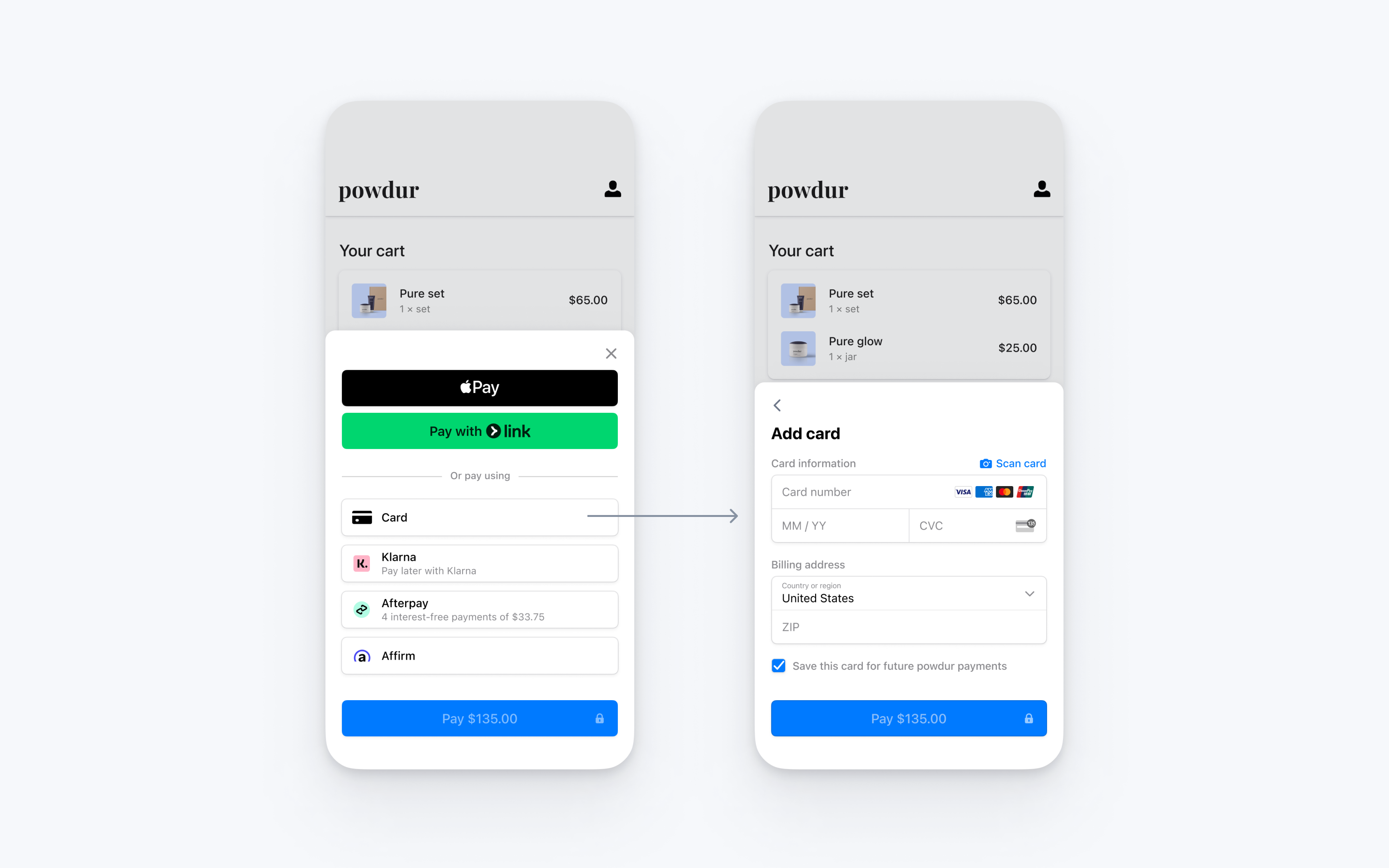
Integrate Stripe’s prebuilt payment UI into the checkout of your iOS app with the [PaymentSheet](https://stripe.dev/stripe-ios/stripe-paymentsheet/Classes/PaymentSheet.html) class. See our sample integration [on GitHub](https://github.com/stripe/stripe-ios/tree/master/Example/PaymentSheet%20Example).
## Set up Stripe [Server-side] [Client-side]
First, you need a Stripe account. [Register now](https://dashboard.stripe.com/register).
### Server-side
This integration requires endpoints on your server that talk to the Stripe API. Use our official libraries for access to the Stripe API from your server:
#### Ruby
```bash
# Available as a gem
sudo gem install stripe
```
```ruby
# If you use bundler, you can add this line to your Gemfile
gem 'stripe'
```
#### Python
```bash
# Install through pip
pip3 install --upgrade stripe
```
```bash
# Or find the Stripe package on http://pypi.python.org/pypi/stripe/
```
```python
# Find the version you want to pin:
# https://github.com/stripe/stripe-python/blob/master/CHANGELOG.md
# Specify that version in your requirements.txt file
stripe>=5.0.0
```
#### PHP
```bash
# Install the PHP library with Composer
composer require stripe/stripe-php
```
```bash
# Or download the source directly: https://github.com/stripe/stripe-php/releases
```
#### Java
```java
/*
For Gradle, add the following dependency to your build.gradle and replace with
the version number you want to use from:
- https://mvnrepository.com/artifact/com.stripe/stripe-java or
- https://github.com/stripe/stripe-java/releases/latest
*/
implementation "com.stripe:stripe-java:31.0.0"
```
```xml
com.stripe
stripe-java
31.0.0
```
```bash
# For other environments, manually install the following JARs:
# - The Stripe JAR from https://github.com/stripe/stripe-java/releases/latest
# - Google Gson from https://github.com/google/gson
```
#### Node.js
```bash
# Install with npm
npm install stripe --save
```
#### Go
```bash
# Make sure your project is using Go Modules
go mod init
# Install stripe-go
go get -u github.com/stripe/stripe-go/v83
```
```go
// Then import the package
import (
"github.com/stripe/stripe-go/v83"
)
```
#### .NET
```bash
# Install with dotnet
dotnet add package Stripe.net
dotnet restore
```
```bash
# Or install with NuGet
Install-Package Stripe.net
```
### Client-side
The [Stripe iOS SDK](https://github.com/stripe/stripe-ios) is open source, [fully documented](https://stripe.dev/stripe-ios/index.html), and compatible with apps supporting iOS 13 or above.
#### Swift Package Manager
To install the SDK, follow these steps:
1. In Xcode, select **File** > **Add Package Dependencies…** and enter `https://github.com/stripe/stripe-ios-spm` as the repository URL.
1. Select the latest version number from our [releases page](https://github.com/stripe/stripe-ios/releases).
1. Add the **StripePaymentSheet** product to the [target of your app](https://developer.apple.com/documentation/swift_packages/adding_package_dependencies_to_your_app).
#### CocoaPods
1. If you haven’t already, install the latest version of [CocoaPods](https://guides.cocoapods.org/using/getting-started.html).
1. If you don’t have an existing [Podfile](https://guides.cocoapods.org/syntax/podfile.html), run the following command to create one:
```bash
pod init
```
1. Add this line to your `Podfile`:
```podfile
pod 'StripePaymentSheet'
```
1. Run the following command:
```bash
pod install
```
1. Don’t forget to use the `.xcworkspace` file to open your project in Xcode, instead of the `.xcodeproj` file, from here on out.
1. In the future, to update to the latest version of the SDK, run:
```bash
pod update StripePaymentSheet
```
#### Carthage
1. If you haven’t already, install the latest version of [Carthage](https://github.com/Carthage/Carthage#installing-carthage).
1. Add this line to your `Cartfile`:
```cartfile
github "stripe/stripe-ios"
```
1. Follow the [Carthage installation instructions](https://github.com/Carthage/Carthage#if-youre-building-for-ios-tvos-or-watchos). Make sure to embed all of the required frameworks listed [here](https://github.com/stripe/stripe-ios/tree/master/StripePaymentSheet/README.md#manual-linking).
1. In the future, to update to the latest version of the SDK, run the following command:
```bash
carthage update stripe-ios --platform ios
```
#### Manual Framework
1. Head to our [GitHub releases page](https://github.com/stripe/stripe-ios/releases/latest) and download and unzip **Stripe.xcframework.zip**.
1. Drag **StripePaymentSheet.xcframework** to the **Embedded Binaries** section of the **General** settings in your Xcode project. Make sure to select **Copy items if needed**.
1. Repeat step 2 for all required frameworks listed [here](https://github.com/stripe/stripe-ios/tree/master/StripePaymentSheet/README.md#manual-linking).
1. In the future, to update to the latest version of our SDK, repeat steps 1–3.
> For details on the latest SDK release and past versions, see the [Releases](https://github.com/stripe/stripe-ios/releases) page on GitHub. To receive notifications when a new release is published, [watch releases](https://help.github.com/en/articles/watching-and-unwatching-releases-for-a-repository#watching-releases-for-a-repository) for the repository.
Configure the SDK with your Stripe [publishable key](https://dashboard.stripe.com/test/apikeys) on app start. This enables your app to make requests to the Stripe API.
#### Swift
```swift
import UIKitimportStripePaymentSheet
@main
class AppDelegate: UIResponder, UIApplicationDelegate {
func application(_ application: UIApplication, didFinishLaunchingWithOptions launchOptions: [UIApplication.LaunchOptionsKey: Any]?) -> Bool {StripeAPI.defaultPublishableKey = "<>"
// do any other necessary launch configuration
return true
}
}
```
> Use your [test keys](https://docs.stripe.com/keys.md#obtain-api-keys) while you test and develop, and your [live mode](https://docs.stripe.com/keys.md#test-live-modes) keys when you publish your app.
## Add an endpoint [Server-side]
This integration uses three Stripe API objects:
1. A [PaymentIntent](https://docs.stripe.com/api/payment_intents.md). Stripe uses this to represent your intent to collect a payment from a customer, tracking your charge attempts and payment state changes throughout the process.
1. A *Customer* (Customer objects represent customers of your business. They let you reuse payment methods and give you the ability to track multiple payments)(optional). To set up a payment method for future payments, it must be attached to a Customer. Create a Customer object when your customer creates an account with your business. If your customer is making a payment as a guest, you can create a Customer object before payment and associate it with your own internal representation of the customer’s account later.
1. A Customer Ephemeral Key (optional). Information on the Customer object is sensitive, and can’t be retrieved directly from an app. An Ephemeral Key grants the SDK temporary access to the Customer.
If you want to save cards and allow returning customers to reuse saved cards, you need the Customer and Customer Ephemeral Key objects for your integration. Otherwise, you can omit these objects.
For security reasons, your app can’t create these objects. Instead, add an endpoint on your server that:
1. Retrieves the Customer, or creates a new one.
1. Creates an Ephemeral Key for the Customer.
1. Creates a PaymentIntent with the [amount](https://docs.stripe.com/api/payment_intents/create.md#create_payment_intent-amount), [currency](https://docs.stripe.com/api/payment_intents/create.md#create_payment_intent-currency), [customer](https://docs.stripe.com/api/payment_intents/create.md#create_payment_intent-customer), and a [transfer group](https://docs.stripe.com/api/payment_intents/create.md#create_payment_intent-transfer_group) to associate with the transfer of funds later.
1. Returns the Payment Intent’s *client secret* (The client secret is a unique key returned from Stripe as part of a PaymentIntent. This key lets the client access important fields from the PaymentIntent (status, amount, currency) while hiding sensitive ones (metadata, customer)), the Ephemeral Key’s `secret`, the [Customer ID](https://docs.stripe.com/api/customers/object.md#customer_object-id), and your [publishable key](https://dashboard.stripe.com/apikeys) to your app.
The payment methods shown to customers during the checkout process are also included on the PaymentIntent. You can let Stripe pull payment methods from your [Dashboard settings](https://dashboard.stripe.com/settings/payment_methods) or you can list them manually.
Unless your integration requires a code-based option for offering payment methods, don’t list payment methods manually. Stripe evaluates the currency, payment method restrictions, and other parameters to determine the list of supported payment methods. Stripe prioritizes payment methods that help increase conversion and are most relevant to the currency and the customer’s location. We hide lower priority payment methods in an overflow menu.
#### Manage payment methods from the Dashboard
You can fork and deploy an implementation of this endpoint on [CodeSandbox](https://codesandbox.io/p/devbox/suspicious-lalande-l325w6) for testing.
#### curl
```bash
# Create a Customer (use an existing Customer ID if this is a returning customer)
curl https://api.stripe.com/v1/customers \
-u <>: \
-X "POST"
# Create an Ephemeral Key for the Customer
curl https://api.stripe.com/v1/ephemeral_keys \
-u <>: \
-H "Stripe-Version: 2025-11-17.clover" \
-X "POST" \
-d "customer"="{{CUSTOMER_ID}}" \
# Create a PaymentIntent
curl https://api.stripe.com/v1/payment_intents \
-u <>: \
-X "POST" \
-d "customer"="{{CUSTOMER_ID}}" \
-d "amount"=10000 \
-d "currency"="usd" \
# In the latest version of the API, specifying the `automatic_payment_methods` parameter
# is optional because Stripe enables its functionality by default.
-d "automatic_payment_methods[enabled]"=true \
-d transfer_group="ORDER100" \
```
#### Ruby
```ruby
# This example sets up an endpoint using the Sinatra framework.
# Set your secret key. Remember to switch to your live secret key in production.
# See your keys here: https://dashboard.stripe.com/apikeys
Stripe.api_key = '<>'
post '/payment-sheet' do
# Use an existing Customer ID if this is a returning customer
customer = Stripe::Customer.create
ephemeralKey = Stripe::EphemeralKey.create({
customer: customer['id'],
}, {stripe_version: '2025-11-17.clover'})
paymentIntent = Stripe::PaymentIntent.create({
amount: 10000,
currency: 'usd',
customer: customer['id'],
# In the latest version of the API, specifying the `automatic_payment_methods` parameter
# is optional because Stripe enables its functionality by default.
automatic_payment_methods: {
enabled: true,
},
transfer_group: 'ORDER100',
})
{
paymentIntent: paymentIntent['client_secret'],
ephemeralKey: ephemeralKey['secret'],
customer: customer['id'],
publishableKey: '<>'
}.to_json
end
```
#### Python
```python
# This example sets up an endpoint using the Flask framework.
# Watch this video to get started: https://youtu.be/7Ul1vfmsDck.
# Set your secret key. Remember to switch to your live secret key in production.
# See your keys here: https://dashboard.stripe.com/apikeys
stripe.api_key = '<>'
@app.route('/payment-sheet', methods=['POST'])
def payment_sheet():
# Use an existing Customer ID if this is a returning customer
customer = stripe.Customer.create()
ephemeralKey = stripe.EphemeralKey.create(
customer=customer['id'],
stripe_version='2025-11-17.clover',
)
paymentIntent = stripe.PaymentIntent.create(
amount=10000,
currency='usd',
customer=customer['id'],
# In the latest version of the API, specifying the `automatic_payment_methods` parameter
# is optional because Stripe enables its functionality by default.
automatic_payment_methods={
'enabled': True,
},
transfer_group='ORDER100',
)
return jsonify(paymentIntent=paymentIntent.client_secret,
ephemeralKey=ephemeralKey.secret,
customer=customer.id,
publishableKey='<>')
```
#### PHP
```php
>');
// Use an existing Customer ID if this is a returning customer.
$customer = $stripe->customers->create();
$ephemeralKey = $stripe->ephemeralKeys->create([
'customer' => $customer->id,
], [
'stripe_version' => '2025-11-17.clover',
]);
$paymentIntent = $stripe->paymentIntents->create([
'amount' => 10000,
'currency' => 'usd',
'customer' => $customer->id,
// In the latest version of the API, specifying the `automatic_payment_methods` parameter
// is optional because Stripe enables its functionality by default.
'automatic_payment_methods' => [
'enabled' => 'true',
],
'transfer_group' => 'ORDER100',
]);
echo json_encode(
[
'paymentIntent' => $paymentIntent->client_secret,
'ephemeralKey' => $ephemeralKey->secret,
'customer' => $customer->id,
'publishableKey' => '<>'
]
);
http_response_code(200);
```
#### Java
```java
// Set your secret key. Remember to switch to your live secret key in production.
// See your keys here: https://dashboard.stripe.com/apikeys
Stripe.apiKey = "<>";
post(
"/payment-sheet",
(request, response) -> {
response.type("application/json");
// Use an existing Customer ID if this is a returning customer.
CustomerCreateParams customerParams = CustomerCreateParams.builder().build();
Customer customer = Customer.create(customerParams);
EphemeralKeyCreateParams ephemeralKeyParams =
EphemeralKeyCreateParams.builder()
.setStripeVersion("2025-11-17.clover")
.setCustomer(customer.getId())
.build();
EphemeralKey ephemeralKey = EphemeralKey.create(ephemeralKeyParams);
PaymentIntentCreateParams paymentIntentParams =
PaymentIntentCreateParams.builder()
.setAmount(10000L)
.setCurrency("usd")
.setCustomer(customer.getId())
// In the latest version of the API, specifying the `automatic_payment_methods` parameter
// is optional because Stripe enables its functionality by default.
.setAutomaticPaymentMethods(
PaymentIntentCreateParams.AutomaticPaymentMethods.builder()
.setEnabled(true)
.build()
)
.setTransferGroup("ORDER100")
.build();
PaymentIntent paymentIntent = PaymentIntent.create(paymentIntentParams);
Map responseData = new HashMap();
responseData.put("paymentIntent", paymentIntent.getClientSecret());
responseData.put("ephemeralKey", ephemeralKey.getSecret());
responseData.put("customer", customer.getId());
responseData.put("publishableKey", "<>");
return gson.toJson(responseData);
});
```
#### Node.js
```javascript
const stripe = require('stripe')('<>');
// This example sets up an endpoint using the Express framework.
app.post('/payment-sheet', async (req, res) => {
// Use an existing Customer ID if this is a returning customer.
const customer = await stripe.customers.create();
const ephemeralKey = await stripe.ephemeralKeys.create(
{customer: customer.id},
{apiVersion: '2025-11-17.clover'}
);
const paymentIntent = await stripe.paymentIntents.create({
amount: 10000,
currency: 'usd',
customer: customer.id,
// In the latest version of the API, specifying the `automatic_payment_methods` parameter
// is optional because Stripe enables its functionality by default.
automatic_payment_methods: {
enabled: true,
},
transfer_group: 'ORDER100',
});
res.json({
paymentIntent: paymentIntent.client_secret,
ephemeralKey: ephemeralKey.secret,
customer: customer.id,
publishableKey: '<>'
});
});
```
#### Go
```go
// Set your secret key. Remember to switch to your live secret key in production.
// See your keys here: https://dashboard.stripe.com/apikeys
stripe.Key = "<>"
func handlePaymentSheet(w http.ResponseWriter, r *http.Request) {
if r.Method != "POST" {
http.Error(w, http.StatusText(http.StatusMethodNotAllowed), http.StatusMethodNotAllowed)
return
}
// Use an existing Customer ID if this is a returning customer.
cparams := &stripe.CustomerParams{}
c, _ := customer.New(cparams)
ekparams := &stripe.EphemeralKeyParams{
Customer: stripe.String(c.ID),
StripeVersion: stripe.String("2025-11-17.clover"),
}
ek, _ := ephemeralKey.New(ekparams)
piparams := &stripe.PaymentIntentParams{
Amount: stripe.Int64(10000),
Currency: stripe.String(string(stripe.CurrencyUSD)),
Customer: stripe.String(c.ID),
// In the latest version of the API, specifying the `automatic_payment_methods` parameter
// is optional because Stripe enables its functionality by default.
AutomaticPaymentMethods: &stripe.PaymentIntentAutomaticPaymentMethodsParams{
Enabled: stripe.Bool(true),
},
TransferGroup: stripe.String("ORDER100"),
}
pi, _ := paymentintent.New(piparams)
writeJSON(w, struct {
PaymentIntent string `json:"paymentIntent"`
EphemeralKey string `json:"ephemeralKey"`
Customer string `json:"customer"`
PublishableKey string `json:"publishableKey"`
}{
PaymentIntent: pi.ClientSecret,
EphemeralKey: ek.Secret,
Customer: c.ID,
PublishableKey: "<>",
})
}
```
#### .NET
```dotnet
// Set your secret key. Remember to switch to your live secret key in production.
// See your keys here: https://dashboard.stripe.com/apikeys
StripeConfiguration.ApiKey = "<>";
[HttpPost("payment-sheet")]
public ActionResult CreatePaymentSheet([FromBody] CreatePaymentSheetRequest req)
{
// Use an existing Customer ID if this is a returning customer.
var customerOptions = new CustomerCreateOptions();
var customerService = new CustomerService();
var customer = customerService.Create(customerOptions);
var ephemeralKeyOptions = new EphemeralKeyCreateOptions
{
Customer = customer.Id,
StripeVersion = "2025-11-17.clover",
};
var ephemeralKeyService = new EphemeralKeyService();
var ephemeralKey = ephemeralKeyService.Create(ephemeralKeyOptions);
var paymentIntentOptions = new PaymentIntentCreateOptions
{
Amount = 10000,
Currency = "usd",
Customer = customer.Id,
// In the latest version of the API, specifying the `automatic_payment_methods` parameter
// is optional because Stripe enables its functionality by default.
AutomaticPaymentMethods = new PaymentIntentAutomaticPaymentMethodsOptions
{
Enabled = true,
},
TransferGroup = "ORDER100",
};
var paymentIntentService = new PaymentIntentService();
PaymentIntent paymentIntent = paymentIntentService.Create(paymentIntentOptions);
return new PaymentSheetCreateResponse
{
PaymentIntent = paymentIntent.ClientSecret,
EphemeralKey = ephemeralKey.Secret,
Customer = customer.Id,
PublishableKey = "<>",
};
}
```
#### Listing payment methods manually
You can fork and deploy an implementation of this endpoint on [CodeSandbox](https://codesandbox.io/p/devbox/suspicious-lalande-l325w6) for testing.
#### curl
```bash
# Create a Customer (use an existing Customer ID if this is a returning customer)
curl https://api.stripe.com/v1/customers \
-u <>: \
-X "POST"
# Create an Ephemeral Key for the Customer
curl https://api.stripe.com/v1/ephemeral_keys \
-u <>: \
-H "Stripe-Version: 2025-11-17.clover" \
-X "POST" \
-d "customer"="{{CUSTOMER_ID}}" \
# Create a PaymentIntent
curl https://api.stripe.com/v1/payment_intents \
-u <>: \
-X "POST" \
-d "customer"="{{CUSTOMER_ID}}" \
-d "amount"=10000 \
-d "currency"="eur" \
-d "payment_method_types[]"="bancontact" \
-d "payment_method_types[]"="card" \
-d "payment_method_types[]"="ideal" \
-d "payment_method_types[]"="klarna" \
-d "payment_method_types[]"="sepa_debit" \
-d transfer_group="ORDER100" \
```
#### Ruby
```ruby
# This example sets up an endpoint using the Sinatra framework.
# Set your secret key. Remember to switch to your live secret key in production.
# See your keys here: https://dashboard.stripe.com/apikeys
Stripe.api_key = '<>'
post '/payment-sheet' do
# Use an existing Customer ID if this is a returning customer
customer = Stripe::Customer.create
ephemeralKey = Stripe::EphemeralKey.create({
customer: customer['id'],
}, {stripe_version: '2025-11-17.clover'})
paymentIntent = Stripe::PaymentIntent.create({
amount: 10000,
currency: 'eur',
customer: customer['id'],
payment_method_types: ['bancontact', 'card', 'ideal', 'klarna', 'sepa_debit'],
transfer_group: 'ORDER100',
})
{
paymentIntent: paymentIntent['client_secret'],
ephemeralKey: ephemeralKey['secret'],
customer: customer['id'],
publishableKey: '<>'
}.to_json
end
```
#### Python
```python
# This example sets up an endpoint using the Flask framework.
# Watch this video to get started: https://youtu.be/7Ul1vfmsDck.
# Set your secret key. Remember to switch to your live secret key in production.
# See your keys here: https://dashboard.stripe.com/apikeys
stripe.api_key = '<>'
@app.route('/payment-sheet', methods=['POST'])
def payment_sheet():
# Use an existing Customer ID if this is a returning customer
customer = stripe.Customer.create()
ephemeralKey = stripe.EphemeralKey.create(
customer=customer['id'],
stripe_version='2025-11-17.clover',
)
paymentIntent = stripe.PaymentIntent.create(
amount=10000,
currency='eur',
customer=customer['id'],
payment_method_types=['bancontact', 'card', 'ideal', 'klarna', 'sepa_debit'],
transfer_group='ORDER100',
)
return jsonify(paymentIntent=paymentIntent.client_secret,
ephemeralKey=ephemeralKey.secret,
customer=customer.id,
publishableKey='<>')
```
#### PHP
```php
>');
// Use an existing Customer ID if this is a returning customer.
$customer = $stripe->customers->create();
$ephemeralKey = $stripe->ephemeralKeys->create([
'customer' => $customer->id,
], [
'stripe_version' => '2025-11-17.clover',
]);
$paymentIntent = $stripe->paymentIntents->create([
'amount' => 10000,
'currency' => 'eur',
'customer' => $customer->id,
'payment_method_types' => ['bancontact', 'card', 'ideal', 'klarna', 'sepa_debit'],
'transfer_group' => 'ORDER100',
]);
echo json_encode(
[
'paymentIntent' => $paymentIntent->client_secret,
'ephemeralKey' => $ephemeralKey->secret,
'customer' => $customer->id,
'publishableKey' => '<>'
]
);
http_response_code(200);
```
#### Java
```java
// Set your secret key. Remember to switch to your live secret key in production.
// See your keys here: https://dashboard.stripe.com/apikeys
Stripe.apiKey = "<>";
post(
"/payment-sheet",
(request, response) -> {
response.type("application/json");
// Use an existing Customer ID if this is a returning customer.
CustomerCreateParams customerParams = CustomerCreateParams.builder().build();
Customer customer = Customer.create(customerParams);
EphemeralKeyCreateParams ephemeralKeyParams =
EphemeralKeyCreateParams.builder()
.setStripeVersion("2025-11-17.clover")
.setCustomer(customer.getId())
.build();
EphemeralKey ephemeralKey = EphemeralKey.create(ephemeralKeyParams);
List paymentMethodTypes = new ArrayList();
paymentMethodTypes.add("bancontact");
paymentMethodTypes.add("card");
paymentMethodTypes.add("ideal");
paymentMethodTypes.add("klarna");
paymentMethodTypes.add("sepa_debit");
PaymentIntentCreateParams paymentIntentParams =
PaymentIntentCreateParams.builder()
.setAmount(10000L)
.setCurrency("eur")
.setCustomer(customer.getId())
.addAllPaymentMethodType(paymentMethodTypes)
.setTransferGroup("ORDER100")
.build();
PaymentIntent paymentIntent = PaymentIntent.create(paymentIntentParams);
Map responseData = new HashMap();
responseData.put("paymentIntent", paymentIntent.getClientSecret());
responseData.put("ephemeralKey", ephemeralKey.getSecret());
responseData.put("customer", customer.getId());
responseData.put("publishableKey", "<>");
return gson.toJson(responseData);
});
```
#### Node.js
```javascript
const stripe = require('stripe')('<>');
// This example sets up an endpoint using the Express framework.
app.post('/payment-sheet', async (req, res) => {
// Use an existing Customer ID if this is a returning customer.
const customer = await stripe.customers.create();
const ephemeralKey = await stripe.ephemeralKeys.create(
{customer: customer.id},
{apiVersion: '2025-11-17.clover'}
);
const paymentIntent = await stripe.paymentIntents.create({
amount: 10000,
currency: 'eur',
customer: customer.id,
payment_method_types: ['bancontact', 'card', 'ideal', 'klarna', 'sepa_debit'],
transfer_group: 'ORDER100',
});
res.json({
paymentIntent: paymentIntent.client_secret,
ephemeralKey: ephemeralKey.secret,
customer: customer.id,
publishableKey: '<>'
});
});
```
#### Go
```go
// Set your secret key. Remember to switch to your live secret key in production.
// See your keys here: https://dashboard.stripe.com/apikeys
stripe.Key = "<>"
func handlePaymentSheet(w http.ResponseWriter, r *http.Request) {
if r.Method != "POST" {
http.Error(w, http.StatusText(http.StatusMethodNotAllowed), http.StatusMethodNotAllowed)
return
}
// Use an existing Customer ID if this is a returning customer.
cparams := &stripe.CustomerParams{}
c, _ := customer.New(cparams)
ekparams := &stripe.EphemeralKeyParams{
Customer: stripe.String(c.ID),
StripeVersion: stripe.String("2025-11-17.clover"),
}
ek, _ := ephemeralKey.New(ekparams)
piparams := &stripe.PaymentIntentParams{
Amount: stripe.Int64(10000),
Currency: stripe.String(string(stripe.CurrencyEUR)),
Customer: stripe.String(c.ID),
PaymentMethodTypes: []*string{
stripe.String("bancontact"),
stripe.String("card"),
stripe.String("ideal"),
stripe.String("klarna"),
stripe.String("sepa_debit"),
},
TransferGroup: stripe.String("ORDER100"),
}
pi, _ := paymentintent.New(piparams)
writeJSON(w, struct {
PaymentIntent string `json:"paymentIntent"`
EphemeralKey string `json:"ephemeralKey"`
Customer string `json:"customer"`
PublishableKey string `json:"publishableKey"`
}{
PaymentIntent: pi.ClientSecret,
EphemeralKey: ek.Secret,
Customer: c.ID,
PublishableKey: "<>",
})
}
```
#### .NET
```dotnet
// Set your secret key. Remember to switch to your live secret key in production.
// See your keys here: https://dashboard.stripe.com/apikeys
StripeConfiguration.ApiKey = "<>";
[HttpPost("payment-sheet")]
public ActionResult CreatePaymentSheet([FromBody] CreatePaymentSheetRequest req)
{
// Use an existing Customer ID if this is a returning customer.
var customerOptions = new CustomerCreateOptions();
var customerService = new CustomerService();
var customer = customerService.Create(customerOptions);
var ephemeralKeyOptions = new EphemeralKeyCreateOptions
{
Customer = customer.Id,
StripeVersion = "2025-11-17.clover",
};
var ephemeralKeyService = new EphemeralKeyService();
var ephemeralKey = ephemeralKeyService.Create(ephemeralKeyOptions);
var paymentIntentOptions = new PaymentIntentCreateOptions
{
Amount = 10000,
Currency = "eur",
Customer = customer.Id,
PaymentMethodTypes = new List
{
"bancontact",
"card",
"ideal",
"klarna",
"sepa_debit",
},
TransferGroup = "ORDER100",
};
var paymentIntentService = new PaymentIntentService();
PaymentIntent paymentIntent = paymentIntentService.Create(paymentIntentOptions);
return new PaymentSheetCreateResponse
{
PaymentIntent = paymentIntent.ClientSecret,
EphemeralKey = ephemeralKey.Secret,
Customer = customer.Id,
PublishableKey = "<>",
};
}
```
Each payment method needs to support the currency passed in the PaymentIntent and your business needs to be based in one of the countries each payment method supports. See the [Payment method integration options](https://docs.stripe.com/payments/payment-methods/integration-options.md) page for more details about what’s supported.
## Integrate the payment sheet [Client-side]
To display the mobile Payment Element on your checkout screen, make sure you:
- Display the products the customer is purchasing along with the total amount
- Use the [Address Element](https://docs.stripe.com/elements/address-element.md?platform=ios) to collect any required shipping information from the customer
- Add a checkout button to display Stripe’s UI
#### UIKit
In your app’s checkout screen, fetch the PaymentIntent client secret, CustomerSession client secret, Customer ID, and publishable key from the endpoint you created in the previous step. Use `STPAPIClient.shared` to set your publishable key and initialize the [PaymentSheet](https://stripe.dev/stripe-ios/stripe-paymentsheet/Classes/PaymentSheet.html).
#### iOS (Swift)
```swift
import UIKit@_spi(CustomerSessionBetaAccess) import StripePaymentSheet
class CheckoutViewController: UIViewController {
@IBOutlet weak var checkoutButton: UIButton!
var paymentSheet: PaymentSheet?
let backendCheckoutUrl = URL(string: "Your backend endpoint/payment-sheet")! // Your backend endpoint
override func viewDidLoad() {
super.viewDidLoad()
checkoutButton.addTarget(self, action: #selector(didTapCheckoutButton), for: .touchUpInside)
checkoutButton.isEnabled = false
// MARK: Fetch the PaymentIntent client secret, CustomerSession client secret, Customer ID, and publishable key
var request = URLRequest(url: backendCheckoutUrl)
request.httpMethod = "POST"
let task = URLSession.shared.dataTask(with: request, completionHandler: { [weak self] (data, response, error) in
guard let data = data,
let json = try? JSONSerialization.jsonObject(with: data, options: []) as? [String : Any],
let customerId = json["customer"] as? String,
let customerSessionClientSecret = json["customerSessionClientSecret"] as? String,
let paymentIntentClientSecret = json["paymentIntent"] as? String,
let publishableKey = json["publishableKey"] as? String,
let self = self else {
// Handle error
return
}
STPAPIClient.shared.publishableKey = publishableKey// MARK: Create a PaymentSheet instance
var configuration = PaymentSheet.Configuration()
configuration.merchantDisplayName = "Example, Inc."
configuration.customer = .init(id: customerId, customerSessionClientSecret: customerSessionClientSecret)
// Set `allowsDelayedPaymentMethods` to true if your business handles
// delayed notification payment methods like US bank accounts.
configuration.allowsDelayedPaymentMethods = true
self.paymentSheet = PaymentSheet(paymentIntentClientSecret:paymentIntentClientSecret, configuration: configuration)
DispatchQueue.main.async {
self.checkoutButton.isEnabled = true
}
})
task.resume()
}
}
```
When the customer taps the **Checkout** button, call `present` to present the PaymentSheet. After the customer completes the payment, Stripe dismisses the PaymentSheet and calls the completion block with [PaymentSheetResult](https://stripe.dev/stripe-ios/stripe-paymentsheet/Enums/PaymentSheetResult.html).
#### iOS (Swift)
```swift
@objc
func didTapCheckoutButton() {
// MARK: Start the checkout process
paymentSheet?.present(from: self) { paymentResult in
// MARK: Handle the payment result
switch paymentResult {
case .completed:
print("Your order is confirmed")
case .canceled:
print("Canceled!")
case .failed(let error):
print("Payment failed: \(error)")
}
}
}
```
#### SwiftUI
Create an `ObservableObject` model for your checkout screen. This model publishes a [PaymentSheet](https://stripe.dev/stripe-ios/stripe-paymentsheet/Classes/PaymentSheet.html) and a [PaymentSheetResult](https://stripe.dev/stripe-ios/stripe-paymentsheet/Enums/PaymentSheetResult.html).
```swift
import StripePaymentSheet
import SwiftUI
class CheckoutViewModel: ObservableObject {
let backendCheckoutUrl = URL(string: "Your backend endpoint/payment-sheet")! // Your backend endpoint
@Published var paymentSheet: PaymentSheet?
@Published var paymentResult: PaymentSheetResult?
}
```
Fetch the PaymentIntent client secret, CustomerSession client secret, Customer ID, and publishable key from the endpoint you created in the previous step. Use `STPAPIClient.shared` to set your publishable key and initialize the [PaymentSheet](https://stripe.dev/stripe-ios/stripe-paymentsheet/Classes/PaymentSheet.html).
```swift
@_spi(CustomerSessionBetaAccess) import StripePaymentSheet
import SwiftUI
class CheckoutViewModel: ObservableObject {
let backendCheckoutUrl = URL(string: "Your backend endpoint/payment-sheet")! // Your backend endpoint
@Published var paymentSheet: PaymentSheet?
@Published var paymentResult: PaymentSheetResult?
func preparePaymentSheet() {
// MARK: Fetch thePaymentIntent and Customer information from the backend
var request = URLRequest(url: backendCheckoutUrl)
request.httpMethod = "POST"
let task = URLSession.shared.dataTask(with: request, completionHandler: { [weak self] (data, response, error) in
guard let data = data,
let json = try? JSONSerialization.jsonObject(with: data, options: []) as? [String : Any],
let customerId = json["customer"] as? String,
let customerSessionClientSecret = json["customerSessionClientSecret"] as? String,
letpaymentIntentClientSecret = json["paymentIntent"] as? String,
let publishableKey = json["publishableKey"] as? String,
let self = self else {
// Handle error
return
}
STPAPIClient.shared.publishableKey = publishableKey// MARK: Create a PaymentSheet instance
var configuration = PaymentSheet.Configuration()
configuration.merchantDisplayName = "Example, Inc."
configuration.customer = .init(id: customerId, customerSessionClientSecret: customerSessionClientSecret)
// Set `allowsDelayedPaymentMethods` to true if your business handles
// delayed notification payment methods like US bank accounts.
configuration.allowsDelayedPaymentMethods = true
DispatchQueue.main.async {
self.paymentSheet = PaymentSheet(paymentIntentClientSecret:paymentIntentClientSecret, configuration: configuration)
}
})
task.resume()
}
}
struct CheckoutView: View {
@ObservedObject var model = CheckoutViewModel()
var body: some View {
VStack {
if model.paymentSheet != nil {
Text("Ready to pay.")
} else {
Text("Loading…")
}
}.onAppear { model.preparePaymentSheet() }
}
}
```
Add a [PaymentSheet.PaymentButton](https://stripe.dev/stripe-ios/stripe-paymentsheet/Classes/PaymentSheet/PaymentButton.html) to your `View`. This behaves similarly to a SwiftUI `Button`, which allows you to customize it by adding a `View`. When you tap the button, it displays the PaymentSheet. After you complete the payment, Stripe dismisses the PaymentSheet and calls the `onCompletion` handler with a [PaymentSheetResult](https://stripe.dev/stripe-ios/stripe-paymentsheet/Enums/PaymentSheetResult.html) object.
```swift
@_spi(CustomerSessionBetaAccess) import StripePaymentSheet
import SwiftUI
class CheckoutViewModel: ObservableObject {
let backendCheckoutUrl = URL(string: "Your backend endpoint/payment-sheet")! // Your backend endpoint
@Published var paymentSheet: PaymentSheet?
@Published var paymentResult: PaymentSheetResult?
func preparePaymentSheet() {
// MARK: Fetch the PaymentIntent and Customer information from the backend
var request = URLRequest(url: backendCheckoutUrl)
request.httpMethod = "POST"
let task = URLSession.shared.dataTask(with: request, completionHandler: { [weak self] (data, response, error) in
guard let data = data,
let json = try? JSONSerialization.jsonObject(with: data, options: []) as? [String : Any],
let customerId = json["customer"] as? String,
let customerSessionClientSecret = json["customerSessionClientSecret"] as? String,
let paymentIntentClientSecret = json["paymentIntent"] as? String,
let publishableKey = json["publishableKey"] as? String,
let self = self else {
// Handle error
return
}
STPAPIClient.shared.publishableKey = publishableKey
// MARK: Create a PaymentSheet instance
var configuration = PaymentSheet.Configuration()
configuration.merchantDisplayName = "Example, Inc."
configuration.customer = .init(id: customerId, customerSessionClientSecret: customerSessionClientSecret)
// Set `allowsDelayedPaymentMethods` to true if your business can handle payment methods
// that complete payment after a delay, like SEPA Debit and Sofort.
configuration.allowsDelayedPaymentMethods = true
DispatchQueue.main.async {
self.paymentSheet = PaymentSheet(paymentIntentClientSecret: paymentIntentClientSecret, configuration: configuration)
}
})
task.resume()
}
func onPaymentCompletion(result: PaymentSheetResult) {
self.paymentResult = result
}
}
struct CheckoutView: View {
@ObservedObject var model = CheckoutViewModel()
var body: some View {
VStack {if let paymentSheet = model.paymentSheet {
PaymentSheet.PaymentButton(
paymentSheet: paymentSheet,
onCompletion: model.onPaymentCompletion
) {
Text("Buy")
}
} else {
Text("Loading…")
}if let result = model.paymentResult {
switch result {
case .completed:
Text("Payment complete")
case .failed(let error):
Text("Payment failed: \(error.localizedDescription)")
case .canceled:
Text("Payment canceled.")
}
}
}.onAppear { model.preparePaymentSheet() }
}
}
```
If `PaymentSheetResult` is `.completed`, inform the user (for example, by displaying an order confirmation screen).
Setting `allowsDelayedPaymentMethods` to true allows [delayed notification](https://docs.stripe.com/payments/payment-methods.md#payment-notification) payment methods like US bank accounts. For these payment methods, the final payment status isn’t known when the `PaymentSheet` completes, and instead succeeds or fails later. If you support these types of payment methods, inform the customer their order is confirmed and only fulfill their order (for example, ship their product) when the payment is successful.
## Set up a return URL [Client-side]
The customer might navigate away from your app to authenticate (for example, in Safari or their banking app). To allow them to automatically return to your app after authenticating, [configure a custom URL scheme](https://developer.apple.com/documentation/xcode/defining-a-custom-url-scheme-for-your-app) and set up your app delegate to forward the URL to the SDK. Stripe doesn’t support [universal links](https://developer.apple.com/documentation/xcode/allowing-apps-and-websites-to-link-to-your-content).
#### SceneDelegate
#### Swift
```swift
// This method handles opening custom URL schemes (for example, "your-app://stripe-redirect")
func scene(_ scene: UIScene, openURLContexts URLContexts: Set) {
guard let url = URLContexts.first?.url else {
return
}
let stripeHandled = StripeAPI.handleURLCallback(with: url)
if (!stripeHandled) {
// This was not a Stripe url – handle the URL normally as you would
}
}
```
#### Objective C
```objc
// This method handles opening custom URL schemes (for example, "your-app://stripe-redirect")
- (void)scene:(UIScene *)scene openURLContexts:(NSSet *)URLContexts {
NSURL *url = URLContexts.allObjects.firstObject.URL;
BOOL stripeHandled = [StripeAPI handleStripeURLCallbackWithURL:url];
if (!stripeHandled) {
// This was not a stripe url – do whatever url handling your app
// normally does, if any.
}
}
```
#### AppDelegate
#### Swift
```swift
// This method handles opening custom URL schemes (for example, "your-app://stripe-redirect")
func application(_ app: UIApplication, open url: URL, options: [UIApplication.OpenURLOptionsKey: Any] = [:]) -> Bool {
let stripeHandled = StripeAPI.handleURLCallback(with: url)
if (stripeHandled) {
return true
} else {
// This was not a Stripe url – handle the URL normally as you would
}
return false
}
```
#### Objective C
```objc
// This method handles opening custom URL schemes (for example, "your-app://stripe-redirect")
- (BOOL)application:(UIApplication *)app openURL:(NSURL *)url options:(NSDictionary *)options {
BOOL stripeHandled = [StripeAPI handleStripeURLCallbackWithURL:url];
if (stripeHandled) {
return YES;
} else {
// This was not a Stripe url – handle the URL normally as you would
}
return NO;
}
```
#### SwiftUI
#### Swift
```swift
@main
struct MyApp: App {
var body: some Scene {
WindowGroup {
Text("Hello, world!").onOpenURL { incomingURL in
let stripeHandled = StripeAPI.handleURLCallback(with: incomingURL)
if (!stripeHandled) {
// This was not a Stripe url – handle the URL normally as you would
}
}
}
}
}
```
## Handle post-payment events [Server-side]
Stripe sends a [payment_intent.succeeded](https://docs.stripe.com/api/events/types.md#event_types-payment_intent.succeeded) event when the payment completes. Use the [Dashboard webhook tool](https://dashboard.stripe.com/webhooks) or follow the [webhook guide](https://docs.stripe.com/webhooks/quickstart.md) to receive these events and run actions, such as sending an order confirmation email to your customer, logging the sale in a database, or starting a shipping workflow.
Listen for these events rather than waiting on a callback from the client. On the client, the customer could close the browser window or quit the app before the callback executes, and malicious clients could manipulate the response. Setting up your integration to listen for asynchronous events is what enables you to accept [different types of payment methods](https://stripe.com/payments/payment-methods-guide) with a single integration.
In addition to handling the `payment_intent.succeeded` event, we recommend handling these other events when collecting payments with the Payment Element:
| Event | Description | Action |
| ------------------------------------------------------------------------------------------------------------------------------- | ----------------------------------------------------------------------------------------------------------------------------------------------------------------------------------------------------------------------------------------------------------------------------------- | ------------------------------------------------------------------------------------------------------------------------------------------------------------------------------------------------ |
| [payment_intent.succeeded](https://docs.stripe.com/api/events/types.md?lang=php#event_types-payment_intent.succeeded) | Sent when a customer successfully completes a payment. | Send the customer an order confirmation and *fulfill* (Fulfillment is the process of providing the goods or services purchased by a customer, typically after payment is collected) their order. |
| [payment_intent.processing](https://docs.stripe.com/api/events/types.md?lang=php#event_types-payment_intent.processing) | Sent when a customer successfully initiates a payment, but the payment has yet to complete. This event is most commonly sent when the customer initiates a bank debit. It’s followed by either a `payment_intent.succeeded` or `payment_intent.payment_failed` event in the future. | Send the customer an order confirmation that indicates their payment is pending. For digital goods, you might want to fulfill the order before waiting for payment to complete. |
| [payment_intent.payment_failed](https://docs.stripe.com/api/events/types.md?lang=php#event_types-payment_intent.payment_failed) | Sent when a customer attempts a payment, but the payment fails. | If a payment transitions from `processing` to `payment_failed`, offer the customer another attempt to pay. |
## Create a Transfer [Server-side]
On your server, send funds from your account to a connected account by creating a [Transfer](https://docs.stripe.com/api/transfers/create.md) and specifying the `transfer_group` used.
```curl
curl https://api.stripe.com/v1/transfers \
-u "<>:" \
-d amount=7000 \
-d currency=usd \
-d destination="{{CONNECTEDACCOUNT_ID}}" \
-d transfer_group=ORDER100
```
```cli
stripe transfers create \
--amount=7000 \
--currency=usd \
--destination="{{CONNECTEDACCOUNT_ID}}" \
--transfer-group=ORDER100
```
```ruby
# Set your secret key. Remember to switch to your live secret key in production.
# See your keys here: https://dashboard.stripe.com/apikeys
client = Stripe::StripeClient.new("<>")
transfer = client.v1.transfers.create({
amount: 7000,
currency: 'usd',
destination: '{{CONNECTEDACCOUNT_ID}}',
transfer_group: 'ORDER100',
})
```
```python
# Set your secret key. Remember to switch to your live secret key in production.
# See your keys here: https://dashboard.stripe.com/apikeys
client = StripeClient("<>")
# For SDK versions 12.4.0 or lower, remove '.v1' from the following line.
transfer = client.v1.transfers.create({
"amount": 7000,
"currency": "usd",
"destination": "{{CONNECTEDACCOUNT_ID}}",
"transfer_group": "ORDER100",
})
```
```php
// Set your secret key. Remember to switch to your live secret key in production.
// See your keys here: https://dashboard.stripe.com/apikeys
$stripe = new \Stripe\StripeClient('<>');
$transfer = $stripe->transfers->create([
'amount' => 7000,
'currency' => 'usd',
'destination' => '{{CONNECTEDACCOUNT_ID}}',
'transfer_group' => 'ORDER100',
]);
```
```java
// Set your secret key. Remember to switch to your live secret key in production.
// See your keys here: https://dashboard.stripe.com/apikeys
StripeClient client = new StripeClient("<>");
TransferCreateParams params =
TransferCreateParams.builder()
.setAmount(7000L)
.setCurrency("usd")
.setDestination("{{CONNECTEDACCOUNT_ID}}")
.setTransferGroup("ORDER100")
.build();
// For SDK versions 29.4.0 or lower, remove '.v1()' from the following line.
Transfer transfer = client.v1().transfers().create(params);
```
```node
// Set your secret key. Remember to switch to your live secret key in production.
// See your keys here: https://dashboard.stripe.com/apikeys
const stripe = require('stripe')('<>');
const transfer = await stripe.transfers.create({
amount: 7000,
currency: 'usd',
destination: '{{CONNECTEDACCOUNT_ID}}',
transfer_group: 'ORDER100',
});
```
```go
// Set your secret key. Remember to switch to your live secret key in production.
// See your keys here: https://dashboard.stripe.com/apikeys
sc := stripe.NewClient("<>")
params := &stripe.TransferCreateParams{
Amount: stripe.Int64(7000),
Currency: stripe.String(stripe.CurrencyUSD),
Destination: stripe.String("{{CONNECTEDACCOUNT_ID}}"),
TransferGroup: stripe.String("ORDER100"),
}
result, err := sc.V1Transfers.Create(context.TODO(), params)
```
```dotnet
// Set your secret key. Remember to switch to your live secret key in production.
// See your keys here: https://dashboard.stripe.com/apikeys
var options = new TransferCreateOptions
{
Amount = 7000,
Currency = "usd",
Destination = "{{CONNECTEDACCOUNT_ID}}",
TransferGroup = "ORDER100",
};
var client = new StripeClient("<>");
var service = client.V1.Transfers;
Transfer transfer = service.Create(options);
```
Transfer and charge amounts don’t have to match. You can split a single charge between multiple transfers or include multiple charges in a single transfer. The following example creates an additional transfer associated with the same `transfer_group`.
```curl
curl https://api.stripe.com/v1/transfers \
-u "<>:" \
-d amount=2000 \
-d currency=usd \
-d destination={{OTHER_CONNECTED_ACCOUNT_ID}} \
-d transfer_group=ORDER100
```
```cli
stripe transfers create \
--amount=2000 \
--currency=usd \
--destination={{OTHER_CONNECTED_ACCOUNT_ID}} \
--transfer-group=ORDER100
```
```ruby
# Set your secret key. Remember to switch to your live secret key in production.
# See your keys here: https://dashboard.stripe.com/apikeys
client = Stripe::StripeClient.new("<>")
transfer = client.v1.transfers.create({
amount: 2000,
currency: 'usd',
destination: '{{OTHER_CONNECTED_ACCOUNT_ID}}',
transfer_group: 'ORDER100',
})
```
```python
# Set your secret key. Remember to switch to your live secret key in production.
# See your keys here: https://dashboard.stripe.com/apikeys
client = StripeClient("<>")
# For SDK versions 12.4.0 or lower, remove '.v1' from the following line.
transfer = client.v1.transfers.create({
"amount": 2000,
"currency": "usd",
"destination": "{{OTHER_CONNECTED_ACCOUNT_ID}}",
"transfer_group": "ORDER100",
})
```
```php
// Set your secret key. Remember to switch to your live secret key in production.
// See your keys here: https://dashboard.stripe.com/apikeys
$stripe = new \Stripe\StripeClient('<>');
$transfer = $stripe->transfers->create([
'amount' => 2000,
'currency' => 'usd',
'destination' => '{{OTHER_CONNECTED_ACCOUNT_ID}}',
'transfer_group' => 'ORDER100',
]);
```
```java
// Set your secret key. Remember to switch to your live secret key in production.
// See your keys here: https://dashboard.stripe.com/apikeys
StripeClient client = new StripeClient("<>");
TransferCreateParams params =
TransferCreateParams.builder()
.setAmount(2000L)
.setCurrency("usd")
.setDestination("{{OTHER_CONNECTED_ACCOUNT_ID}}")
.setTransferGroup("ORDER100")
.build();
// For SDK versions 29.4.0 or lower, remove '.v1()' from the following line.
Transfer transfer = client.v1().transfers().create(params);
```
```node
// Set your secret key. Remember to switch to your live secret key in production.
// See your keys here: https://dashboard.stripe.com/apikeys
const stripe = require('stripe')('<>');
const transfer = await stripe.transfers.create({
amount: 2000,
currency: 'usd',
destination: '{{OTHER_CONNECTED_ACCOUNT_ID}}',
transfer_group: 'ORDER100',
});
```
```go
// Set your secret key. Remember to switch to your live secret key in production.
// See your keys here: https://dashboard.stripe.com/apikeys
sc := stripe.NewClient("<>")
params := &stripe.TransferCreateParams{
Amount: stripe.Int64(2000),
Currency: stripe.String(stripe.CurrencyUSD),
Destination: stripe.String("{{OTHER_CONNECTED_ACCOUNT_ID}}"),
TransferGroup: stripe.String("ORDER100"),
}
result, err := sc.V1Transfers.Create(context.TODO(), params)
```
```dotnet
// Set your secret key. Remember to switch to your live secret key in production.
// See your keys here: https://dashboard.stripe.com/apikeys
var options = new TransferCreateOptions
{
Amount = 2000,
Currency = "usd",
Destination = "{{OTHER_CONNECTED_ACCOUNT_ID}}",
TransferGroup = "ORDER100",
};
var client = new StripeClient("<>");
var service = client.V1.Transfers;
Transfer transfer = service.Create(options);
```
### Transfer options
You can assign any value to the `transfer_group` string, but it must represent a single business action. You can also make a transfer with neither an associated charge nor a `transfer_group`—for example, when you must pay a provider but there’s no associated customer payment.
> The `transfer_group` only identifies associated objects. It doesn’t affect any standard functionality. To prevent a transfer from executing before the funds from the associated charge are available, use the transfer’s `source_transaction` attribute.
By default, a transfer request fails when the amount exceeds the platform’s [available account balance](https://docs.stripe.com/connect/account-balances.md). Stripe doesn’t automatically retry failed transfer requests.
You can avoid failed transfer requests for transfers that are associated with charges. When you specify the associated charge [as the transfer’s source_transaction](https://docs.stripe.com/connect/separate-charges-and-transfers.md#transfer-availability), the transfer request automatically succeeds. However, we don’t execute the transfer until the funds from that charge are available in the platform account.
> If you use separate charges and transfers, take that into account when planning your *payout* (A payout is the transfer of funds to an external account, usually a bank account, in the form of a deposit) schedule. Automatic payouts can interfere with transfers that don’t have a defined `source_transaction`.
## Test the integration
#### Cards
| Card number | Scenario | How to test |
| ------------------- | --------------------------------------------------------------------------------------------------------------------------------------------------------------------------------------------------------------------------------------------------------------------------------------------- | ----------------------------------------------------------------------------------------------------- |
| 4242424242424242 | The card payment succeeds and doesn’t require authentication. | Fill out the credit card form using the credit card number with any expiration, CVC, and postal code. |
| 4000002500003155 | The card payment requires *authentication* (Strong Customer Authentication (SCA) is a regulatory requirement in effect as of September 14, 2019, that impacts many European online payments. It requires customers to use two-factor authentication like 3D Secure to verify their purchase). | Fill out the credit card form using the credit card number with any expiration, CVC, and postal code. |
| 4000000000009995 | The card is declined with a decline code like `insufficient_funds`. | Fill out the credit card form using the credit card number with any expiration, CVC, and postal code. |
| 6205500000000000004 | The UnionPay card has a variable length of 13-19 digits. | Fill out the credit card form using the credit card number with any expiration, CVC, and postal code. |
#### Bank redirects
| Payment method | Scenario | How to test |
| ----------------- | ----------------------------------------------------------------------------------------------------------------------------------------------------------------------------------------------- | -------------------------------------------------------------------------------------------------------------------------------------------------------- |
| Bancontact, iDEAL | Your customer fails to authenticate on the redirect page for a redirect-based and immediate notification payment method. | Choose any redirect-based payment method, fill out the required details, and confirm the payment. Then click **Fail test payment** on the redirect page. |
| Pay by Bank | Your customer successfully pays with a redirect-based and [delayed notification](https://docs.stripe.com/payments/payment-methods.md#payment-notification) payment method. | Choose the payment method, fill out the required details, and confirm the payment. Then click **Complete test payment** on the redirect page. |
| Pay by Bank | Your customer fails to authenticate on the redirect page for a redirect-based and delayed notification payment method. | Choose the payment method, fill out the required details, and confirm the payment. Then click **Fail test payment** on the redirect page. |
| BLIK | BLIK payments fail in a variety of ways—immediate failures (for example, the code is expired or invalid), delayed errors (the bank declines) or timeouts (the customer didn’t respond in time). | Use email patterns to [simulate the different failures.](https://docs.stripe.com/payments/blik/accept-a-payment.md#simulate-failures) |
#### Bank debits
| Payment method | Scenario | How to test |
| ----------------- | ------------------------------------------------------------------------------------------------- | ------------------------------------------------------------------------------------------------------------------------------------------------------------------------------------------------- |
| SEPA Direct Debit | Your customer successfully pays with SEPA Direct Debit. | Fill out the form using the account number `AT321904300235473204`. The confirmed PaymentIntent initially transitions to processing, then transitions to the succeeded status three minutes later. |
| SEPA Direct Debit | Your customer’s payment intent status transitions from `processing` to `requires_payment_method`. | Fill out the form using the account number `AT861904300235473202`. |
See [Testing](https://docs.stripe.com/testing.md) for additional information to test your integration.
## Optional: Enable Apple Pay
> If your checkout screen has a dedicated **Apple Pay button**, follow the [Apple Pay guide](https://docs.stripe.com/apple-pay.md#present-payment-sheet) and use `ApplePayContext` to collect payment from your Apple Pay button. You can use `PaymentSheet` to handle other payment method types.
### Register for an Apple Merchant ID
Obtain an Apple Merchant ID by [registering for a new identifier](https://developer.apple.com/account/resources/identifiers/add/merchant) on the Apple Developer website.
Fill out the form with a description and identifier. Your description is for your own records and you can modify it in the future. Stripe recommends using the name of your app as the identifier (for example, `merchant.com.{{YOUR_APP_NAME}}`).
### Create a new Apple Pay certificate
Create a certificate for your app to encrypt payment data.
Go to the [iOS Certificate Settings](https://dashboard.stripe.com/settings/ios_certificates) in the Dashboard, click **Add new application**, and follow the guide.
Download a Certificate Signing Request (CSR) file to get a secure certificate from Apple that allows you to use Apple Pay.
One CSR file must be used to issue exactly one certificate. If you switch your Apple Merchant ID, you must go to the [iOS Certificate Settings](https://dashboard.stripe.com/settings/ios_certificates) in the Dashboard to obtain a new CSR and certificate.
### Integrate with Xcode
Add the Apple Pay capability to your app. In Xcode, open your project settings, click the **Signing & Capabilities** tab, and add the **Apple Pay** capability. You might be prompted to log in to your developer account at this point. Select the merchant ID you created earlier, and your app is ready to accept Apple Pay.
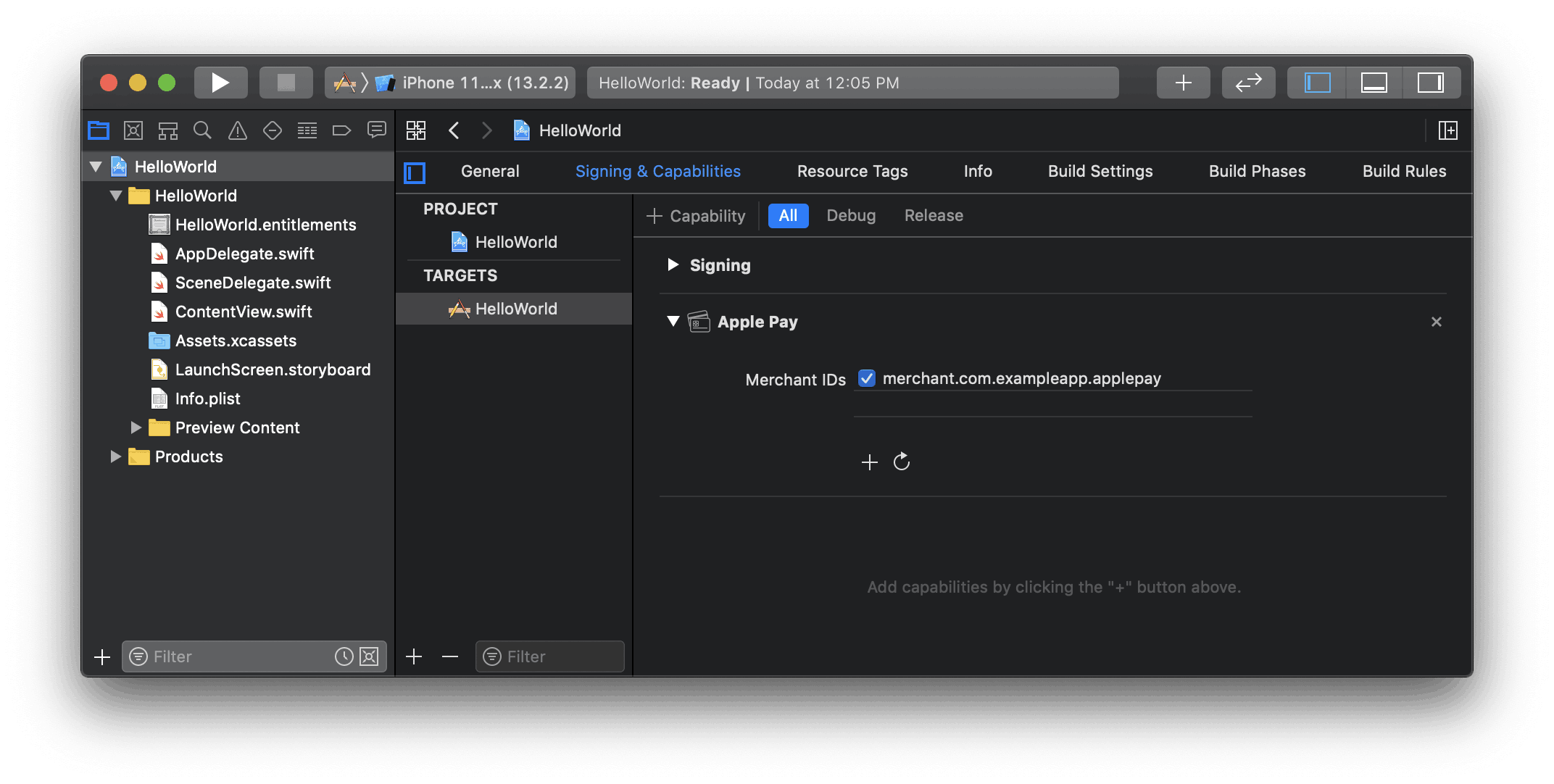
Enable the Apple Pay capability in Xcode
### Add Apple Pay
#### One-time payment
To add Apple Pay to PaymentSheet, set [applePay](https://stripe.dev/stripe-ios/stripe-paymentsheet/Classes/PaymentSheet/Configuration.html#/s:6Stripe12PaymentSheetC13ConfigurationV8applePayAC05ApplefD0VSgvp) after initializing `PaymentSheet.Configuration` with your Apple merchant ID and the [country code of your business](https://dashboard.stripe.com/settings/account).
#### iOS (Swift)
```swift
var configuration = PaymentSheet.Configuration()
configuration.applePay = .init(
merchantId: "merchant.com.your_app_name",
merchantCountryCode: "US"
)
```
#### Recurring payments
To add Apple Pay to PaymentSheet, set [applePay](https://stripe.dev/stripe-ios/stripe-paymentsheet/Classes/PaymentSheet/Configuration.html#/s:6Stripe12PaymentSheetC13ConfigurationV8applePayAC05ApplefD0VSgvp) after initializing `PaymentSheet.Configuration` with your Apple merchant ID and the [country code of your business](https://dashboard.stripe.com/settings/account).
Per [Apple’s guidelines](https://developer.apple.com/design/human-interface-guidelines/apple-pay#Supporting-subscriptions) for recurring payments, you must also set additional attributes on the `PKPaymentRequest`. Add a handler in [ApplePayConfiguration.paymentRequestHandlers](https://stripe.dev/stripe-ios/stripepaymentsheet/documentation/stripepaymentsheet/paymentsheet/applepayconfiguration/handlers/paymentrequesthandler) to configure the [PKPaymentRequest.paymentSummaryItems](https://developer.apple.com/documentation/passkit/pkpaymentrequest/1619231-paymentsummaryitems) with the amount you intend to charge (for example, 9.95 USD a month).
You can also adopt [merchant tokens](https://developer.apple.com/apple-pay/merchant-tokens/) by setting the `recurringPaymentRequest` or `automaticReloadPaymentRequest` properties on the `PKPaymentRequest`.
To learn more about how to use recurring payments with Apple Pay, see [Apple’s PassKit documentation](https://developer.apple.com/documentation/passkit/pkpaymentrequest).
#### iOS (Swift)
```swift
let customHandlers = PaymentSheet.ApplePayConfiguration.Handlers(
paymentRequestHandler: { request in
// PKRecurringPaymentSummaryItem is available on iOS 15 or later
if #available(iOS 15.0, *) {
let billing = PKRecurringPaymentSummaryItem(label: "My Subscription", amount: NSDecimalNumber(string: "59.99"))
// Payment starts today
billing.startDate = Date()
// Payment ends in one year
billing.endDate = Date().addingTimeInterval(60 * 60 * 24 * 365)
// Pay once a month.
billing.intervalUnit = .month
billing.intervalCount = 1
// recurringPaymentRequest is only available on iOS 16 or later
if #available(iOS 16.0, *) {
request.recurringPaymentRequest = PKRecurringPaymentRequest(paymentDescription: "Recurring",
regularBilling: billing,
managementURL: URL(string: "https://my-backend.example.com/customer-portal")!)
request.recurringPaymentRequest?.billingAgreement = "You'll be billed $59.99 every month for the next 12 months. To cancel at any time, go to Account and click 'Cancel Membership.'"
}
request.paymentSummaryItems = [billing]
request.currencyCode = "USD"
} else {
// On older iOS versions, set alternative summary items.
request.paymentSummaryItems = [PKPaymentSummaryItem(label: "Monthly plan starting July 1, 2022", amount: NSDecimalNumber(string: "59.99"), type: .final)]
}
return request
}
)
var configuration = PaymentSheet.Configuration()
configuration.applePay = .init(merchantId: "merchant.com.your_app_name",
merchantCountryCode: "US",
customHandlers: customHandlers)
```
### Order tracking
To add [order tracking](https://developer.apple.com/design/human-interface-guidelines/technologies/wallet/designing-order-tracking) information in iOS 16 or later, configure an [authorizationResultHandler](https://stripe.dev/stripe-ios/stripepaymentsheet/documentation/stripepaymentsheet/paymentsheet/applepayconfiguration/handlers/authorizationresulthandler) in your `PaymentSheet.ApplePayConfiguration.Handlers`. Stripe calls your implementation after the payment is complete, but before iOS dismisses the Apple Pay sheet.
In your `authorizationResultHandler` implementation, fetch the order details from your server for the completed order. Add the details to the provided [PKPaymentAuthorizationResult](https://developer.apple.com/documentation/passkit/pkpaymentauthorizationresult) and return the modified result.
To learn more about order tracking, see [Apple’s Wallet Orders documentation](https://developer.apple.com/documentation/walletorders).
#### iOS (Swift)
```swift
let customHandlers = PaymentSheet.ApplePayConfiguration.Handlers(
authorizationResultHandler: { result in
do {
// Fetch the order details from your service
let myOrderDetails = try await MyAPIClient.shared.fetchOrderDetails(orderID: orderID)
result.orderDetails = PKPaymentOrderDetails(
orderTypeIdentifier: myOrderDetails.orderTypeIdentifier, // "com.myapp.order"
orderIdentifier: myOrderDetails.orderIdentifier, // "ABC123-AAAA-1111"
webServiceURL: myOrderDetails.webServiceURL, // "https://my-backend.example.com/apple-order-tracking-backend"
authenticationToken: myOrderDetails.authenticationToken) // "abc123"
// Return your modified PKPaymentAuthorizationResult
return result
} catch {
return PKPaymentAuthorizationResult(status: .failure, errors: [error])
}
}
)
var configuration = PaymentSheet.Configuration()
configuration.applePay = .init(merchantId: "merchant.com.your_app_name",
merchantCountryCode: "US",
customHandlers: customHandlers)
```
## Optional: Enable card scanning
To enable card scanning support, set the `NSCameraUsageDescription` (**Privacy - Camera Usage Description**) in the Info.plist of your application, and provide a reason for accessing the camera (for example, “To scan cards”). Devices with iOS 13 or higher support card scanning.
## Optional: Customize the sheet
All customization is configured through the [PaymentSheet.Configuration](https://stripe.dev/stripe-ios/stripe-paymentsheet/Classes/PaymentSheet/Configuration.html) object.
### Appearance
Customize colors, fonts, and so on to match the look and feel of your app by using the [appearance API](https://docs.stripe.com/elements/appearance-api.md?platform=ios).
### Payment method layout
Configure the layout of payment methods in the sheet using [paymentMethodLayout](https://stripe.dev/stripe-ios/stripepaymentsheet/documentation/stripepaymentsheet/paymentsheet/configuration-swift.struct/paymentmethodlayout). You can display them horizontally, vertically, or let Stripe optimize the layout automatically.

#### Swift
```swift
var configuration = PaymentSheet.Configuration()
configuration.paymentMethodLayout = .automatic
```
### Collect users addresses
Collect local and international shipping or billing addresses from your customers using the [Address Element](https://docs.stripe.com/elements/address-element.md?platform=ios).
### Merchant display name
Specify a customer-facing business name by setting [merchantDisplayName](https://stripe.dev/stripe-ios/stripe-paymentsheet/Classes/PaymentSheet/Configuration.html#/s:18StripePaymentSheet0bC0C13ConfigurationV19merchantDisplayNameSSvp). By default, this is your app’s name.
#### Swift
```swift
var configuration = PaymentSheet.Configuration()
configuration.merchantDisplayName = "My app, Inc."
```
### Dark mode
`PaymentSheet` automatically adapts to the user’s system-wide appearance settings (light and dark mode). If your app doesn’t support dark mode, you can set [style](https://stripe.dev/stripe-ios/stripe-paymentsheet/Classes/PaymentSheet/Configuration.html#/s:18StripePaymentSheet0bC0C13ConfigurationV5styleAC18UserInterfaceStyleOvp) to `alwaysLight` or `alwaysDark` mode.
```swift
var configuration = PaymentSheet.Configuration()
configuration.style = .alwaysLight
```
### Default billing details
To set default values for billing details collected in the payment sheet, configure the `defaultBillingDetails` property. The `PaymentSheet` pre-populates its fields with the values that you provide.
```swift
var configuration = PaymentSheet.Configuration()
configuration.defaultBillingDetails.address.country = "US"
configuration.defaultBillingDetails.email = "foo@bar.com"
```
### Billing details collection
Use `billingDetailsCollectionConfiguration` to specify how you want to collect billing details in the payment sheet.
You can collect your customer’s name, email, phone number, and address.
If you only want to billing details required by the payment method, set `billingDetailsCollectionConfiguration.attachDefaultsToPaymentMethod` to true. In that case, the `PaymentSheet.Configuration.defaultBillingDetails` are set as the payment method’s [billing details](https://docs.stripe.com/api/payment_methods/object.md?lang=node#payment_method_object-billing_details).
If you want to collect additional billing details that aren’t necessarily required by the payment method, set `billingDetailsCollectionConfiguration.attachDefaultsToPaymentMethod` to false. In that case, the billing details collected through the `PaymentSheet` are set as the payment method’s billing details.
```swift
var configuration = PaymentSheet.Configuration()
configuration.defaultBillingDetails.email = "foo@bar.com"
configuration.billingDetailsCollectionConfiguration.name = .always
configuration.billingDetailsCollectionConfiguration.email = .never
configuration.billingDetailsCollectionConfiguration.address = .full
configuration.billingDetailsCollectionConfiguration.attachDefaultsToPaymentMethod = true
```
> Consult with your legal counsel regarding laws that apply to collecting information. Only collect phone numbers if you need them for the transaction.
## Optional: Complete payment in your UI
You can present the Payment Sheet to only collect payment method details and then later call a `confirm` method to complete payment in your app’s UI. This is useful if you have a custom buy button or require additional steps after you collect payment details.

Complete the payment in your app’s UI
#### UIKit
The following steps walk you through how to complete payment in your app’s UI. See our sample integration out on [GitHub](https://github.com/stripe/stripe-ios/blob/master/Example/PaymentSheet%20Example/PaymentSheet%20Example/ExampleCustomCheckoutViewController.swift).
1. First, initialize [PaymentSheet.FlowController](https://stripe.dev/stripe-ios/stripepaymentsheet/documentation/stripepaymentsheet/paymentsheet/flowcontroller) instead of `PaymentSheet` and update your UI with its `paymentOption` property. This property contains an image and label representing the customer’s initially selected, default payment method.
```swift
PaymentSheet.FlowController.create(paymentIntentClientSecret: paymentIntentClientSecret, configuration: configuration) { [weak self] result in
switch result {
case .failure(let error):
print(error)
case .success(let paymentSheetFlowController):
self?.paymentSheetFlowController = paymentSheetFlowController
// Update your UI using paymentSheetFlowController.paymentOption
}
}
```
1. Next, call `presentPaymentOptions` to collect payment details. When completed, update your UI again with the `paymentOption` property.
```swift
paymentSheetFlowController.presentPaymentOptions(from: self) {
// Update your UI using paymentSheetFlowController.paymentOption
}
```
1. Finally, call `confirm`.
```swift
paymentSheetFlowController.confirm(from: self) { paymentResult in
// MARK: Handle the payment result
switch paymentResult {
case .completed:
print("Payment complete!")
case .canceled:
print("Canceled!")
case .failed(let error):
print(error)
}
}
```
#### SwiftUI
The following steps walk you through how to complete payment in your app’s UI. See our sample integration out on [GitHub](https://github.com/stripe/stripe-ios/blob/master/Example/PaymentSheet%20Example/PaymentSheet%20Example/ExampleSwiftUICustomPaymentFlow.swift).
1. First, initialize [PaymentSheet.FlowController](https://stripe.dev/stripe-ios/stripepaymentsheet/documentation/stripepaymentsheet/paymentsheet/flowcontroller) instead of `PaymentSheet`. Its `paymentOption` property contains an image and label representing the customer’s currently selected payment method, which you can use in your UI.
```swift
PaymentSheet.FlowController.create(paymentIntentClientSecret: paymentIntentClientSecret, configuration: configuration) { [weak self] result in
switch result {
case .failure(let error):
print(error)
case .success(let paymentSheetFlowController):
self?.paymentSheetFlowController = paymentSheetFlowController
// Use the paymentSheetFlowController.paymentOption properties in your UI
myPaymentMethodLabel = paymentSheetFlowController.paymentOption?.label ?? "Select a payment method"
myPaymentMethodImage = paymentSheetFlowController.paymentOption?.image ?? UIImage(systemName: "square.and.pencil")!
}
}
```
1. Use [PaymentSheet.FlowController.PaymentOptionsButton](https://stripe.dev/stripe-ios/stripepaymentsheet/documentation/stripepaymentsheet/paymentsheet/flowcontroller/paymentoptionsbutton) to wrap the button that presents the sheet to collect payment details. When `PaymentSheet.FlowController` calls the `onSheetDismissed` argument, the `paymentOption` for the `PaymentSheet.FlowController` instance reflects the currently selected payment method.
```swift
PaymentSheet.FlowController.PaymentOptionsButton(
paymentSheetFlowController: paymentSheetFlowController,
onSheetDismissed: {
myPaymentMethodLabel = paymentSheetFlowController.paymentOption?.label ?? "Select a payment method"
myPaymentMethodImage = paymentSheetFlowController.paymentOption?.image ?? UIImage(systemName: "square.and.pencil")!
},
content: {
/* An example button */
HStack {
Text(myPaymentMethodLabel)
Image(uiImage: myPaymentMethodImage)
}
}
)
```
1. Use [PaymentSheet.FlowController.PaymentOptionsButton](https://stripe.dev/stripe-ios/stripepaymentsheet/documentation/stripepaymentsheet/paymentsheet/flowcontroller/paymentoptionsbutton) to wrap the button that confirms the payment.
```swift
PaymentSheet.FlowController.ConfirmButton(
paymentSheetFlowController: paymentSheetFlowController,
onCompletion: { result in
// MARK: Handle the payment result
switch result {
case .completed:
print("Payment complete!")
case .canceled:
print("Canceled!")
case .failed(let error):
print(error)
}
},
content: {
/* An example button */
Text("Pay")
}
)
```
If `PaymentSheetResult` is `.completed`, inform the user (for example, by displaying an order confirmation screen).
Setting `allowsDelayedPaymentMethods` to true allows [delayed notification](https://docs.stripe.com/payments/payment-methods.md#payment-notification) payment methods like US bank accounts. For these payment methods, the final payment status isn’t known when the `PaymentSheet` completes, and instead succeeds or fails later. If you support these types of payment methods, inform the customer their order is confirmed and only fulfill their order (for example, ship their product) when the payment is successful.
## Optional: Enable additional payment methods
Navigate to [Manage payment methods for your connected accounts](https://dashboard.stripe.com/settings/payment_methods/connected_accounts) in the Dashboard to configure which payment methods your connected accounts accept. Changes to default settings apply to all new and existing connected accounts.
Consult the following resources for payment method information:
- [A guide to payment methods](https://stripe.com/payments/payment-methods-guide#choosing-the-right-payment-methods-for-your-business) to help you choose the correct payment methods for your platform.
- [Account capabilities](https://docs.stripe.com/connect/account-capabilities.md) to make sure your chosen payment methods work for your connected accounts.
- [Payment method and product support](https://docs.stripe.com/payments/payment-methods/payment-method-support.md#product-support) tables to make sure your chosen payment methods work for your Stripe products and payments flows.
For each payment method, you can select one of the following dropdown options:
| **On by default** | Your connected accounts accept this payment method during checkout. Some payment methods can only be off or blocked. This is because your connected accounts with *access to the Stripe Dashboard* (Platforms can provide connected accounts with access to the full Stripe Dashboard or the Express Dashboard. Otherwise, platforms build an interface for connected accounts using embedded components or the Stripe API) must activate them in their settings page. |
| ------------------ | ---------------------------------------------------------------------------------------------------------------------------------------------------------------------------------------------------------------------------------------------------------------------------------------------------------------------------------------------------------------------------------------------------------------------------------------------------------------------- |
| **Off by default** | Your connected accounts don’t accept this payment method during checkout. If you allow your connected accounts with *access to the Stripe Dashboard* (Platforms can provide connected accounts with access to the full Stripe Dashboard or the Express Dashboard. Otherwise, platforms build an interface for connected accounts using embedded components or the Stripe API) to manage their own payment methods, they have the ability to turn it on. |
| **Blocked** | Your connected accounts don’t accept this payment method during checkout. If you allow your connected accounts with *access to the Stripe Dashboard* (Platforms can provide connected accounts with access to the full Stripe Dashboard or the Express Dashboard. Otherwise, platforms build an interface for connected accounts using embedded components or the Stripe API) to manage their own payment methods, they don’t have the option to turn it on. |

Payment method options
If you make a change to a payment method, you must click **Review changes** in the bottom bar of your screen and **Save and apply** to update your connected accounts.

Save dialog
### Allow connected accounts to manage payment methods
Stripe recommends allowing your connected accounts to customize their own payment methods. This option allows each connected account with *access to the Stripe Dashboard* (Platforms can provide connected accounts with access to the full Stripe Dashboard or the Express Dashboard. Otherwise, platforms build an interface for connected accounts using embedded components or the Stripe API) to view and update their [Payment methods](https://dashboard.stripe.com/settings/payment_methods) page. Only owners of the connected accounts can customize their payment methods. The Stripe Dashboard displays the set of payment method defaults you applied to all new and existing connected accounts. Your connected accounts can override these defaults, excluding payment methods you have blocked.
Check the **Account customization** checkbox to enable this option. You must click **Review changes** in the bottom bar of your screen and then select **Save and apply** to update this setting.

Account customization checkbox
### Payment method capabilities
To allow your connected accounts to accept additional payment methods, their `Accounts` must have active payment method capabilities.
If you selected the “On by default” option for a payment method in [Manage payment methods for your connected accounts](https://dashboard.stripe.com/settings/payment_methods/connected_accounts), Stripe automatically requests the necessary capability for new and existing connected accounts if they meet the verification requirements. If the connected account doesn’t meet the requirements or if you want to have direct control, you can manually request the capability in the Dashboard or with the API.
Most payment methods have the same verification requirements as the `card_payments` capability, with some restrictions and exceptions. The [payment method capabilities table](https://docs.stripe.com/connect/account-capabilities.md#payment-methods) lists the payment methods that require additional verification.
#### Dashboard
[Find a connected account](https://docs.stripe.com/connect/dashboard/managing-individual-accounts.md#finding-accounts) in the Dashboard to edit its capabilities and view outstanding verification requirements.
#### API
For an existing connected account, you can [list](https://docs.stripe.com/api/capabilities/list.md) their existing capabilities to determine whether you need to request additional capabilities.
```curl
curl https://api.stripe.com/v1/accounts/{{CONNECTEDACCOUNT_ID}}/capabilities \
-u "<>:"
```
```cli
stripe accounts capabilities {{CONNECTEDACCOUNT_ID}}
```
```ruby
# Set your secret key. Remember to switch to your live secret key in production.
# See your keys here: https://dashboard.stripe.com/apikeys
client = Stripe::StripeClient.new("<>")
capabilities = client.v1.accounts.capabilities.list('{{CONNECTEDACCOUNT_ID}}')
```
```python
# Set your secret key. Remember to switch to your live secret key in production.
# See your keys here: https://dashboard.stripe.com/apikeys
client = StripeClient("<>")
# For SDK versions 12.4.0 or lower, remove '.v1' from the following line.
capabilities = client.v1.accounts.capabilities.list("{{CONNECTEDACCOUNT_ID}}")
```
```php
// Set your secret key. Remember to switch to your live secret key in production.
// See your keys here: https://dashboard.stripe.com/apikeys
$stripe = new \Stripe\StripeClient('<>');
$capabilities = $stripe->accounts->allCapabilities('{{CONNECTEDACCOUNT_ID}}', []);
```
```java
// Set your secret key. Remember to switch to your live secret key in production.
// See your keys here: https://dashboard.stripe.com/apikeys
StripeClient client = new StripeClient("<>");
AccountCapabilityListParams params = AccountCapabilityListParams.builder().build();
// For SDK versions 29.4.0 or lower, remove '.v1()' from the following line.
StripeCollection stripeCollection =
client.v1().accounts().capabilities().list("{{CONNECTEDACCOUNT_ID}}", params);
```
```node
// Set your secret key. Remember to switch to your live secret key in production.
// See your keys here: https://dashboard.stripe.com/apikeys
const stripe = require('stripe')('<>');
const capabilities = await stripe.accounts.listCapabilities(
'{{CONNECTEDACCOUNT_ID}}'
);
```
```go
// Set your secret key. Remember to switch to your live secret key in production.
// See your keys here: https://dashboard.stripe.com/apikeys
sc := stripe.NewClient("<>")
params := &stripe.CapabilityListParams{
Account: stripe.String("{{CONNECTEDACCOUNT_ID}}"),
}
result := sc.V1Capabilities.List(context.TODO(), params)
```
```dotnet
// Set your secret key. Remember to switch to your live secret key in production.
// See your keys here: https://dashboard.stripe.com/apikeys
var client = new StripeClient("<>");
var service = client.V1.Accounts.Capabilities;
StripeList capabilities = service.List("{{CONNECTEDACCOUNT_ID}}");
```
Request additional capabilities by [updating](https://docs.stripe.com/api/capabilities/update.md) each connected account’s capabilities.
```curl
curl https://api.stripe.com/v1/accounts/{{CONNECTEDACCOUNT_ID}}/capabilities/us_bank_account_ach_payments \
-u "<>:" \
-d requested=true
```
```cli
stripe capabilities update {{CONNECTEDACCOUNT_ID}} us_bank_account_ach_payments \
--requested=true
```
```ruby
# Set your secret key. Remember to switch to your live secret key in production.
# See your keys here: https://dashboard.stripe.com/apikeys
client = Stripe::StripeClient.new("<>")
capability = client.v1.accounts.capabilities.update(
'{{CONNECTEDACCOUNT_ID}}',
'us_bank_account_ach_payments',
{requested: true},
)
```
```python
# Set your secret key. Remember to switch to your live secret key in production.
# See your keys here: https://dashboard.stripe.com/apikeys
client = StripeClient("<>")
# For SDK versions 12.4.0 or lower, remove '.v1' from the following line.
capability = client.v1.accounts.capabilities.update(
"{{CONNECTEDACCOUNT_ID}}",
"us_bank_account_ach_payments",
{"requested": True},
)
```
```php
// Set your secret key. Remember to switch to your live secret key in production.
// See your keys here: https://dashboard.stripe.com/apikeys
$stripe = new \Stripe\StripeClient('<>');
$capability = $stripe->accounts->updateCapability(
'{{CONNECTEDACCOUNT_ID}}',
'us_bank_account_ach_payments',
['requested' => true]
);
```
```java
// Set your secret key. Remember to switch to your live secret key in production.
// See your keys here: https://dashboard.stripe.com/apikeys
StripeClient client = new StripeClient("<>");
AccountCapabilityUpdateParams params =
AccountCapabilityUpdateParams.builder().setRequested(true).build();
// For SDK versions 29.4.0 or lower, remove '.v1()' from the following line.
Capability capability =
client.v1().accounts().capabilities().update(
"{{CONNECTEDACCOUNT_ID}}",
"us_bank_account_ach_payments",
params
);
```
```node
// Set your secret key. Remember to switch to your live secret key in production.
// See your keys here: https://dashboard.stripe.com/apikeys
const stripe = require('stripe')('<>');
const capability = await stripe.accounts.updateCapability(
'{{CONNECTEDACCOUNT_ID}}',
'us_bank_account_ach_payments',
{
requested: true,
}
);
```
```go
// Set your secret key. Remember to switch to your live secret key in production.
// See your keys here: https://dashboard.stripe.com/apikeys
sc := stripe.NewClient("<>")
params := &stripe.CapabilityUpdateParams{
Requested: stripe.Bool(true),
Account: stripe.String("{{CONNECTEDACCOUNT_ID}}"),
}
result, err := sc.V1Capabilities.Update(
context.TODO(), "us_bank_account_ach_payments", params)
```
```dotnet
// Set your secret key. Remember to switch to your live secret key in production.
// See your keys here: https://dashboard.stripe.com/apikeys
var options = new AccountCapabilityUpdateOptions { Requested = true };
var client = new StripeClient("<>");
var service = client.V1.Accounts.Capabilities;
Capability capability = service.Update(
"{{CONNECTEDACCOUNT_ID}}",
"us_bank_account_ach_payments",
options);
```
There can be a delay before the requested capability becomes active. If the capability has any activation requirements, the response includes them in the `requirements` arrays.
## Specify the settlement merchant
The settlement merchant is dependent on the [capabilities](https://docs.stripe.com/connect/account-capabilities.md) set on an account and how a charge is created. The settlement merchant determines whose information is used to make the charge. This includes the statement descriptor (either the platform’s or the connected account’s) that’s displayed on the customer’s credit card or bank statement for that charge.
Specifying the settlement merchant allows you to be more explicit about who to create charges for. For example, some platforms prefer to be the settlement merchant because the end customer interacts directly with their platform (such as on-demand platforms). However, some platforms have connected accounts that interact directly with end customers instead (such as a storefront on an e-commerce platform). In these scenarios, it might make more sense for the connected account to be the settlement merchant.
You can set the `on_behalf_of` parameter to the ID of a connected account to make that account the settlement merchant for the payment. When using `on_behalf_of`:
- Charges *settle* (When funds are available in your Stripe balance) in the connected account’s country and *settlement currency* (The settlement currency is the currency your bank account uses).
- The fee structure for the connected account’s country is used.
- The connected account’s statement descriptor is displayed on the customer’s credit card statement.
- If the connected account is in a different country than the platform, the connected account’s address and phone number are displayed on the customer’s credit card statement.
- The number of days that a [pending balance](https://docs.stripe.com/connect/account-balances.md) is held before being paid out depends on the [delay_days](https://docs.stripe.com/api/accounts/create.md#create_account-settings-payouts-schedule-delay_days) setting on the connected account.
> #### Accounts v2 API
>
> You can’t use the Accounts v2 API to manage payout settings. Use the Accounts v1 API.
If `on_behalf_of` is omitted, the platform is the business of record for the payment.
> The `on_behalf_of` parameter is supported only for connected accounts with a payments capability such as [card_payments](https://docs.stripe.com/connect/account-capabilities.md#card-payments). Accounts under the [recipient service agreement](https://docs.stripe.com/connect/service-agreement-types.md#recipient) can’t request `card_payments` or other payments capabilities.
```curl
curl https://api.stripe.com/v1/payment_intents \
-u "<>:" \
-d amount=10000 \
-d currency=usd \
-d "automatic_payment_methods[enabled]"=true \
-d on_behalf_of="{{CONNECTEDACCOUNT_ID}}" \
-d transfer_group=ORDER100
```
```cli
stripe payment_intents create \
--amount=10000 \
--currency=usd \
-d "automatic_payment_methods[enabled]"=true \
--on-behalf-of="{{CONNECTEDACCOUNT_ID}}" \
--transfer-group=ORDER100
```
```ruby
# Set your secret key. Remember to switch to your live secret key in production.
# See your keys here: https://dashboard.stripe.com/apikeys
client = Stripe::StripeClient.new("<>")
payment_intent = client.v1.payment_intents.create({
amount: 10000,
currency: 'usd',
automatic_payment_methods: {enabled: true},
on_behalf_of: '{{CONNECTEDACCOUNT_ID}}',
transfer_group: 'ORDER100',
})
```
```python
# Set your secret key. Remember to switch to your live secret key in production.
# See your keys here: https://dashboard.stripe.com/apikeys
client = StripeClient("<>")
# For SDK versions 12.4.0 or lower, remove '.v1' from the following line.
payment_intent = client.v1.payment_intents.create({
"amount": 10000,
"currency": "usd",
"automatic_payment_methods": {"enabled": True},
"on_behalf_of": "{{CONNECTEDACCOUNT_ID}}",
"transfer_group": "ORDER100",
})
```
```php
// Set your secret key. Remember to switch to your live secret key in production.
// See your keys here: https://dashboard.stripe.com/apikeys
$stripe = new \Stripe\StripeClient('<>');
$paymentIntent = $stripe->paymentIntents->create([
'amount' => 10000,
'currency' => 'usd',
'automatic_payment_methods' => ['enabled' => true],
'on_behalf_of' => '{{CONNECTEDACCOUNT_ID}}',
'transfer_group' => 'ORDER100',
]);
```
```java
// Set your secret key. Remember to switch to your live secret key in production.
// See your keys here: https://dashboard.stripe.com/apikeys
StripeClient client = new StripeClient("<>");
PaymentIntentCreateParams params =
PaymentIntentCreateParams.builder()
.setAmount(10000L)
.setCurrency("usd")
.setAutomaticPaymentMethods(
PaymentIntentCreateParams.AutomaticPaymentMethods.builder().setEnabled(true).build()
)
.setOnBehalfOf("{{CONNECTEDACCOUNT_ID}}")
.setTransferGroup("ORDER100")
.build();
// For SDK versions 29.4.0 or lower, remove '.v1()' from the following line.
PaymentIntent paymentIntent = client.v1().paymentIntents().create(params);
```
```node
// Set your secret key. Remember to switch to your live secret key in production.
// See your keys here: https://dashboard.stripe.com/apikeys
const stripe = require('stripe')('<>');
const paymentIntent = await stripe.paymentIntents.create({
amount: 10000,
currency: 'usd',
automatic_payment_methods: {
enabled: true,
},
on_behalf_of: '{{CONNECTEDACCOUNT_ID}}',
transfer_group: 'ORDER100',
});
```
```go
// Set your secret key. Remember to switch to your live secret key in production.
// See your keys here: https://dashboard.stripe.com/apikeys
sc := stripe.NewClient("<>")
params := &stripe.PaymentIntentCreateParams{
Amount: stripe.Int64(10000),
Currency: stripe.String(stripe.CurrencyUSD),
AutomaticPaymentMethods: &stripe.PaymentIntentCreateAutomaticPaymentMethodsParams{
Enabled: stripe.Bool(true),
},
OnBehalfOf: stripe.String("{{CONNECTEDACCOUNT_ID}}"),
TransferGroup: stripe.String("ORDER100"),
}
result, err := sc.V1PaymentIntents.Create(context.TODO(), params)
```
```dotnet
// Set your secret key. Remember to switch to your live secret key in production.
// See your keys here: https://dashboard.stripe.com/apikeys
var options = new PaymentIntentCreateOptions
{
Amount = 10000,
Currency = "usd",
AutomaticPaymentMethods = new PaymentIntentAutomaticPaymentMethodsOptions
{
Enabled = true,
},
OnBehalfOf = "{{CONNECTEDACCOUNT_ID}}",
TransferGroup = "ORDER100",
};
var client = new StripeClient("<